
Content and metadata settings
Two dialogs hold everything you can set on an item. Which one you get depends on whether the item can be published.
| Item | Dialog | Opened from |
|---|---|---|
| Content — documents, charts, scratchpads | Configure page | The pencil on the item in the Content rail |
| Research and references | Asset metadata | The tag icon on the item in its rail |
Both hold the same metadata fields. Only content gets the publishing ones, because only content is published.
Configure page
Section titled “Configure page”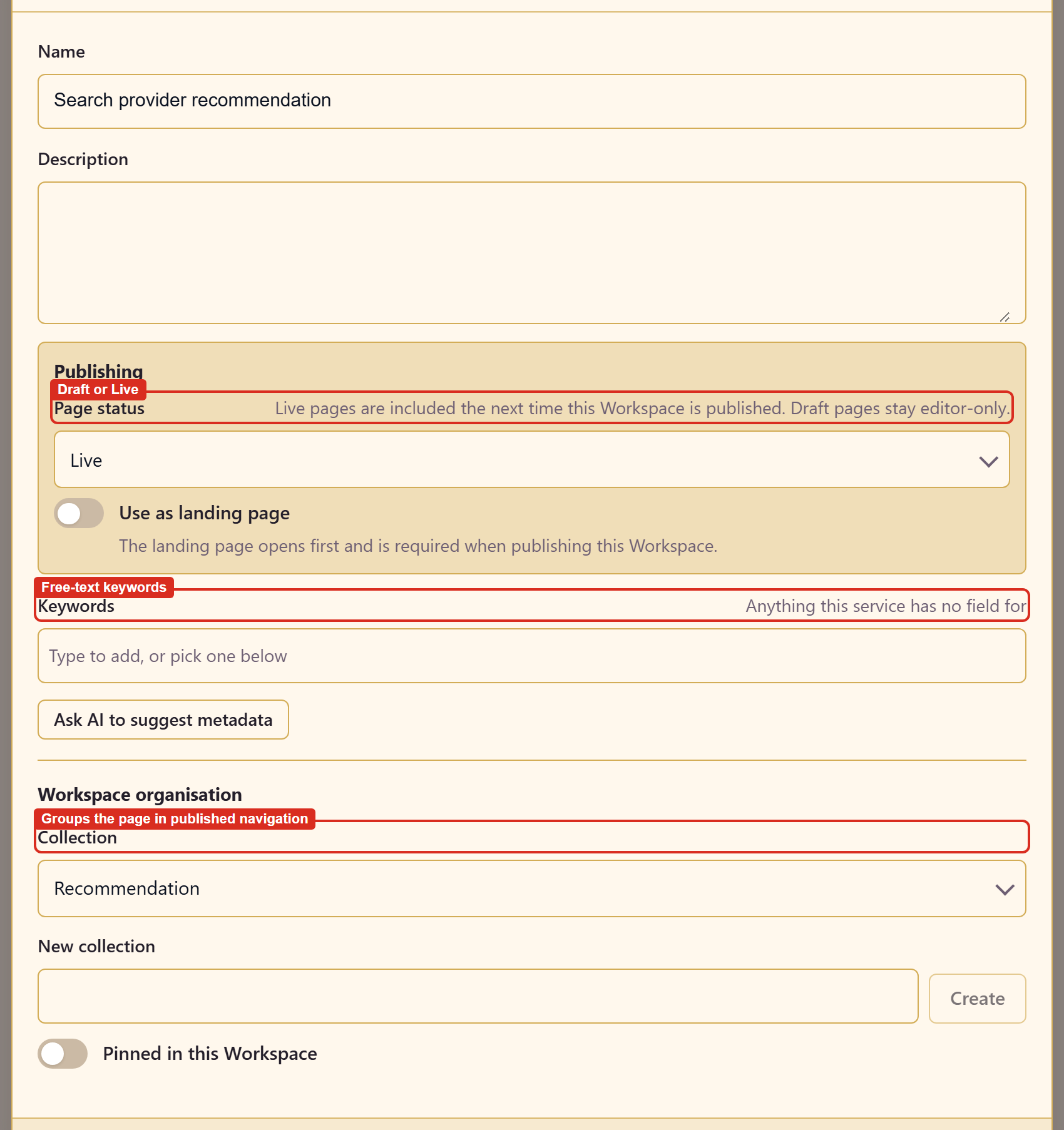
Name and description
Section titled “Name and description”Name is what the item is called everywhere — the rail, the navigation organiser, the published contents list.
Description is free text describing what the item covers. It is metadata rather than page content; readers of the published page do not see it.
Page status
Section titled “Page status”Draft or Live, and the dialog states the rule: Live pages are included the next time the workspace is published, Draft pages stay editor-only.
Everything starts as Draft, and the publish dialog cannot override it. A Draft page is omitted from every publish until you change it here.
Use as landing page
Section titled “Use as landing page”The landing page opens first, and one is required before the workspace can be published.
Exactly one item holds it, and turning it on for a second item moves it. The landing page must also be Live: Draft plus landing page leaves the workspace unpublishable, and the publish dialog says so.
Keywords
Section titled “Keywords”Free-text tags, captioned in the dialog as anything this service has no field for.
The caption describes the split. A service defines its own structured metadata fields in the Asset Library — typed, and optionally required at upload. Keywords cover everything else worth recording that has no field yet.
Ask AI to suggest metadata fills the name, description, and keyword fields from the item’s own content.
Collection
Section titled “Collection”A collection groups content items inside the workspace, and it is the setting that reaches the published navigation — see collections and navigation below.
Pick an existing collection, or type a name into New collection and choose Create.
Pinned in this Workspace
Section titled “Pinned in this Workspace”Keeps the item to hand. It has no effect on publishing.
Asset metadata
Section titled “Asset metadata”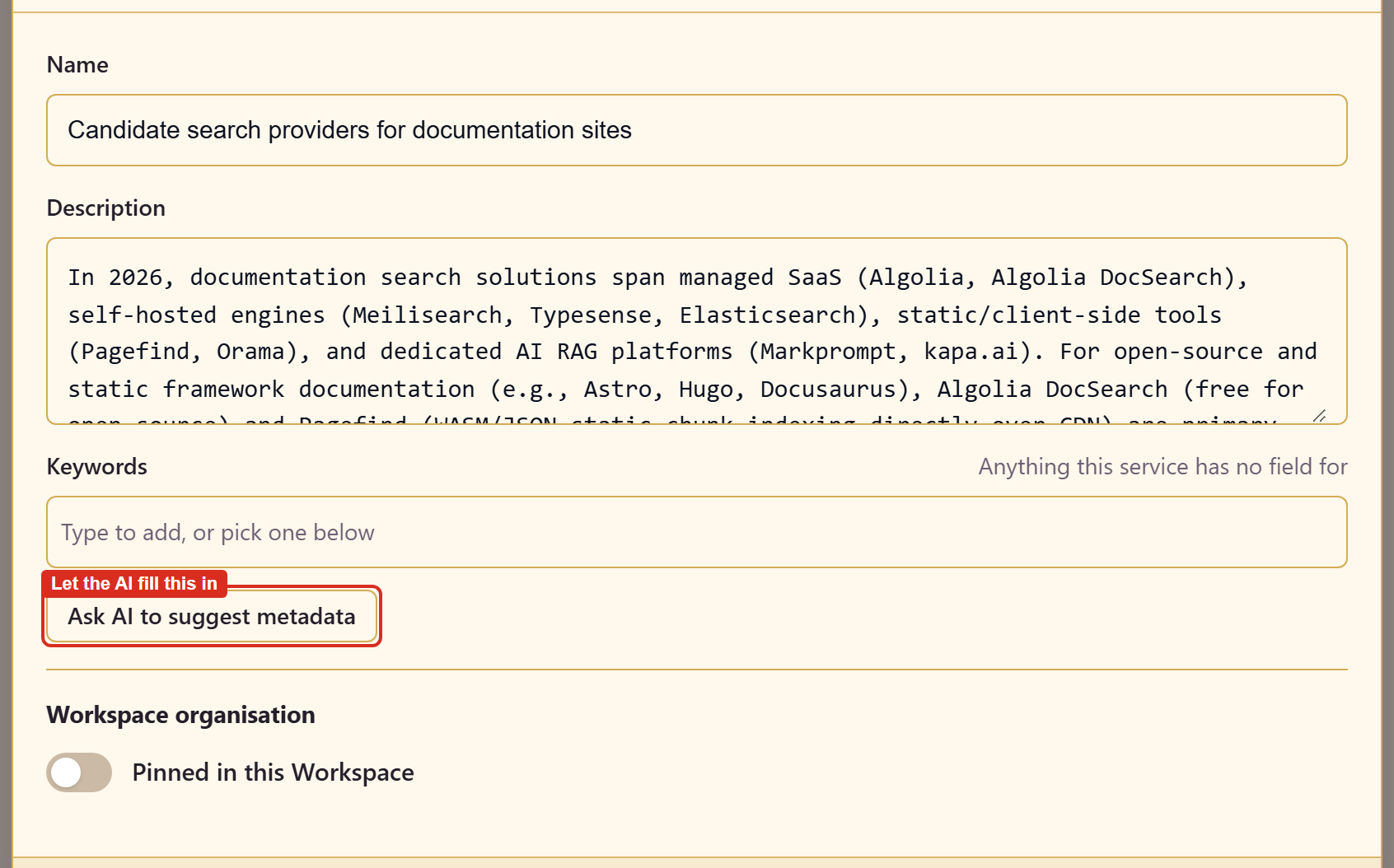
Research items and references get Name, Description, Keywords, Ask AI to suggest metadata, and Pinned in this Workspace — the same fields, minus page status, landing page, and collection.
The omission is deliberate. Research is evidence, not output, and is never published from the workspace, so it has no publishing settings to hold.
Where this metadata goes
Section titled “Where this metadata goes”Workspace items are registered as assets in the service. Research items and scratchpads appear in any asset picker in the service under Workspace Research and Workspace Scratchpad, alongside pages, flowcharts, dashboards, and the rest.
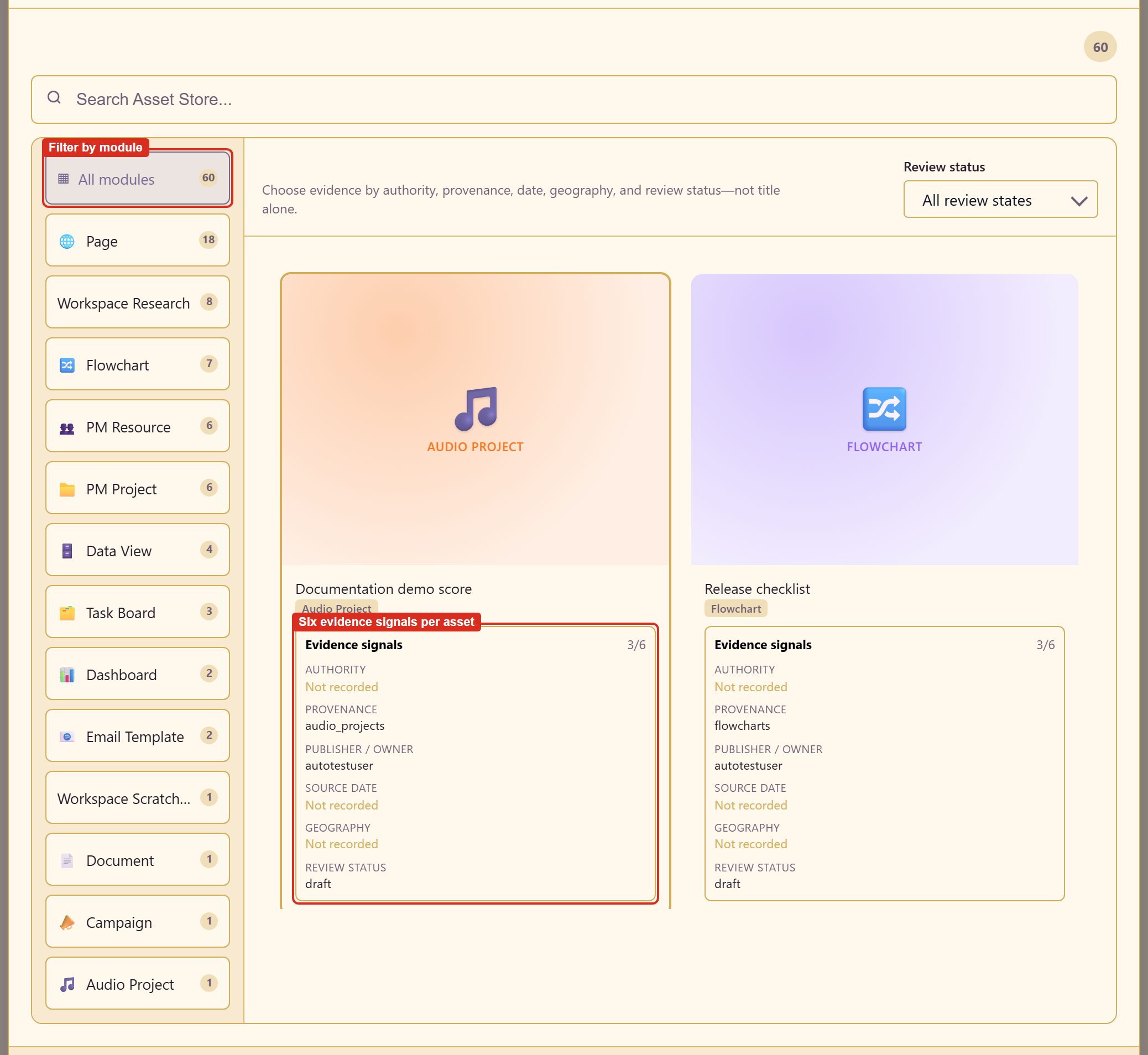
So the metadata you set here is not workspace-local. It is how the item is found from outside: by someone browsing the Asset Library, and by another workspace choosing references. That is the only route evidence takes between workspaces.
Each card in the picker also shows six evidence signals — authority, provenance, publisher or owner, source date, geography, review status. Those live on the asset in the service rather than in this dialog. Evidence and provenance explains what they are for.
Collections and navigation
Section titled “Collections and navigation”A collection is more than a label. Open Organise navigation and each one appears as a named navigation group, with everything else under Ungrouped pages.
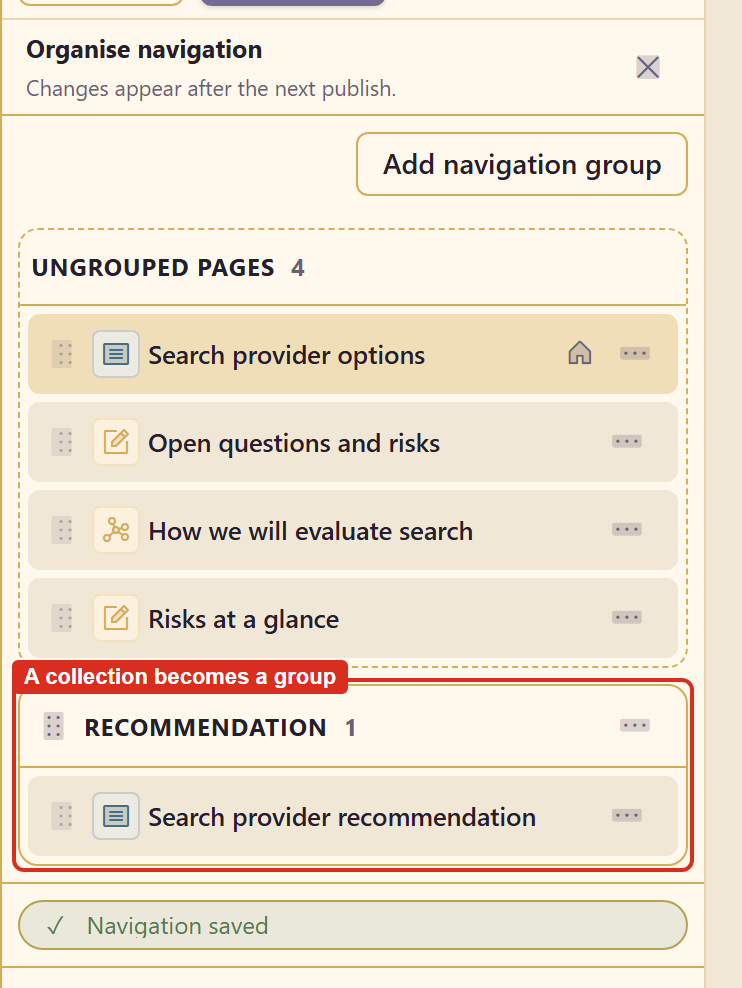
From there you can drag items between groups, add groups directly with Add navigation group, and reorder. The organiser saves as you work — a Navigation saved confirmation appears — and, as the panel says, changes appear after the next publish.
So there are two ways to build the same structure: set a collection on the item, or add a group in the organiser. Collections are the better habit, because the grouping travels with the item as metadata instead of living only in the navigation.
The published copy currently shows only the landing page
Section titled “The published copy currently shows only the landing page”On the version tested, publishing a workspace with two Live pages published both — the publish dialog counted them and gave each a published version — but the published copy’s contents list linked only the landing page. The second page and its navigation group did not appear, across two publishes and fresh loads.
Until that is fixed, treat the landing page as the published output and put anything readers must see inside it.
Related
Section titled “Related”Create content covers making the items. Publish a workspace covers what happens to them.