
Quickstart - your first task board
Create a small but realistic board in about ten minutes. At the end, you will have columns, varied task cards, a task with progress and labels, and a comment that records a decision.
1. Open Task Boards from a service
Section titled “1. Open Task Boards from a service”Open the service that owns the work. In the Project Management area, select Task Boards Beta, then choose Create Board.
Enter a board name and description. For the documentation scenario, use:
- Name:
CareArc Launch Readiness - Description:
Coordinate the 42-clinic AI concierge rollout across clinical design, safety review, platform readiness, training, and launch operations.
Save the board. You should land on the board hub with the new board available to open.
2. Add workflow columns
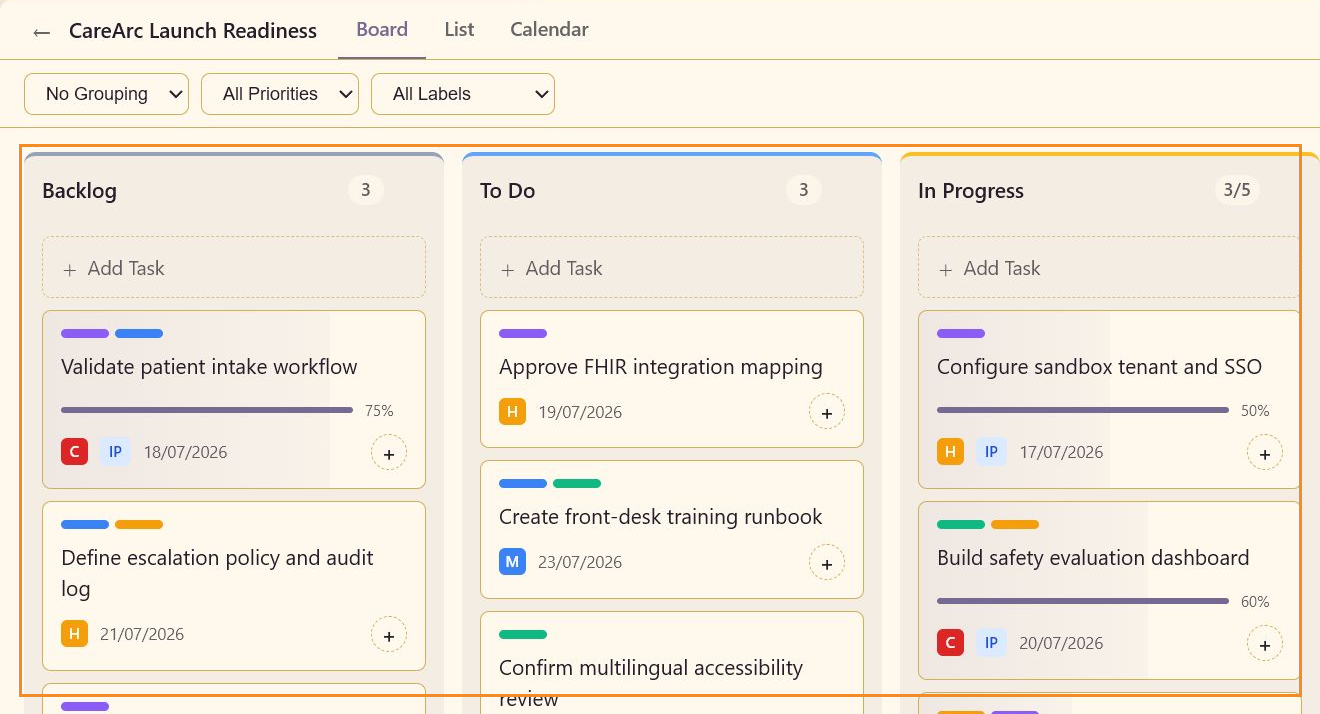
Section titled “2. Add workflow columns”Open the board and keep the default workflow visible: Backlog, To Do, In Progress, Review, and Done. Add a column only when the team has a real handoff that needs its own state.
3. Add tasks with different signals
Section titled “3. Add tasks with different signals”Use Add Task in the column where work starts. Add a short subject, then fill in the fields that help the team decide what to do next:
- Put
Validate patient intake workflowin Backlog with Critical priority, 75% complete, a due date of 18/07/2026, and Feature plus Documentation labels. - Put
Configure sandbox tenant and SSOin In Progress with High priority, 50% complete, and a due date of 17/07/2026. - Put
Sign off consent copy and fallback messagesin Review with High priority, 90% complete, and a due date of 15/07/2026.
You should see progress bars, priority chips, label color bars, status signals, and dates directly on the cards.
4. Record a decision in a comment
Section titled “4. Record a decision in a comment”Open Define escalation policy and audit log. In the task detail panel, scroll the details pane until the Comments panel is visible. Add a comment that says what is still needed and where the evidence is kept, then select Send.
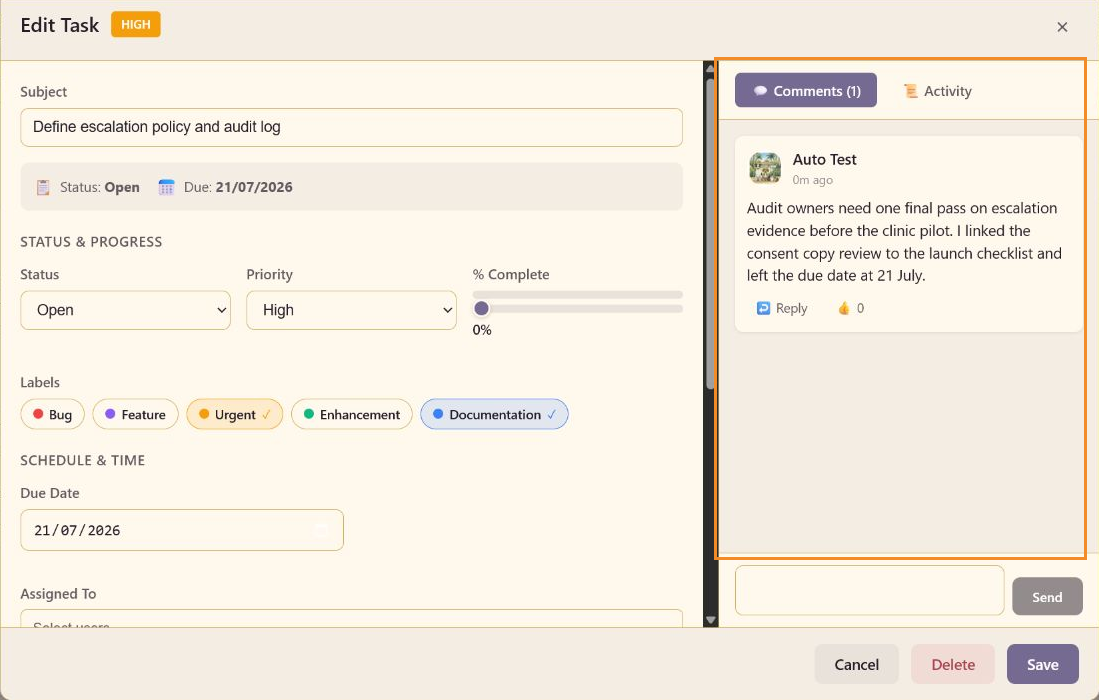
Select Save to close the task. The card should show a comment count, and the comment should be available when the task is opened again.
5. Check the result
Section titled “5. Check the result”You should now have a board that shows more than a list of titles. You can see where each task is, what is urgent, when it is due, how far it has progressed, and which decisions need context.
Next, read Build a launch readiness board for a larger scenario or Task details reference for every field in the editor.