
Shape columns and board settings
Board settings are where you change the workflow itself: the columns work moves through and the description that says what the board is for. Set them carefully and the board ends up with a column model that matches the team’s real handoffs, plus a description that explains its purpose.
1. Open Board Settings
Section titled “1. Open Board Settings”From the board header, select Board Settings. Review the board name and description before changing the workflow. The description should say what the board coordinates and who depends on it.
2. Add a column only for a real state
Section titled “2. Add a column only for a real state”Use Add column when a handoff cannot be represented by the existing states. For example, a separate Security Review state may be useful only if work genuinely waits there and the team can define entry and exit criteria.
3. Keep the default flow legible
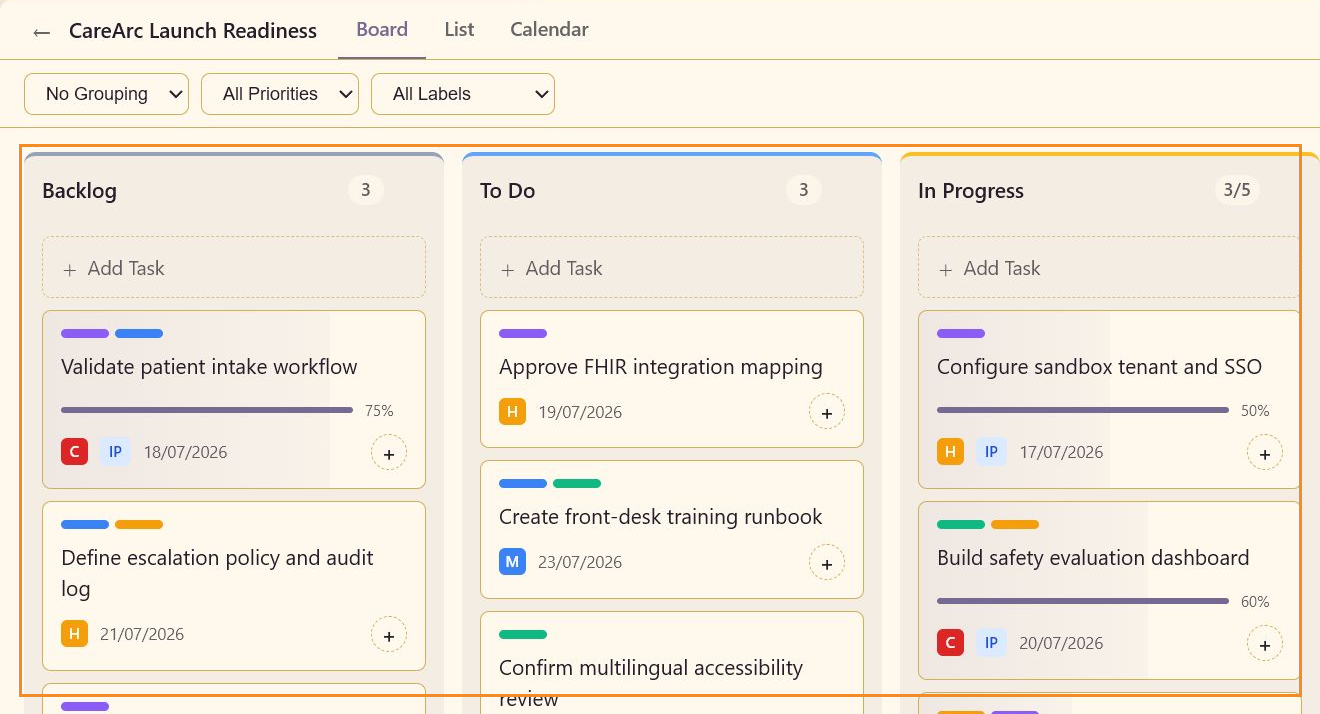
Section titled “3. Keep the default flow legible”The CareArc example uses Backlog, To Do, In Progress, Review, and Done. Avoid creating a column for every team or label; use labels for categories and columns for workflow states.
4. Check capacity indicators
Section titled “4. Check capacity indicators”Some columns show a capacity indicator, such as 3/5 for In Progress or 2/3 for Review. Treat the indicator as a reason to talk about how much work is open at once, not as a replacement for prioritizing it.
Columns that match the work
Section titled “Columns that match the work”The columns now match how the team actually works. Each new state marks a real point where work waits, while labels continue to carry category and priorities continue to carry urgency.