
Transform actions
Transform actions change data without sending it outside Lunar Paper. They can calculate numbers, clean and inspect text, work with dates, filter and summarise arrays, or reshape an object for a later action.
This page uses five end-to-end workflows. Together they exercise all 14 actions in the Transform category, plus Create Variable, Update Variable, and Workflow Log to carry and verify their results. The examples were converted to Free Form before capture and were then run again successfully.
Add and connect a Transform action
Section titled “Add and connect a Transform action”- Open a workflow and choose Free Form from the mode selector.
- In Actions, choose Transform.
- Select an action to add it to the canvas, or drag it to the position you want.
- Connect the green success port of the upstream step to the new action.
- Select the action, enter its configuration, and save the configuration.
- Use the action test when available, then choose Save & Run to verify the whole chain.
Free Form uses explicit connections. A step that looks close to another step does not run after it unless a connection joins them.
Pass data between actions
Section titled “Pass data between actions”Use the expression picker in an action’s field to insert values already in scope. The generated expressions follow these patterns:
{{ variables.score }}{{ outputs.previous-step.result }}{{ outputs.previous-step.value }}Choose the value from the picker whenever possible. Output shapes vary by action: math actions normally expose value, while text, date, array, Template, and Transform Data actions commonly expose result.
Create and update variables
Section titled “Create and update variables”Create Variable gives a value a stable name for downstream steps. Choose a type—string, number, array, or object—and provide a valid initial value. A variable created outside a loop remains available downstream; a variable created inside a loop is local to that loop iteration.
Update Variable changes an existing variable. The operation list follows the variable’s type:
| Type | Available operations |
|---|---|
| Number | Set, add, subtract, multiply, divide |
| String | Set, append, prepend |
| Array | Set, push, pop, add to front, remove from front, concatenate |
| Object | Set, merge, set property, delete property |
Create the variable upstream of its first update. For objects and arrays, enter valid JSON or insert an existing object or array with the expression picker.
Workflow variables are runtime state and are separate from a Document template’s input-variable definitions. To connect them, map the workflow variable in Generate Document. See Generate documents with input variables.
Numeric actions
Section titled “Numeric actions”Random Number
Section titled “Random Number”Random Number generates a value between Min and Max. Turn on Integer only for whole numbers. Add a Seed when a test must produce the same value every time; leave it empty for an ordinary random value.
Use it for sampling, test fixtures, randomized routing, or generated reference data. A seeded value is especially useful while building a workflow because the expected downstream result stays stable.
Add sums every operand. Enter operands as a comma-separated list and mix literal numbers with inserted expressions.
10, {{ variables.tax }}, {{ outputs.discount.value }}Use at least one operand. An empty string or non-numeric value causes the action to fail instead of being silently treated as zero.
Subtract
Section titled “Subtract”Subtract starts with the first operand and subtracts each following operand from left to right. 20, 3, 2 produces 15; changing the order changes the result.
Multiply
Section titled “Multiply”Multiply multiplies every operand. It accepts decimal values and inserted expressions in the same comma-separated form as Add.
Divide
Section titled “Divide”Divide starts with the first operand and divides by each following operand from left to right. Use Precision when the result should be rounded to a fixed number of decimal places. A zero divisor fails the action, so validate or route around zero before the Divide step.
Text actions
Section titled “Text actions”String Operations
Section titled “String Operations”String Operations performs one selected operation on an input string or array. The configuration changes to show a second input or extra options when the selected operation needs them.
| Purpose | Operations |
|---|---|
| Combine and separate | Concatenate, split, join array |
| Select or replace | Substring, slice, replace, replace all |
| Clean whitespace | Trim, trim start, trim end |
| Change case | Uppercase, lowercase, capitalize, camel case, snake case, kebab case |
| Pad or repeat | Pad start, pad end, repeat |
| Inspect | Length, includes, starts with, ends with, index of |
| Rearrange | Reverse |
For Split, the second input is the separator. For Join array, the input must resolve to an array and the second input is the separator placed between items. Replace operations also need the text to find and the replacement value shown by the configuration drawer.
Regex applies a regular expression to text. Enter the input, pattern, optional flags, and an operation:
| Operation | Result |
|---|---|
| Match | Matching values and a match count |
| Test | true or false for whether the pattern matches |
| Replace | Text with matching portions replaced |
| Split | An array divided at matches |
| Extract | Captured groups for each match |
Use flags such as i for case-insensitive matching, g for all matches, and m for multiline input. Start with Test when you only need a yes/no answer. Use Extract when later steps need captured parts such as a year or identifier.
Template
Section titled “Template”Template combines literal text with variables and earlier outputs. Insert expressions into the template, choose an output variable name, and enable Escape HTML when values may contain markup that should be treated as text.
Order {{ variables.order_id }} contains {{ outputs.filter-items.result.length }} items.Use Template as the last shaping step before a log, message, document, or API action. Keep calculations in their dedicated Transform actions so the template remains easy to read.
Date actions
Section titled “Date actions”Date Math
Section titled “Date Math”Date Math accepts a date or timestamp and performs a calendar operation:
- Add or Subtract milliseconds, seconds, minutes, hours, days, weeks, months, or years;
- Difference between two dates;
- Start of or End of a minute, hour, day, week, month, or year.
For day-based addition or subtraction, Business days only skips Saturday and Sunday. Date Math returns an ISO timestamp for date results. Difference returns a collection of elapsed units, including milliseconds, seconds, minutes, hours, days, and weeks.
Use an explicit ISO timestamp while testing. It keeps the expected result independent of the day and time the test happens to run.
Format Date
Section titled “Format Date”Format Date turns a date into display text. Provide the input date, select a supplied format or enter a custom format, then choose the time zone and locale.
Built-in choices include ISO date, ISO date and time, UK and US dates, a long month-name date, a short weekday date, and 12- or 24-hour time. Formatting changes presentation, not the underlying instant. Keep calculations in Date Math and format only when a human-readable value is needed.
Array actions
Section titled “Array actions”Filter Array
Section titled “Filter Array”Filter Array returns only items that meet a rule. It has two modes:
- Property compares a named property with a value. Operators include equals, not equals, contains, not contains, starts with, ends with, greater than, less than, greater or equal, less or equal, null checks, and in/not-in list.
- Condition evaluates a safe expression for each item, such as
item.active == true. The item and index variable names can be changed when needed.
Use Limit to stop after a set number of matches; leave it at zero when every match is required.
Sort Array
Section titled “Sort Array”Sort Array orders an array by the item itself or by a property path. Choose ascending or descending order, select automatic, string, number, date, or boolean comparison, and place null values first or last.
Set the comparison type explicitly when numeric text such as "10" must sort numerically rather than alphabetically.
Aggregate
Section titled “Aggregate”Aggregate reduces an array to a summary. Available operations include sum, average, minimum, maximum, count, count distinct, first item, last item, flatten, unique values, and pluck property. Operations that read a field also require a property path.
Add Group by to calculate the result separately for each property value—for example, a score total for each team. Give the output a meaningful variable name when several aggregates appear in the same workflow.
Transform Data
Section titled “Transform Data”Transform Data reshapes objects or arrays. Select one of seven modes:
| Mode | What it does | Configuration |
|---|---|---|
| Map | Builds a new shape from source-to-target field mappings | Add mappings; an optional transform expression can change each value |
| Expression | Computes a new value for each input item | Enter a safe workflow expression using data for the current item |
| Pick | Keeps only named properties | Enter comma-separated property paths |
| Omit | Removes named properties | Enter comma-separated property paths |
| Rename | Copies named source properties to new target paths | Add source-to-target mappings |
| Flatten | Converts nested properties to dot-delimited keys | No extra fields |
| Unflatten | Rebuilds nested objects from dot-delimited keys | No extra fields |
Map and Expression apply to each element when the input is an array. Nested property paths such as meta.region are supported by Pick, Omit, Rename, Flatten, and Unflatten. The expression editor uses familiar JavaScript-like highlighting, but it executes the restricted workflow-expression language rather than arbitrary JavaScript.
Workflow 1: Numeric Variables
Section titled “Workflow 1: Numeric Variables”S341 Transform Suite 01 - Numeric Variables demonstrates Random Number, Add, Subtract, Multiply, Divide, two Update Variable operations, and a final Template.
- Create the number variable
scorewith value10. - Generate an integer from 1 to 10 with seed
42; the test value is3. - Add
scoreand the random value to get13. - Add that result into
score, making it23. - Subtract
3, multiply by2.5, then divide by3with precision2. - Set
scoreto the final value and log it.
Expected verification: score = 16.67.
This example shows why a variable and an action output are different. {{ variables.score }} is mutable workflow state; the output of each math step is an immutable record of that step’s result.
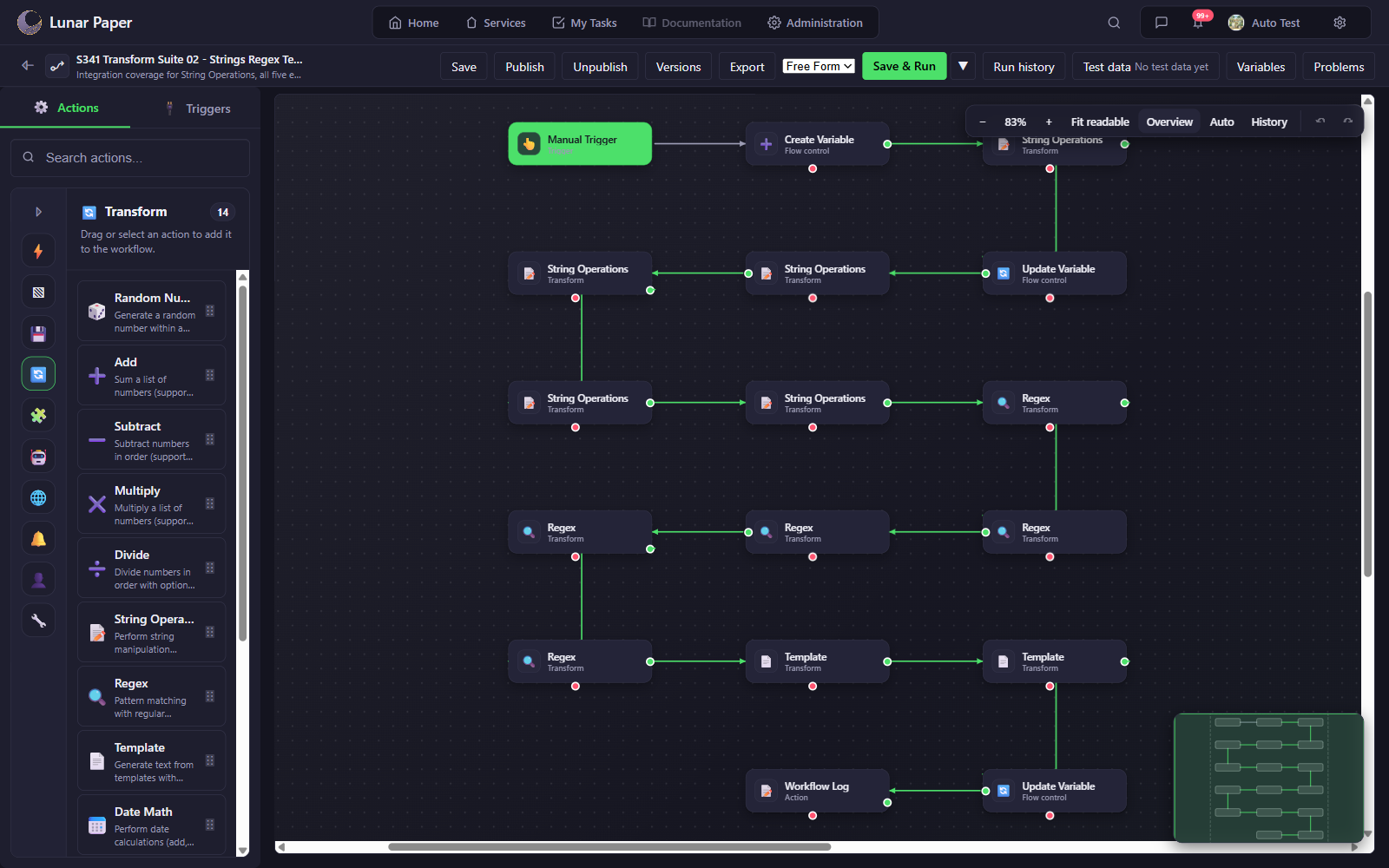
Workflow 2: Strings, Regex, and Templates
Section titled “Workflow 2: Strings, Regex, and Templates”S341 Transform Suite 02 - Strings Regex Templates starts with " Lunar PAPER 2026-09 lunar " and exercises common text-cleaning and parsing patterns.
- Trim the text, store the cleaned value, and convert it to lowercase.
- Replace every
lunarwithmoon. - Split on spaces and join the resulting array with pipes.
- Run Regex Match, Test, Replace, Split, and Extract against the transformed text.
- Build a readable summary and a JSON-compatible summary with Template.
- Append
| verifiedto the original variable and log the readable summary.
Expected verification:
Summary lunar|paper|2026-09|lunar / year=2026The Regex test is true, the match count is 2, and the extracted year is 2026.
Workflow 3: Date and Time
Section titled “Workflow 3: Date and Time”S341 Transform Suite 03 - Date and Time uses fixed UTC dates so its results are repeatable.
- Create
base_dateas2026-09-04T10:20:30.000Z. - Add three days and store the result.
- Subtract two hours from the stored date.
- Add one business day to a Friday, which produces the following Monday.
- Measure a one-week difference and calculate the start and end of September.
- Format an ISO date, an ISO date-time, and a long date, then build a summary.
Expected verification:
date=2026-09-07 time=2026-09-07 08:20:30 diff=7The month-boundary steps also return 2026-09-01T00:00:00.000Z and 2026-09-30T23:59:59.999Z.
Workflow 4: Array Analytics
Section titled “Workflow 4: Array Analytics”S341 Transform Suite 04 - Array Analytics creates four order rows, concatenates a fifth row, and then validates both array-filter modes, two sort types, and grouped aggregation.
- Filter rows whose
scoreis at least7with Property mode. - Filter active rows with the condition
item.active == true. - Sort active rows by numeric score descending.
- Sort high-score rows by string ID ascending.
- Aggregate the active scores and group a second aggregate by team.
- Merge the verified values into a summary object and build a final summary.
Expected verification: four active rows, a score sum of 30, and two teams. The merged object is:
{"count":4,"teams":2,"total":30}Workflow 5: Transform Data Modes
Section titled “Workflow 5: Transform Data Modes”S341 Transform Suite 05 - Transform Data Modes demonstrates every mode of Transform Data against a profile object and a two-row array.
- Flatten and unflatten a nested
metaobject. - Rename
firsttogiven,lasttofamily, andmeta.regiontolocation.region. - Pick
firstandmeta.region, then separately omitinternalNote. - Map
{name, score}rows to{label, value}. - Use Expression mode to uppercase each name, double each score, and calculate whether the row passed.
- Store the transformed row count on the profile object and uppercase the picked name.
Expected verification:
modes=7 name=LUNAR rows=2The expression result is:
[ {"name":"ALPHA","doubled":4,"passed":false}, {"name":"BETA","doubled":10,"passed":true}]Verify your own workflow
Section titled “Verify your own workflow”After the individual action tests pass, choose Save & Run and inspect Run history. Confirm:
- every step completed;
- resolved inputs have the expected type;
- the expected output property (
valueorresult) is present; - variables changed only where an Update Variable step ran;
- dates use the intended time zone before formatting;
- filters and aggregates handle empty arrays;
- Divide never receives zero;
- Regex patterns handle missing or malformed text.
Keep the workflow as a draft while any result is surprising. A successful status means the actions ran without an exception; comparing the actual values with the expected values is what confirms the workflow is correct.