
Send a scheduled DataHub health digest
This workflow produces a weekday operational digest from DataHub. The matching draft is Docs 02 - Scheduled Data Health Digest (workflow 584) in service 20.
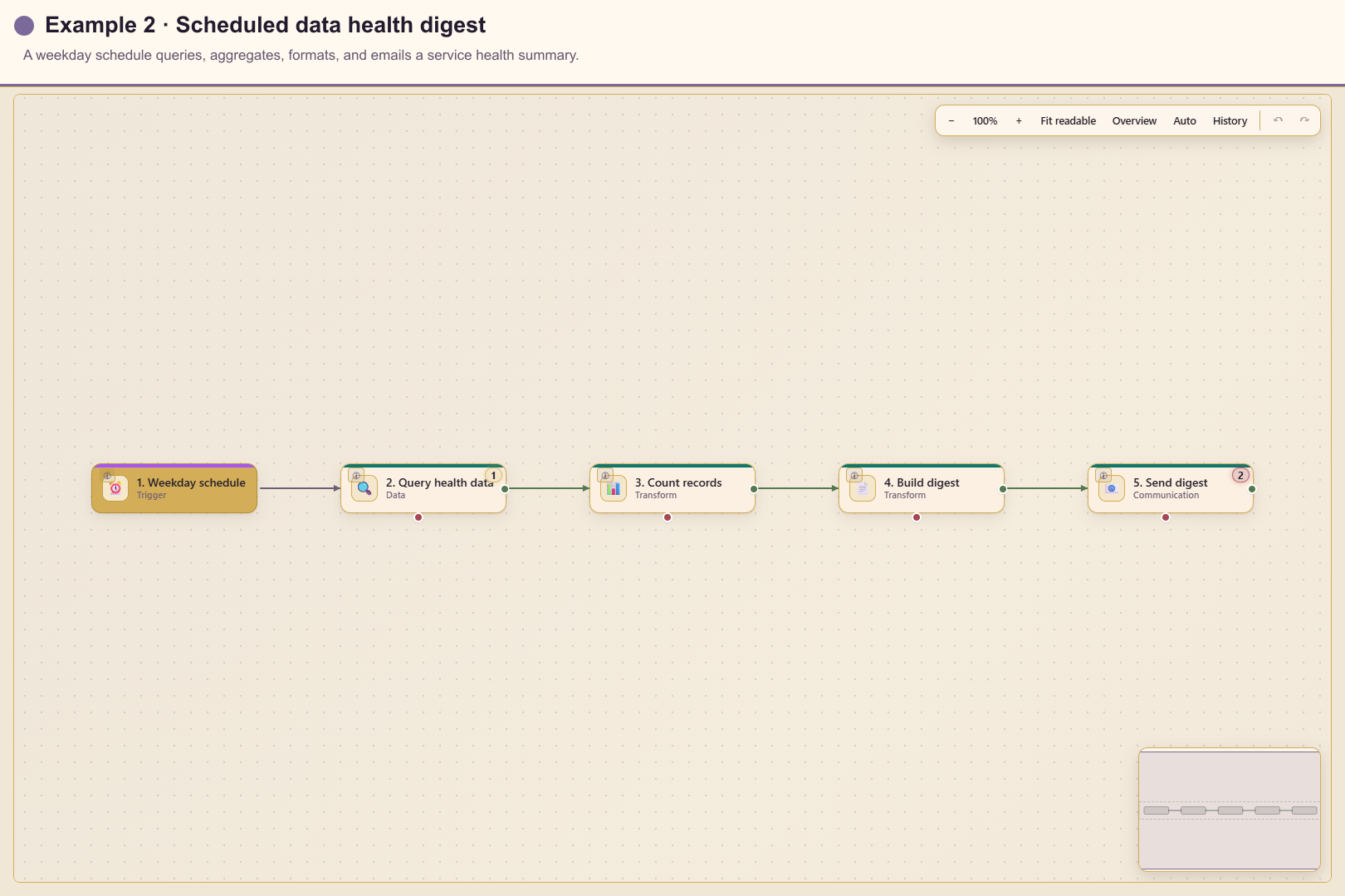
Outcome
Section titled “Outcome”At 8:00 am in the service timezone, Automation reads a bounded set of health records, counts them, produces plain-language text, and emails the result.
Before you start
Section titled “Before you start”- Connect a queryable DataHub source to service 20.
- Identify the table or Data View that represents current health.
- Configure a service email sender and test recipient.
- Agree on the operating timezone and who owns missing or unhealthy data.
Build the workflow from start to finish
Section titled “Build the workflow from start to finish”Create a blank workflow in service 20. Configure and save each card before adding the next one, then connect the cards in the order below.
1. Add and configure the trigger
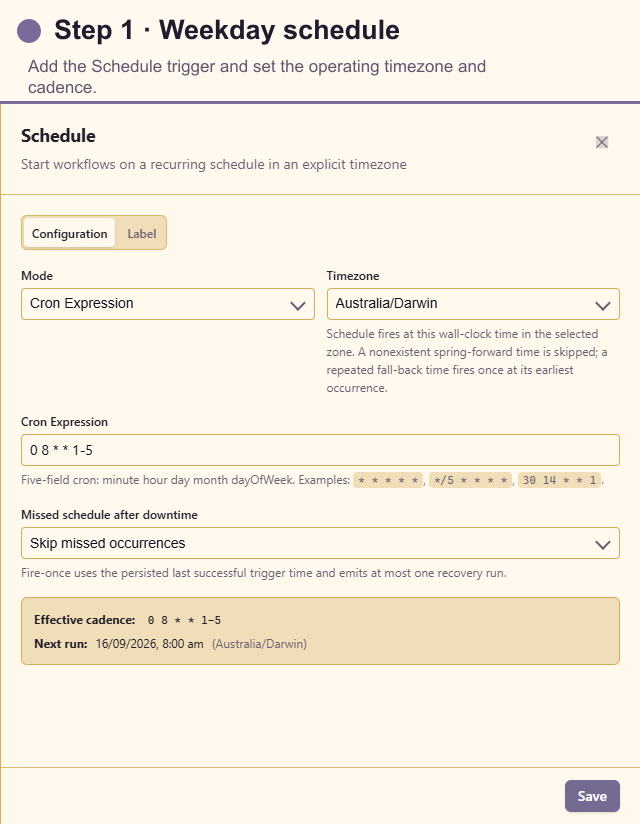
Section titled “1. Add and configure the trigger”Open Triggers and add Schedule. Choose Cron mode, enter 0 8 * * 1-5, and select the service operating timezone. Leave missed occurrences on Skip unless the service owner explicitly requires one catch-up digest.
2. Add DataHub - Query
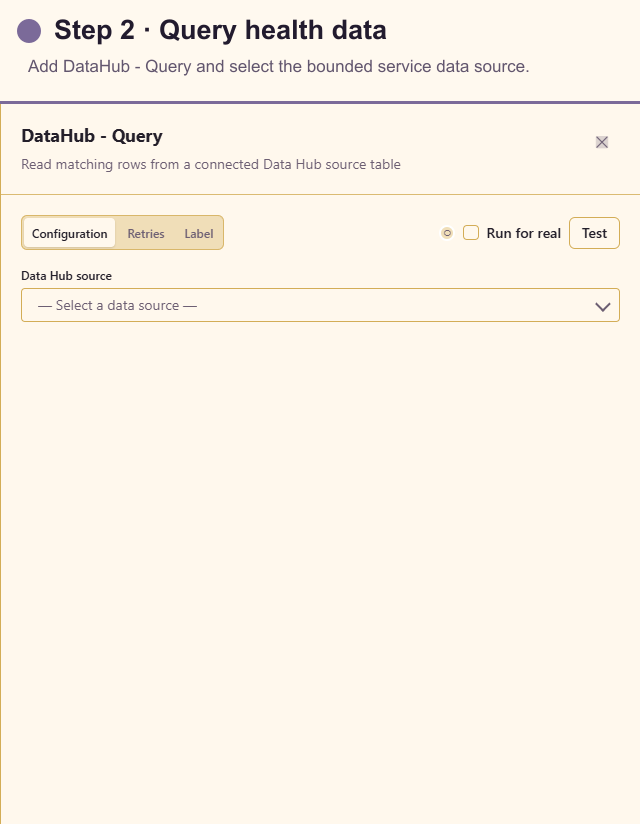
Section titled “2. Add DataHub - Query”Open Actions, search for DataHub - Query, and add it after Schedule. Select the service connection and table, filter to current or actionable records, set a protective limit such as 100, and give the stored result a clear name. The example screenshot deliberately leaves the environment-specific source unselected; choose the real service 20 source before testing.
3. Add Aggregate
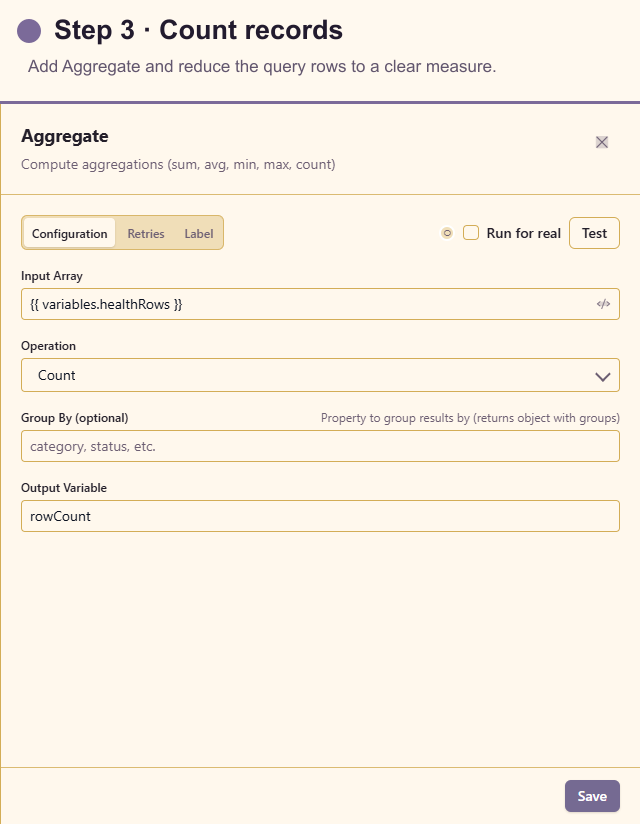
Section titled “3. Add Aggregate”Add Aggregate after the query. Use the query’s rows as the input array and choose Count. If customers need counts by state, add Filter Array and separate Aggregate cards before continuing.
4. Add Template
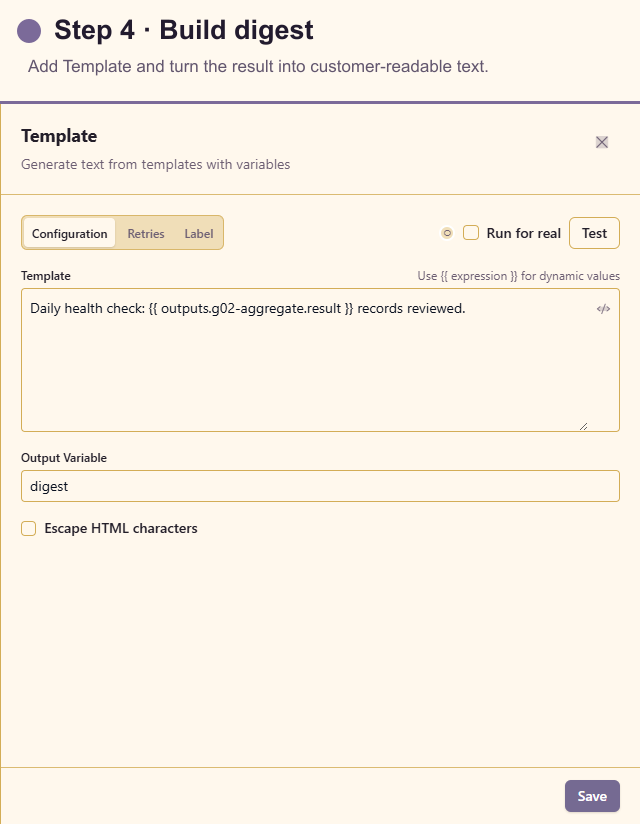
Section titled “4. Add Template”Add Template after Aggregate. Write a short digest in plain language and insert the aggregate result with the expression builder. Include the reporting period and an explicit no-records sentence so an empty result cannot be mistaken for a failed run.
5. Add Send Email
Section titled “5. Add Send Email”Add Send Email after Template. Select the approved sender, start with a test mailbox, set a recognisable subject, and insert the Template output as the body. Replace the recipient only after the content and empty-state wording are approved.
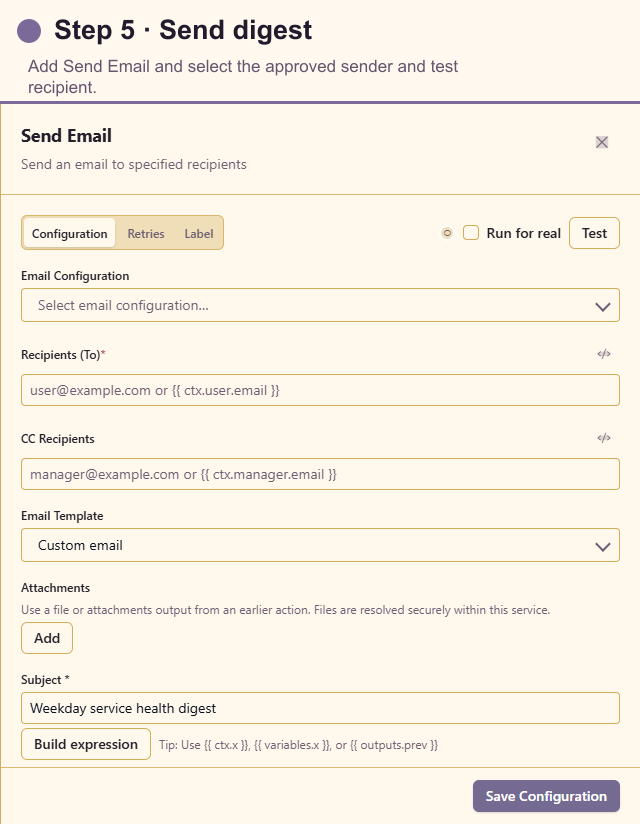
The finished success path is Schedule → DataHub - Query → Aggregate → Template → Send Email. Save the final card, then review Problems before the first test run.
Test the workflow
Section titled “Test the workflow”Use query test controls with a small non-production source or filter. Confirm the query returns no sensitive columns. Test both an empty result and several rows, then run the full workflow with a test mailbox.
Check Run history for the effective schedule, query row count, rendered message, and email destination. Do not wait for the next scheduled occurrence to prove the content.
Production checklist
Section titled “Production checklist”- Timezone and weekday definition match the operating team.
- Query filters and row limit protect the source.
- Empty, partial, and stale data have explicit wording.
- The email configuration, To, CC, subject, and body are reviewed.
- Retry policy cannot send duplicate digests without an idempotency decision.
- The workflow is published only after one real test email succeeds.