
Build and manage a palette
Pixel art relies on a limited color count. A 16-color palette forces clean shading and consistent lighting, and Pixel Art Studio stores the palette as part of the project, so the colors are explicit and reusable. The steps below build a locked, sorted palette that the project keeps and that skin variations inherit.
Start from a preset
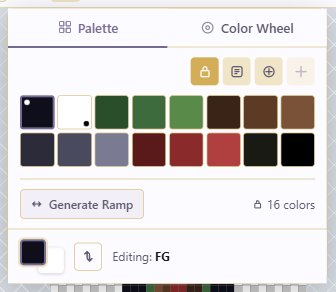
Section titled “Start from a preset”The fastest path to a strong palette is a known one. Open the palette from the foreground/background swatches in the top toolbar, then use Presets:
- PICO-8: 16 colors, very retro.
- Game Boy: four greens, a monochrome feel.
- NES: the classic console palette.
- Commodore 64: 16 distinctive colors.
- Endesga 32: 32 colors, modern and flexible.
The palette list now shows the preset’s colors. Presets are a starting point, not a constraint. You can edit, add, or remove colors from there.
Import from Lospec
Section titled “Import from Lospec”If no preset fits, import a community palette from Lospec. Use Lospec import, name the palette, and confirm. The colors replace or append to the current palette. Lospec is the easiest way to find a palette tuned to a specific mood or reference game.
Generate ramps for shading
Section titled “Generate ramps for shading”For consistent shading, build ramps between two anchor colors. Pick a dark anchor (the shadow color) and a light anchor (the highlight), then use Generate Ramp with a chosen number of steps (five is a good default). The intermediate shades are inserted into the palette automatically.
Do this per material: one ramp for skin, one for cloth, one for metal, one for leather. Sharing shades across materials makes a sprite look muddy, because the eye can’t tell where one surface ends and the next begins.
Use the Color Wheel for harmonies
Section titled “Use the Color Wheel for harmonies”To build a palette from scratch, open the Color Wheel, pick a base hue, then choose a harmony mode: Complementary, Analogous, Triadic, Tetradic, or Split Complementary. The wheel proposes related colors; use Add to palette for each you want to keep.
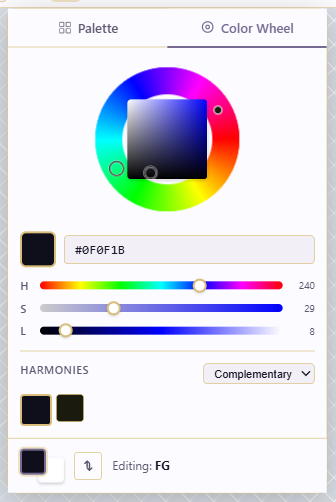
Harmonies are a way to find a starting set of hues that belong together, not a rule to obey. Once you have the hues, generate ramps for each to get the shading steps.
Sort, then lock
Section titled “Sort, then lock”Use Sort Palette by hue, saturation, or luminance so the list is in a predictable order and you can find colors quickly. When you’re at your target color count, Lock Palette. A locked palette stops extra colors creeping in while you shade, which is how a 16-color piece turns into a 40-color one.
Save with the project
Section titled “Save with the project”The palette is part of the project, so Ctrl+S saves it. When you create a Variation, you can swap palettes per variation without touching the frame data.
Aim for a color count that matches the work: around 8 for a tight retro look, 16 for normal work, 32 for detailed pieces. If you keep adding extra shades, the cause is usually inconsistent lighting rather than a palette that is too small.