
Documents
Documents is Lunar Paper’s module for building long-form, structured documents directly inside a service. It gives you a component-based editor with 57 purpose-built blocks, 114 starter templates, typography and paper-theme controls, version history, and exports to PDF, Word, and Markdown.
What you can do
Section titled “What you can do”The module covers the full document lifecycle. Start from a template or a blank page, then add headings, paragraphs, tables, callouts, requirement blocks, stakeholder matrices, glossary terms, and scientific and math components. From there you apply a typography preset and paper theme, link related artifacts, and track changes through version history. At the end you publish snapshots and hand off the result as a PDF, Word document, or Markdown file. Everything stays in the service context, connected to the brief, the team, and the surrounding artifacts.
If you are new to the module, start with the Quickstart. For the editor layout, see Editor reference. The Guides hub lists every step-by-step walkthrough by task.
Where it lives
Section titled “Where it lives”Open a service, then choose Documents from the Content Modules section of the service sidebar. The module opens inside the service context, not as a standalone file manager.
The module view shows the documents created in that service. Click Create New and choose Document to open the template picker.
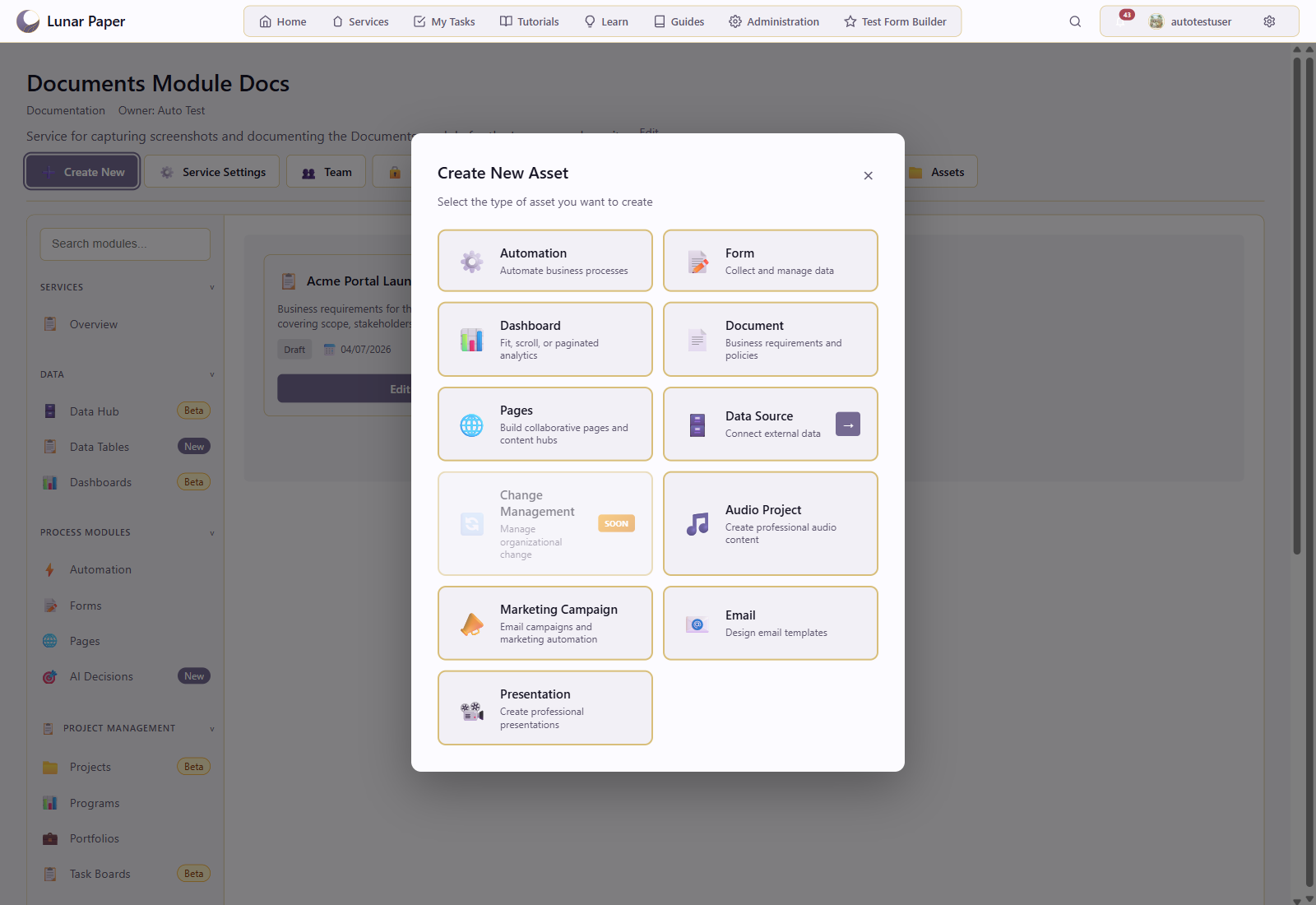
The picker offers 114 templates across 11 categories. Select one to open it in the Document Builder, or choose a blank option and build from scratch.
The Document Builder
Section titled “The Document Builder”The editor is split into three columns:
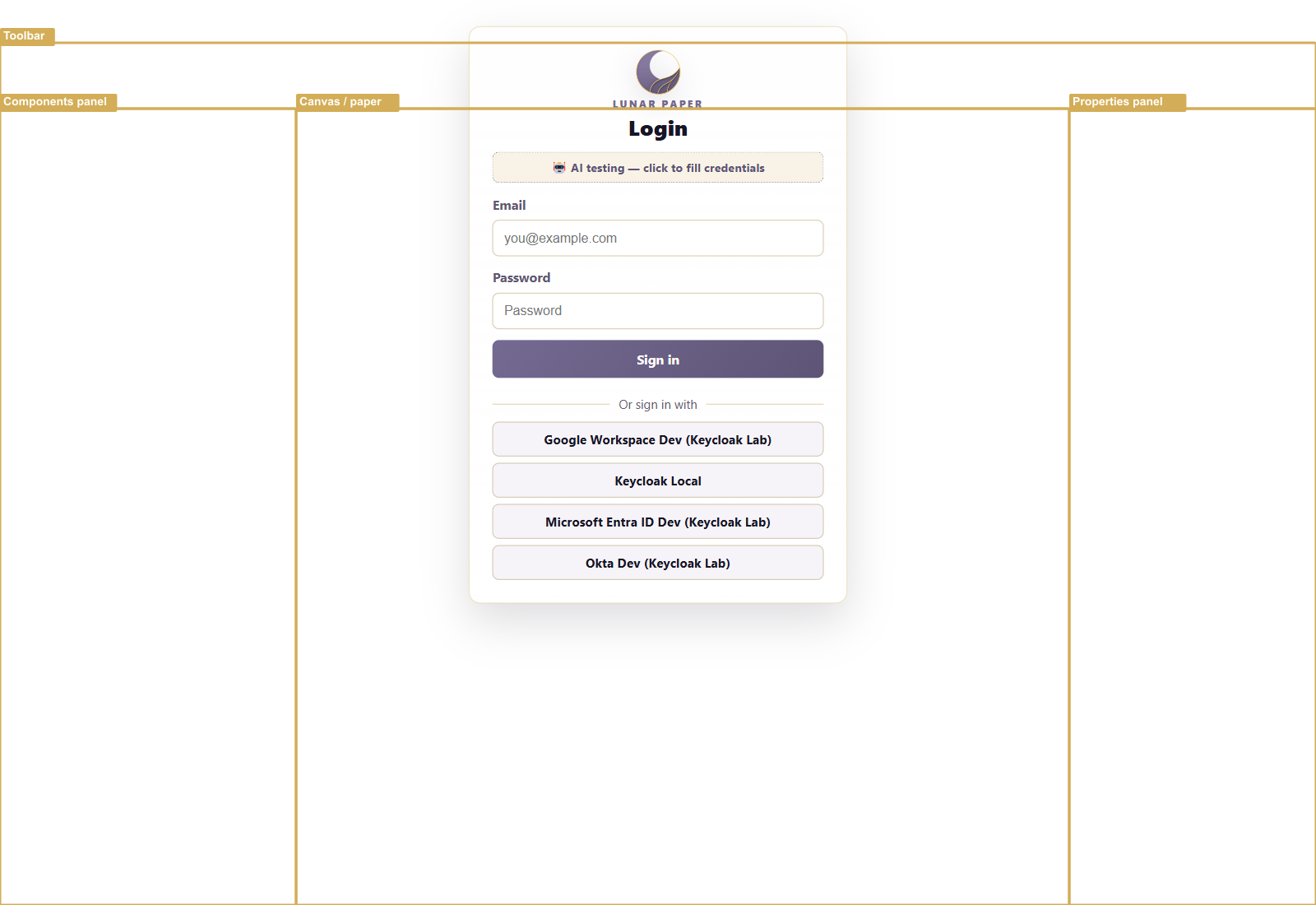
- Left: Components and Outline. Browse 57 components grouped into eight categories, or switch to Outline to see the document structure and navigate headings.
- Center: Canvas. Add, reorder, and edit components on a paper page. Use the slash command, drag handles, and inline toolbars to build content.
- Right: Properties. Configure the selected component, including grid width, sequence numbering, nest level, linked artifacts, and style overrides.
For a full tour, see Editor reference.
Layout and page breaks
Section titled “Layout and page breaks”The Layout component category contains Page Break and Section Break. Use Page Break to start following content on a new page. Use Section Break to choose a different paper size or orientation for a section, such as a landscape table within a portrait report. Select the Section Break marker to configure it in Properties; paper theme, margins, headers and footers stay document-wide.
Layout and page breaks explains the break types, layout choices and steps for changing one page’s content to landscape.
Reuse a document with input variables
Section titled “Reuse a document with input variables”Input variables let a document declare values such as a customer name, report date, total, or image. Insert their {{variable_name}} tokens into components and properties, then save the document as a template. An Automation workflow can map live data to those inputs and generate a resolved draft or PDF attachment.
Build reusable documents with input variables covers the Document Builder process. Generate documents with input variables continues the same process in Automation.
Documentation organisation
Section titled “Documentation organisation”| Section | Use it when |
|---|---|
| Quickstart | You want one end-to-end first session. |
| Guides | You have a specific task in mind. |
| Concepts (documents and components, document design, workspace) | You want the “why” behind a feature. |
| Reference (editor, component library, keyboard shortcuts) | You need to look something up. |
| Troubleshooting & FAQ | Something went wrong. |