
Customise types and display
Two settings decide what an event looks like on the grid. Event types give it a colour and an icon, and event display decides which of its fields are printed inside the chip. Both belong to a single calendar, so two calendars in the same service can look nothing alike.
Rename or recolour a type
Section titled “Rename or recolour a type”Choose Event types in the header.
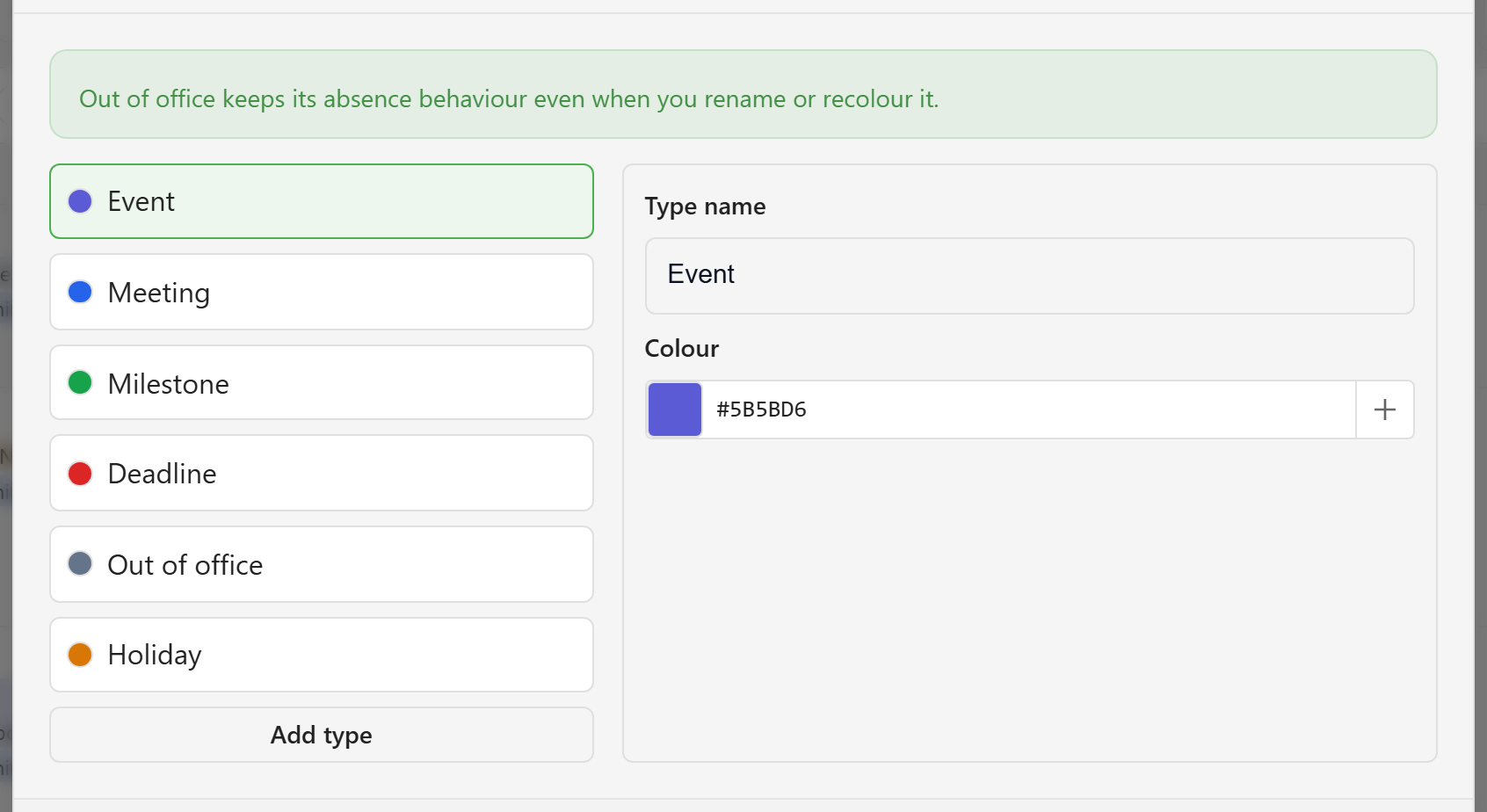
Six types ship with every calendar: Event, Meeting, Milestone, Deadline, Out of office, and Holiday. Select one to edit its Type name and Colour.
Rename them freely. A calendar that tracks shifts might call Event something else entirely. One behaviour survives renaming, and the dialog says so: “Out of office keeps its absence behaviour even when you rename or recolour it.” Whatever you call that type, it still closes bookable time.
The six built-in types cannot be removed. Colour is never the only signal: every event also carries a type icon and an accessible label, so a recolour cannot make the calendar unreadable.
Add a type
Section titled “Add a type”Choose Add type, then set its name and colour. A calendar can hold up to 24 types in total, and every name must be unique.
Add a type when the team really does sort work into more categories than the defaults, such as On call, Interview, or Maintenance window. Do not add one per project, because that is what filtering is for.
Choose what shows on an event
Section titled “Choose what shows on an event”Open the gear menu (Calendar configuration) and choose Event display.
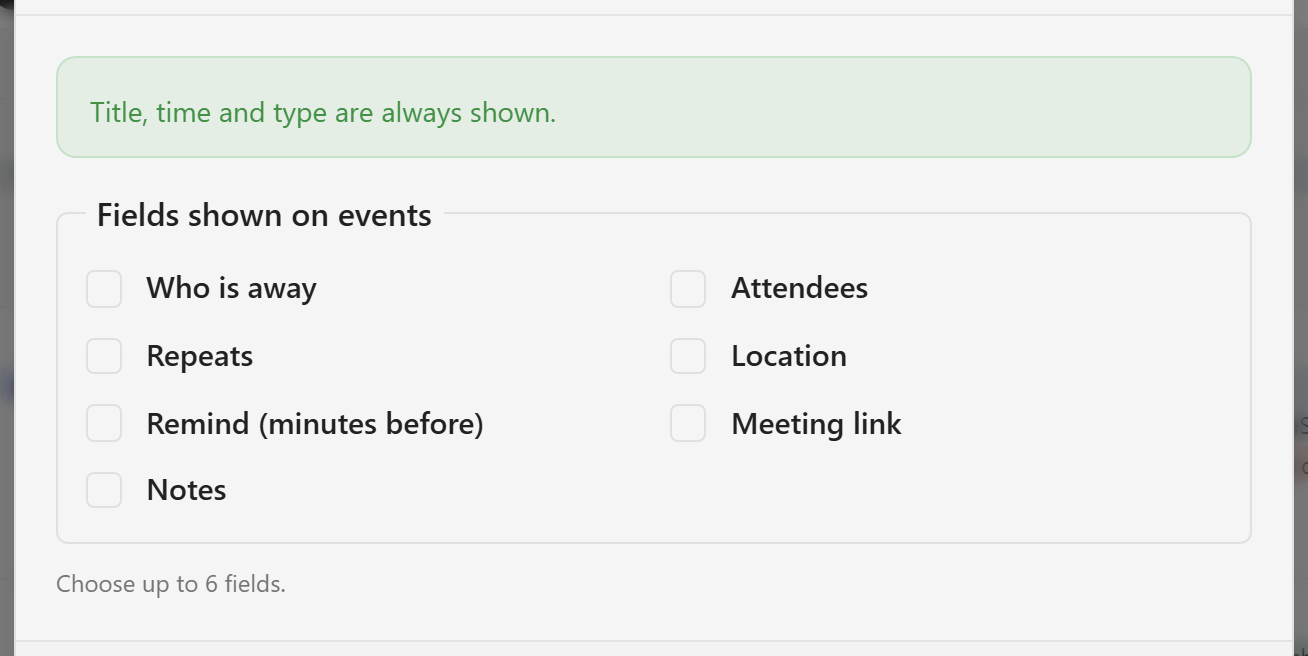
Title, time, and type are always shown, so the list only offers the calendar’s other fields. Choose up to six. Each selected field prints inside the chip as a label and value. That helps when people scan for one particular field, such as a location on a room calendar or an owner on a release calendar.
Keep the count low. Every field you add makes each chip taller, and a month cell already shows only three events before it collapses the rest into a +N more link.
A calendar with no extra fields shows “This calendar has no additional fields to show.” That calendar is using only its built-in fields, which are already on the chip.
Add your own fields
Section titled “Add your own fields”Customise fields in calendar settings opens the calendar’s field set in the Forms builder. Fields added there appear on the event form, in the list view as columns, and in the Event display list.
The calendar’s built-in fields are locked in that builder. They can be relabelled and reordered but never retyped or removed, because the calendar depends on them meaning what they say. See Calendars and event types for how that field set works.