
Switch task board views
Each view arranges the same tasks differently, so switching views changes what you see and never changes the tasks themselves. Once you know what each one shows, you can pick the CareArc view that matches the operating decision in front of you.
1. Start in Board
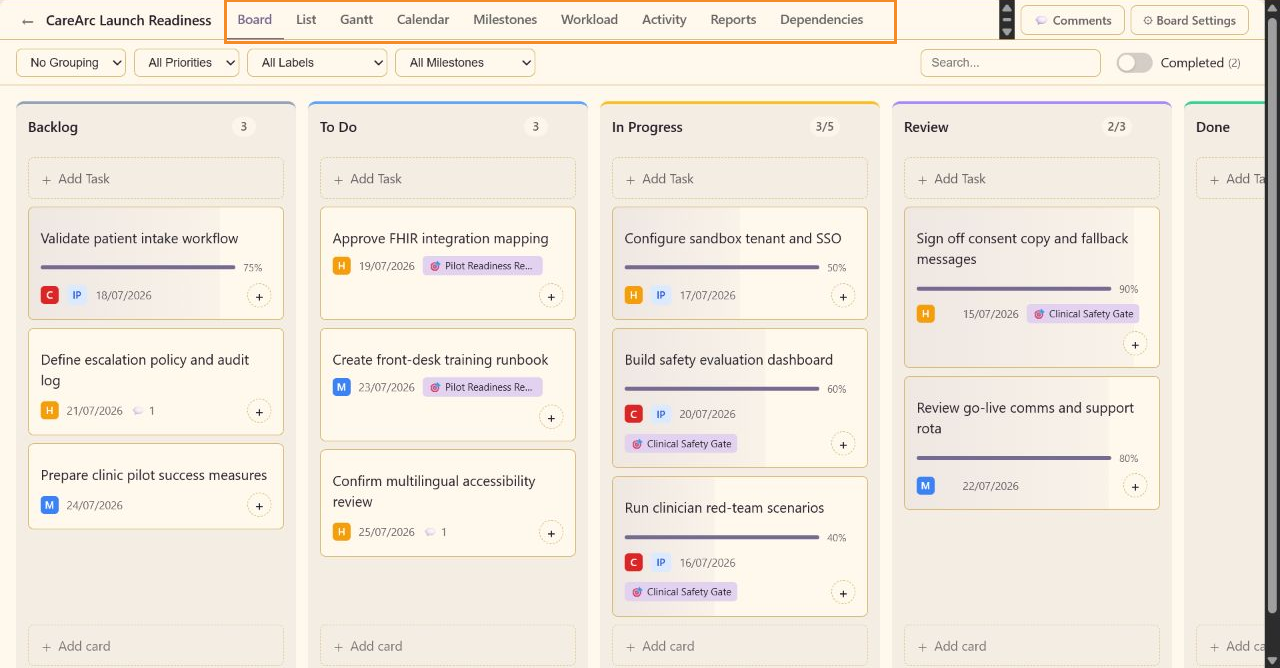
Section titled “1. Start in Board”Select Board to see columns, capacity indicators, card signals, and the handoff between Backlog, To Do, In Progress, Review, and Done. Use it for stand-ups and workflow conversations.
2. Switch to List
Section titled “2. Switch to List”Select List to see the same tasks as compact rows. Use List when you are comparing titles, dates, progress, or priority across work that sits in several different columns.
3. Switch to Calendar
Section titled “3. Switch to Calendar”Select Calendar to inspect work by due date. Use it when the launch question is what falls due when, rather than which column the work sits in.
4. Enable Advanced mode
Section titled “4. Enable Advanced mode”Use the Advanced Mode switch in the main Task Board navigation. The setting saves immediately, and Gantt, Milestones, Workload, Activity, Reports, and Dependencies appear in the navigation.
5. Choose an advanced view
Section titled “5. Choose an advanced view”- Use Gantt for task duration and sequencing.
- Use Milestones for delivery gates and grouped progress.
- Use Workload for capacity, overload, and unassigned work.
- Use Activity for comments, changes, and contributor history.
- Use Reports for throughput, cycle time, WIP, aging, and velocity.
- Use Dependencies for predecessor chains and graph controls.
6. Return to the operating view
Section titled “6. Return to the operating view”Return to Board before moving work between columns. The board makes the handoff explicit and keeps capacity indicators visible.
One task set behind every view
Section titled “One task set behind every view”Your team works from one set of tasks for workflow, comparison, dates, milestones, capacity, history, metrics, and dependency decisions. The feature reference provides one screenshot-backed page for every view.