
Trigger reference
A trigger is the single starting point for a workflow. Choose it by the customer or platform event that should begin the work, then restrict its scope so the workflow fires only when intended.
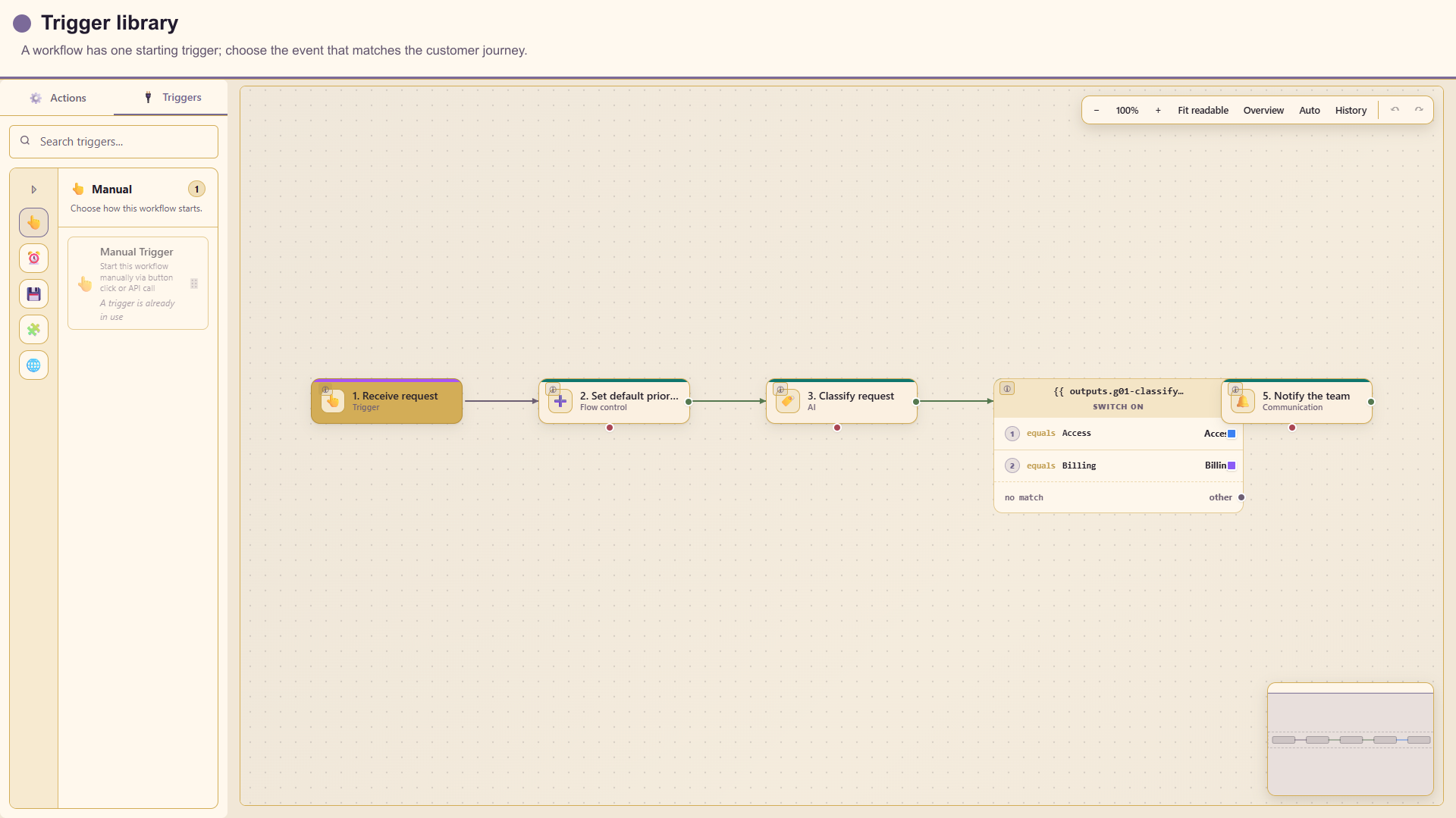
Trigger availability follows the modules enabled for the service. The 24 triggers below are the active trigger catalogue. A trigger can be saved in a draft before all environment-specific resources exist, but every required selection must be resolved before testing or publishing.
Every trigger section includes a full-height capture of its Configuration tab, an explanation of each field, customer guidance, and the data made available to downstream actions. Fields that depend on a service resource appear after that resource is selected in the live drawer.
Common trigger practices
Section titled “Common trigger practices”- Give the trigger a unique label that describes the event, not the technology.
- Store representative synthetic input and output in Test data.
- Filter at the trigger when possible. It avoids unnecessary runs and side effects.
- Leave a scope field blank only when you genuinely want every matching event in the service.
- Use managed credentials for webhook signatures and HTTP authentication.
- Keep the workflow unpublished until the trigger payload has been verified in run history.
Manual and time triggers
Section titled “Manual and time triggers”Manual Trigger
Section titled “Manual Trigger”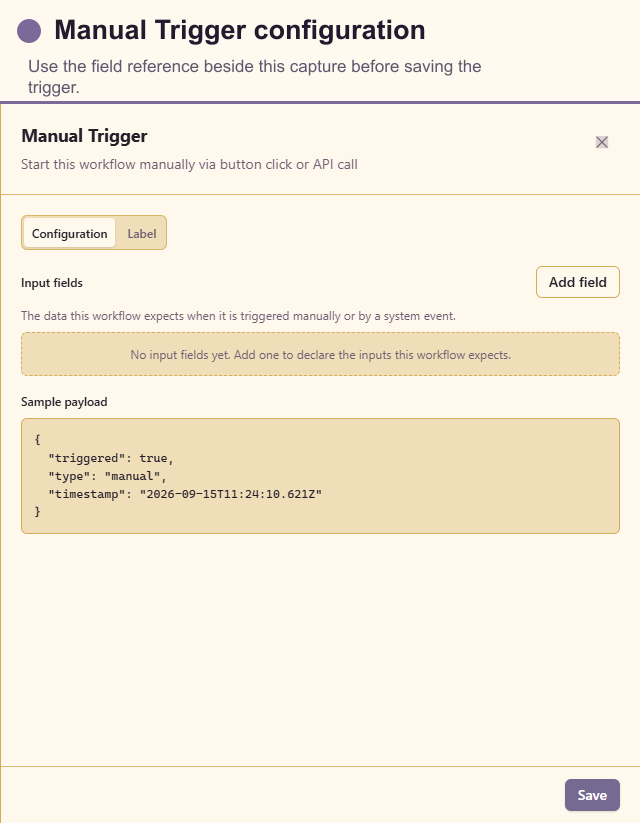
Use Manual Trigger for operator-run workflows, reusable sub-workflows, and API-started workflows with an explicit input contract.
Configure: add input fields. Each field has Name, Type (string, number, boolean, object, or array), optional Description, optional Default value, and Required. The generated sample payload shows the resulting ctx shape.
Customer guidance: use stable names such as customer_email; do not use a display label that changes between teams. Defaults should be safe synthetic examples, not real customer details.
Trigger data: each declared field is available as {{ ctx.field_name }}.
Schedule
Section titled “Schedule”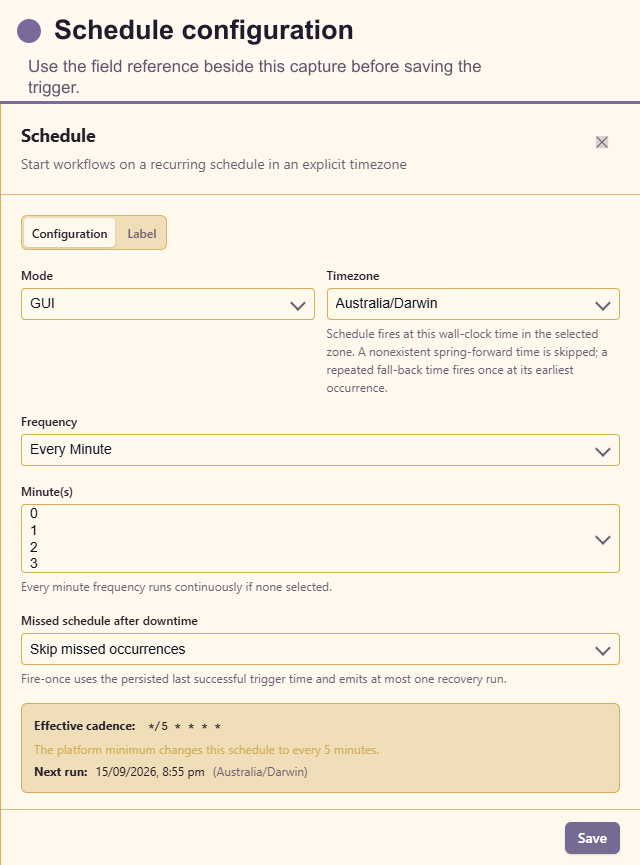
Use Schedule for reports, reminders, housekeeping, and other predictable recurring work.
Configure: choose Mode (GUI or Cron expression), Timezone, and Missed schedule after downtime. GUI mode adds Frequency and the applicable Minutes, Hours, Days of week, or Day of month. Cron mode accepts a five-field cron expression. The preview shows the effective cadence and next run.
Missed runs: Skip missed occurrences resumes with the next scheduled time. Fire once on recovery emits at most one recovery run based on the last successful trigger time.
Customer guidance: choose the service operating timezone rather than assuming the viewer’s timezone. Avoid high-frequency schedules for work that writes data or calls paid services.
Trigger data: scheduled time, effective timezone, and run metadata.
Web and form triggers
Section titled “Web and form triggers”Webhook
Section titled “Webhook”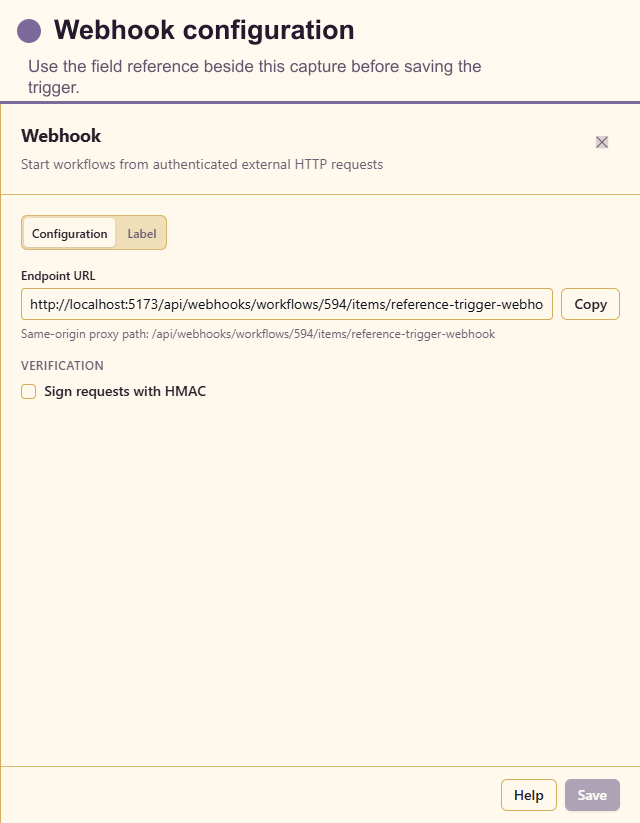
Use Webhook when an external system should push an event to Lunar Paper and receive an immediate HTTP acknowledgement.
Configure: copy the generated Endpoint URL. Enable Sign requests with HMAC, choose Algorithm (SHA-256 preferred; SHA-1 is available for compatibility), and select a managed signature credential. The panel shows the expected signature header and format.
Customer guidance: keep HMAC enabled for production. Store the secret as a managed credential and rotate it through the credential manager; never paste it into the workflow body or an author note.
Trigger data: request method, headers, query parameters, and parsed body under the trigger request context.
HTTP Poll
Section titled “HTTP Poll”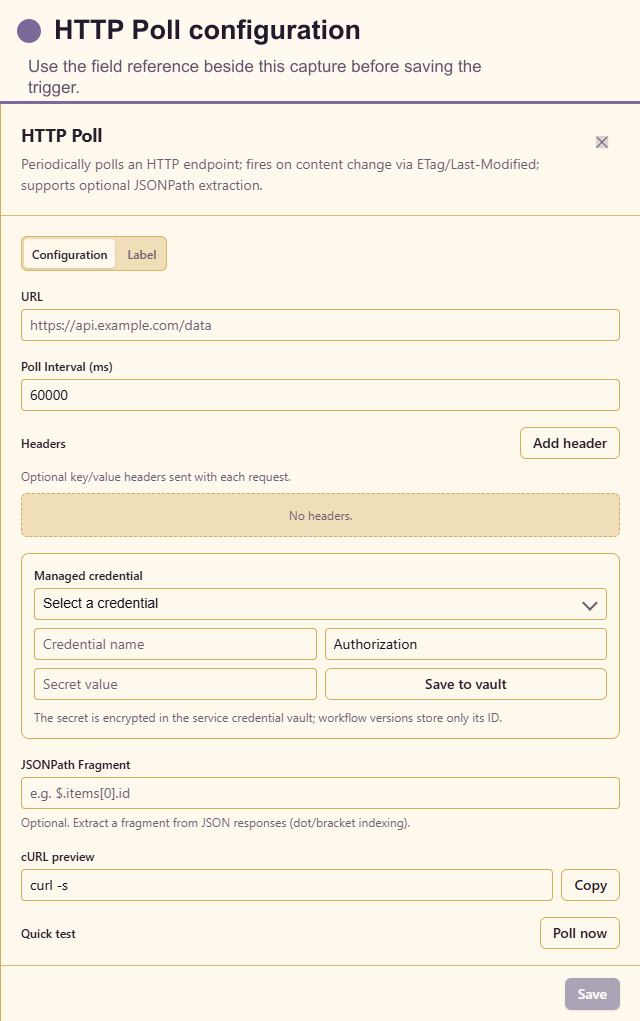
Use HTTP Poll when the source cannot send webhooks and a remote value must be checked periodically.
Configure: URL, Poll interval (ms), optional header name/value rows, a managed credential, and optional JSONPath fragment. Use Poll now to inspect the status and selected response fragment.
Customer guidance: select a fragment that changes only when meaningful work is required. Use a conservative interval and confirm the remote service’s rate limits. Inline legacy secrets must be removed before saving.
Trigger data: response status, headers, body, selected JSONPath fragment, and change metadata.
Form Submission
Section titled “Form Submission”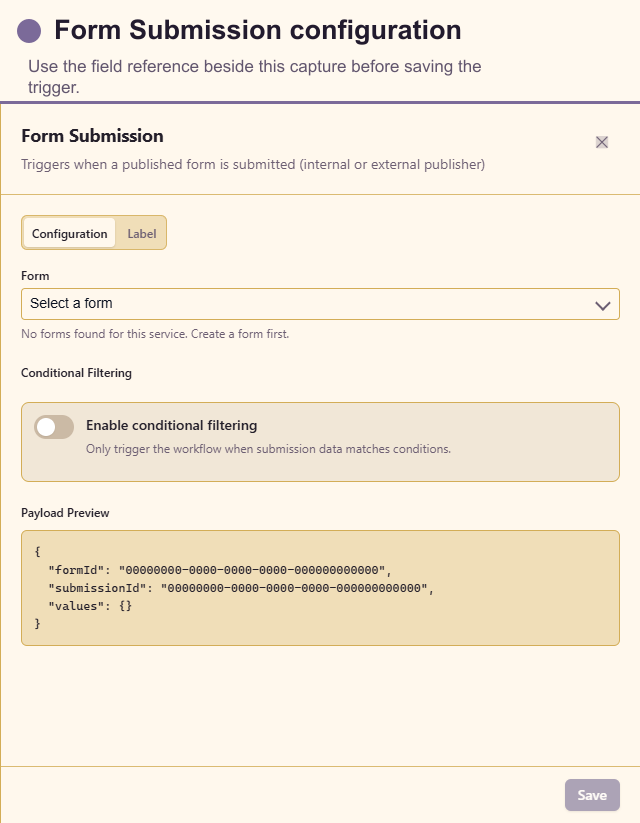
Use Form Submission to begin work after a customer or staff member submits a Lunar Paper form.
Configure: select the Form. Choose one published form or the supported all-forms scope, set the publisher audience filter when offered, and add form-submission conditions for field-level routing. The payload preview shows the submission structure.
Customer guidance: prefer one form per workflow when the process has distinct privacy, approval, or response requirements. Filters should use stable field names, not the text of a question.
Trigger data: form, submission, respondent and submitted field values. Exact fields follow the selected form.
Data triggers
Section titled “Data triggers”Data Hub Query
Section titled “Data Hub Query”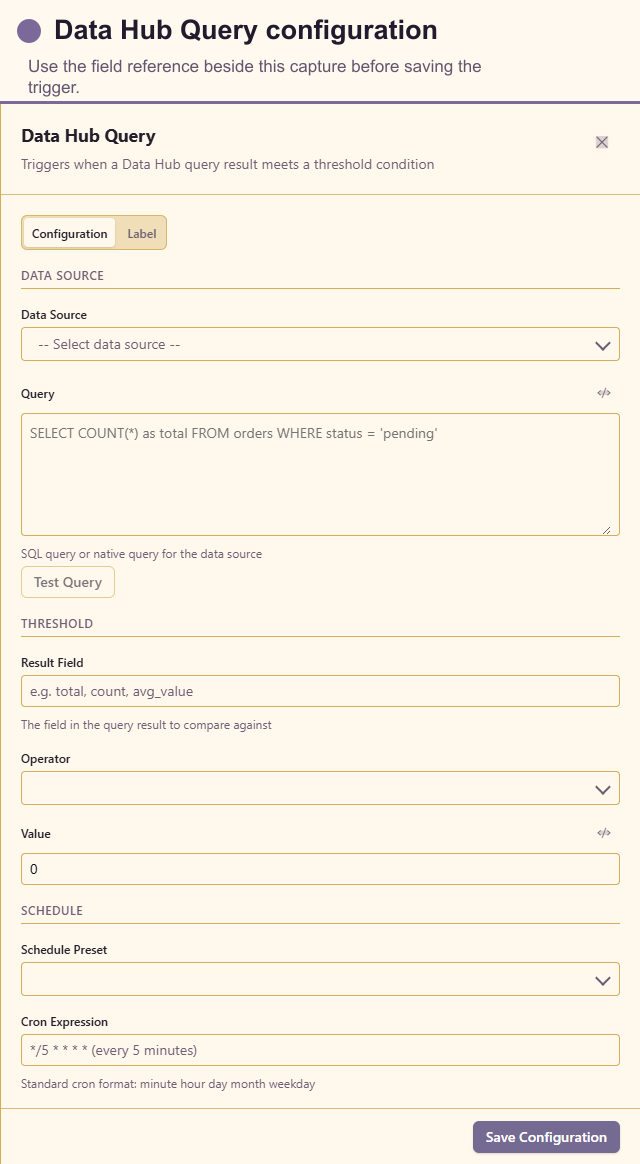
Use Data Hub Query when a scheduled query crossing a threshold should start the workflow.
Configure: Data source, expression-enabled Query, Threshold field, Operator, Value, schedule Preset, and Cron expression. Operators include greater/less comparisons, equals, not equals, changed, increased by, and decreased by. Test query previews the result.
Customer guidance: return only the rows and columns needed to evaluate the threshold. A changed rule needs a stable result shape between runs.
Trigger data: current query result, compared value, threshold outcome, and prior comparison state when applicable.
DataHub Row Created
Section titled “DataHub Row Created”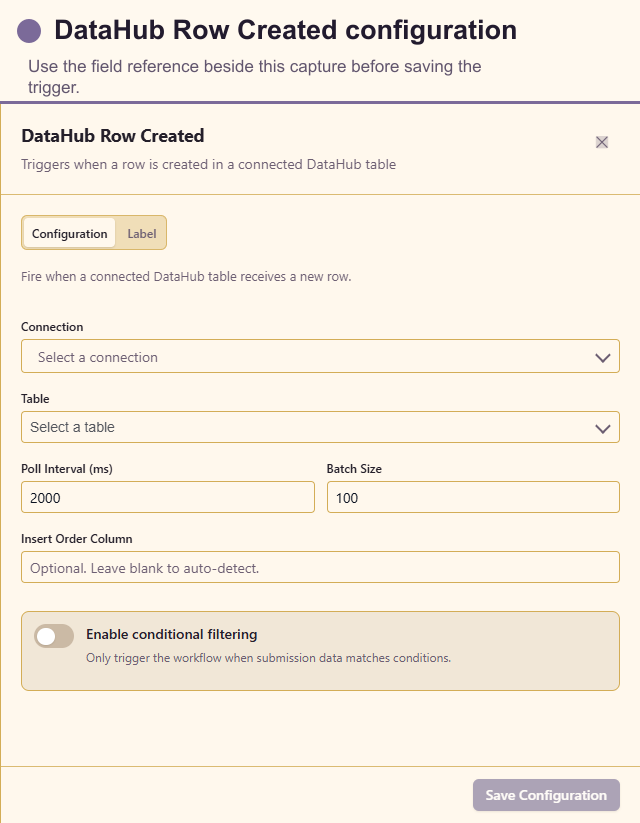
Use DataHub Row Created when a new record appears in a connected table.
Configure: Source, Table, Poll interval (ms), Batch size, and optional Insert order column. The order column should increase monotonically; leave it blank only when auto-detection is reliable.
Customer guidance: use a durable primary key or creation sequence and design downstream writes to be idempotent in case a source record is observed again.
Trigger data: the created row, source, table, cursor, and batch metadata.
DataHub Row Updated
Section titled “DataHub Row Updated”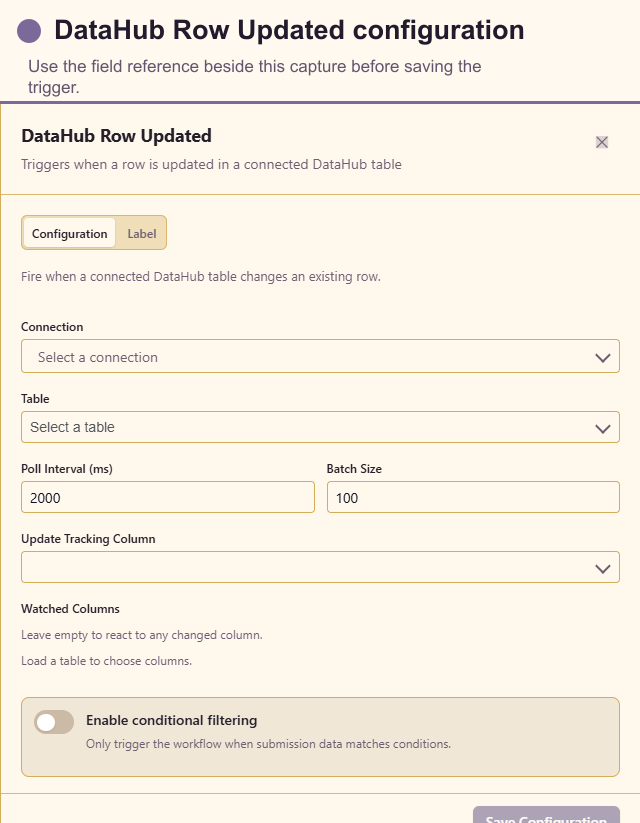
Use DataHub Row Updated when an existing record changes.
Configure: Source, Table, Poll interval (ms), Batch size, Update tracking column, and the columns to watch. Choose a timestamp or version column that advances for every relevant update.
Customer guidance: watch only fields that should start customer work. Excluding noisy technical columns prevents duplicate notifications and unnecessary runs.
Trigger data: updated row, tracking value, watched-column context, source, and table.
DataHub Row Deleted
Section titled “DataHub Row Deleted”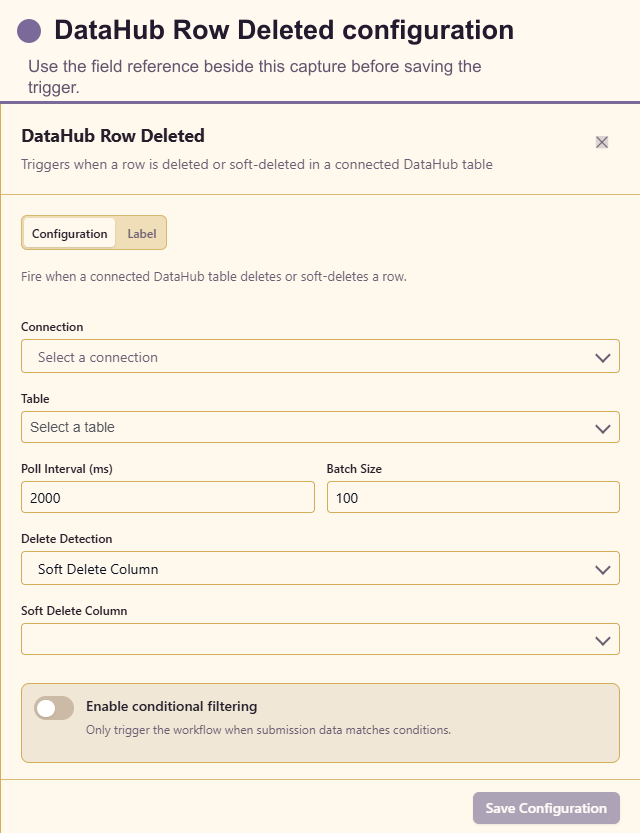
Use DataHub Row Deleted when deletion or a soft-delete marker should start cleanup.
Configure: Source, Table, Poll interval (ms), Batch size, Delete detection, and then either Soft-delete column or Audit table.
Customer guidance: hard deletes are difficult to infer from polling alone. Prefer a soft-delete timestamp or a dedicated audit table with the deleted key and deletion time.
Trigger data: deleted-row identity and any captured row/audit values, plus source and table context.
General platform trigger
Section titled “General platform trigger”Platform Event
Section titled “Platform Event”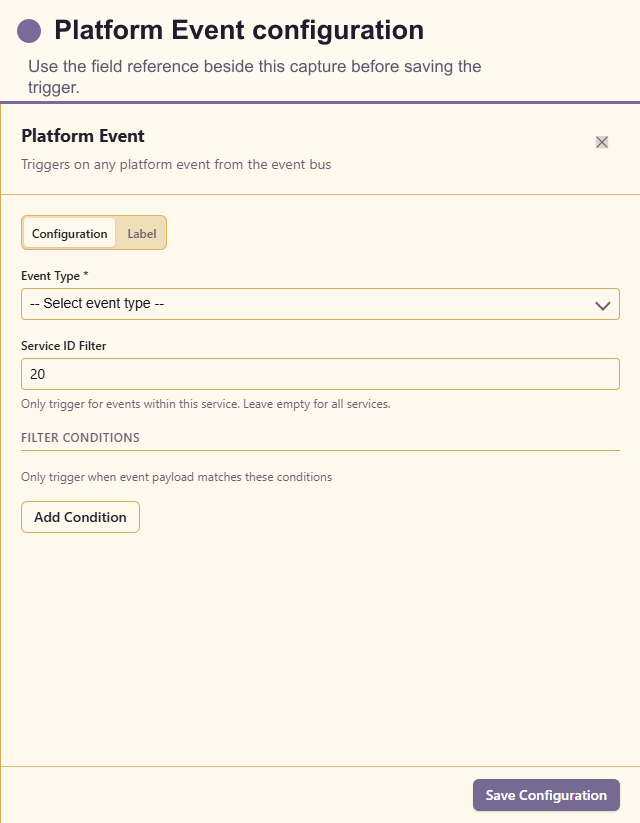
Use Platform Event for a registered system event that is not better represented by a specialised trigger.
Configure: required Event type, read-only Service ID filter, and optional filter-condition rows. Each condition has a field path, operator, and value. Available operators include equals, not equals, contains, starts with, greater/less than, exists, not exists, and comma-separated in. Conditions are combined with AND.
Customer guidance: choose an event from the server catalogue. Use a custom event type only when the producer contract is known and already emits that exact value.
Trigger data: event type, service, event payload, actor, and event time as supplied by the producer.
Page Published
Section titled “Page Published”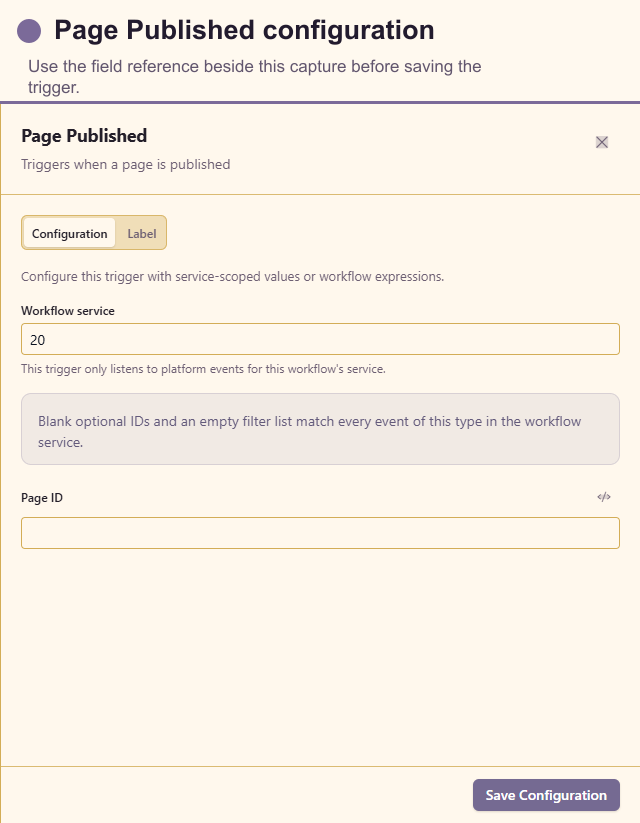
Use Page Published to begin distribution, review, indexing, or notification work after a service page becomes publicly available.
Configure: Workflow service is fixed to the workflow’s service and prevents cross-service events. Optional Page ID restricts the trigger to one page and accepts a literal ID or expression. Leaving Page ID blank matches every published page in the service.
Customer guidance: leave Page ID blank only when the same follow-up is appropriate for every page. Avoid updating and republishing the same page in an unfiltered downstream action, which can create a loop.
Trigger data: page and service identifiers, publication/version details, publisher, and publication time.
Project Management triggers
Section titled “Project Management triggers”PM Task Created
Section titled “PM Task Created”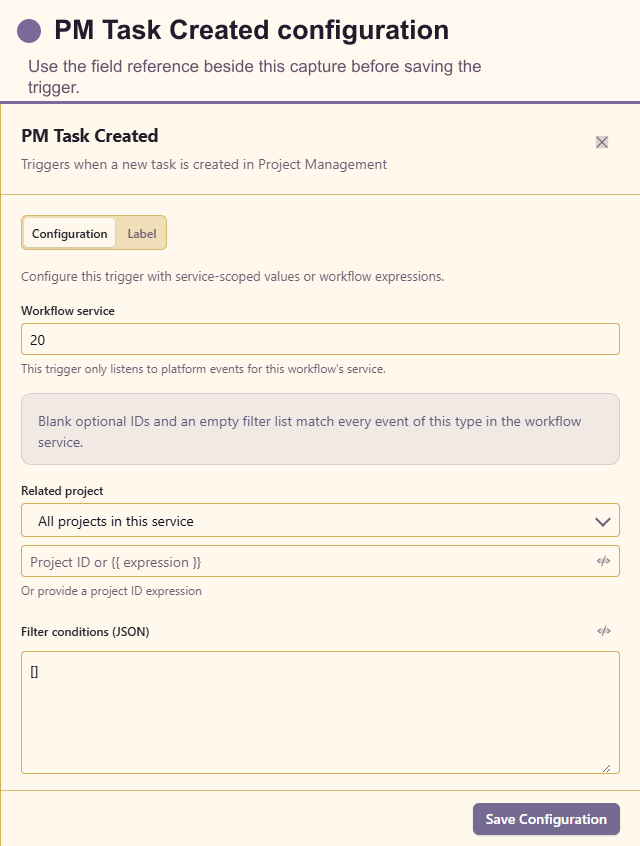
Use PM Task Created to start onboarding, scheduling, notifications, or field normalisation for new tasks.
Configure: read-only workflow service, optional Related project, and Filter conditions (JSON).
Customer guidance: leave the project blank only when the same process belongs on every new task in the service. Filter on stable task fields.
Trigger data: task, project, board, creator, and service identifiers.
PM Task Status Changed
Section titled “PM Task Status Changed”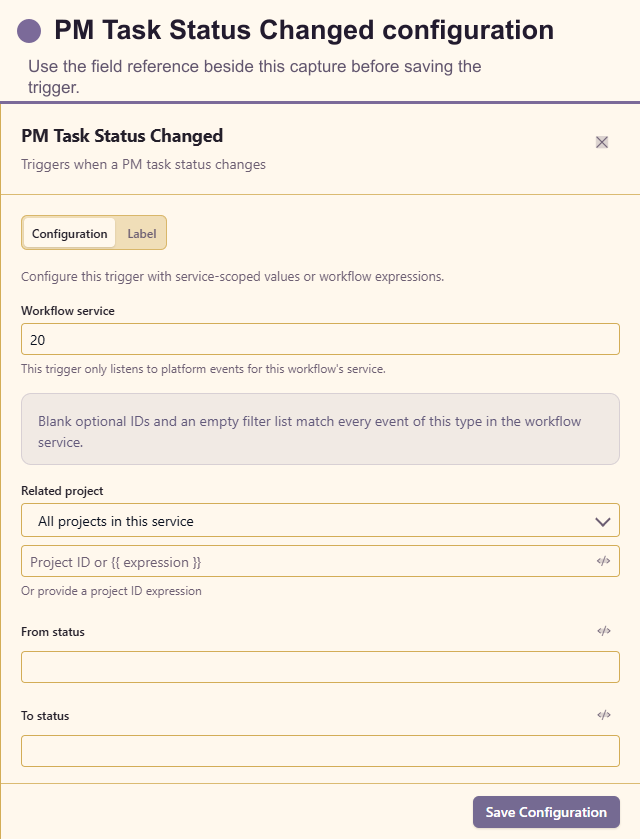
Use PM Task Status Changed for handoffs, completion steps, escalations, and status-dependent customer communication.
Configure: read-only workflow service, optional Related project, From status, and To status. A blank status acts as a wider match.
Customer guidance: set at least the destination status for a completion or review workflow. Treat repeated moves into the same status as possible duplicates.
Trigger data: task plus old and new status, project, actor, and time.
PM Sprint Event
Section titled “PM Sprint Event”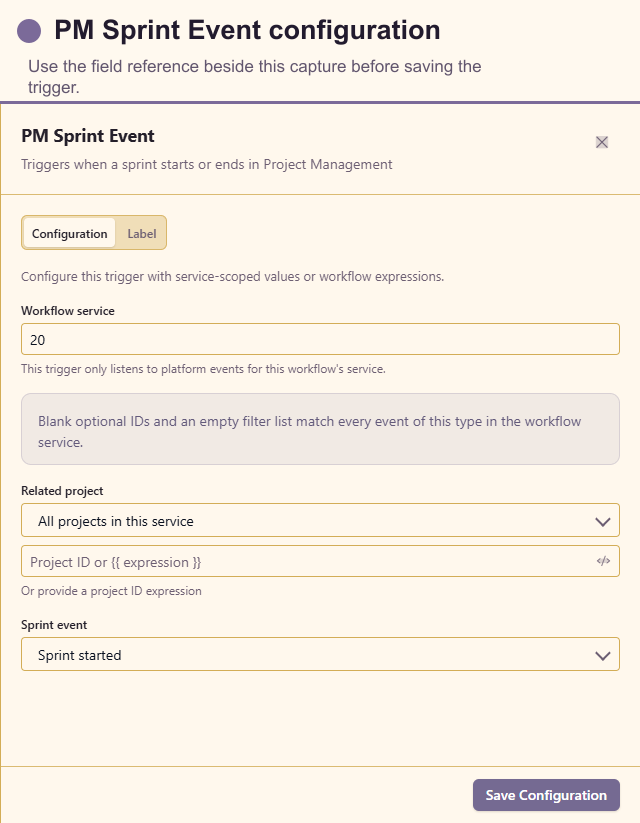
Use PM Sprint Event for sprint started, completed, or other supported sprint lifecycle moments.
Configure: read-only workflow service, optional Related project, and Sprint event.
Customer guidance: keep reporting workflows separate from workflows that change tasks, so a sprint lifecycle event cannot create an update loop.
Trigger data: sprint, project, event subtype, actor, and service.
Booking triggers
Section titled “Booking triggers”Booking Created
Section titled “Booking Created”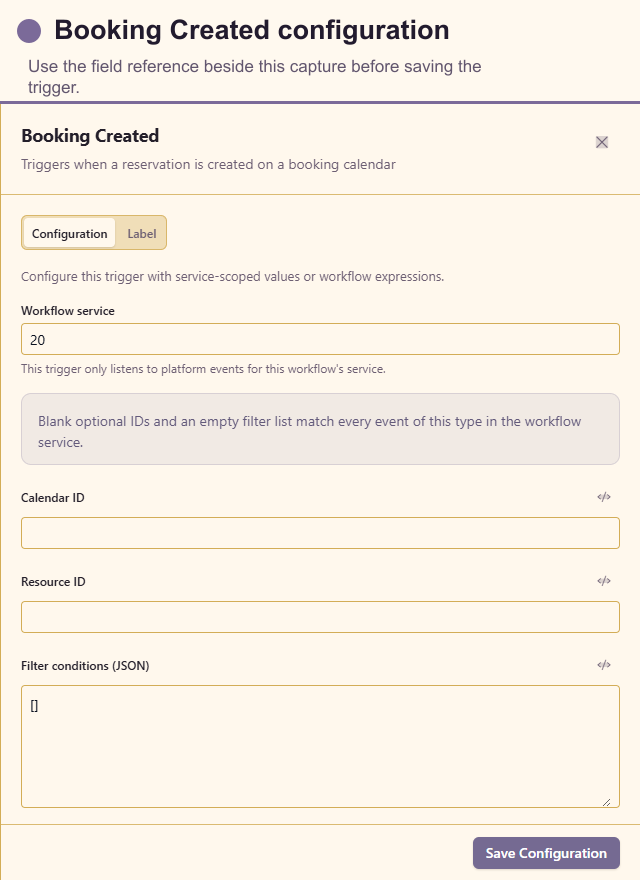
Use Booking Created for confirmations, preparation tasks, reminders, and resource coordination.
Configure: read-only workflow service, optional Calendar ID, optional Resource ID, and Filter conditions (JSON).
Customer guidance: scope a workflow to a calendar or resource if different appointment types have different messages, privacy rules, or staff owners.
Trigger data: booking, calendar, resource, attendee, start/end time, and service.
Booking Approved or Rejected
Section titled “Booking Approved or Rejected”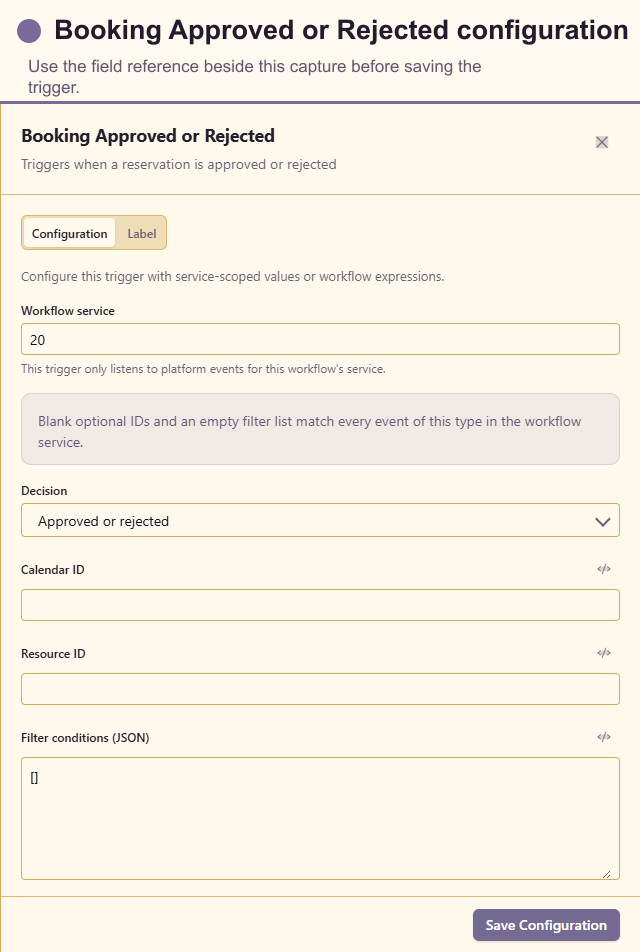
Use Booking Approved or Rejected for decision messages and follow-up work after a booking review.
Configure: Decision (any, approved, or rejected), optional Calendar ID, optional Resource ID, and Filter conditions (JSON).
Customer guidance: use separate branches or workflows when approval and rejection require substantially different customer language.
Trigger data: booking, decision, reviewer, calendar/resource, and service.
Booking Check-in Outcome
Section titled “Booking Check-in Outcome”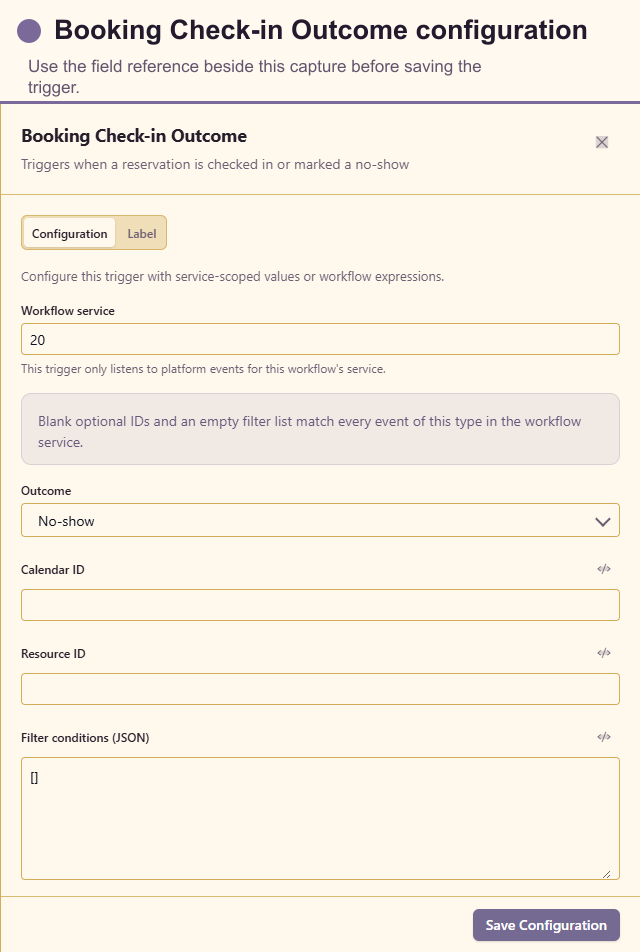
Use Booking Check-in Outcome for attendance follow-up after a reservation is checked in or marked as a no-show.
Configure: Workflow service is fixed to the current service. Outcome selects the check-in result to match. Optional Calendar ID and Resource ID narrow the booking source. Filter conditions (JSON) adds stable field-level conditions; an empty list matches every event already inside the selected scope.
Customer guidance: use separate routes when checked-in and no-show outcomes require different language or privacy handling. A no-show workflow should not expose private notes to broad recipients.
Trigger data: booking/reservation, outcome, calendar, resource, attendee context, recorded time, and service.
Team Calendar triggers
Section titled “Team Calendar triggers”Team Event Created
Section titled “Team Event Created”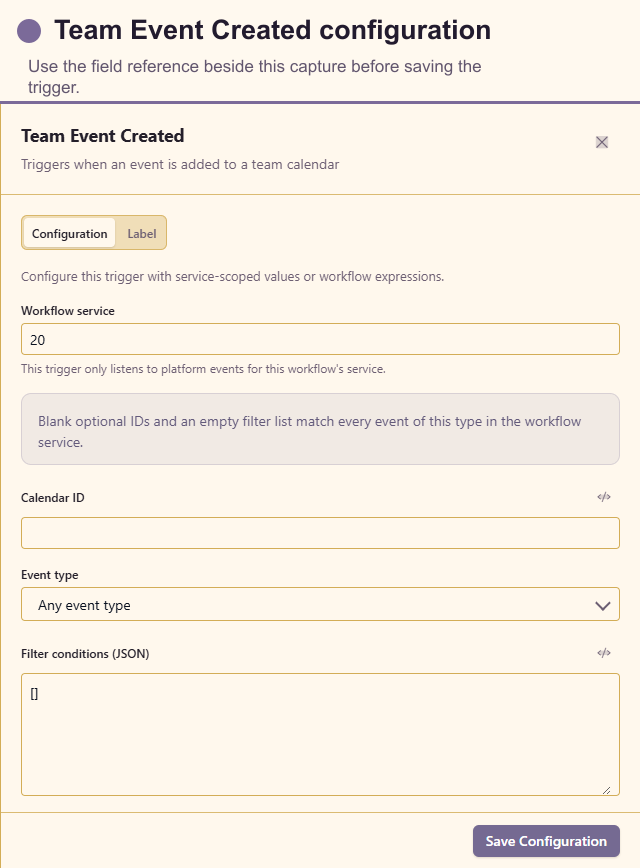
Use Team Event Created to react to a new meeting, event, or out-of-office entry.
Configure: optional Calendar ID, Event type (any, event, meeting, or out of office), and Filter conditions (JSON).
Customer guidance: avoid creating another matching calendar event in the same unfiltered workflow; that can create a trigger loop.
Trigger data: event, calendar, attendees, event type, dates, and creator.
Team Absence Starts
Section titled “Team Absence Starts”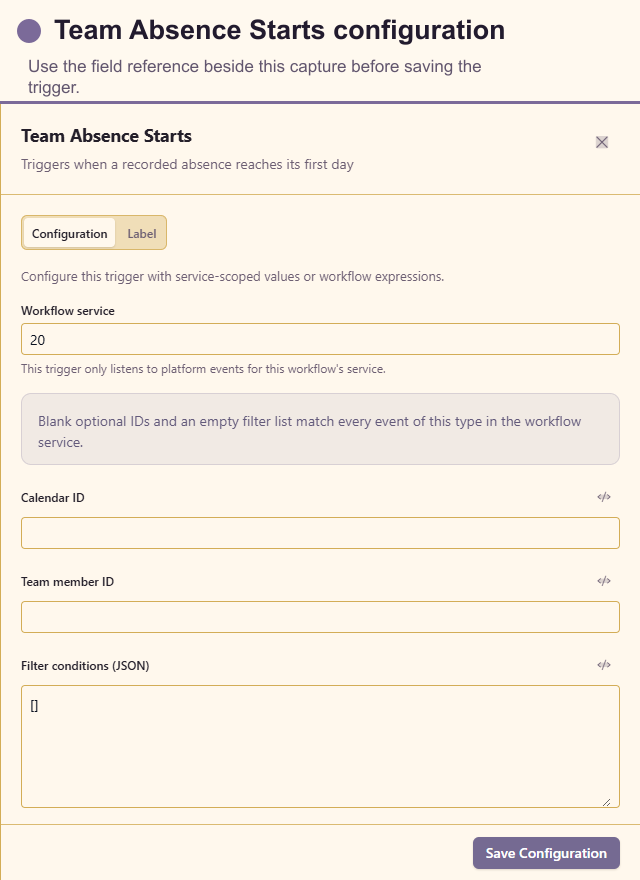
Use Team Absence Starts for cover notifications, reassignment, and operational handover.
Configure: optional Calendar ID, optional Team member ID, and Filter conditions (JSON).
Customer guidance: send the minimum personal information needed for coverage. Do not copy private absence notes into broad notifications or logs.
Trigger data: absence interval, team member, calendar, and service.
Content and workflow lifecycle triggers
Section titled “Content and workflow lifecycle triggers”Lifecycle triggers share the same configuration pattern: Fires on moment checkboxes, an optional item scope, and Filter conditions (JSON). With no moment selected, the trigger covers every moment offered for that module.
Chart Changed
Section titled “Chart Changed”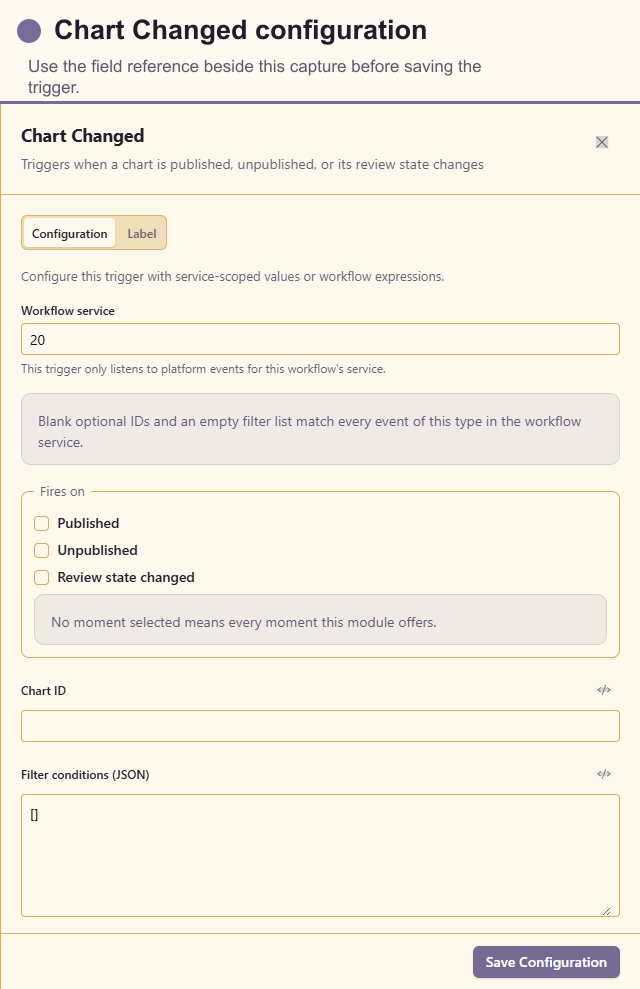
Use Chart Changed for dashboard review, export, or notification after a chart lifecycle change.
Configure: Fires on, optional chart scope, and filter conditions. Select only the lifecycle moments required by the customer process.
Trigger data: chart identity, lifecycle moment, version/change details, actor, and service.
Design Changed
Section titled “Design Changed”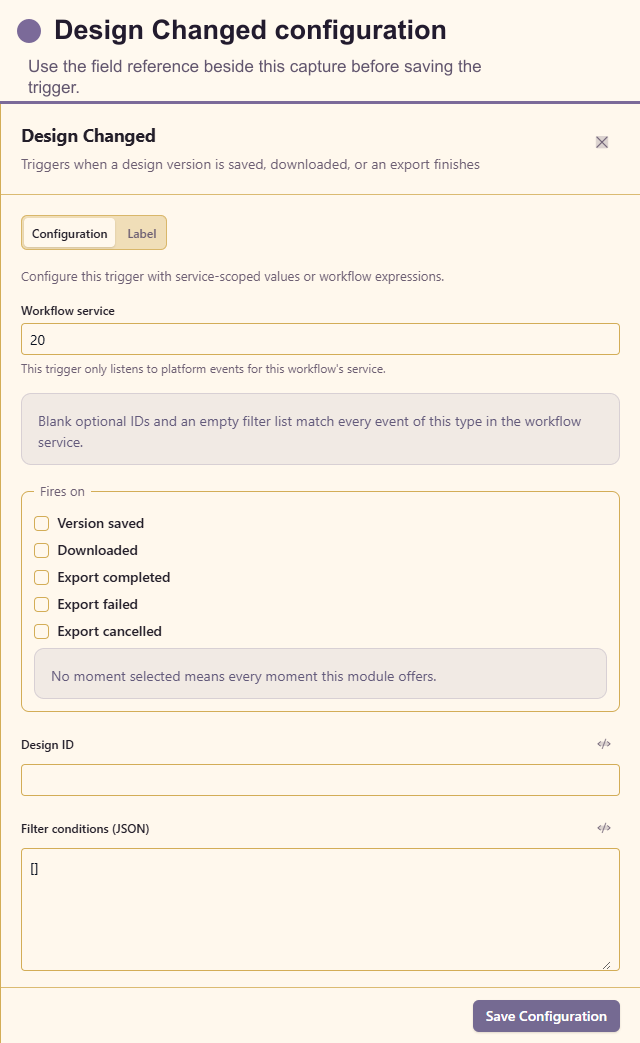
Use Design Changed for creative review and handoff workflows.
Configure: Fires on, optional Design ID, and filter conditions. Export-completed is the appropriate moment for workflows that need a finished asset.
Trigger data: design identity, lifecycle moment, version/export details, actor, and service.
Deck Changed
Section titled “Deck Changed”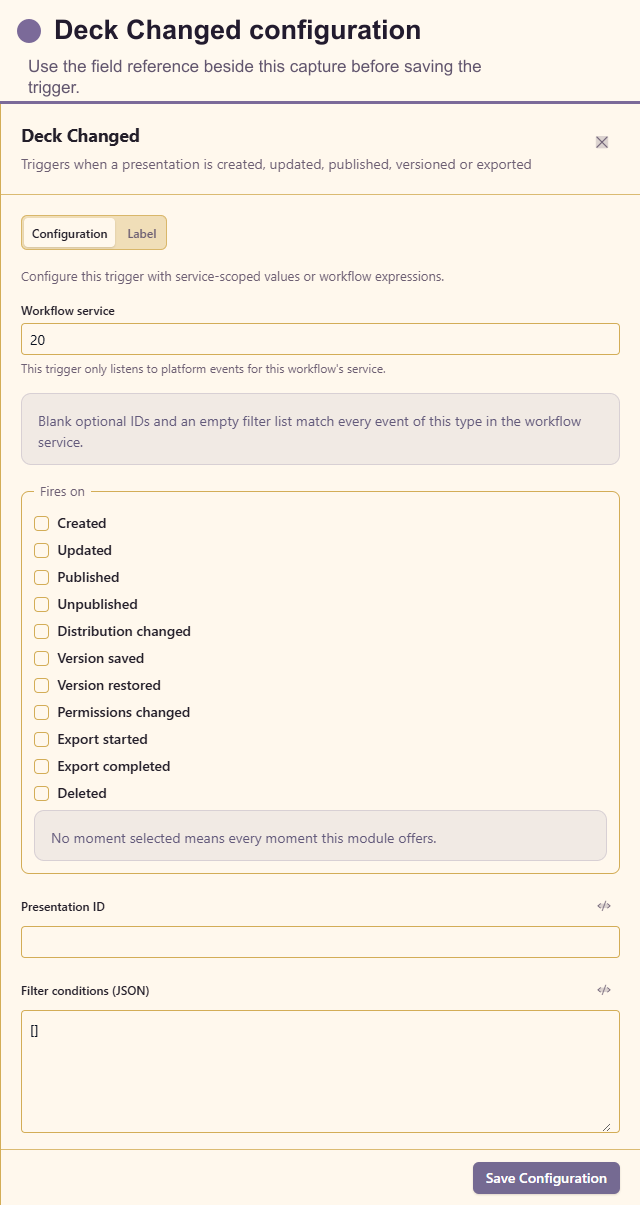
Use Deck Changed for Slideshow review, publishing, and distribution work.
Configure: Fires on, optional deck scope, and filter conditions.
Trigger data: deck identity, lifecycle moment, version details, actor, and service.
Asset Changed
Section titled “Asset Changed”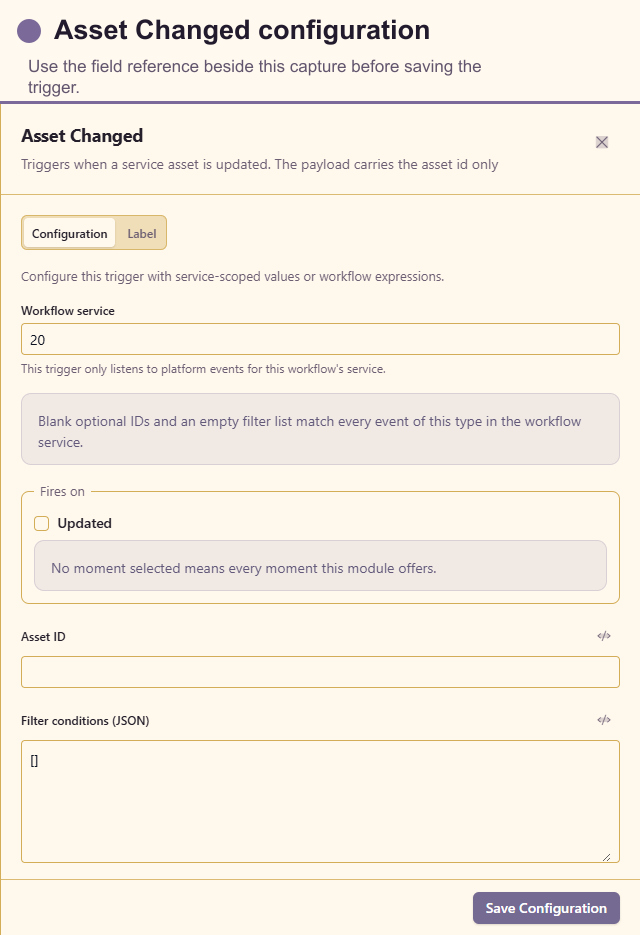
Use Asset Changed for workspace indexing, governance, and downstream content updates.
Configure: Fires on, optional asset scope, and filter conditions.
Trigger data: asset identity, lifecycle moment, version or metadata changes, actor, and service.
Workflow Run Finished
Section titled “Workflow Run Finished”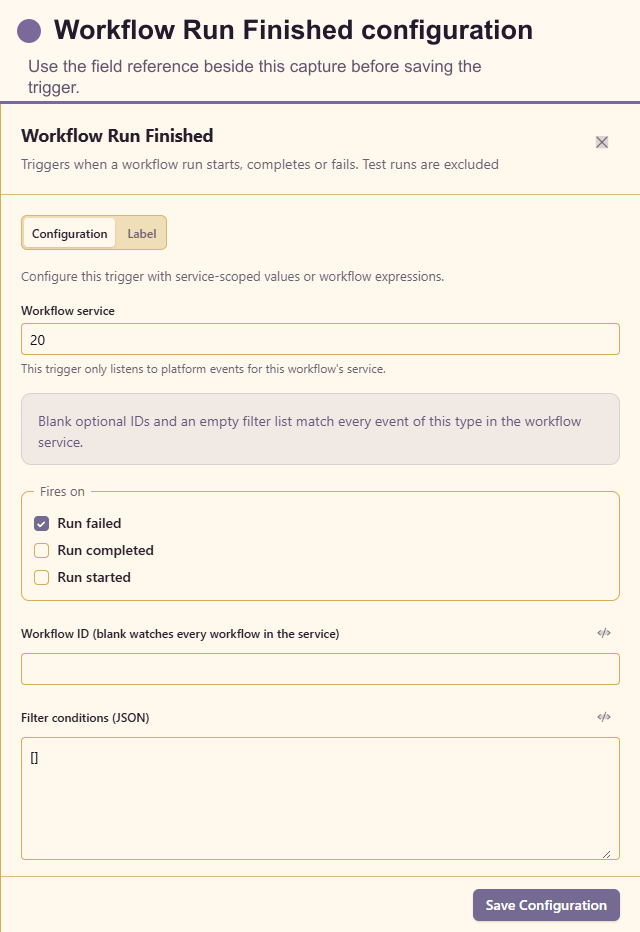
Use Workflow Run Finished to coordinate a downstream workflow after another workflow completes.
Configure: Fires on, optional workflow scope, and filter conditions such as outcome or originating workflow. Keep the scope narrow to prevent one workflow from responding to itself.
Customer guidance: prefer Sub-Workflow when the caller must wait for and directly consume a result. Use this trigger when the follow-up is independent and event-driven.
Trigger data: workflow and run identifiers, terminal status, output summary, completion time, and service.
Trigger testing checklist
Section titled “Trigger testing checklist”Before publishing:
- confirm the trigger fires once for one business event;
- verify its payload in Test data and Run history;
- test a non-matching event and confirm no run starts;
- check timezones, poll intervals, and recovery behaviour;
- confirm managed credentials and signatures;
- check that a downstream write cannot re-trigger the same workflow indefinitely.