
Embed service content
Embed a service artifact when the slide should point at the original instead of holding a copy you rebuilt by hand.
1. Open the deck
Section titled “1. Open the deck”Open the deck in the Slideshow editor and select the slide that needs connected content.
2. Open Embed
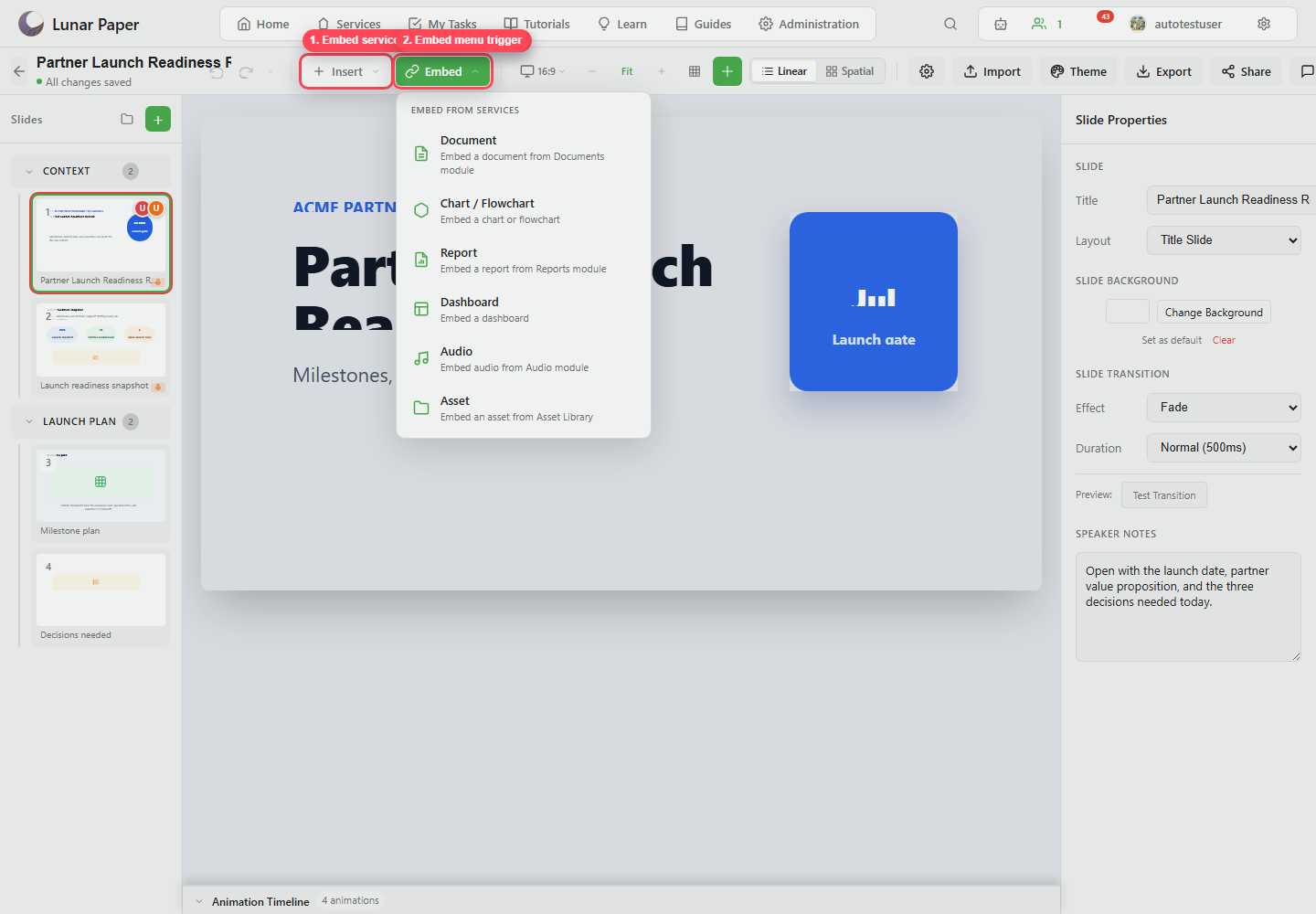
Section titled “2. Open Embed”Click Embed in the toolbar.
3. Choose the content type
Section titled “3. Choose the content type”Choose the type that matches the source artifact:
- Document for narrative or spec content.
- Chart / Flowchart for structured diagrams.
- Report for report artifacts.
- Dashboard for operational views.
- Audio for audio assets or projects.
- Asset for shared files or media.
4. Place the embed
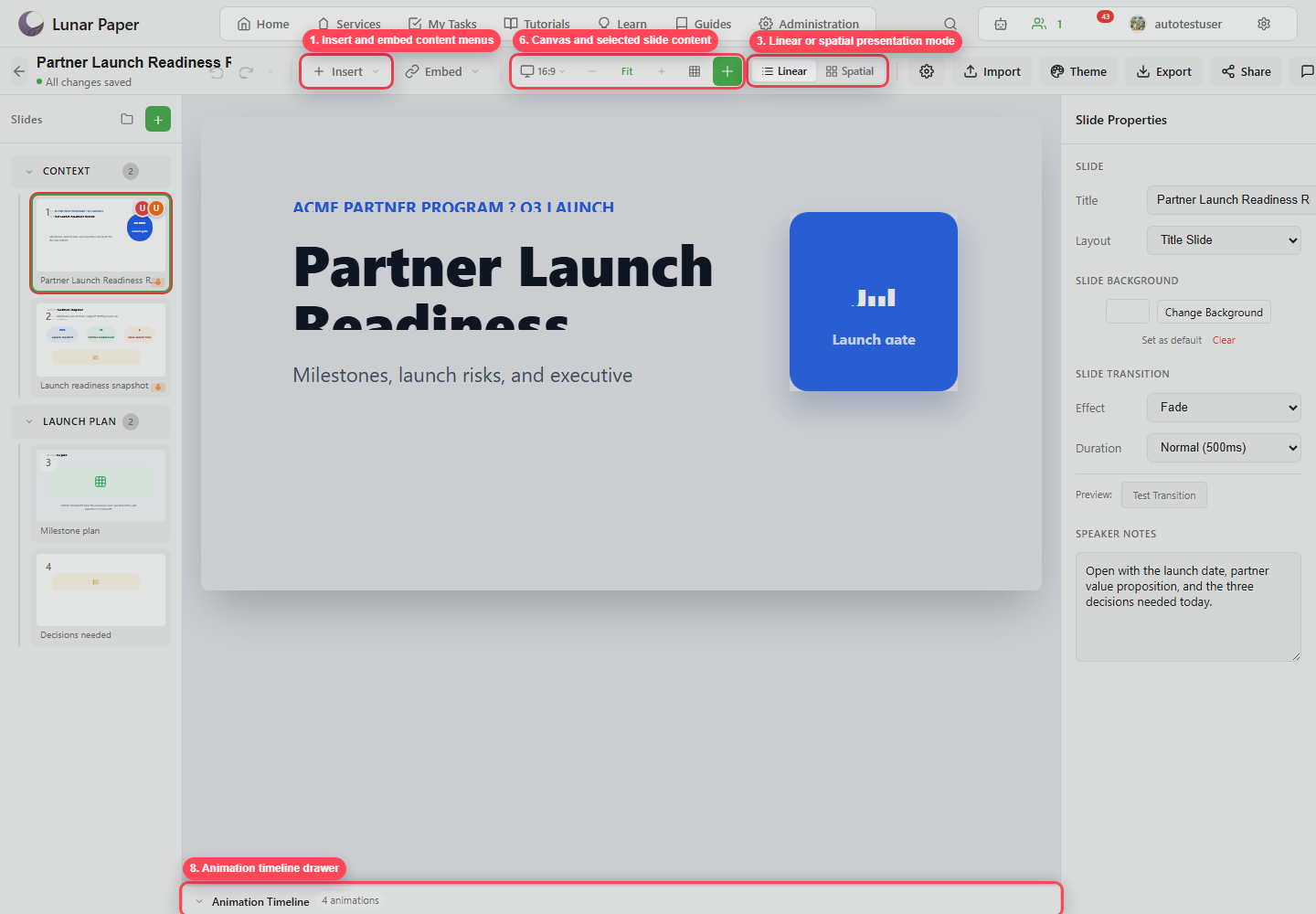
Section titled “4. Place the embed”Once the embed is in, position it on the slide. Use the canvas and the properties panel to size, align, and style the element.
5. Decide static or live behavior when sharing
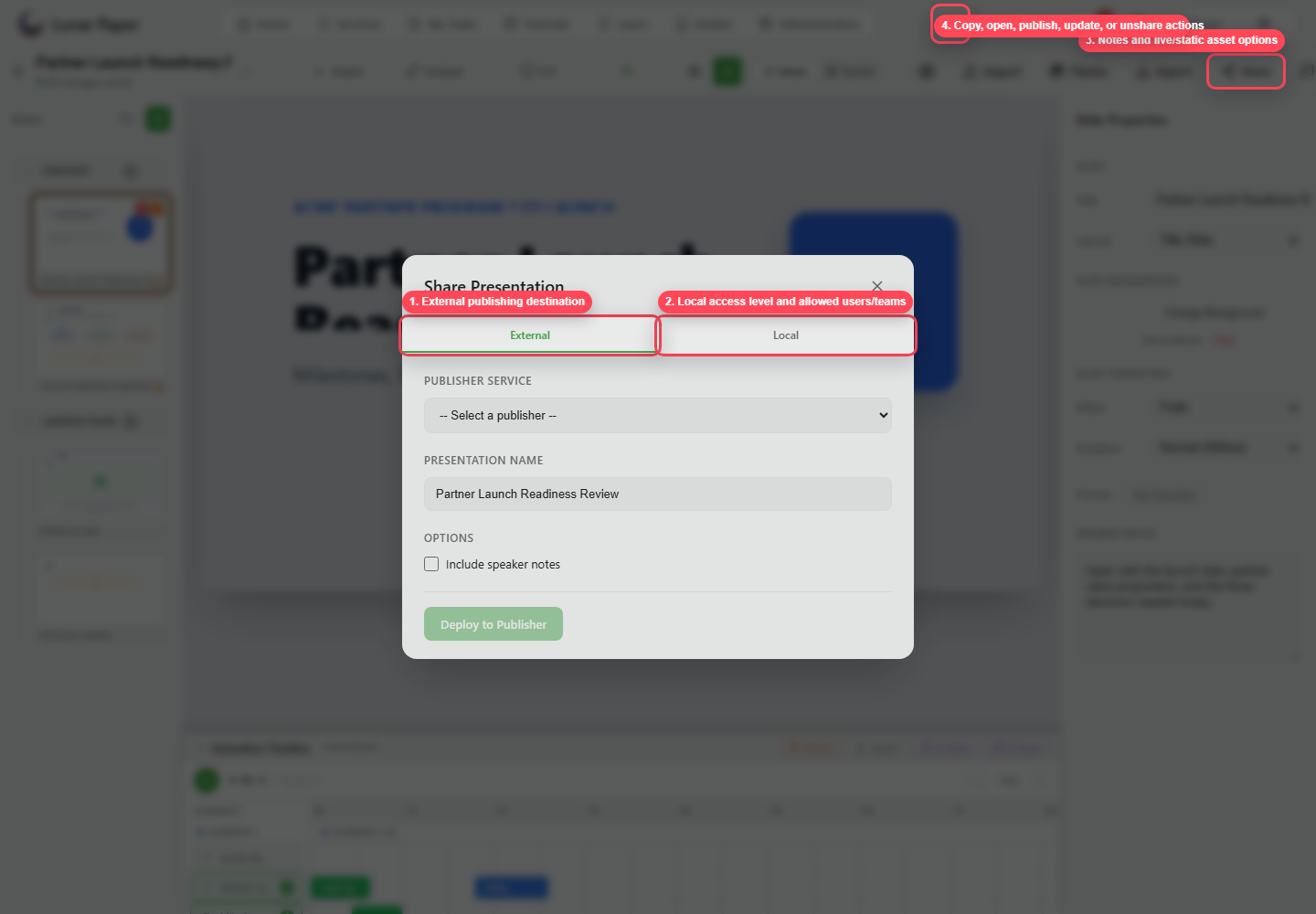
Section titled “5. Decide static or live behavior when sharing”When you share locally, decide whether connected assets should be static snapshots or live references, where that option is available.
6. Export carefully
Section titled “6. Export carefully”Before you export, preview the deck and check that the embedded content renders correctly in the format you chose. A web export keeps more of the interaction than a PDF handoff does, so pick the format around what the embeds need. The content elements reference lists every embedded type.