
Browse and apply presets
Presets are ready-made instrument and effect sounds, so you can load a starting sound instead of building one from scratch. The Presets button in the bottom transport bar opens the browser.
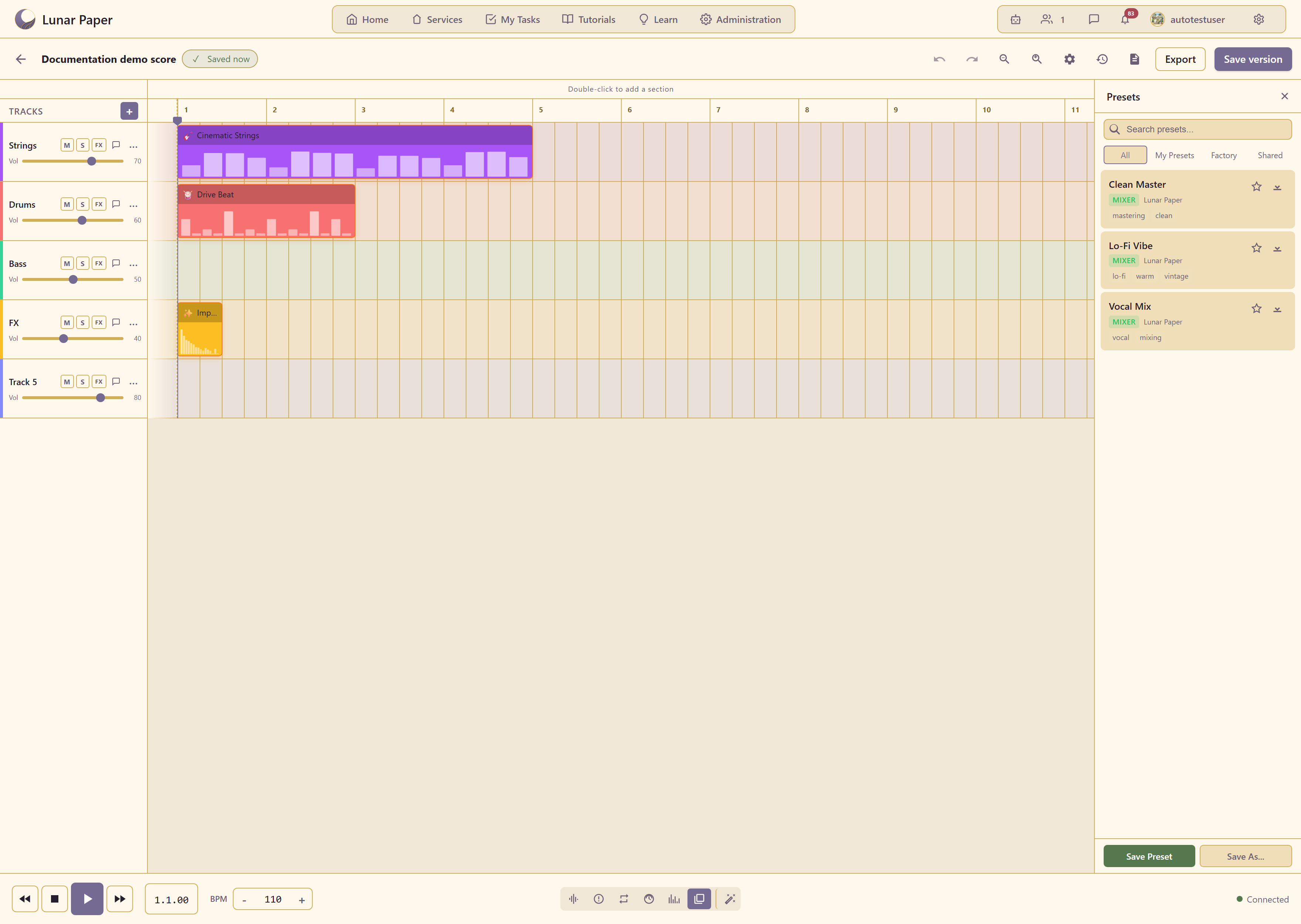
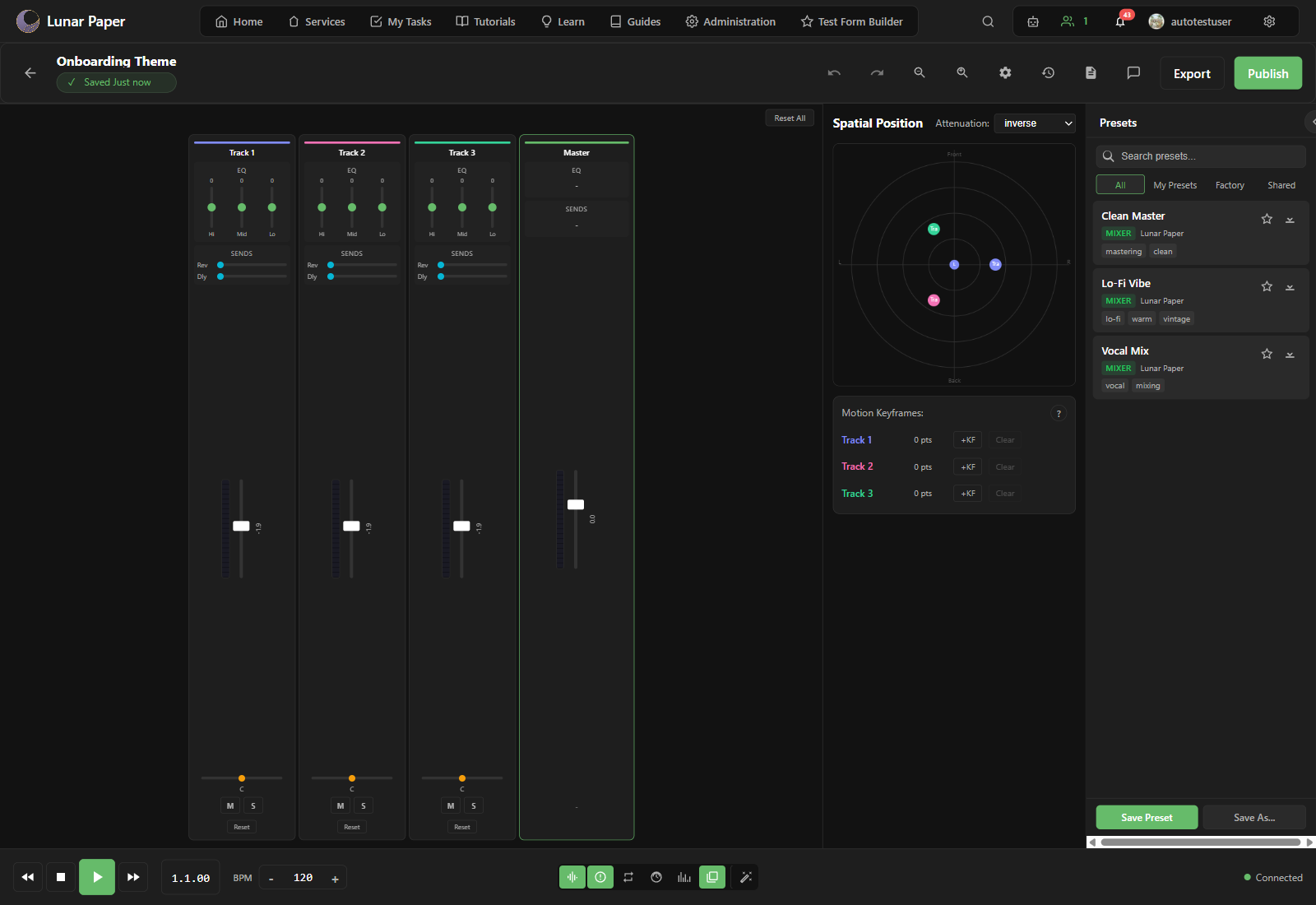
Four tabs run across the panel: All, My Presets, Factory, and Shared. Factory holds the presets that ship with the module — Clean Master, Lo-Fi Vibe, and Vocal Mix are mixer presets — while My Presets holds anything you have saved and Shared holds anything shared into the service.
Find a preset
Section titled “Find a preset”Scroll the list or search by name. Each preset shows its name, the part of the project it applies to, and a short description of the sound.
Apply a preset
Section titled “Apply a preset”Select a track, then click the preset. It loads into that track’s instrument or effect slot and replaces whatever was there.
Save Preset stores the current settings under a new name, and Save As… copies an existing preset so you can adjust it without losing the original.
Build a kit quickly
Section titled “Build a kit quickly”Start with a template, then load presets across tracks to build a full arrangement in minutes:
- Load a drum kit preset on
Track 1. - Load a bass preset on
Track 2. - Load a synth lead preset on
Track 3.
Adjust the track volumes in the Mixer afterward.
From a preset to a mix
Section titled “From a preset to a mix”- Once a preset is loaded, Work with tracks covers the rest of the track controls.
- Use the Mixer then sets the balance between tracks.
- If nothing in the list fits, Generate with the AI Assistant builds a sound from a written description.