
Action reference
Actions perform the work after a trigger fires. This reference covers all 59 actions in the active catalogue, plus the designer-only layout tools.
Every runtime action section includes a full-height capture of its Configuration tab followed by the purpose of each field. Some drawers reveal additional fields only after you select a source, operation, template, or assignment mode; those conditional fields are still described even when the empty reference fixture cannot display them.
Every action also has a Retries tab and a Label tab. Configure retries only for transient failures. Give every production step a unique, outcome-oriented label and a note that explains a business rule or environment dependency.
Use the expression picker for trigger context, variables, and upstream outputs. Dry-run testing is the default; enable Run for real only when an intentional test may create, update, send, or call something.
Flow Control
Section titled “Flow Control”Conditional
Section titled “Conditional”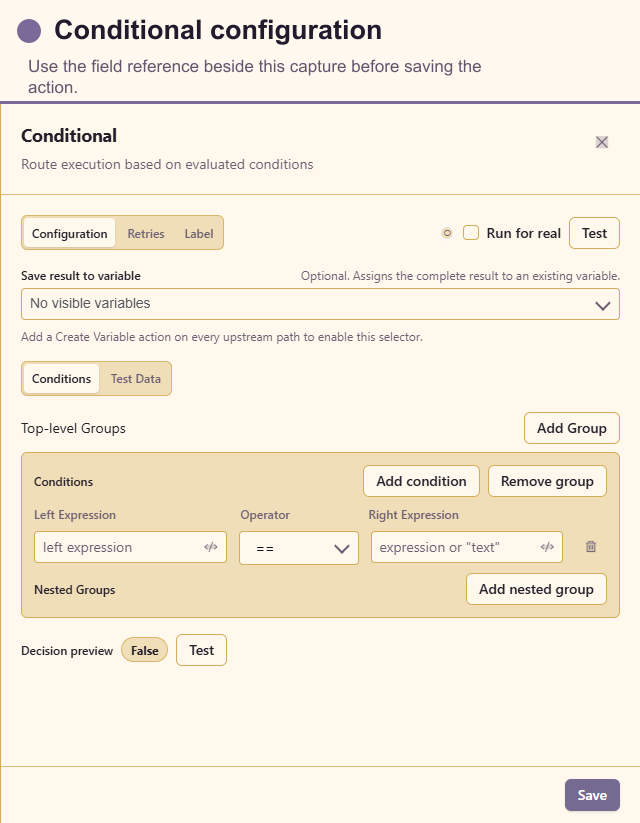
Configuration fields
Routes execution according to one or more conditions. Configure condition groups, AND/OR logic, field or expression, operator, comparison value, and the true/false connections. The test panel accepts ctx, variables, and outputs JSON. Put the most selective customer rule first and always connect the false path when dropping work would be surprising.
Configuration fields
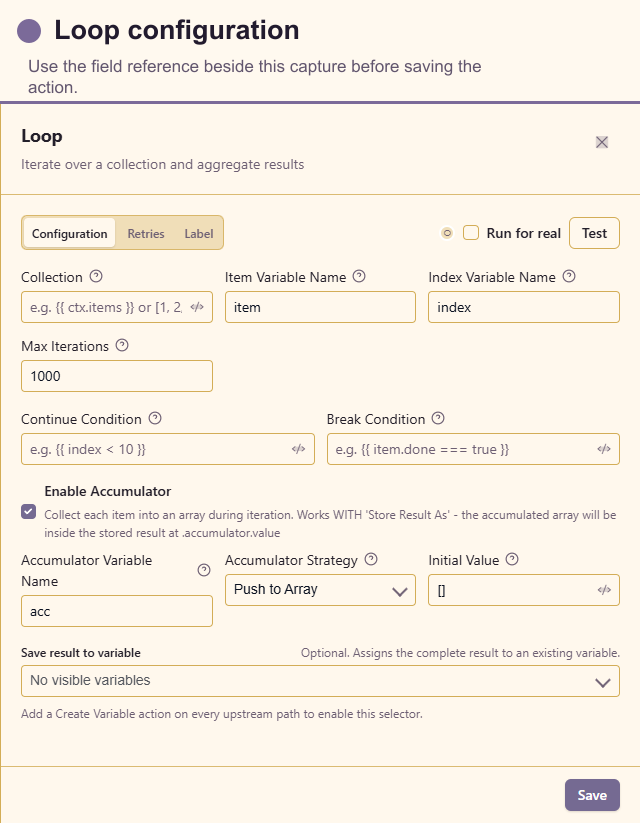
Repeats work for a collection. Configure Collection, Item name, Index name, Max iterations, optional Continue condition, optional Break condition, and optional accumulator Name, Strategy, and Initial value. Set a realistic maximum and make downstream writes idempotent.
Create Variable
Section titled “Create Variable”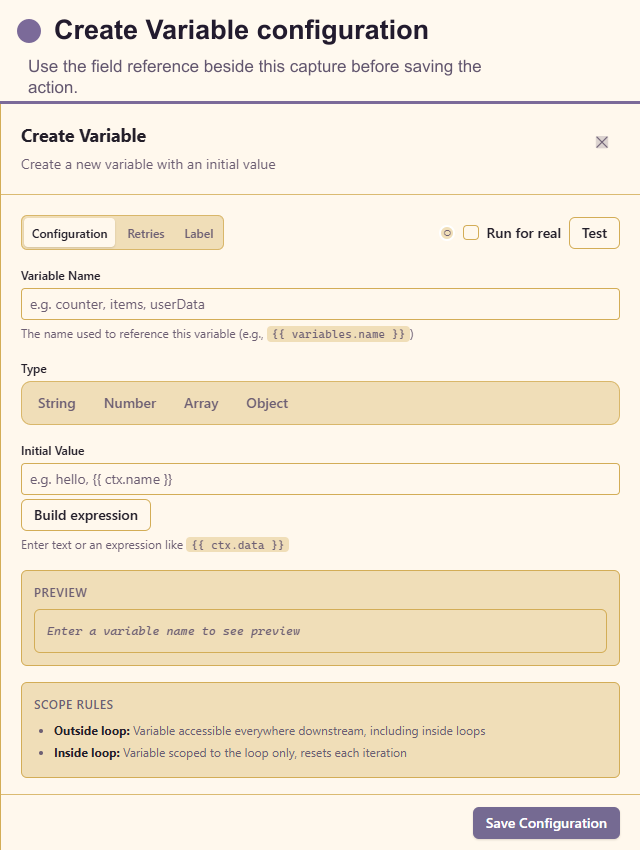
Configuration fields
Creates workflow state. Configure a unique Variable name and Initial value with the appropriate inferred value type. Use variables for values that intentionally change during the run; use action outputs for fixed results.
Update Variable
Section titled “Update Variable”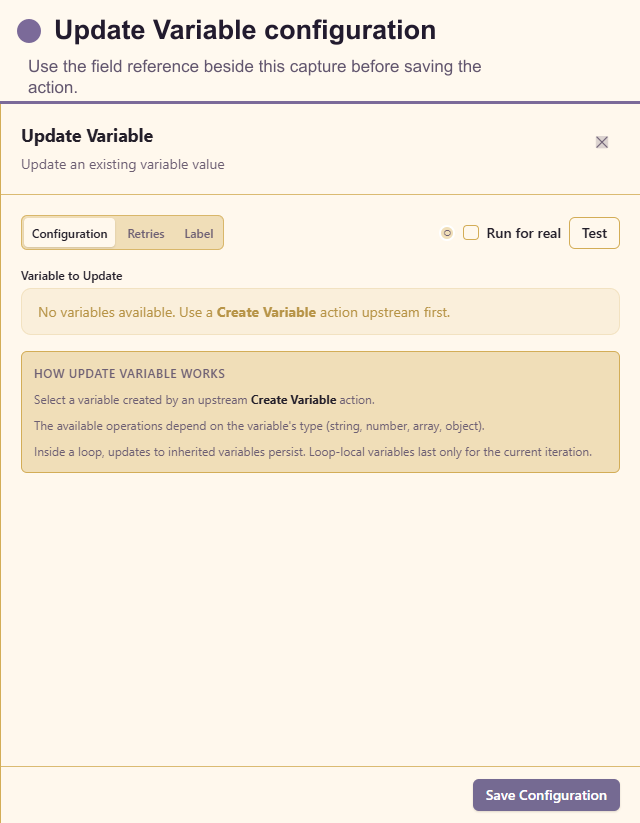
Configuration fields
Changes existing workflow state. Select Variable to update, choose an Operation, and provide the required Value. Property operations also require Property key and Property value. Check that numeric, array, object, and string operations receive the right type.
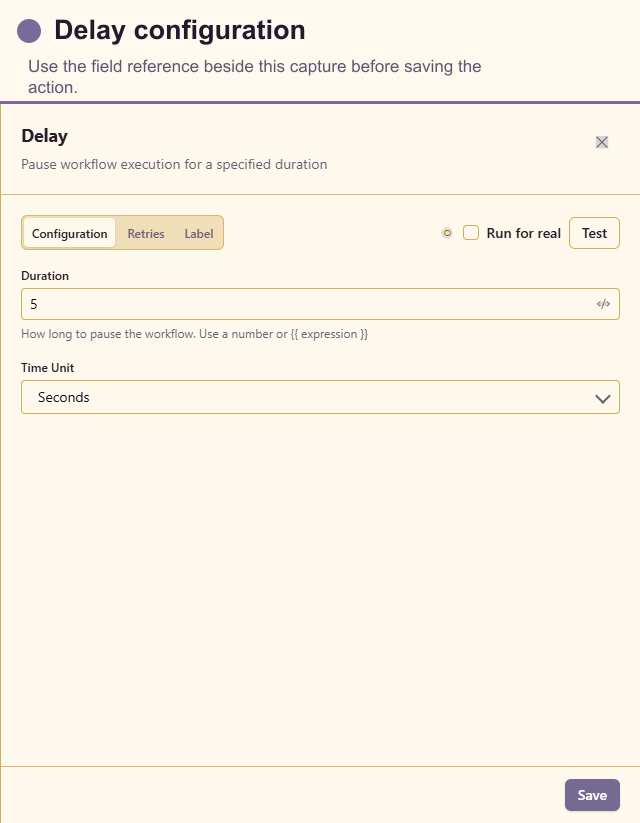
Configuration fields
Pauses for a relative duration. Configure expression-enabled Duration and Unit. Use a bounded delay for short backoff or spacing; use Wait Until for a customer appointment or other known wall-clock time.
Wait Until
Section titled “Wait Until”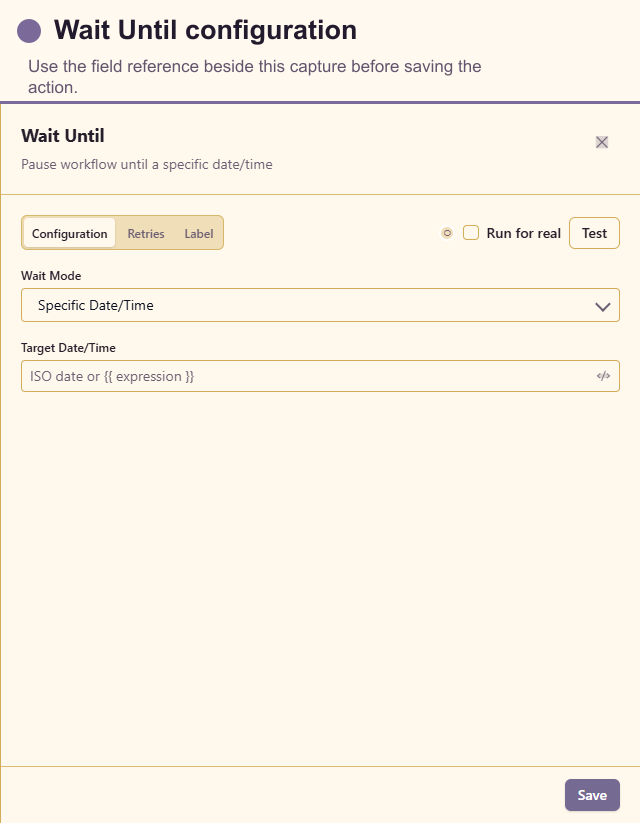
Configuration fields
Pauses durably until a time. Configure Mode, then either Target date/time or Hour and Minute. Use an ISO date/time with an explicit offset when the customer moment belongs to a particular timezone.
Switch
Section titled “Switch”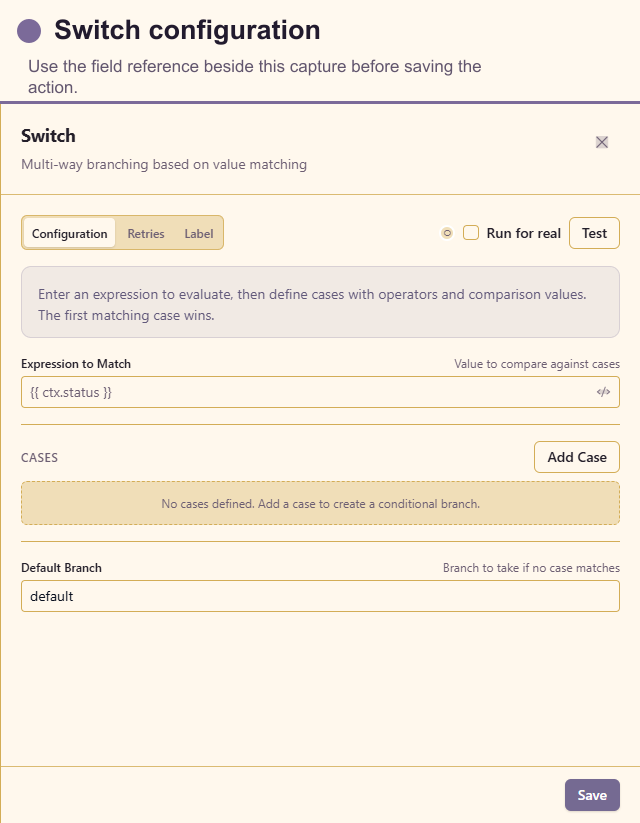
Configuration fields
Creates named multi-way branches. Configure the source Expression; for every case configure Operator, Value, customer-readable Label, and stable Branch; then configure Default case. Always connect the default path so new or unexpected values remain visible.
Sub-Workflow
Section titled “Sub-Workflow”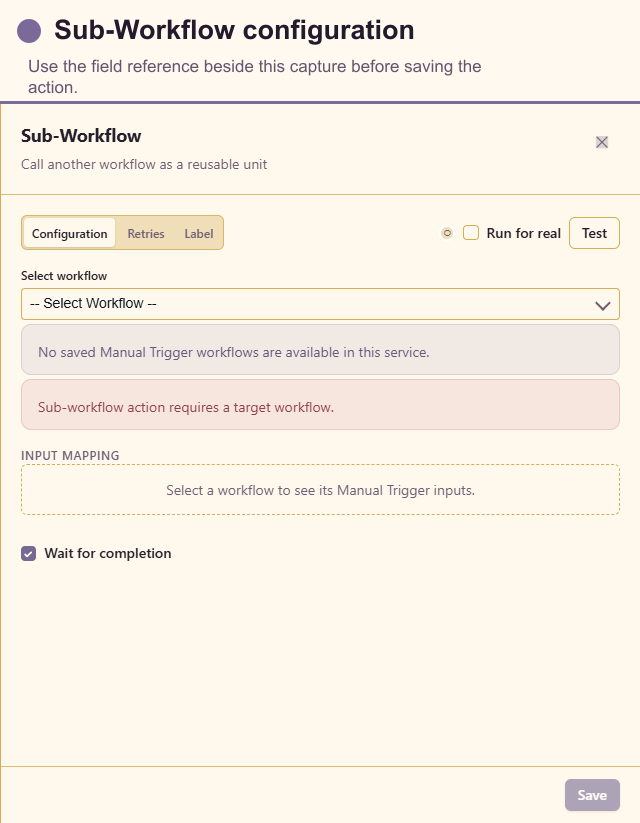
Configuration fields
Calls a reusable workflow. Configure Select workflow, the value or expression for each declared child input, and Wait for completion. The called workflow should use a Manual trigger with a documented input contract and Return Data for a small stable output contract.
Parallel
Section titled “Parallel”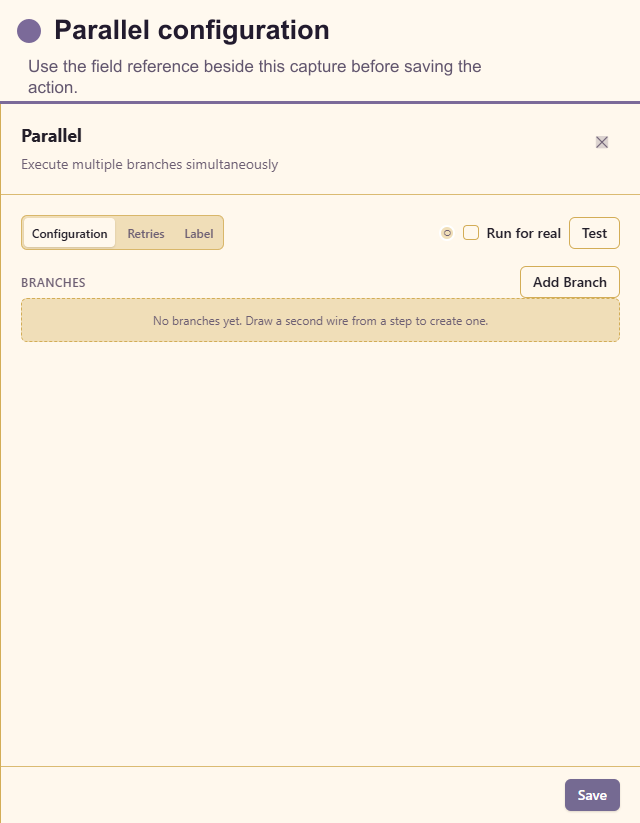
Configuration fields
Starts independent branches at the same time. Configure each Branch name and its On failure behaviour. Parallel work must not depend on a sibling branch’s output; reconnect branches through Parallel Join.
Try-Catch
Section titled “Try-Catch”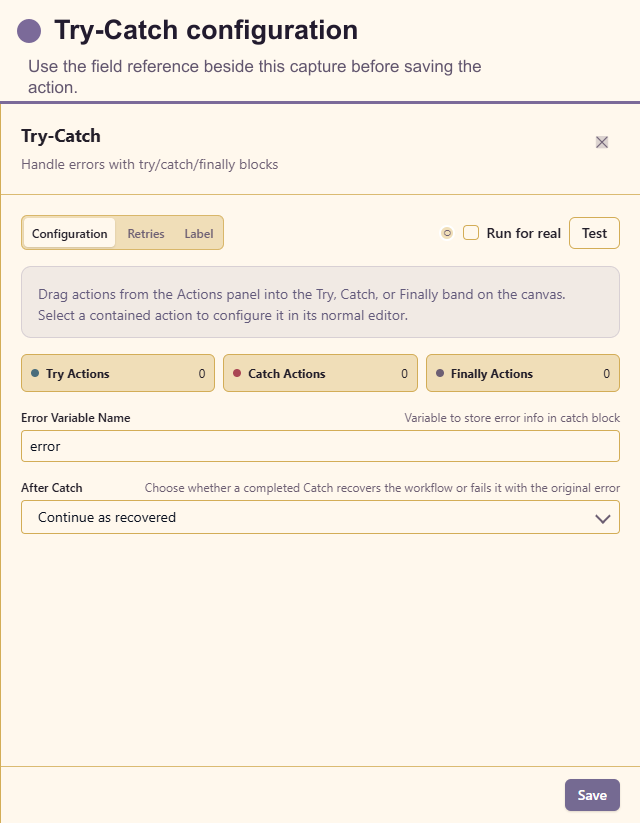
Configuration fields
Contains nested Try, Catch, and optional Finally action bands. Configure Error variable and After catch behaviour. Catch only failures the workflow can handle, and preserve a useful error code without logging credentials or personal data.
Throw Error
Section titled “Throw Error”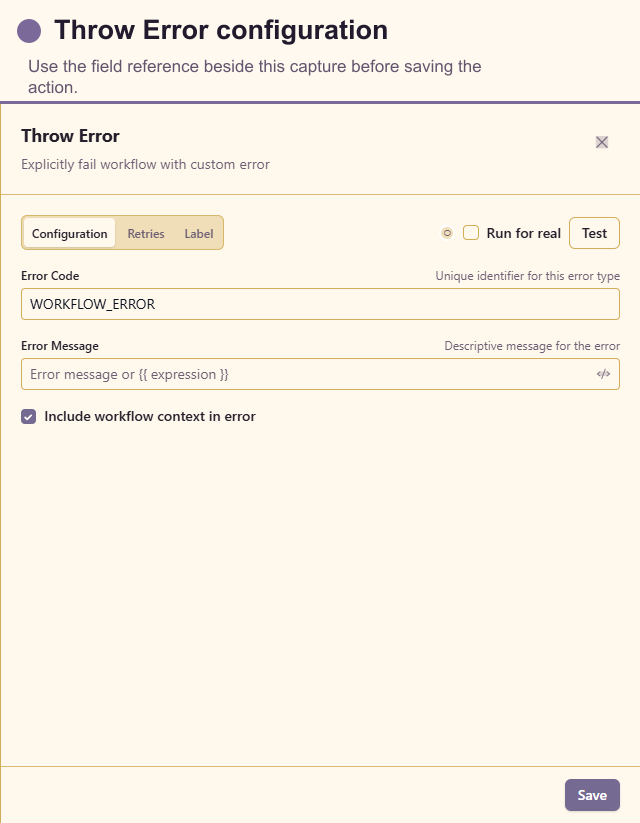
Configuration fields
Stops the current path with a deliberate failure. Configure Error code, expression-enabled Error message, and Include context. Use stable codes for support and routing; keep customer-sensitive values out of the message.
Parallel Join
Section titled “Parallel Join”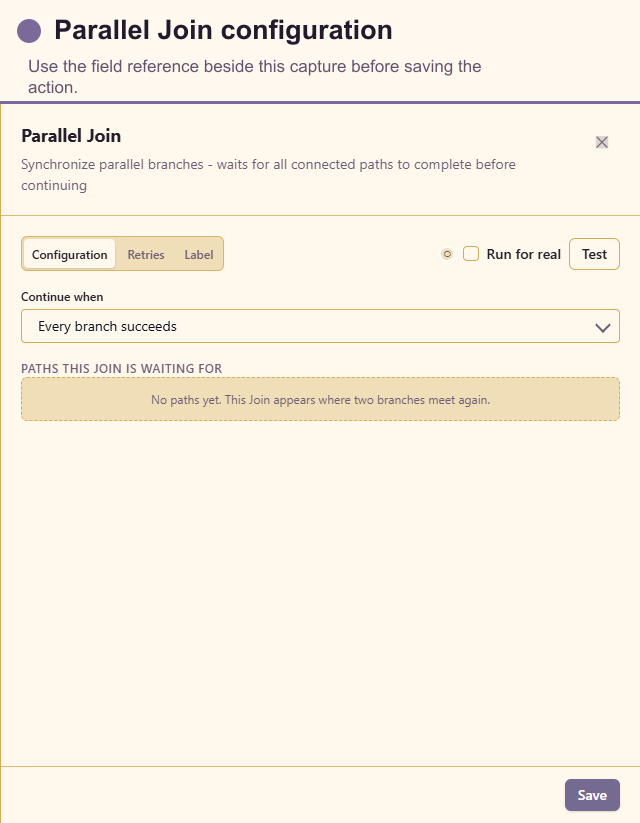
Configuration fields
Waits for connected parallel paths. Configure the Wait rule and connect every expected branch. Use “all” when the next step needs every result; document any partial-completion behaviour.
Return Data
Section titled “Return Data”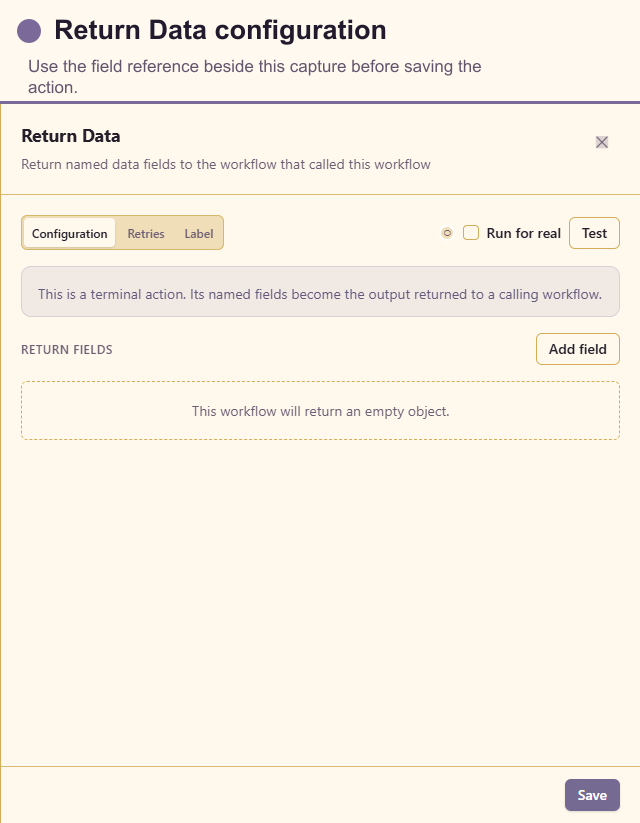
Configuration fields
Returns named values to a parent workflow. Add a Field name and expression-enabled value for every output. Treat these names as an API contract: keep them stable, small, and free of internal-only details.
Data Query
Section titled “Data Query”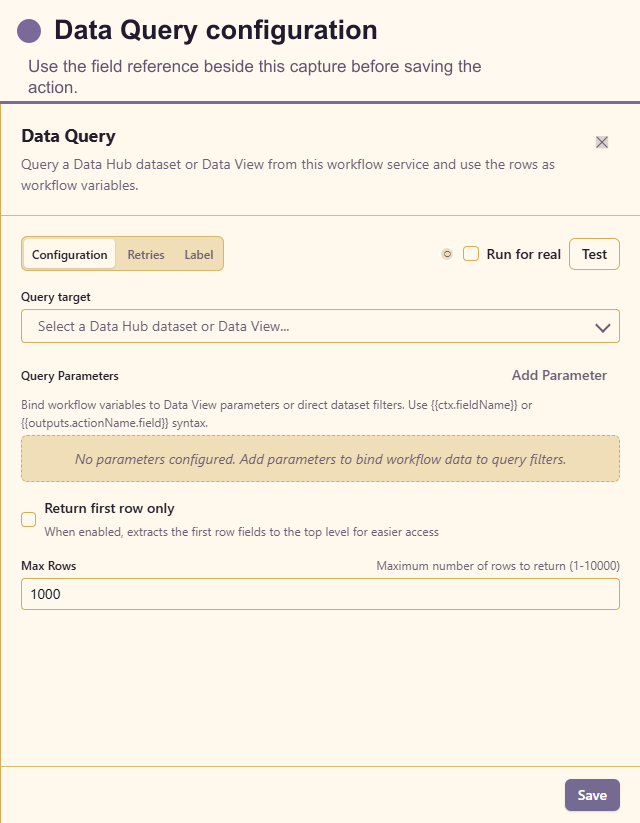
Configuration fields
Reads a DataHub dataset or Data View. Configure Query target, parameter name/value rows, Return first row only, and Max rows. Prefer a curated target and parameters over dynamically assembled query text. Limit the result to what downstream steps need.
DataHub - Insert
Section titled “DataHub - Insert”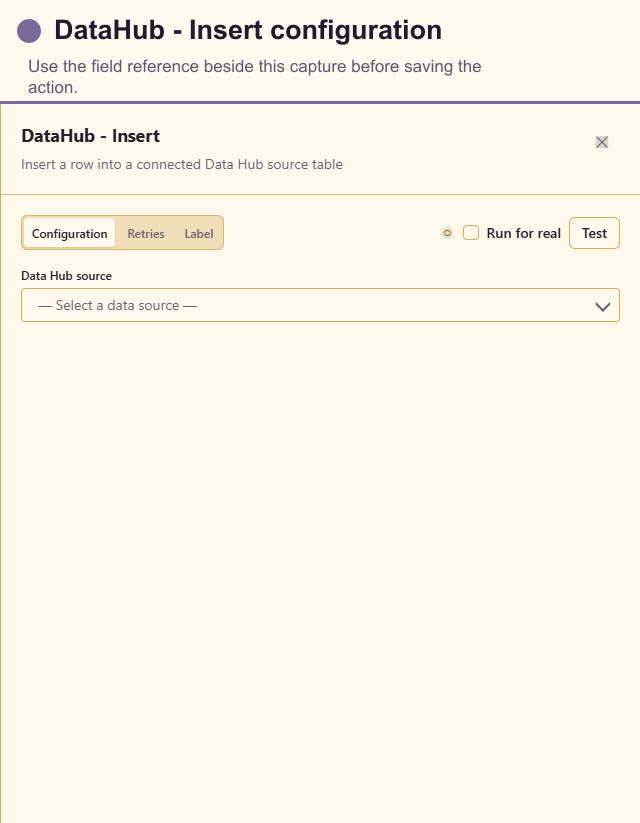
Configuration fields
Adds a row. Select the service DataHub Connection/source and Table, then add field/value mappings using table columns or explicit field names. Provide every required database field and use a source event key to prevent accidental duplicates.
DataHub - Update
Section titled “DataHub - Update”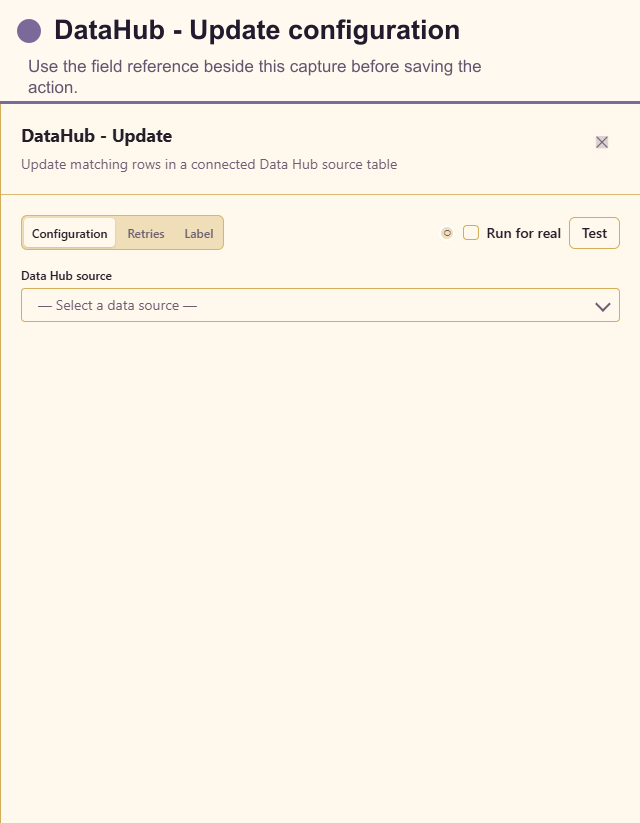
Configuration fields
Updates matching rows. Select Connection/source and Table, add field/value mappings, then add filter rows with field, operator, and value. Use a primary-key filter whenever possible and test that the filter cannot match the whole table.
DataHub - Delete
Section titled “DataHub - Delete”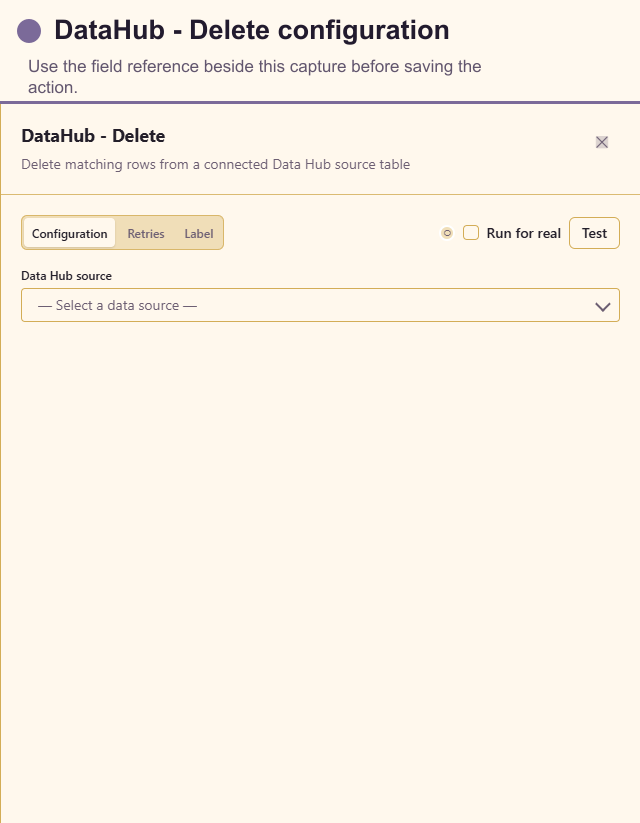
Configuration fields
Deletes matching rows. Select Connection/source and Table, then add filter rows with field, operator, and value. Deletion is a live side effect; prefer a soft-delete update and never run for real with an empty or broad filter.
DataHub - Query
Section titled “DataHub - Query”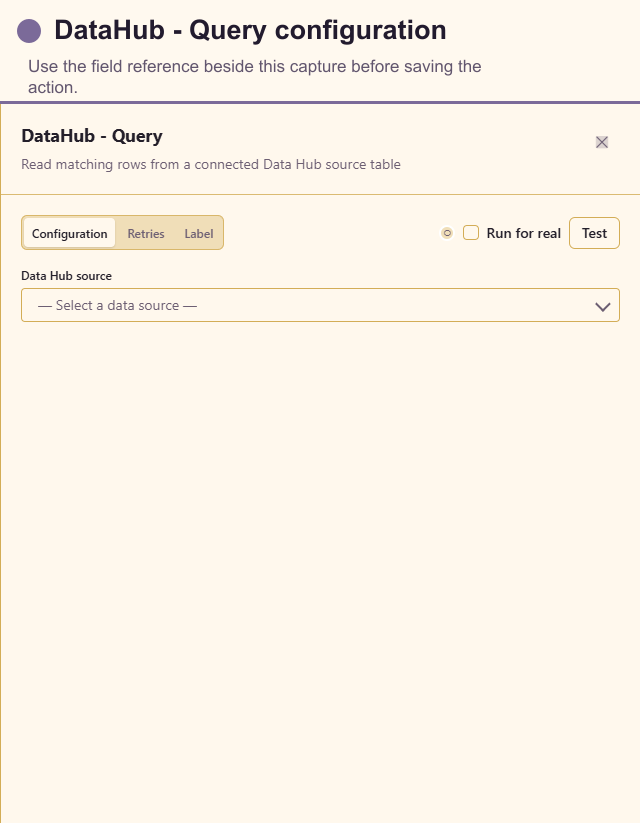
Configuration fields
Queries table rows. Select Connection/source and Table, add optional filter rows, and set Limit. Use the returned rows directly or store them under a clearly named variable when several downstream steps share the result.
Transform
Section titled “Transform”Transform actions are side-effect free and are documented in depth in Transform actions.
Random Number
Section titled “Random Number”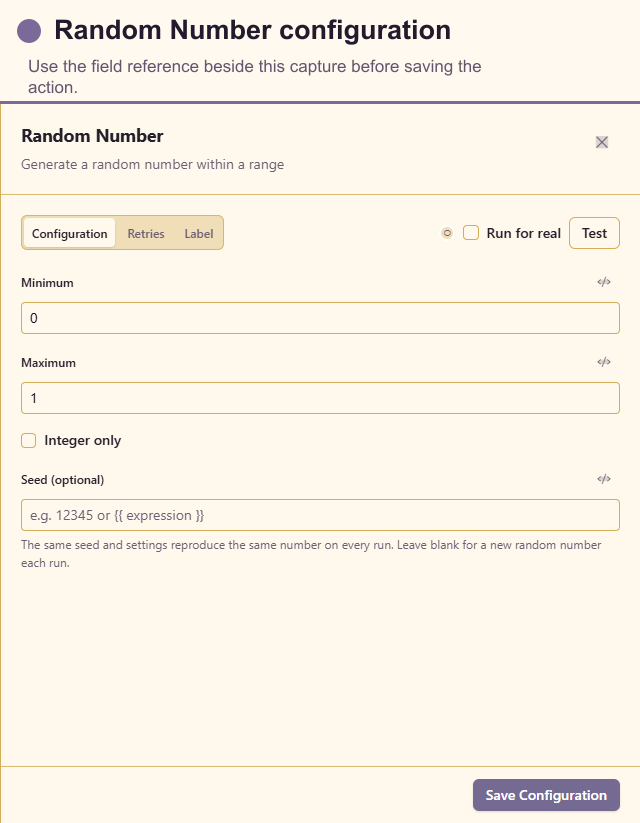
Configuration fields
Configure expression-enabled Min and Max, Integer only, and optional Seed. Use a seed when a test or customer allocation must be repeatable; do not use this action for security tokens.
Configuration fields
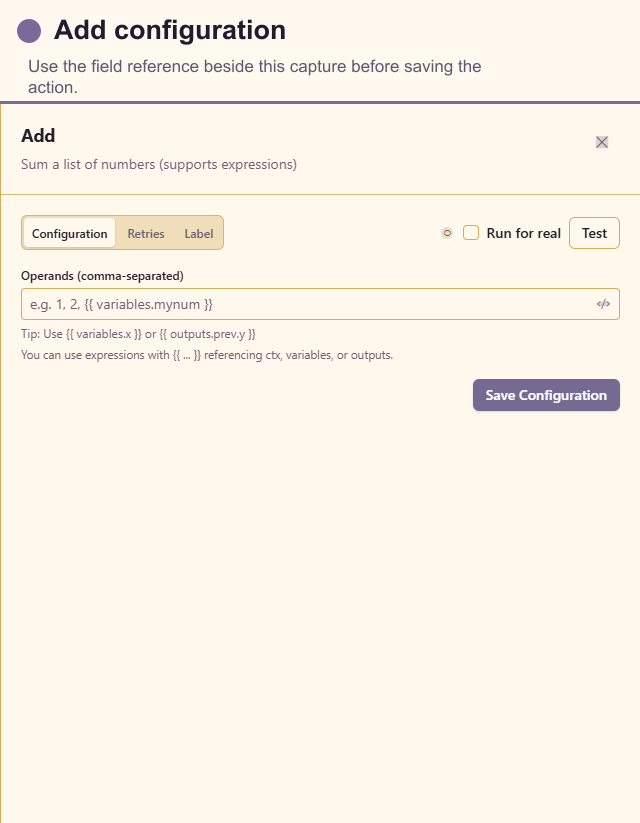
Configure comma-separated or expression-based Operands. The result is the numeric sum. Validate empty values and number conversion before using it for totals shown to customers.
Subtract
Section titled “Subtract”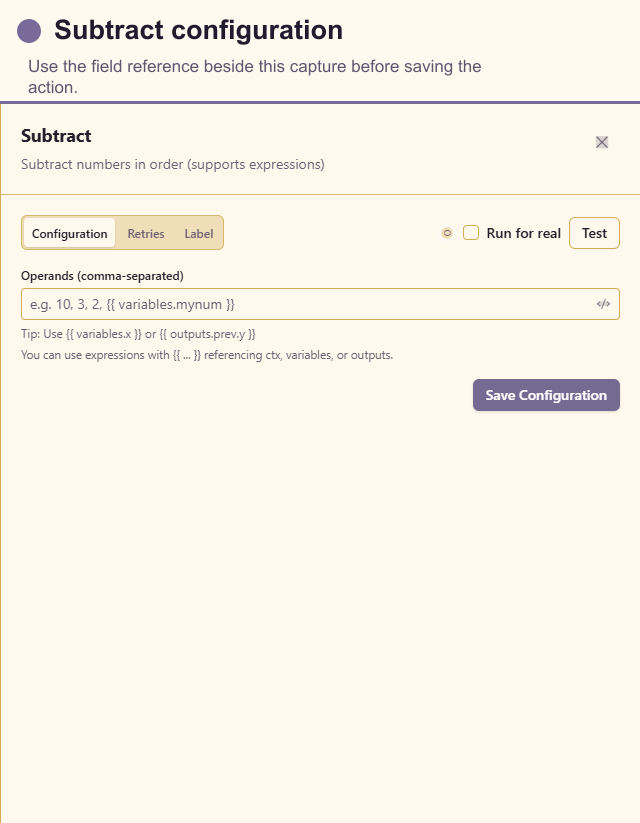
Configuration fields
Configure ordered Operands. The first value is reduced by each following value, so order matters for balances, durations, and remaining quantities.
Multiply
Section titled “Multiply”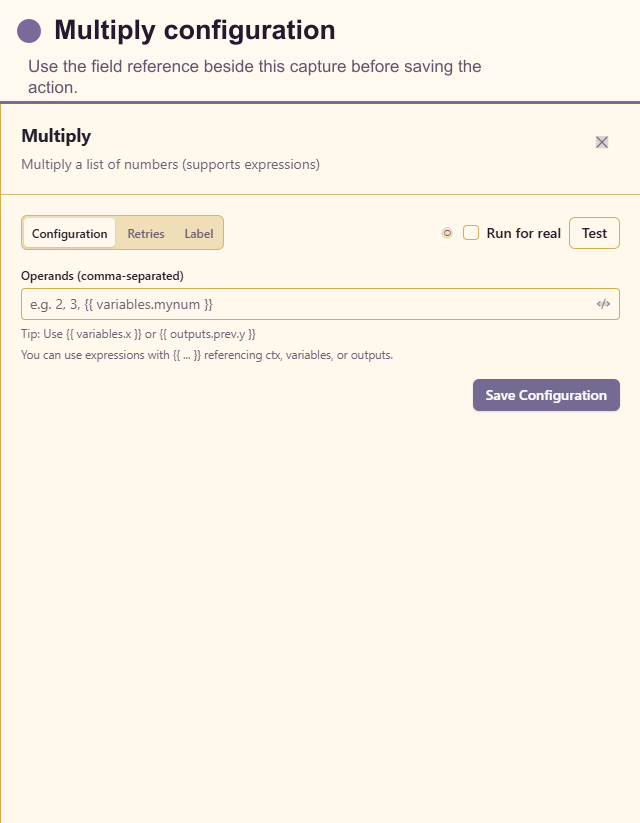
Configuration fields
Configure Operands. Use explicit units in the node label, such as “Calculate amount in cents”, to prevent scale mistakes.
Divide
Section titled “Divide”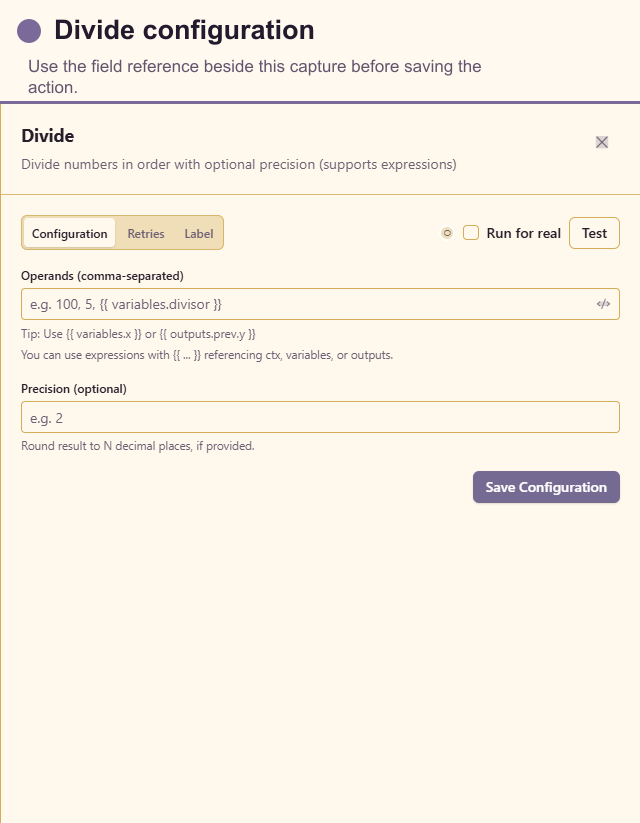
Configuration fields
Configure ordered Operands and optional Precision. Guard against zero and missing divisors with Conditional before presenting the result.
String Operations
Section titled “String Operations”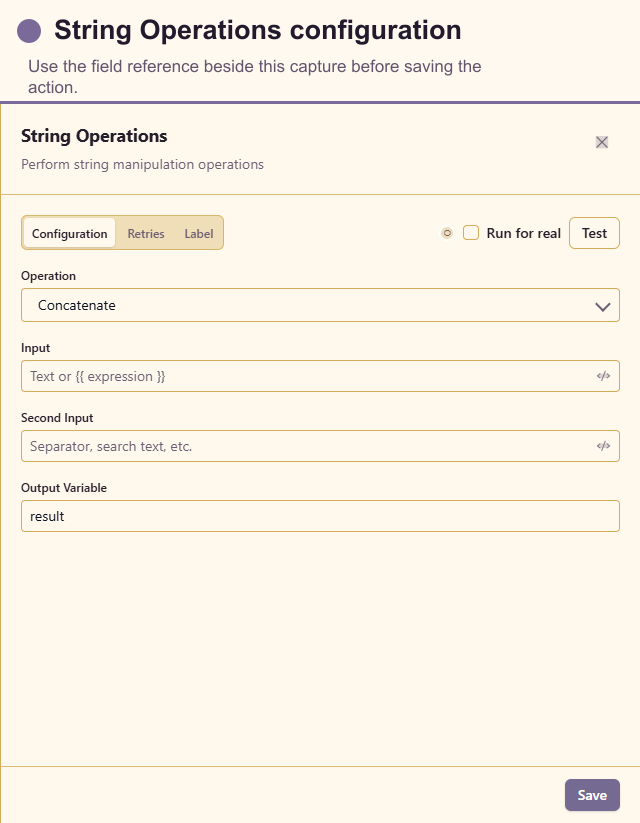
Configuration fields
Configure Operation, Input, and the fields required by that operation: Second input, Replacement, Start index, End index, or Target length. Optionally set Output variable. Use it for deterministic formatting, not natural-language interpretation.
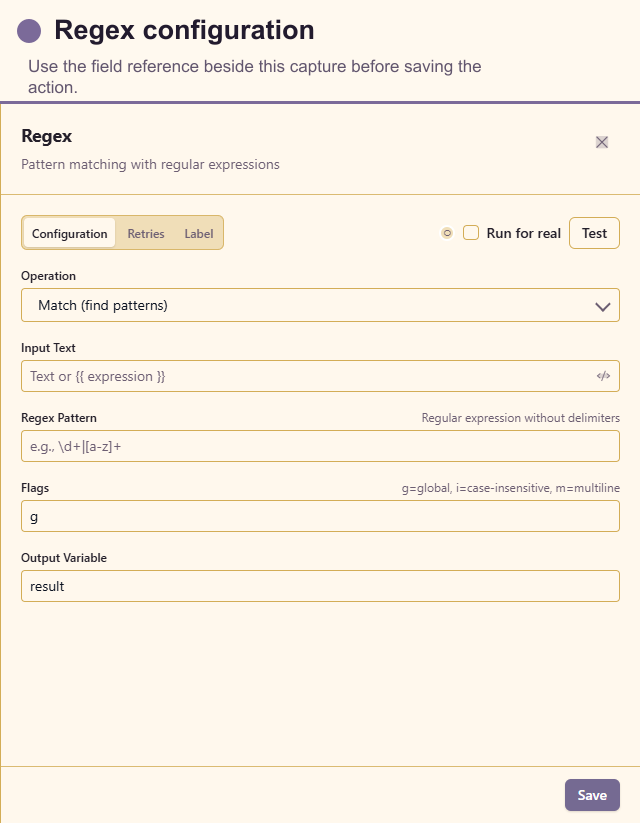
Configuration fields
Configure Operation, Input, Pattern, optional Flags, optional Replacement, and Output variable. Test ordinary, empty, accented, and multiline customer text; avoid complex patterns that can become slow.
Template
Section titled “Template”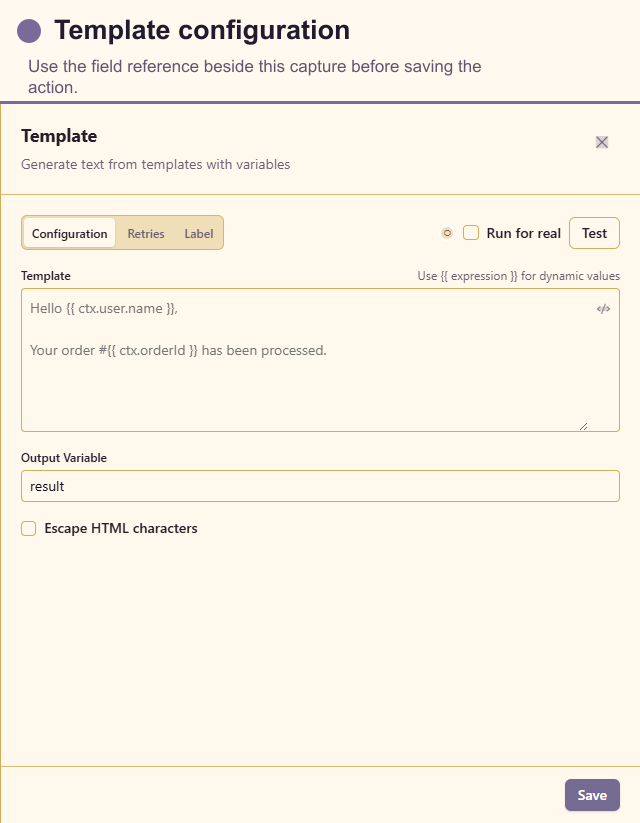
Configuration fields
Configure Template, optional Output variable, and Escape HTML. Use it for predictable customer messages and include fallback wording for optional values.
Date Math
Section titled “Date Math”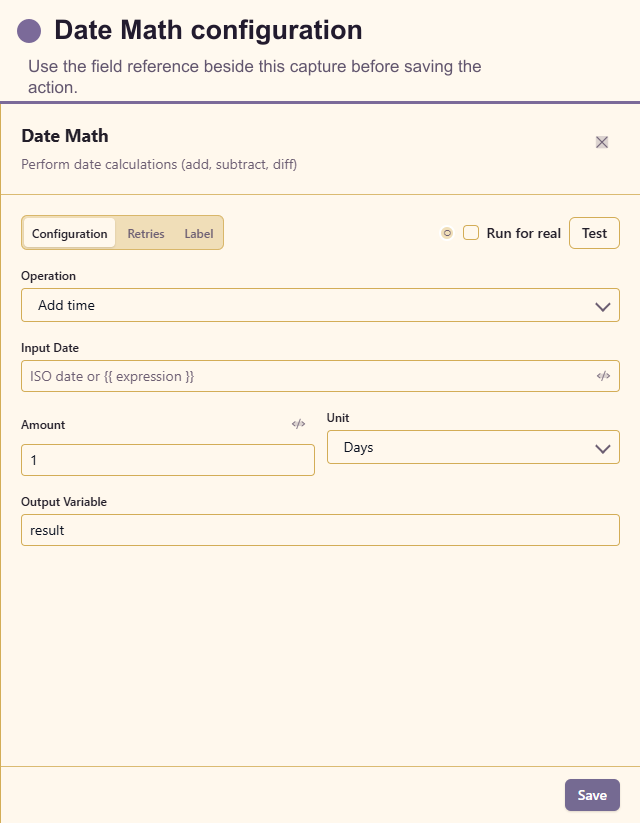
Configuration fields
Configure Input date, Operation, Amount, Unit, and optional Output variable. Preserve timezone intent and test daylight-saving boundaries for customer appointments.
Format Date
Section titled “Format Date”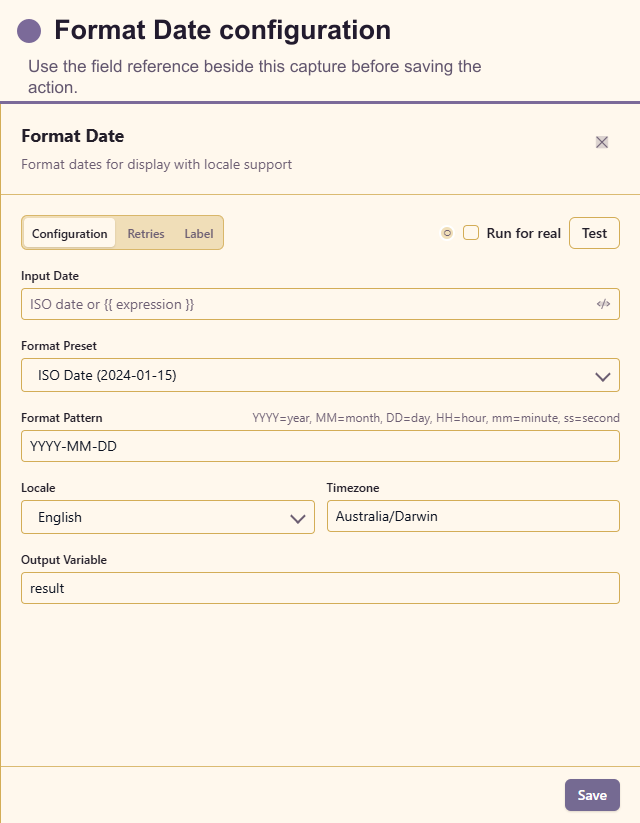
Configuration fields
Configure Input date, output Format, Timezone, and optional Output variable. Store and compare machine-readable timestamps; format only at the customer-facing edge.
Filter Array
Section titled “Filter Array”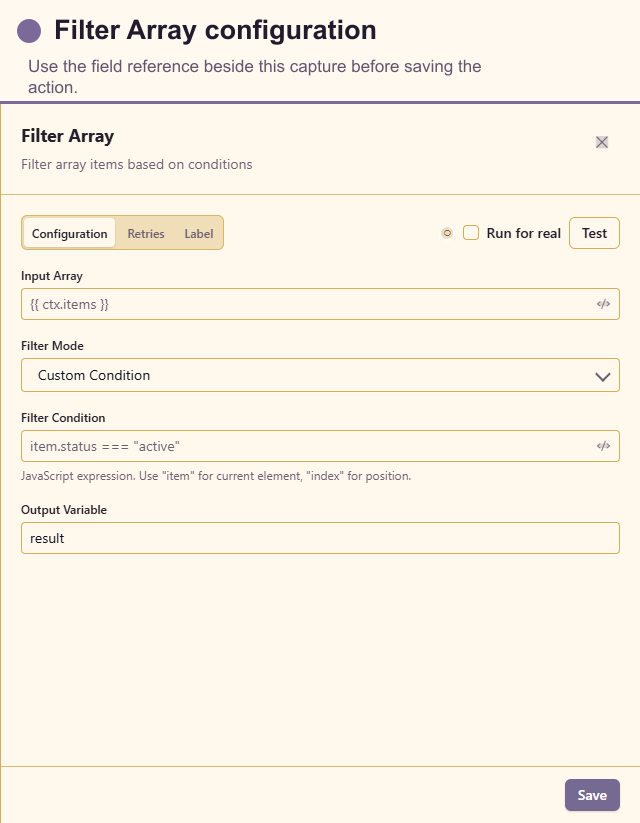
Configuration fields
Configure the input Array, filter field or expression, Operator, comparison Value, and optional Output variable. Decide explicitly whether missing fields should be excluded.
Sort Array
Section titled “Sort Array”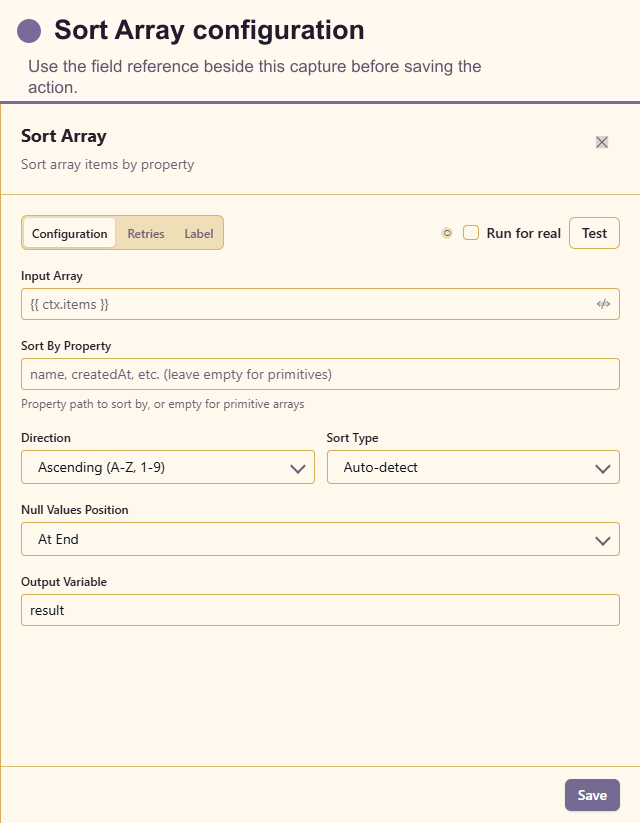
Configuration fields
Configure the input Array, sort Field, Direction, value type/options, and optional Output variable. Add a stable secondary key upstream if equal values must have deterministic order.
Aggregate
Section titled “Aggregate”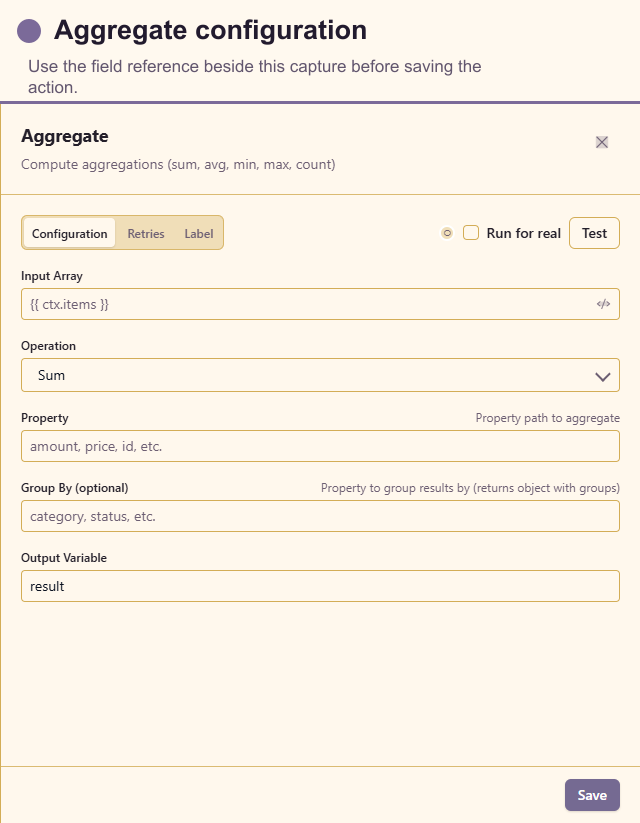
Configuration fields
Configure the input Array, Operation such as count, sum, average, minimum, or maximum, optional Property, and Output variable. Define how empty arrays should appear in customer messages.
Transform Data
Section titled “Transform Data”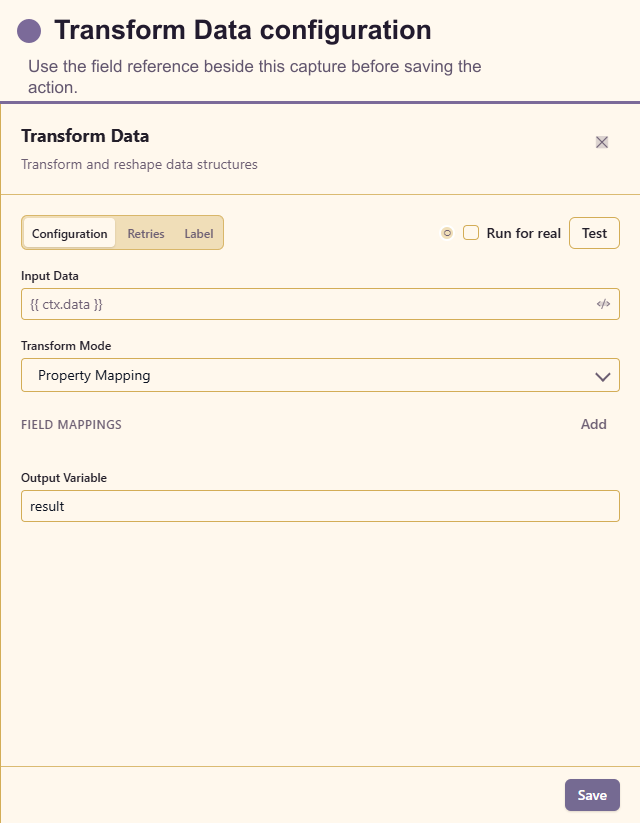
Configuration fields
Configure Mode, input object or array, and the mode-specific Fields, rename Mappings, or constructed Properties, plus Output variable. Use it to reduce external payloads to a stable internal contract.
Platform
Section titled “Platform”Platform action availability follows enabled service modules.
PM Create Task
Section titled “PM Create Task”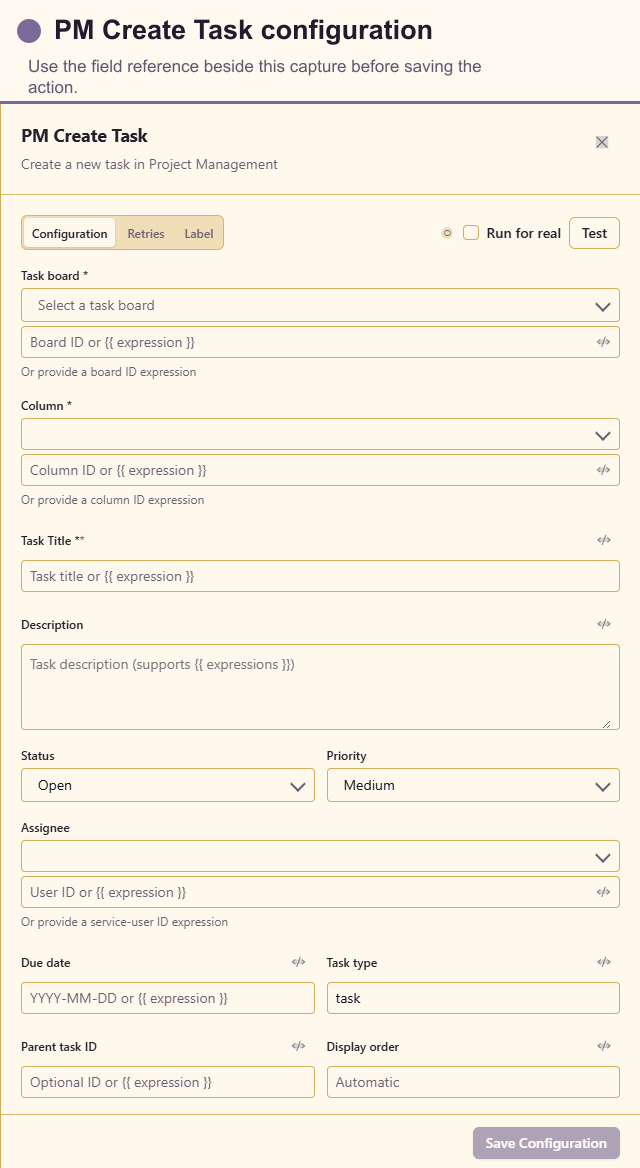
Configuration fields
Select Board and Column, or supply their ID expressions. Configure required Task title, Description, Status, Priority, Assignee, optional assignee-ID expression, Due date, Task type, Parent task ID, and Display order. Include a source identifier in the title or description when duplicate events are possible.
PM Update Task
Section titled “PM Update Task”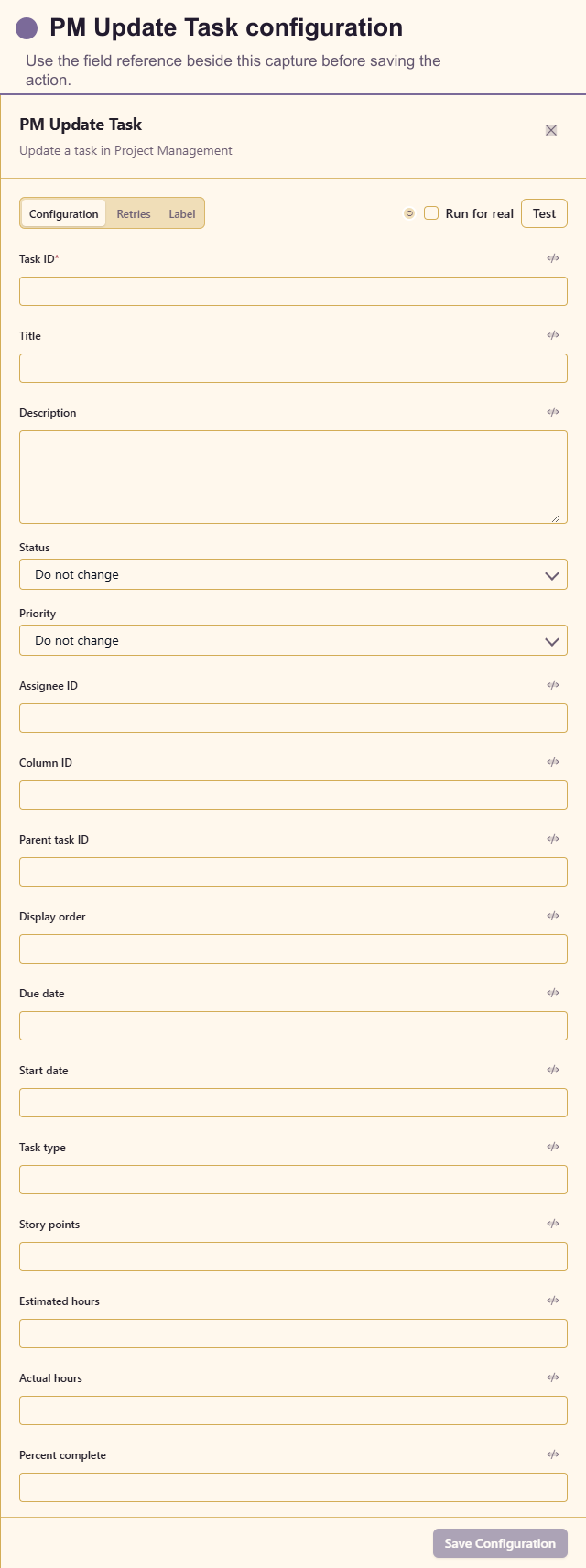
Configuration fields
Configure required Task ID and at least one update: Title, Description, Status, Priority, Assignee ID, Column ID, Parent task ID, Display order, Due date, Start date, Task type, Story points, Estimated hours, Actual hours, or Percent complete. Change only fields owned by this workflow.
Create Booking
Section titled “Create Booking”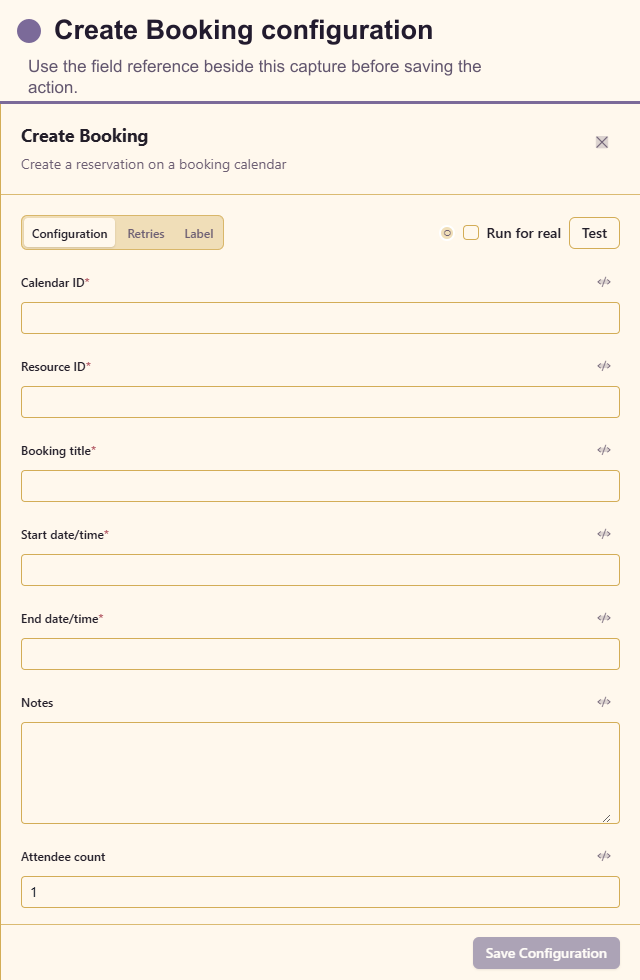
Configuration fields
Configure required Calendar ID, Resource ID, Booking title, Start date/time, and End date/time, plus optional Notes and Attendee count. Validate timezone, capacity, and overlap behaviour before a live test.
Cancel Booking
Section titled “Cancel Booking”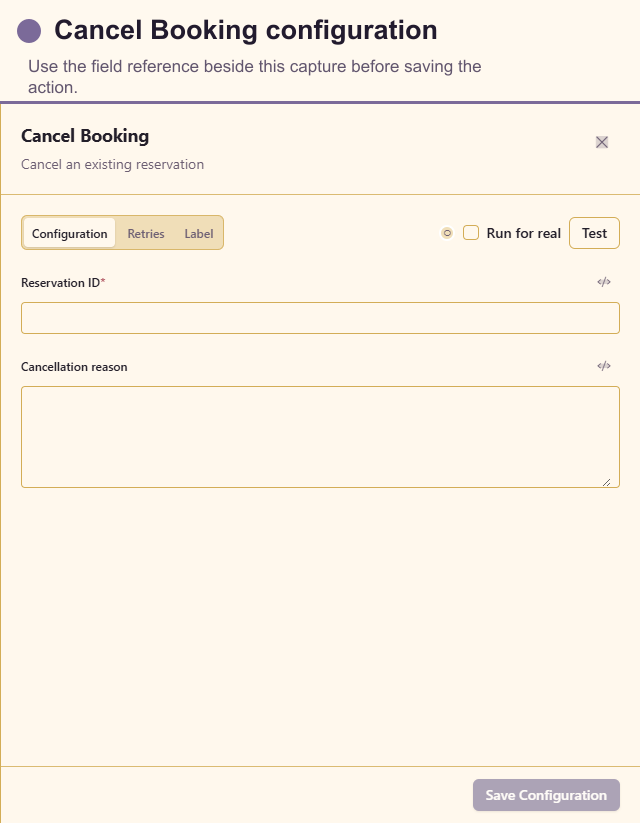
Configuration fields
Configure required Reservation ID and optional Cancellation reason. Confirm the trigger cannot respond to the cancellation event and cancel repeatedly.
Create Team Event
Section titled “Create Team Event”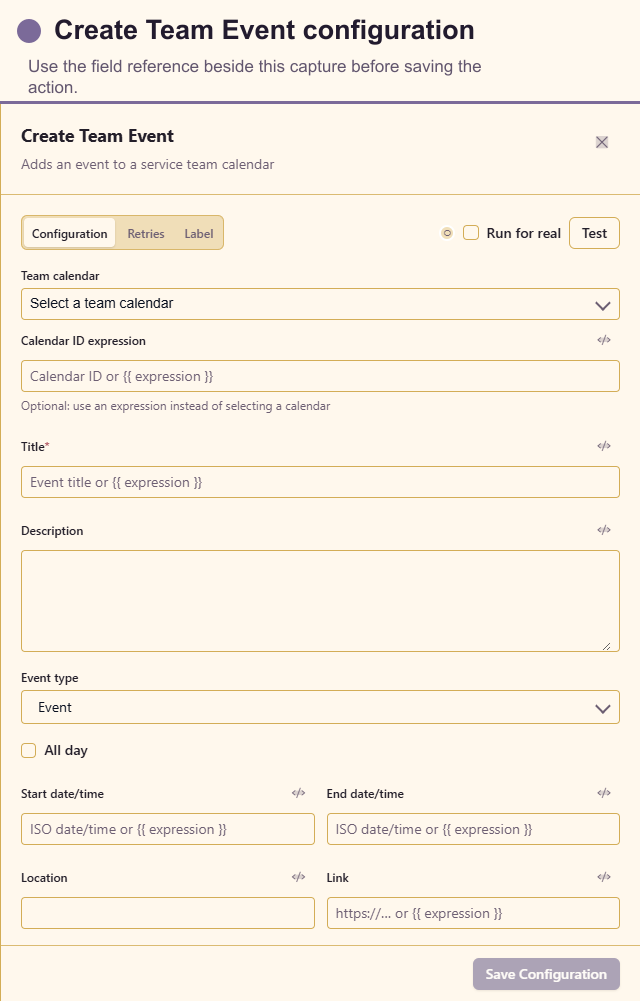
Configuration fields
Select Team calendar or provide a calendar-ID expression. Configure required Title, plus Description, Event type, All day, Start date/time, End date/time, Location, and Link. Do not copy private customer details into broadly visible calendars.
Link Asset to Workspace
Section titled “Link Asset to Workspace”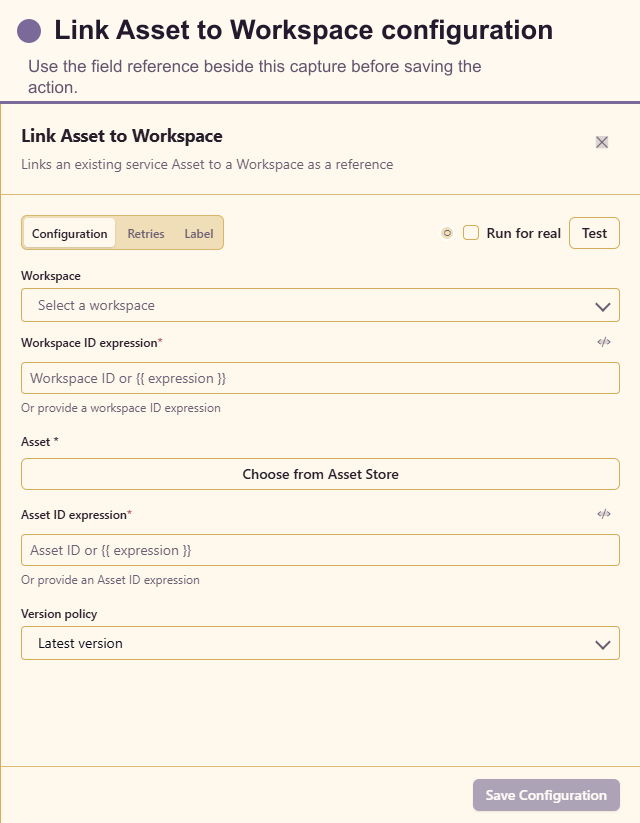
Configuration fields
Select Workspace or provide Workspace ID expression, select or provide Asset ID, choose Version policy (latest or pinned), and provide Pinned version reference when required. Link the durable service asset rather than a temporary download URL.
Update Page Content
Section titled “Update Page Content”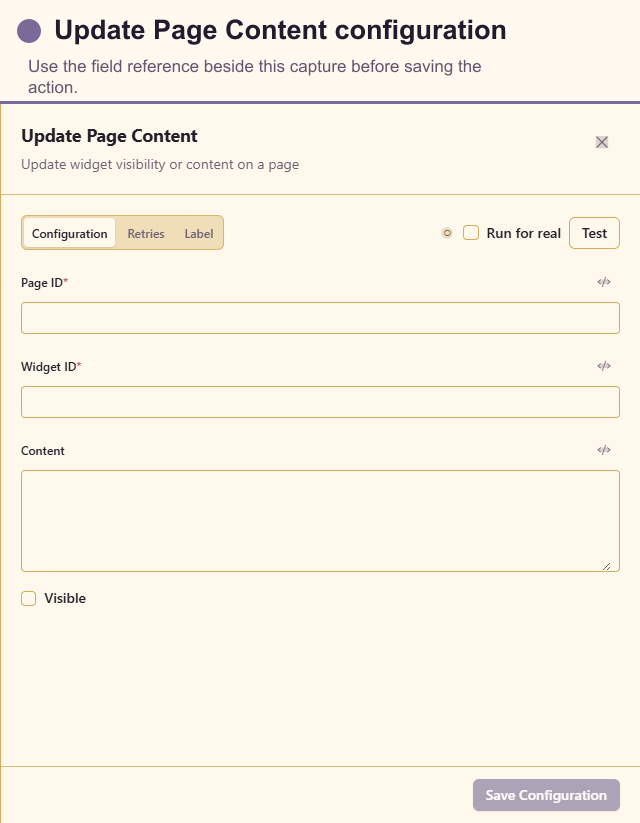
Configuration fields
Configure required Page ID and Widget ID, then optional updated Content and Visible state. Use a narrowly scoped widget and verify rendered output before publishing the workflow.
Export Design
Section titled “Export Design”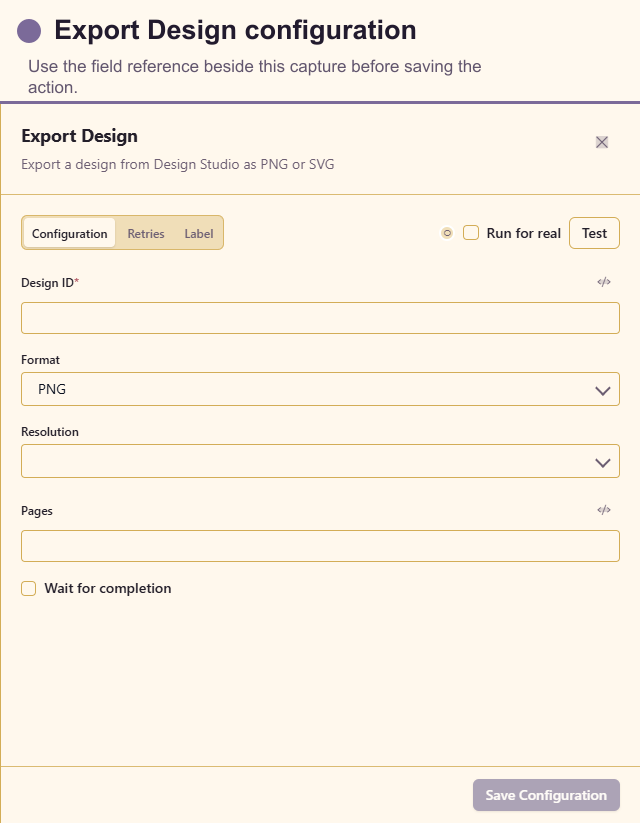
Configuration fields
Configure required Design ID, Format (PNG or SVG), Resolution (1×, 2×, or 4×), optional Pages, and Wait for completion. Choose SVG for scalable vectors and PNG for raster delivery; wait when a downstream step needs the finished asset.
Generate Document
Section titled “Generate Document”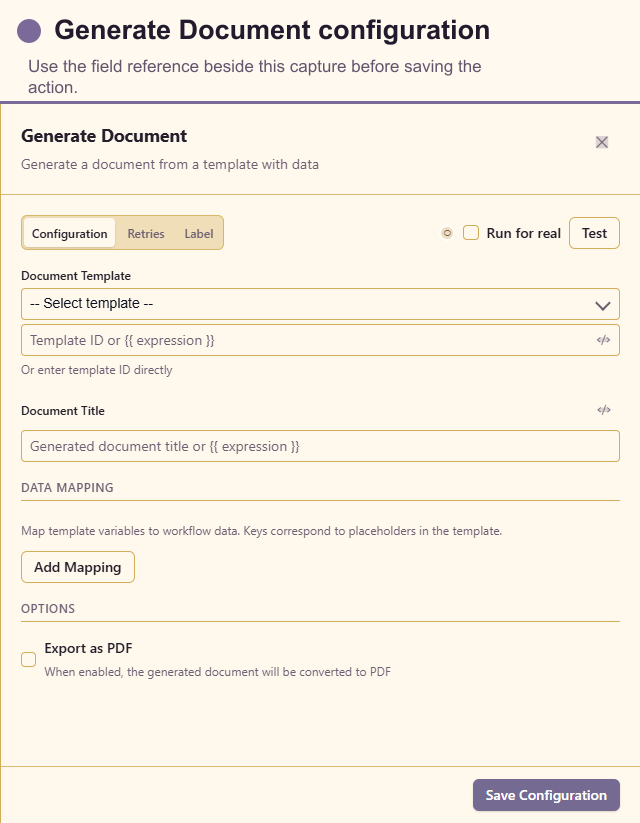
Configuration fields
Select a document Template, configure Document title, bind every declared input under Data mapping, add optional additional key/value mappings, and choose Export PDF. The template must belong to the same service. See Generate documents with input variables.
Update Item
Section titled “Update Item”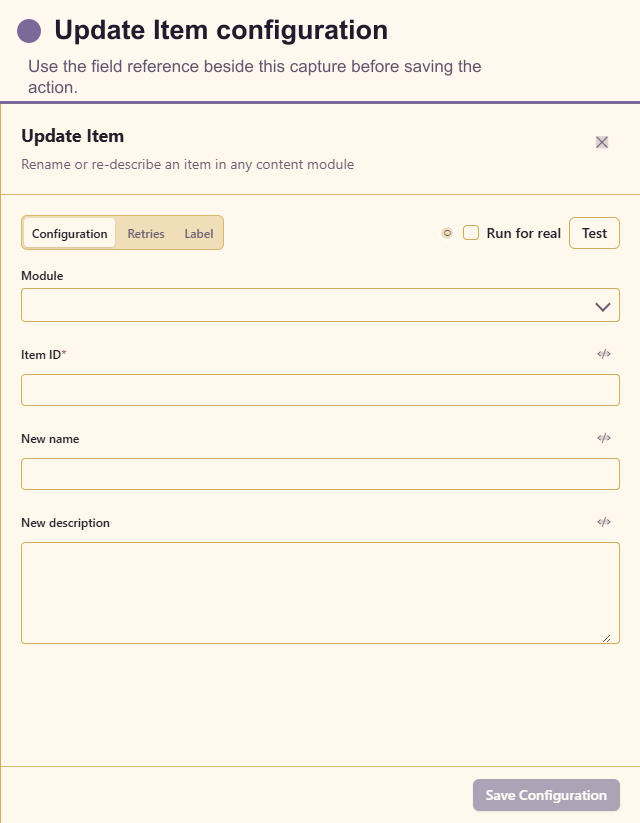
Configuration fields
Configure required Module and Item ID, then optional New name and New description. The item must be in the same service and the selected module must support generic item updates.
Every AI action requires an AI registration allowed for Workflows. Keep inputs focused, set a timeout, test uncertain customer language, and avoid sending unnecessary personal data. See AI actions for full output schemas and provider guidance.
AI Transform
Section titled “AI Transform”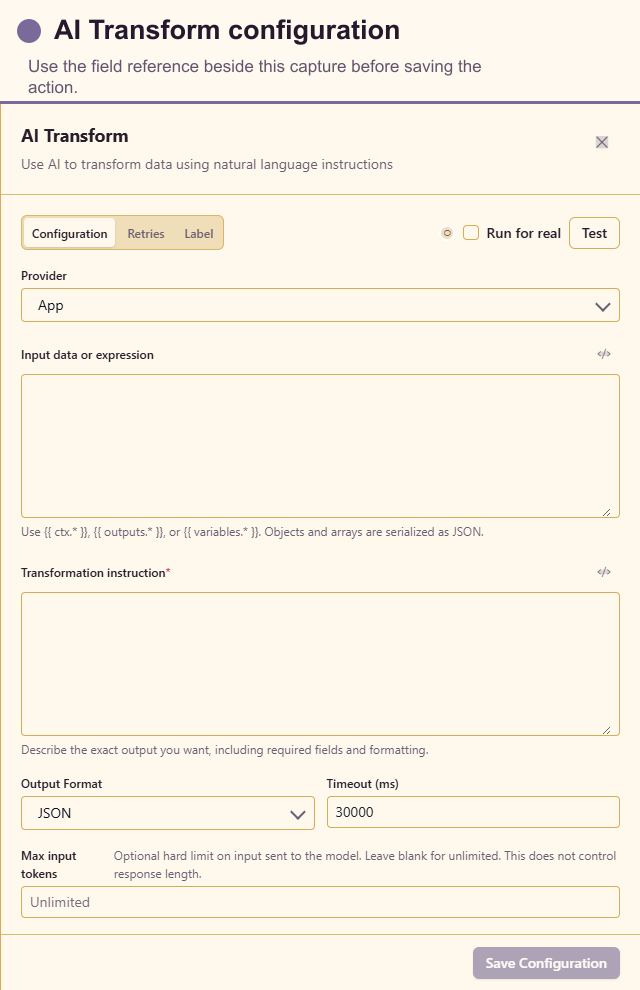
Configuration fields
Configure AI Provider, source data or expression, transformation instructions, optional output schema, token limit, and timeout. Use it when the transformation is semantic; prefer Transform Data for deterministic field mapping.
AI LLM
Section titled “AI LLM”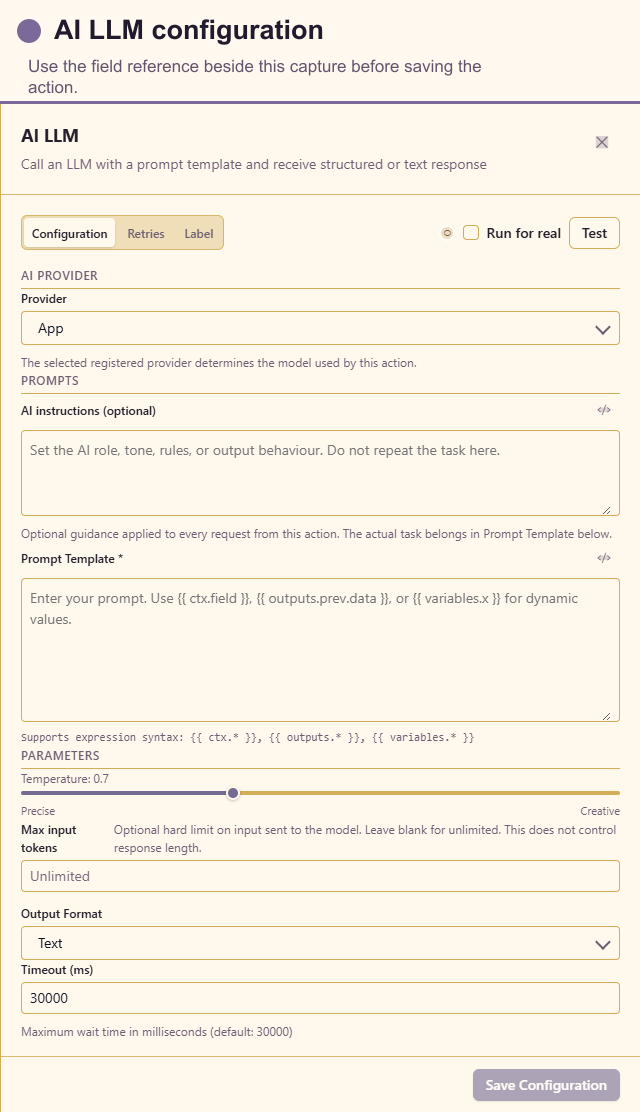
Configuration fields
Configure AI Provider, prompt or expression, optional system instructions, temperature, input-token limit, timeout, and any structured-output setting. State the audience, task, constraints, and desired result shape.
AI Decision
Section titled “AI Decision”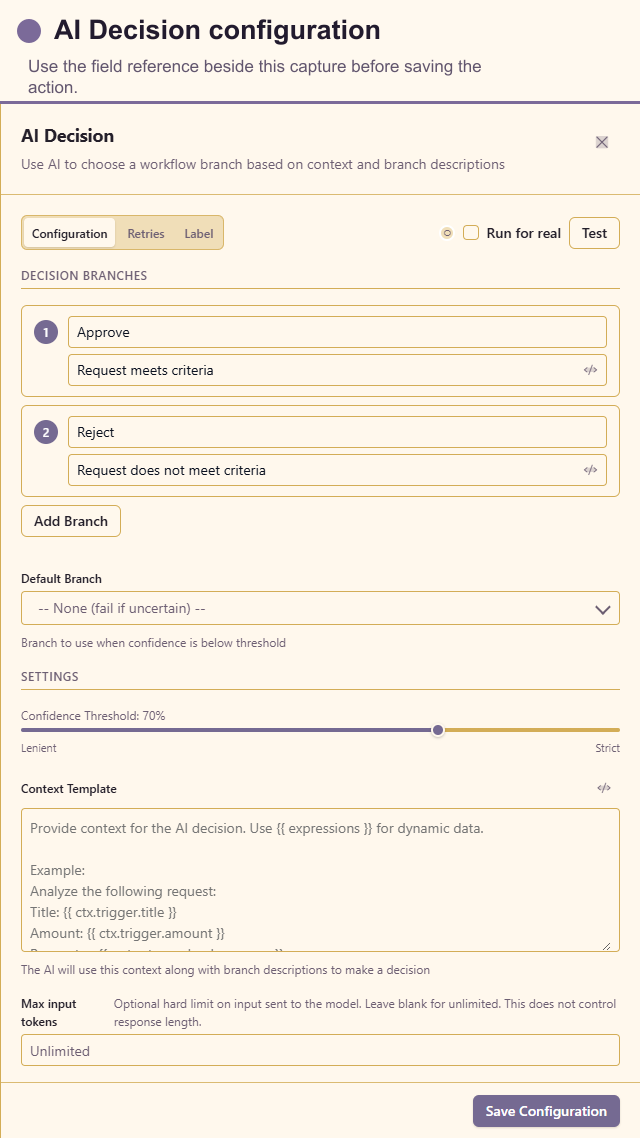
Configuration fields
Configure AI Provider, decision question/context, choices, instructions, confidence threshold, token limit, and timeout. Always provide a fallback path for low confidence or an unrecognised decision.
Summarize Text
Section titled “Summarize Text”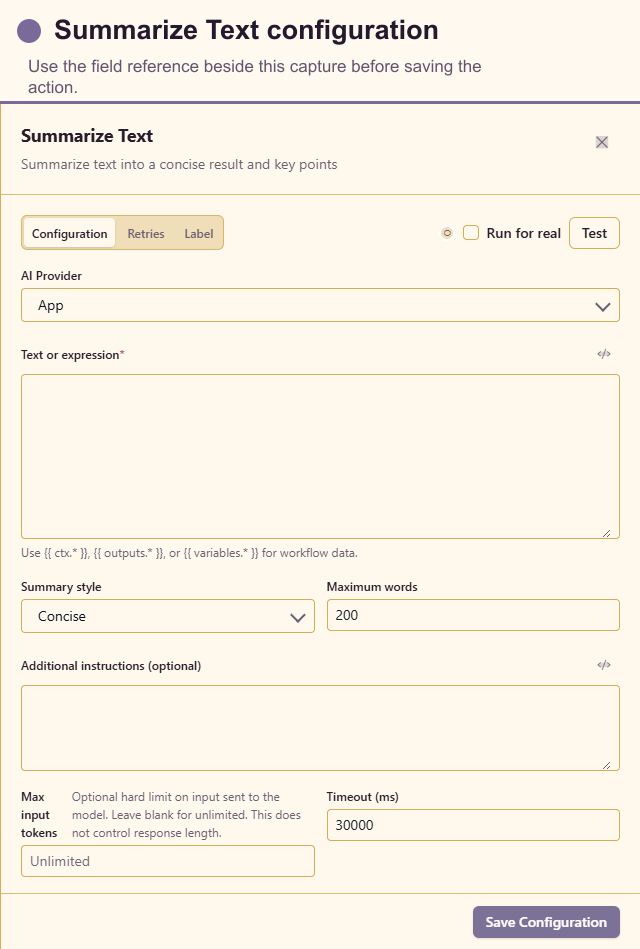
Configuration fields
Configure AI Provider, Text or expression, summary style/length, additional instructions, max input tokens, and timeout. Tell the model what the summary is for and which details must remain.
Classify Text
Section titled “Classify Text”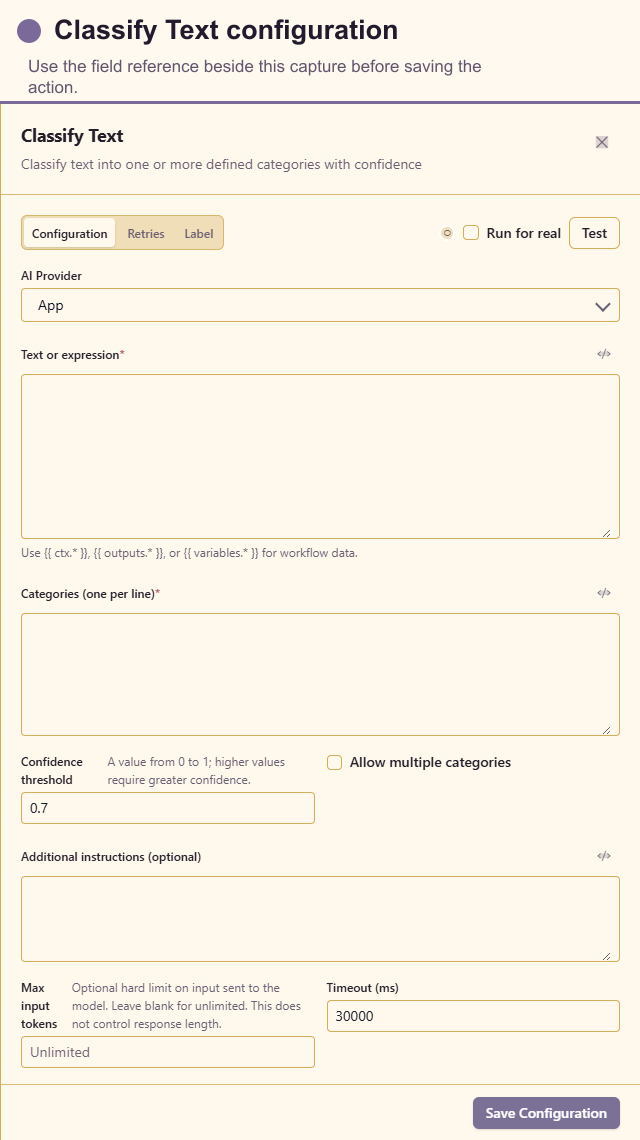
Configuration fields
Configure AI Provider, Text or expression, one category per line, Confidence threshold, Allow multiple categories, additional instructions, max input tokens, and timeout. Categories should be distinct, stable business concepts.
Translate Text
Section titled “Translate Text”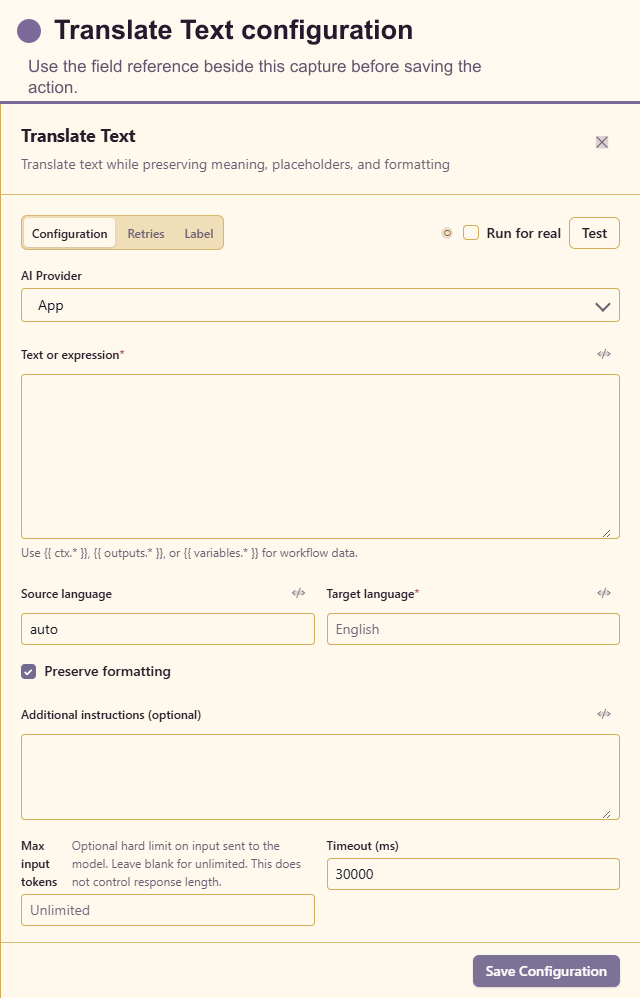
Configuration fields
Configure AI Provider, source Text or expression, target language, optional source language, Preserve formatting, instructions, token limit, and timeout. Human-review regulated, legal, or safety-critical translations.
Analyze Sentiment
Section titled “Analyze Sentiment”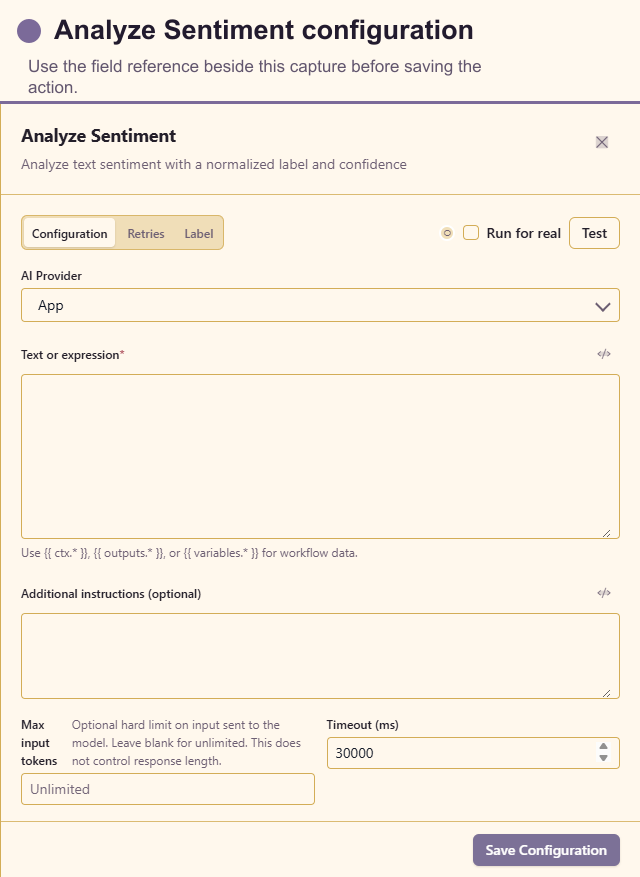
Configuration fields
Configure AI Provider, Text or expression, optional instructions, token limit, and timeout. Use sentiment as one signal; do not use it alone for a consequential customer decision.
Extract Information
Section titled “Extract Information”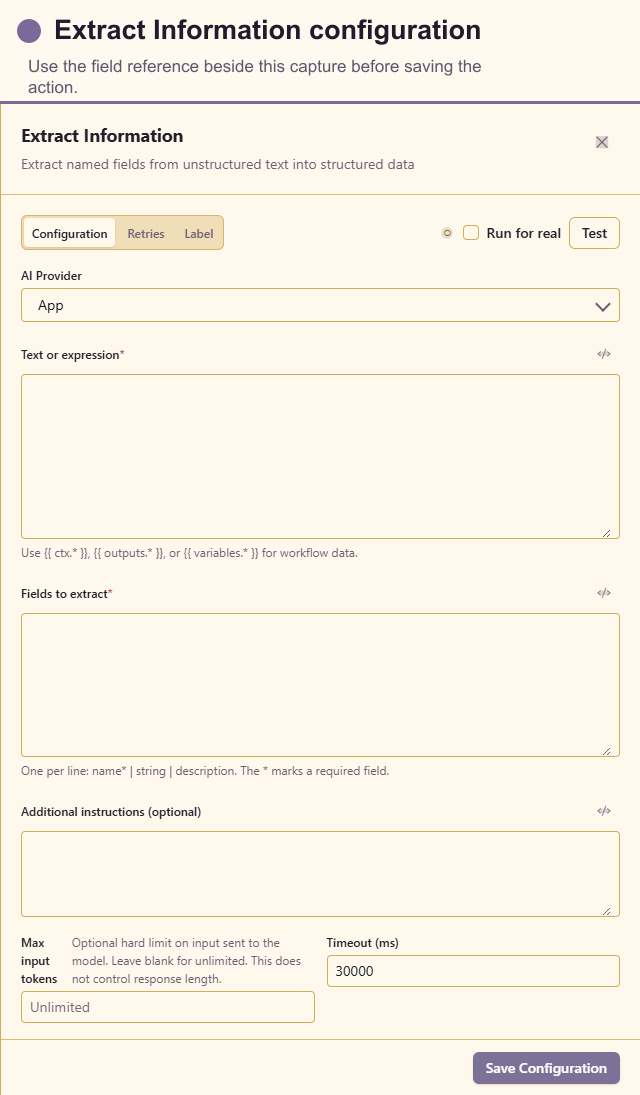
Configuration fields
Configure AI Provider, Text or expression, the named Fields to extract and their descriptions/types, instructions, token limit, and timeout. Validate required values before a write or customer response.
AI Brain
Section titled “AI Brain”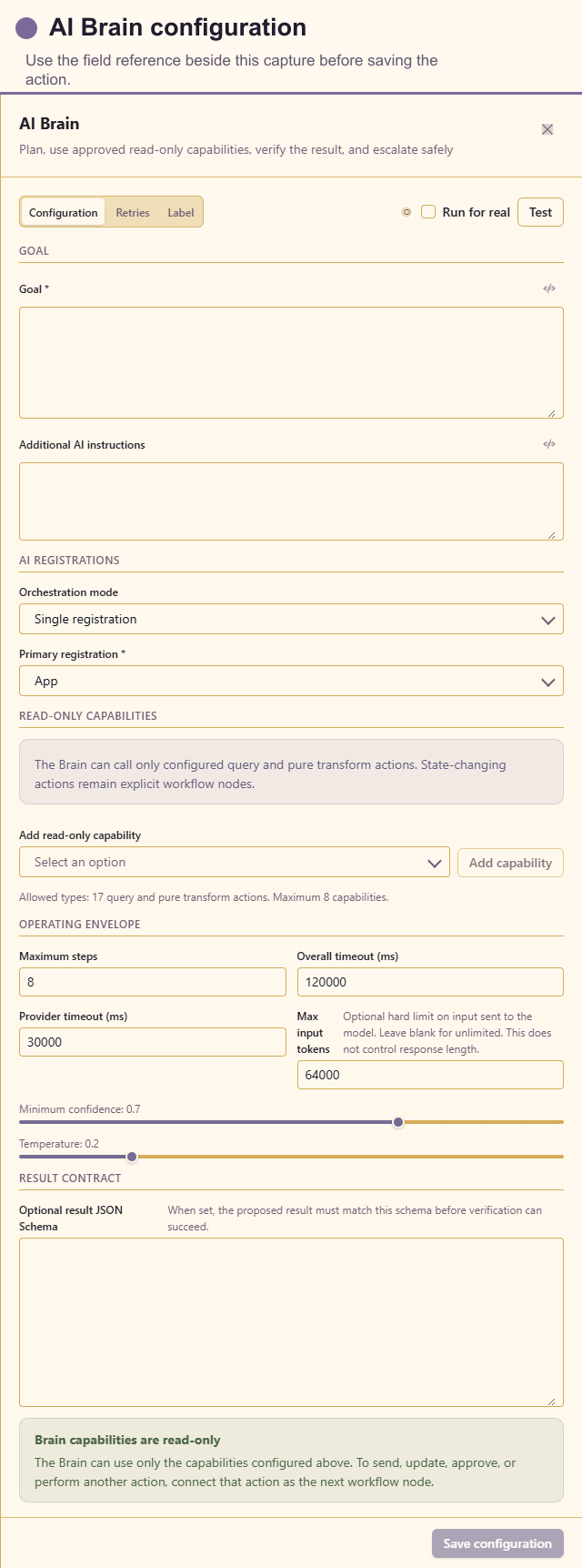
Configuration fields
Configure required Goal, additional AI instructions, Orchestration mode, primary registration, optional Planner/Worker/Critic registrations, up to three fallbacks, read-only capabilities, maximum steps, overall and provider timeouts, confidence, temperature, optional result JSON Schema, and side-effect policy. Use the smallest capability set and require a verifiable result.
Web & APIs
Section titled “Web & APIs”HTTP Request
Section titled “HTTP Request”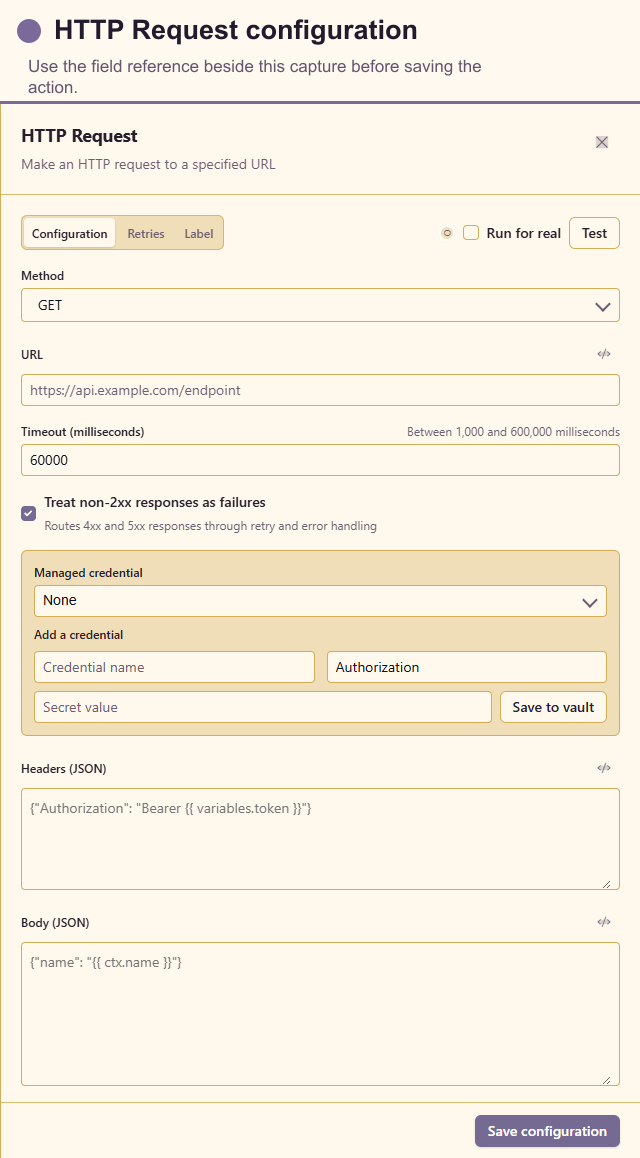
Configuration fields
Configure Method, expression-enabled URL, Timeout, Fail on non-2xx, optional Managed credential, header JSON/rows, and request Body. Set explicit timeouts, keep secrets managed, validate the host, and handle non-success responses.
REST API Request
Section titled “REST API Request”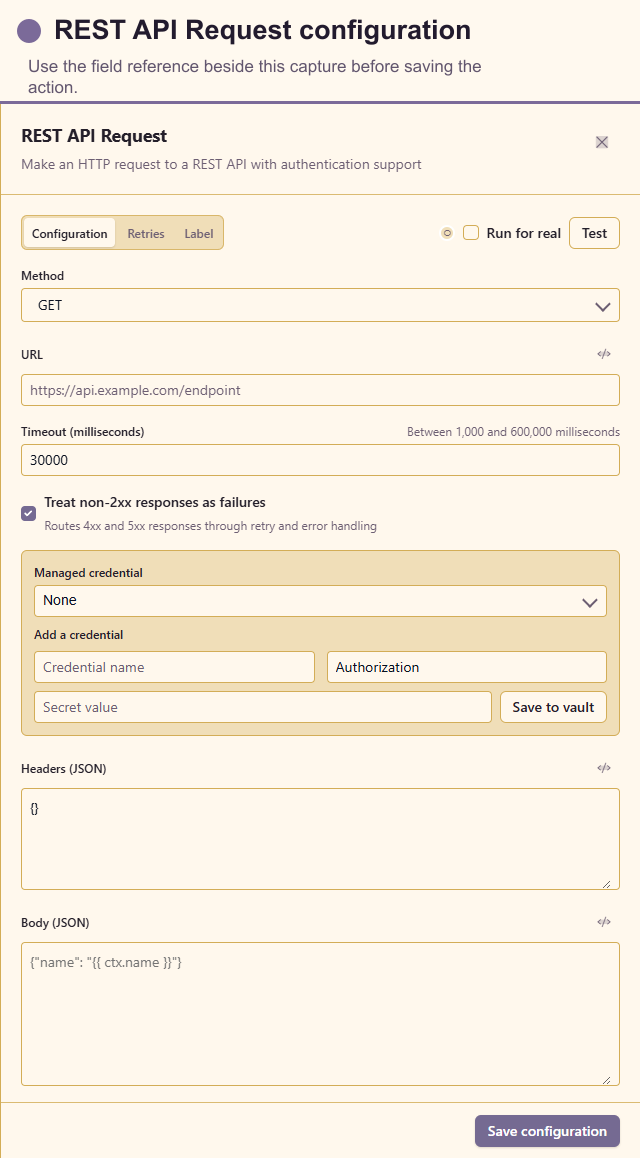
Configuration fields
Uses the same core HTTP configuration with REST-oriented request and response handling: Method, URL, managed credential, headers, body/body type, timeout, response type, and non-2xx behaviour. Prefer a stable versioned endpoint and document its idempotency key.
Webhook Response
Section titled “Webhook Response”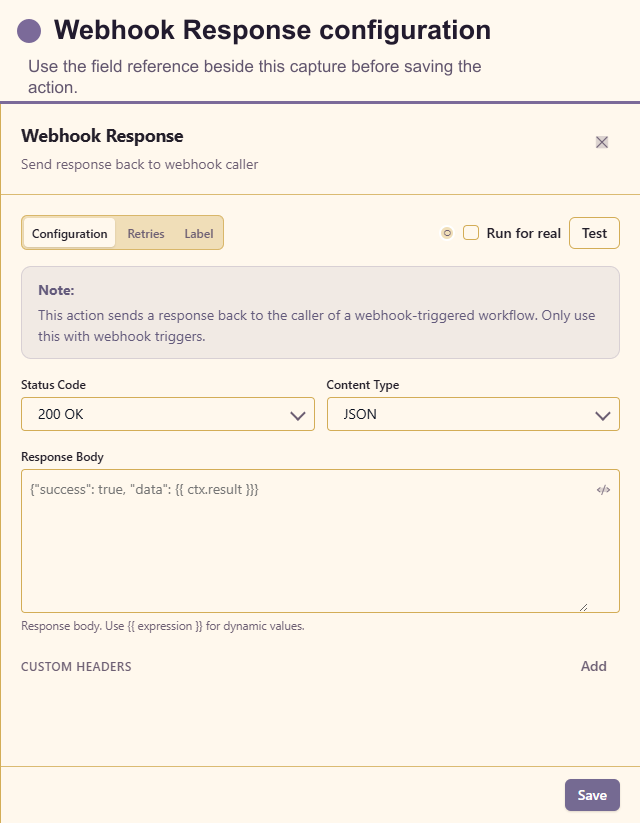
Configuration fields
Configure Status code, Content type, expression-enabled Body, and optional header name/value rows. Return quickly, avoid exposing internal errors, and include a correlation identifier the caller can quote.
Communication
Section titled “Communication”Send Notification
Section titled “Send Notification”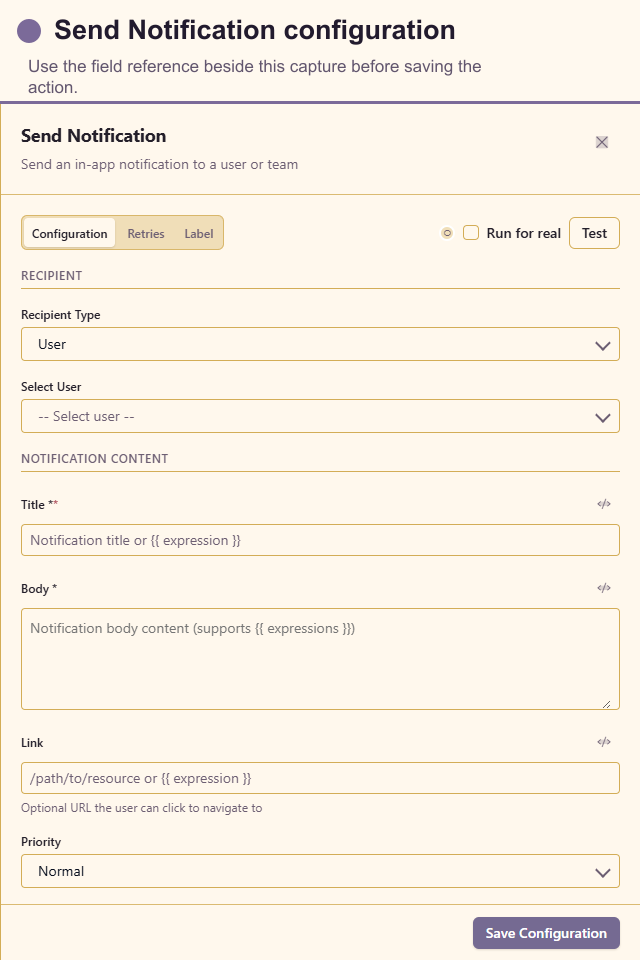
Configuration fields
Configure Recipient type, then a User, Team, or Recipient expression. Configure required notification Title and Body, optional Link, and Priority. Put the action customers should take in the title and point the link to the relevant service item.
Send Email
Section titled “Send Email”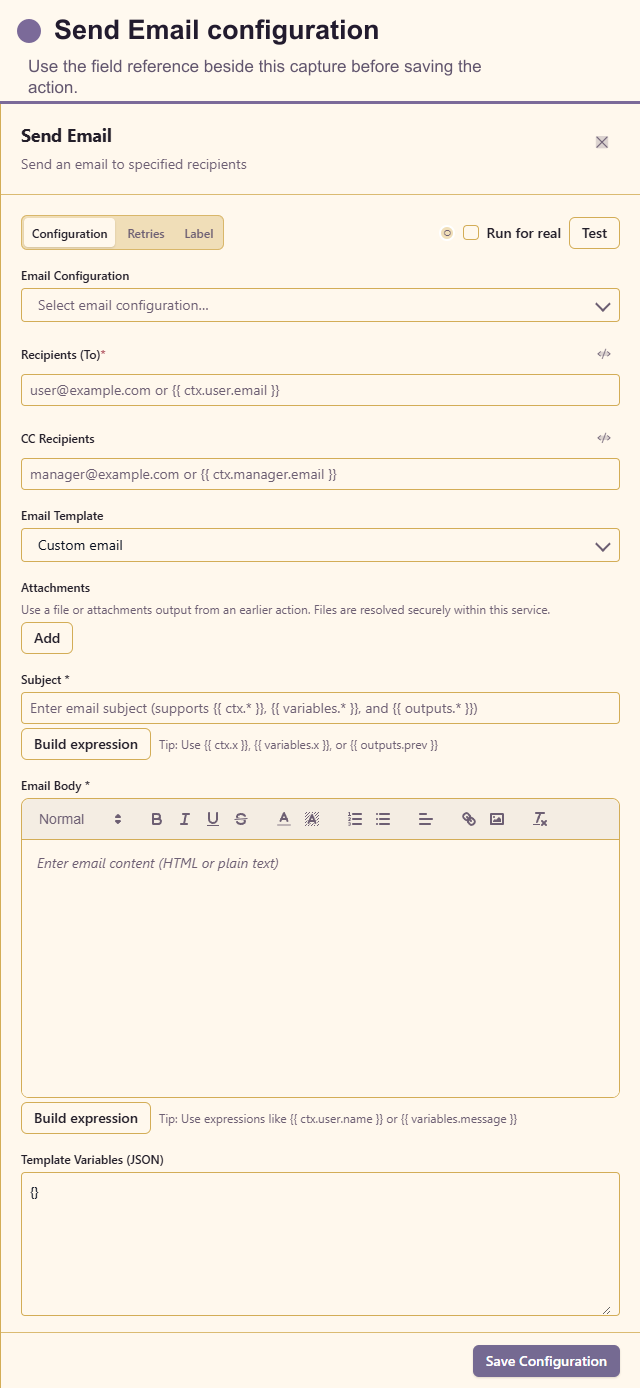
Configuration fields
Select an email Configuration, set expression-enabled To and optional CC, then select a Template or provide required Subject and body. Add attachment expressions and map template variables when used. Use service-owned sender settings, accessible language, and a test recipient before a real send.
When the selected configuration is Corporate / organization-managed and supports sender override, a From Address field appears. Leave it empty to use the connector’s default sender, or enter another mailbox permitted by both the connector’s sender policy and the provider’s Send As rules. Personal mailbox configurations always use their registered sender and do not expose this field. Test every intended From address with a controlled recipient before publishing the workflow.
For Microsoft 365, follow the combined Microsoft Entra and Microsoft 365 setup. It covers the separate mail application, Exchange mailbox scope, default sender, alternate From addresses, dry testing, and controlled live verification.
Human Tasks
Section titled “Human Tasks”Request Approval
Section titled “Request Approval”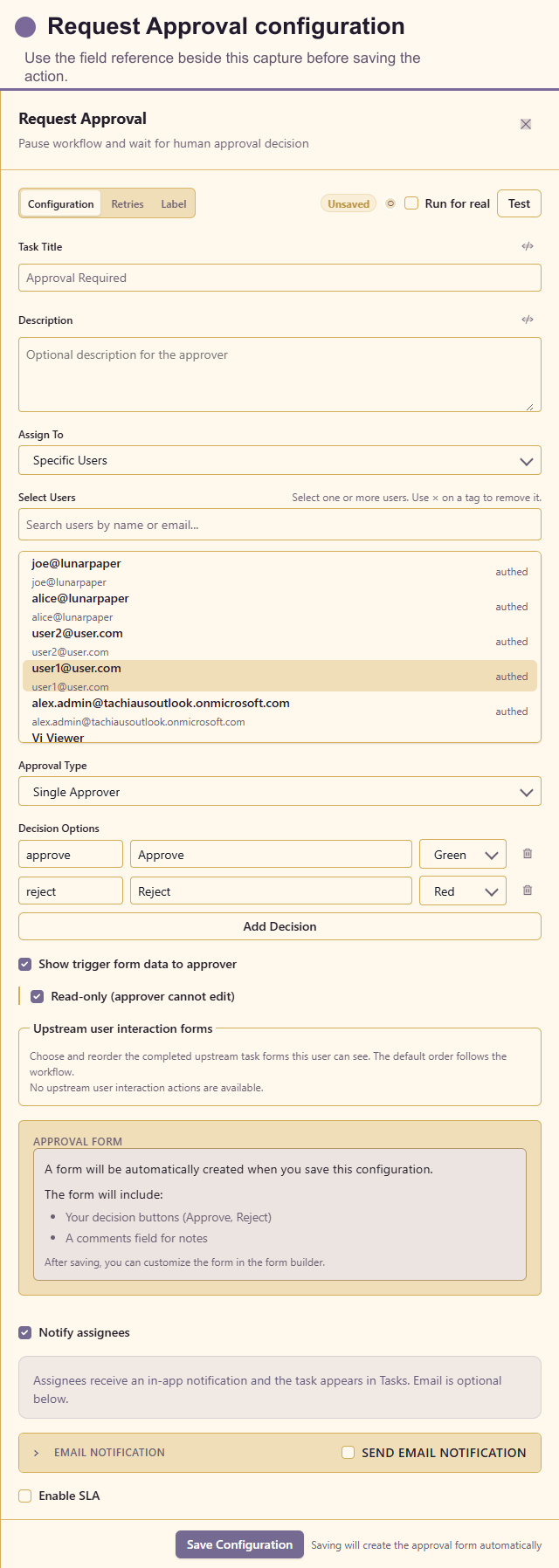
Configuration fields
Configure Task title, Description, Assign to mode, team/users or dynamic assignee expression, Approval type, threshold, and decision key/label/colour rows. Optionally show the trigger form, choose a custom approval form, notify assignees, and configure SLA deadline, warning, timeout behaviour, and escalation target. Make decisions unambiguous and provide enough context without exposing unrelated customer data.
Request Data
Section titled “Request Data”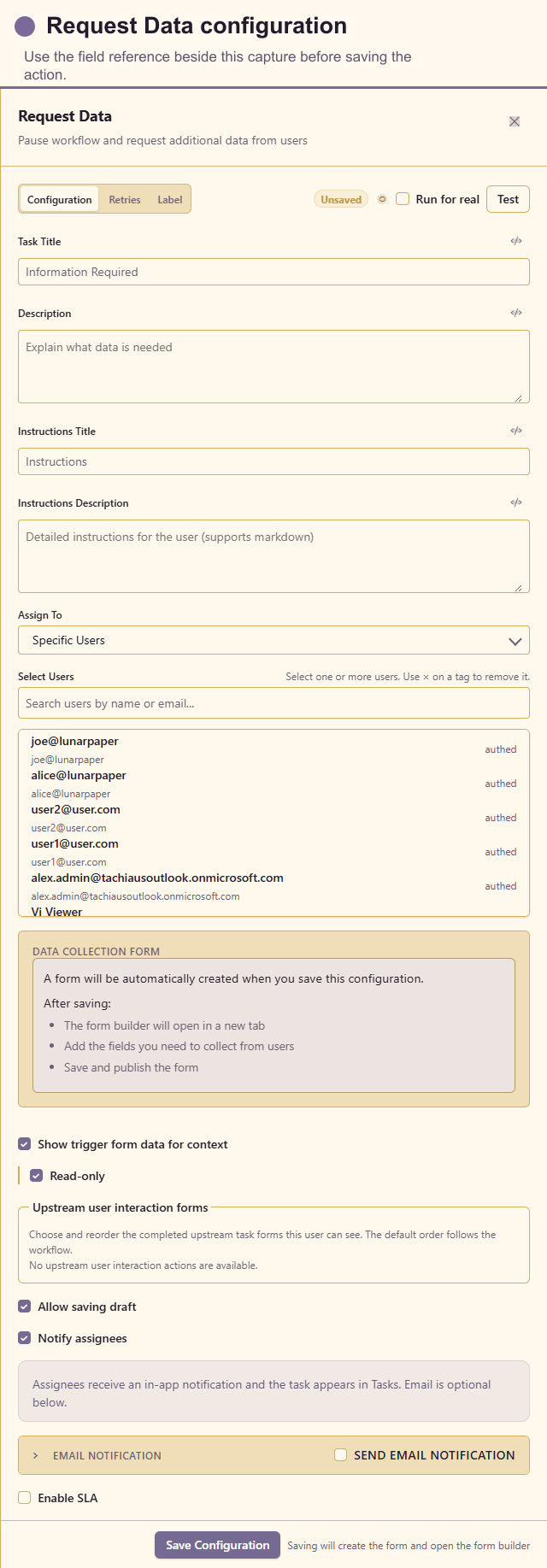
Configuration fields
Configure Task title, Description, instruction title and Markdown description, assignee mode and recipients, then choose or generate the Data form. Options include show trigger form, read-only, allow draft, notify assignees, SLA deadline, warning, timeout behaviour, and escalation. Ask only for information needed to continue the workflow and explain why it is required.
Developer Tools
Section titled “Developer Tools”Workflow Log
Section titled “Workflow Log”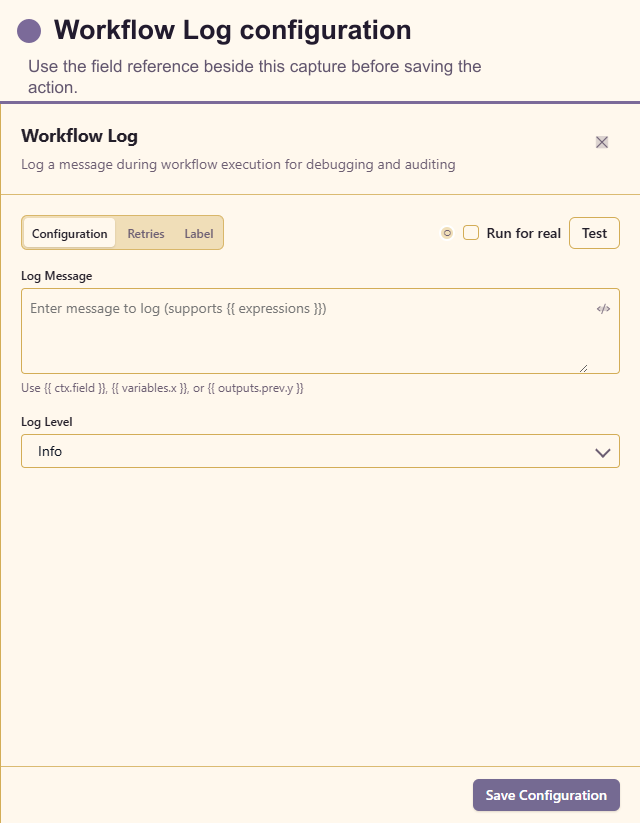
Configuration fields
Configure expression-enabled Message and Level. Use concise operational facts and stable identifiers. Do not log managed credentials, access tokens, full customer payloads, or sensitive form answers.
Layout tools
Section titled “Layout tools”Layout tools are placed from the designer library but do not execute and are not counted among the 59 runtime actions.
Swimlane Group
Section titled “Swimlane Group”Creates labelled responsibility lanes around nodes. Configure its label, orientation/size, and visual treatment. Moving an action into a lane does not change its connections or execution order.
Layout Group
Section titled “Layout Group”Visually groups related nodes. Use it for a coherent phase such as “Validate” or “Fulfil”; keep runtime connections explicit.
Adds non-executing documentation to the canvas. Record intent, ownership, assumptions, or a safety warning, never a secret.
Reroute
Section titled “Reroute”Adds a bend point for a connection. Use it to reduce crossings in a large graph; it does not transform data or handle errors.
Action selection checklist
Section titled “Action selection checklist”- Prefer deterministic Transform actions over AI when rules are known.
- Prefer service-native Platform actions over raw HTTP when both meet the need.
- Use Human Tasks where a person must decide or provide missing data.
- Store secrets only in managed credentials.
- Connect and test both success and expected failure paths.
- Inspect the resolved input and output in Run history before publishing.