
Spin an item with pseudo-3D
Pseudo-3D pixel animations rotate a single front view into a full spin: coins, gems, power-ups. Pixel Art Studio’s pseudo-3D generator does the first pass from one layer; this guide covers the whole job, including cleanup for a usable result.
The result is a tagged 16-frame spin animation built from a finished coin front view.
Prerequisites
Section titled “Prerequisites”You need a coin (or gem, or item) drawn on its own layer, facing the camera, in a project sized to hold the widest frame the spin will produce. A coin that’s 16×16 head-on needs room to extend as it turns, so a 32×16 or 32×32 canvas gives the rotation space.
1. Put the source on its own layer
Section titled “1. Put the source on its own layer”The generator works on one layer, so the coin needs to be isolated. If it’s mixed into other art, select it (Rectangle Selection M or Lasso Q), cut with Ctrl+X, add a new layer with Ctrl+Alt+N, and paste with Ctrl+V. Name the layer coin.
2. Open the pseudo-3D generator
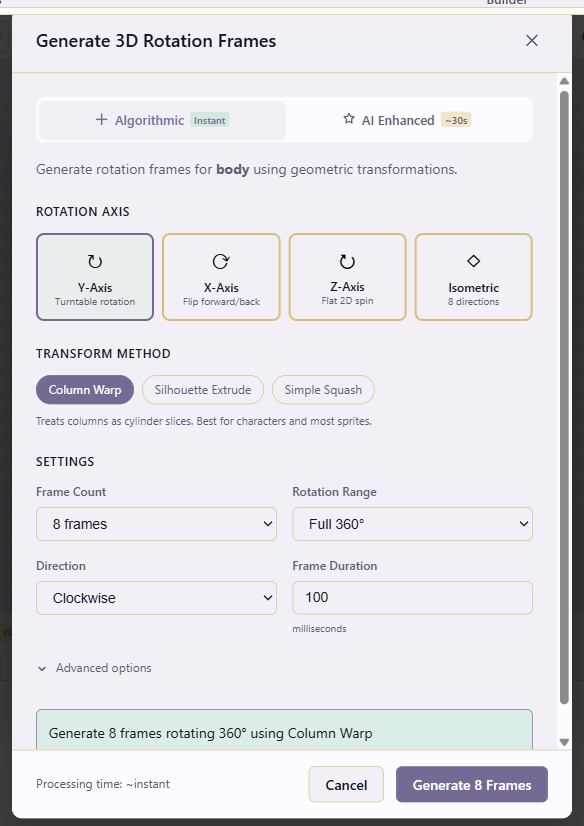
Section titled “2. Open the pseudo-3D generator”Click the 3D button on the coin layer’s row in the timeline. The dialog opens with options for axis, frame count, rotation range, direction, and frame duration.
3. Configure the spin
Section titled “3. Configure the spin”For a coin, the natural spin is a Y-axis turntable rotation: the coin turns left-to-right as if mounted on a vertical pole. Set the frame count to 16 for a smooth loop (a 16-frame spin at 60 ms is about 1 FPS per full revolution, which looks correct at 1×). Set the rotation range to 360° for a full loop, and direction to Forward.
Other axes suit other objects. An X-axis flip rotates top-over-bottom (a coin flipping toward the camera). A Z-axis flat spin rotates in-plane (a compass needle, a steering wheel). Isometric directions generate the four or eight iso angles for an isometric-game asset.
4. Generate
Section titled “4. Generate”Generate the frames. The timeline now has 16 frames on the coin layer, each a slightly more rotated version of the original. Play it with Space and you’ll see a rough spin.
5. Clean up the side and back frames
Section titled “5. Clean up the side and back frames”Cleanup determines whether the animation is usable. The generator interpolates the front view into poses it can’t actually see (the edge-on view at frame 4 and frame 12, the back view around frame 8), and those frames will look smeared or wrong.
Work through the generated frames in order. The edge-on frames (where the coin is thinnest) should be a clean vertical line or thin oval, not a squished version of the front face. Redraw them with the Pencil or Contour tool so they read as “edge on.” The back view, if the coin has different art on each side, should be drawn deliberately rather than mirrored automatically.
Real spinning coins go thin at the sides, so let the silhouette narrow smoothly toward frames 4 and 12 and widen back out. Keep the highlight and shadow consistent with the implied light direction.
6. Set timing and tag the range
Section titled “6. Set timing and tag the range”Set each frame’s duration to about 60 ms for a steady spin. Open Animation Tags, add a tag named spin, and set its range to cover all 16 frames with Forward direction. The animation now loops cleanly.
7. Export
Section titled “7. Export”Open Export and pick Sprite Sheet, with the Animation set to the spin tag, 16 columns × 1 row, scale to taste, and background off. The result is a single image an engine can slice into the 16 spin frames. See Export an engine-ready sprite sheet for the layout reasoning.
When to use pseudo-3D
Section titled “When to use pseudo-3D”Pseudo-3D suits objects that rotate in place and appear as a single solid: coins, gems, shields, orbs, logos on a turntable. It doesn’t suit characters, where a “rotation” implies redrawing the body from a new angle rather than spinning a flat drawing. For characters needing multiple directions, draw each direction deliberately and export them as rows of a sprite sheet.