
Generate with the AI Assistant
The AI Assistant turns a written description of a sound into an audio clip you can place on the timeline. Open it from the AI Assistant button in the bottom transport bar.
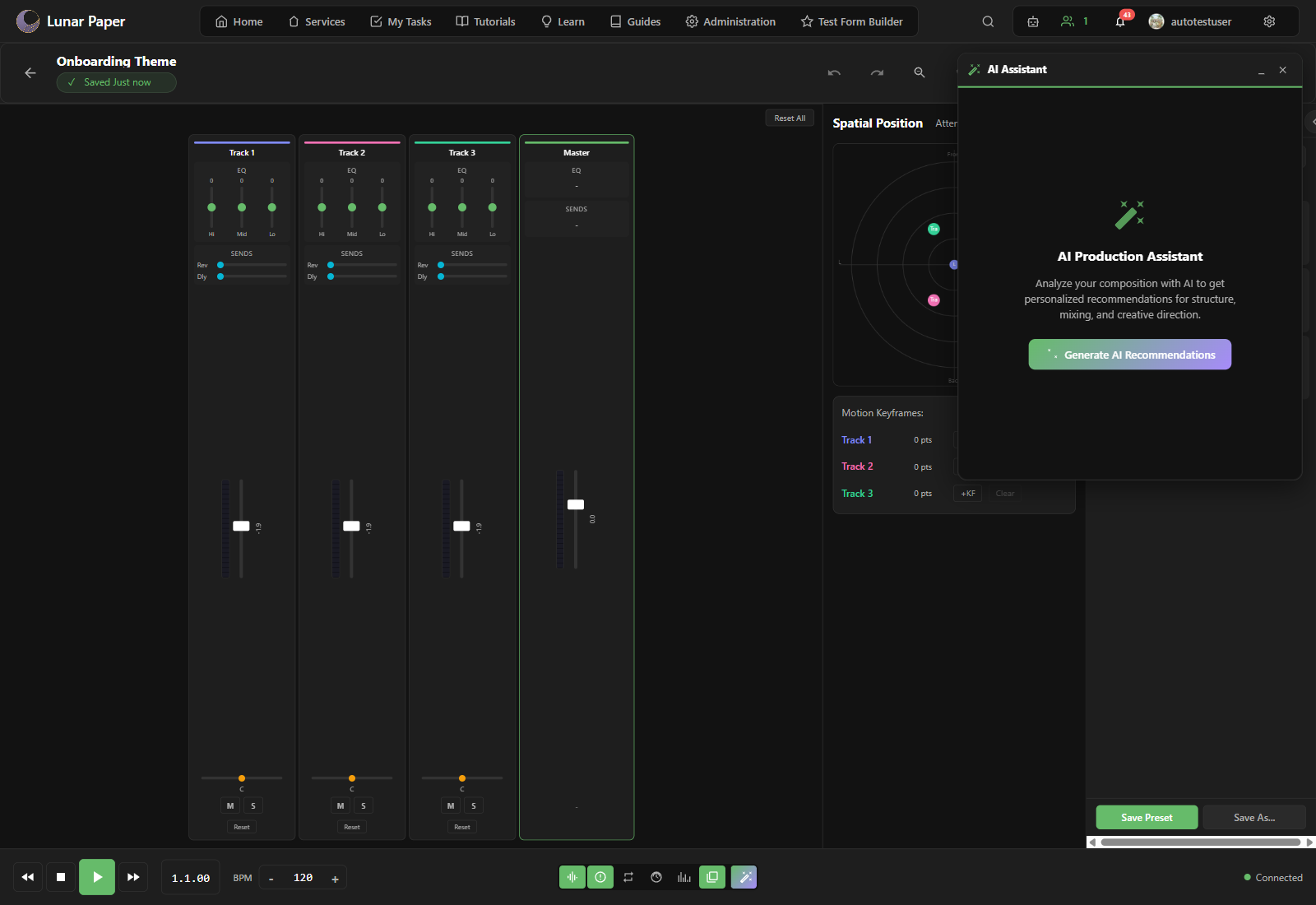
Write a prompt
Section titled “Write a prompt”Click the prompt field and describe what you need. Be specific about mood, instrument, tempo, and length. Examples:
- “Upbeat acoustic guitar loop at 120 BPM, 8 bars, major key.”
- “Dark synth drone for a horror scene, 16 bars, low register.”
- “Lo-fi drum beat with vinyl crackle, 4 bars.”
Press Enter or click the generate button to send the prompt.
Place the result
Section titled “Place the result”When the assistant returns an audio clip, drag it onto a track and position it on the timeline. You can trim, loop, or layer the clip with other generated sounds.
Iterate
Section titled “Iterate”If the first result is close but not quite right, refine the prompt. Add details such as “more reverb”, “shorter attack”, “without drums”, or “change to minor key”. Each generation is a starting point you can keep editing.
What to do with a generated clip
Section titled “What to do with a generated clip”Generated clips sit on ordinary tracks, so Work with tracks explains what you can do with them next. For sounds that do not need a prompt, try Browse and apply presets. When the project is finished, Export audio turns it into a file.