
Slideshow
Slideshow is Lunar Paper’s presentation module. Use it to build decks that belong to a service, covering slide sections, editable canvas content, speaker notes, animation timelines, narration, background music, spatial presentation maps, presenter tools, comments, versions, publishing, sharing, and export workflows.
A real deck, end to end
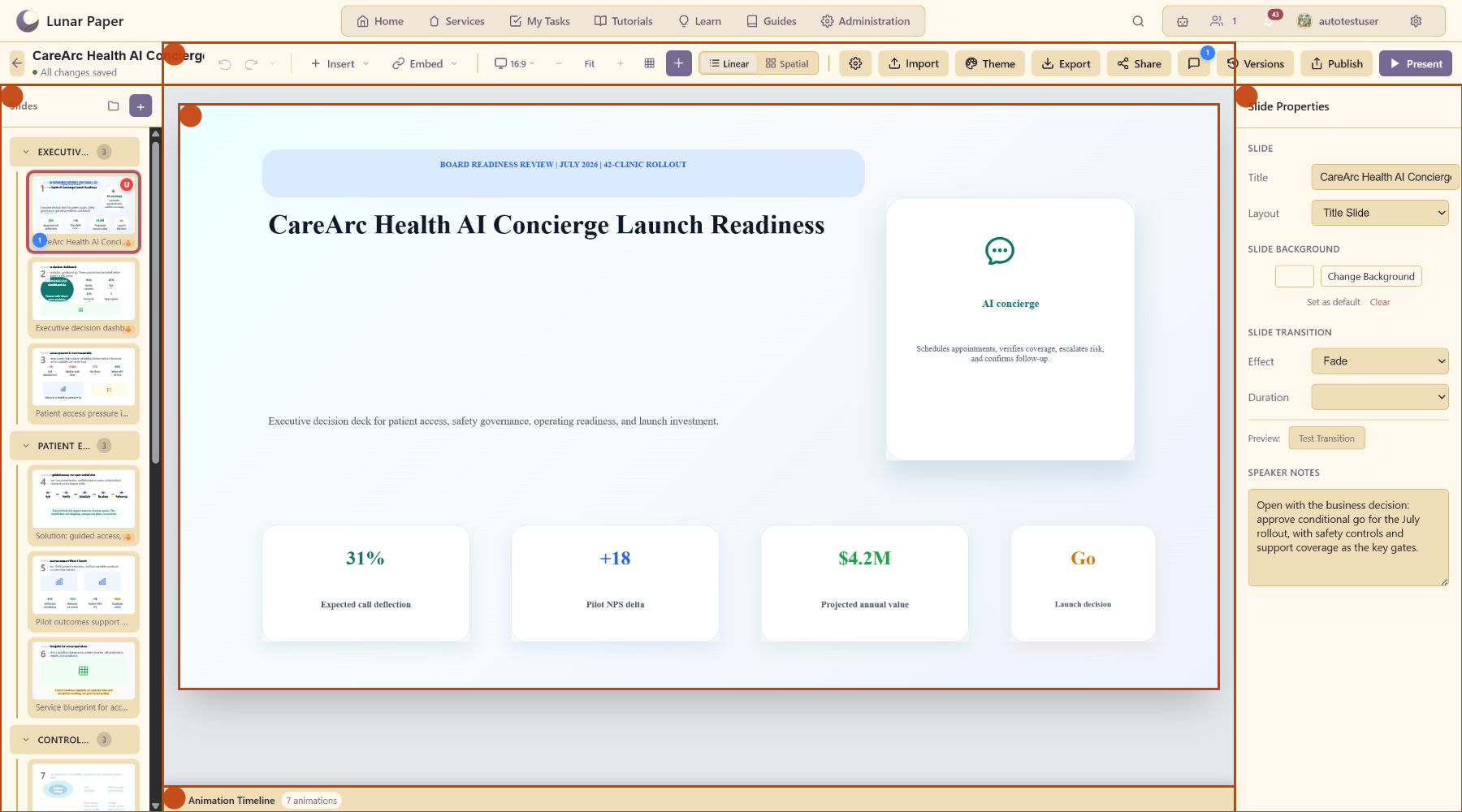
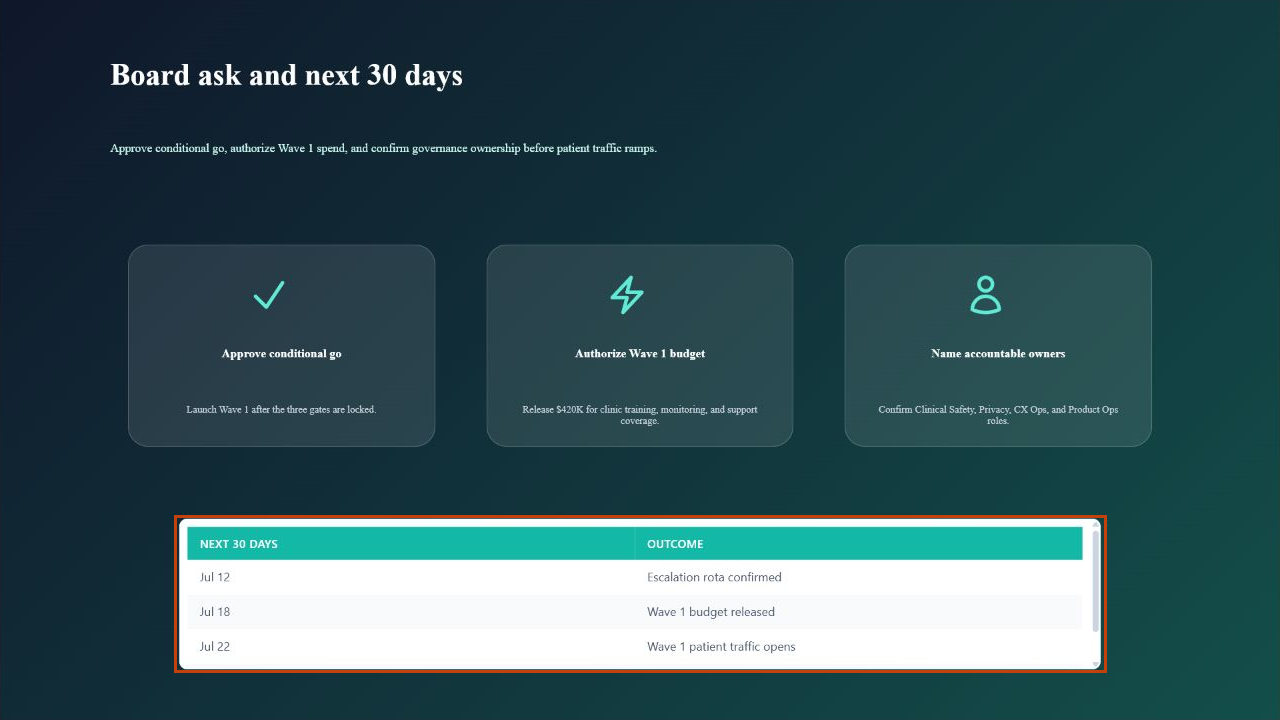
Section titled “A real deck, end to end”The screenshots in the guides use CareArc Health AI Concierge Launch Readiness, a 14-slide board-readiness deck for a 42-clinic rollout. It runs in order through patient-access pressure, guided service design, safety controls, architecture, rollout waves, economics, and the final board ask.
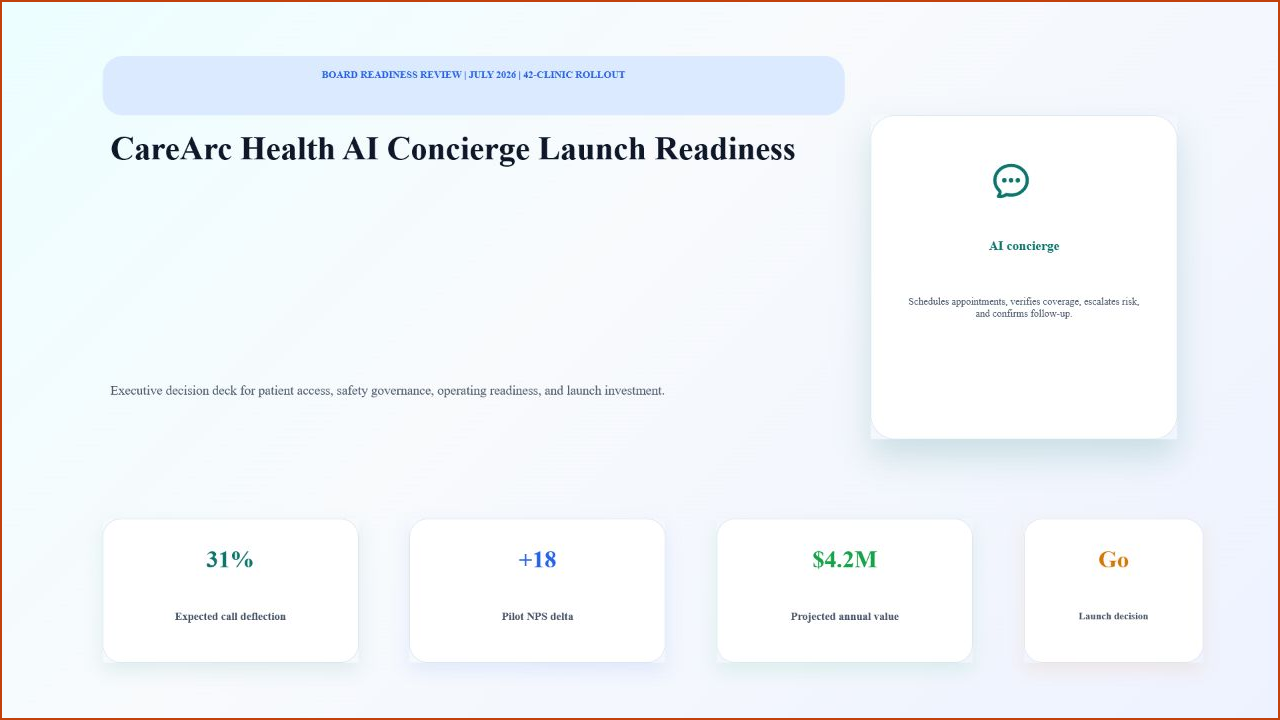
The deck is deliberately full of content. It gives you real sections, speaker notes, transitions, animated elements, narration and music lanes, evidence drawn from service content, and a closing decision slide to work with as you follow the workflows below.
Feature map
Section titled “Feature map”| Area | What it covers |
|---|---|
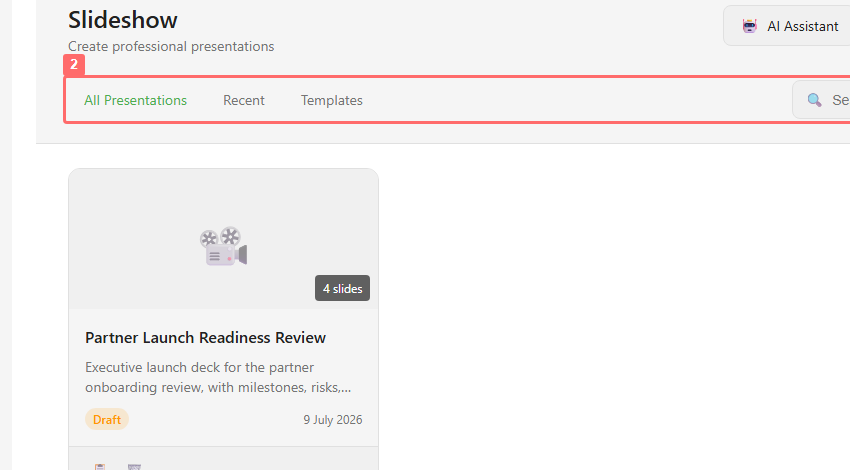
| Dashboard | Presentation list, recent decks, templates, search, AI Assistant entry point, and Create Presentation. |
| Creation | Blank decks, named decks, descriptions, and template selection. |
| Slide structure | Slides, sections, section collapse, add slide to section, drag ordering, duplicate, delete, move to section, and slide comment badges. |
| Canvas editing | Text, images, shapes, charts, data charts, lists, tables, videos, code, icons, audio, diagrams, backgrounds, and embedded service assets. |
| Layout tools | Zoom, fit, grid, smart guides, element alignment, distribute, match size, center on canvas, layers, visibility, lock, z-order, and responsive overrides. |
| Properties | Slide title, layout, background, transition, speaker notes, element style, position, rotation, opacity, links, and breakpoint-specific sizing. |
| Animation | Entrance, emphasis, exit animations, presets, duration, delay, easing, trigger behavior, preview, timeline playback, drag timing, resize timing, and removal. |
| Audio | Narration recording, imported audio, AI voiceover, narration languages, waveform lanes, background music, loop, fades, volume, and ducking. |
| Spatial mode | Infinite canvas, slide positions, section clusters, marquee selection, pan/zoom, mini-map, flight paths, default routes, and path drawing. |
| Review | Presentation comments, slide comments, replies, mentions, likes, resolve/reopen, comment filters, and go-to-slide actions. |
| Presenter mode | Slide playback, speaker notes, timer, next slide context, laser pointer, annotations, spatial map, route selection, and click-triggered animation playback. |
| Versions | Publish snapshots, version comments, version list, side-by-side comparison, slide navigation through comparisons, change legend, and restore. |
| Sharing | External publisher deployment, local published access, private/internal sharing, allowed teams/users, speaker note inclusion, connected asset mode, copy/open links, republish, and unshare. |
| Export | PDF, PowerPoint, video playback, interactive web page, image slides, asset export, quality settings, notes, backgrounds, narration, language, music, and auto-advance. |
Where it lives
Section titled “Where it lives”Open a service, then choose Slideshow from the service’s content modules. Decks are stored with the service, so the presentation stays near the documents, assets, reports, data, and decisions it references.
Recommended path
Section titled “Recommended path”Start with Quickstart if you are new to the module. Move on to Guides for the longer walkthroughs, which cover animation, spatial planning, narration, publishing, review, and export. Use Editor reference when you need a control-by-control map.
Documentation sections
Section titled “Documentation sections”| Section | Use it when |
|---|---|
| Quickstart | You want to build one deck from start to finish. |
| Guides | You need a multi-step workflow with screenshots. |
| Concepts | You want to understand slides, animation, spatial planning, audio, responsive layouts, themes, and publishing. |
| Reference | You need to look up a toolbar, panel, feature, format, shortcut, or mode. |
| Troubleshooting & FAQ | Something does not behave as expected. |