
Build with the AI assistant
Forms has two AI surfaces, and they answer two different questions:
- Create with AI, in the form catalogue, answers “I know what I need to collect but I have not modelled it yet.”
- The AI assistant, in the builder toolbar, answers “This form exists and I want to change something in it.”
Both end the same way: you review a proposal and decide what to keep. AI never publishes, never changes stored responses, and never edits a saved version. Its changes land in the open draft, exactly like your own edits, and you still press Save.
Start a new form with AI
Section titled “Start a new form with AI”From the service Forms catalogue, choose Create with AI.
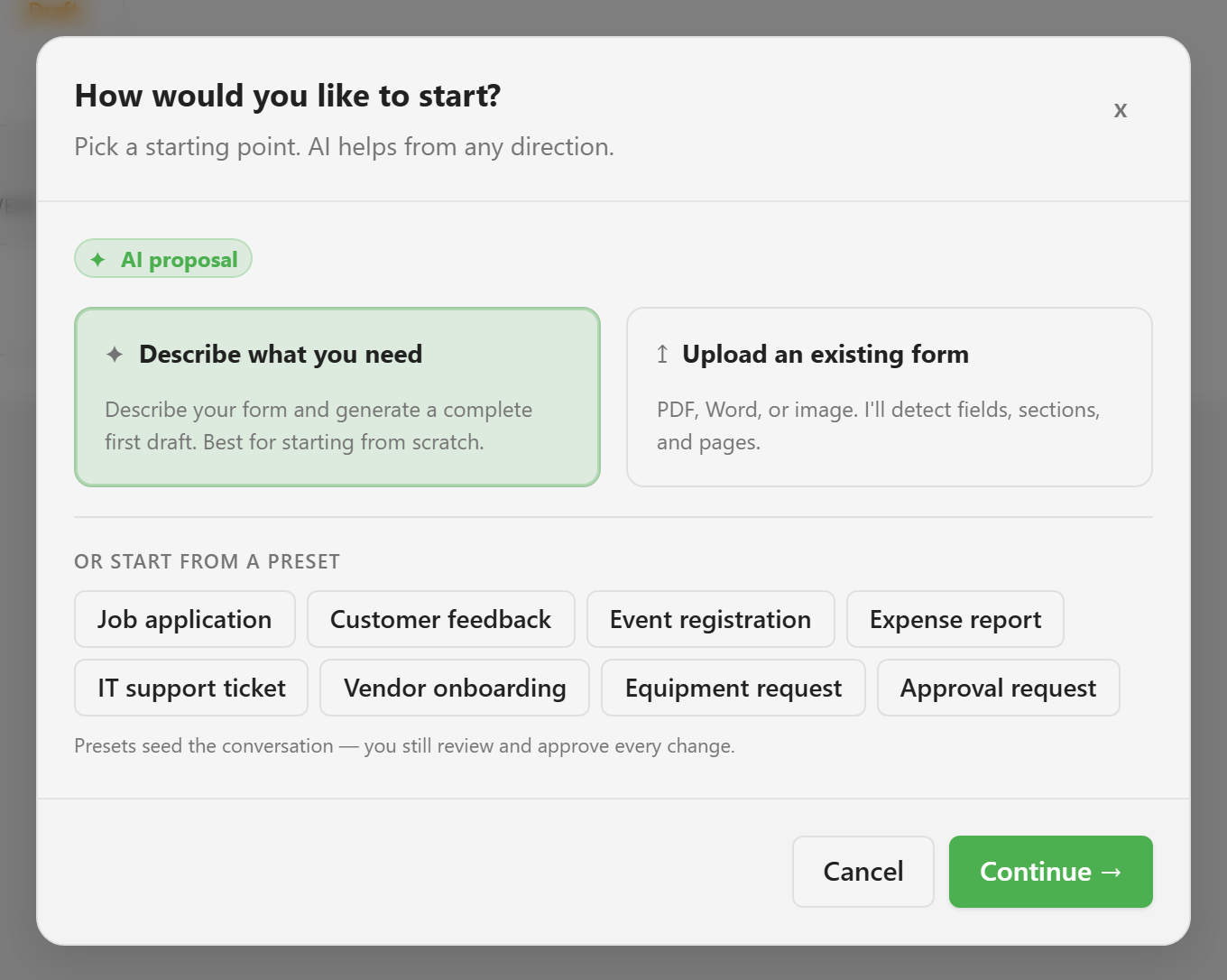
Describe what you need
Section titled “Describe what you need”Pick Describe what you need and write the form in plain language. Describe the decision the form supports, not the fields you have in mind: “Contractors request site access. We need who they are, which site and dates, their insurance certificate, and their supervisor’s approval” produces a better first draft than a list of twenty field names.
Eight presets start the conversation from a common shape: Job application, Customer feedback, Event registration, Expense report, IT support ticket, Vendor onboarding, Equipment request, and Approval request. They are a starting point for the chat, not a template that gets applied, so you still review and approve every change.
The assistant asks clarifying questions when the description leaves a real decision open, such as whether an approver’s name is captured or looked up. Answering these is faster than correcting the draft afterwards.
Upload an existing form
Section titled “Upload an existing form”Pick Upload an existing form to hand over a PDF, DOCX, PNG, or JPG up to 25 MB. That might be the paper form you are replacing, a screenshot of a competitor’s flow, or a Word document someone has been emailing around.
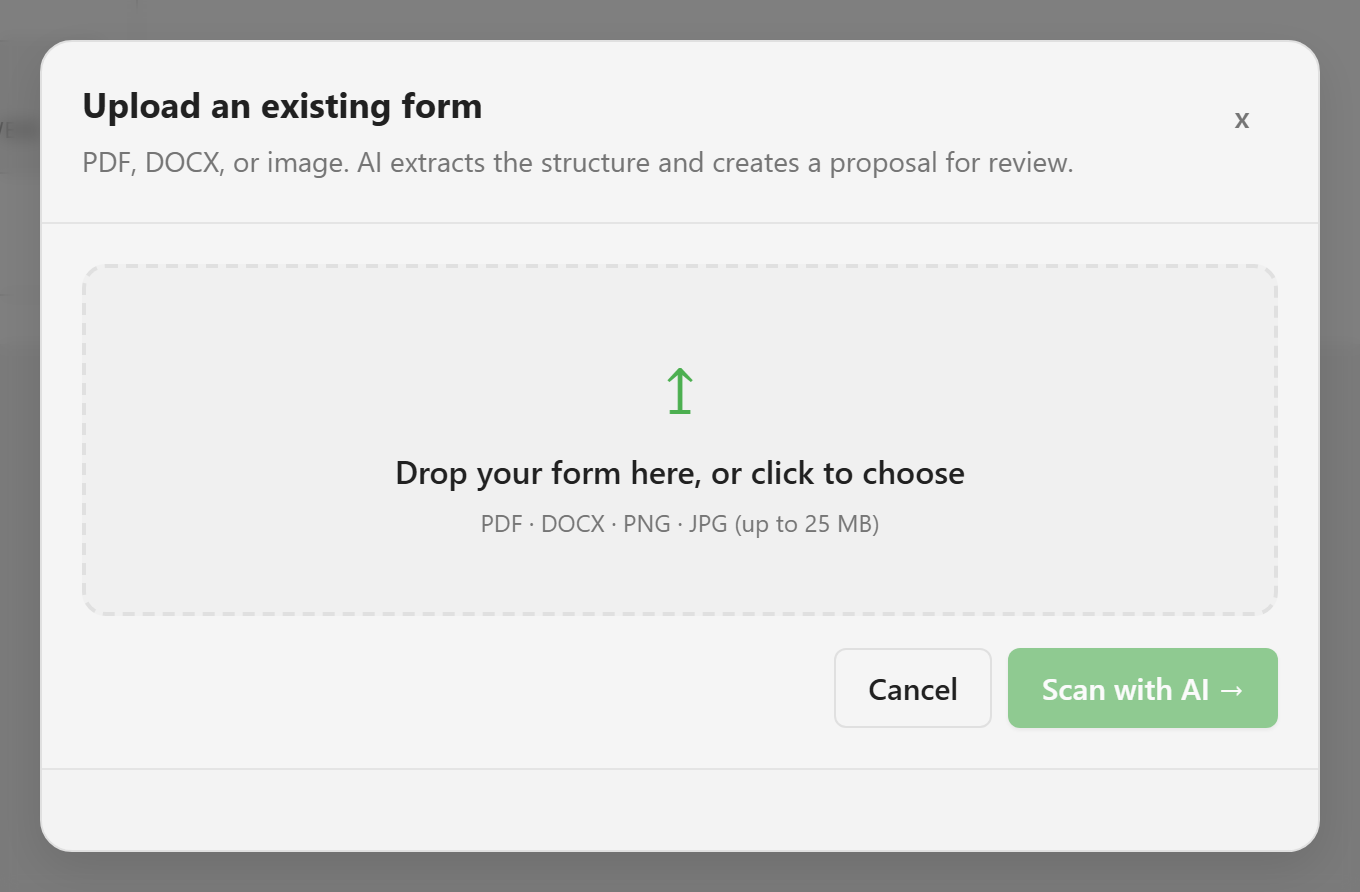
Scan with AI extracts the fields, sections, and pages, then returns a proposal for review. Expect to correct field names and storage decisions afterwards: the source document says what to ask, but it cannot say how the answers should be stored or validated.
Edit an existing form with the assistant
Section titled “Edit an existing form with the assistant”Open a form and select AI Assistant in the top bar. The panel opens beside the canvas with the current form already in context: its pages, sections, fields, configuration, and validation.
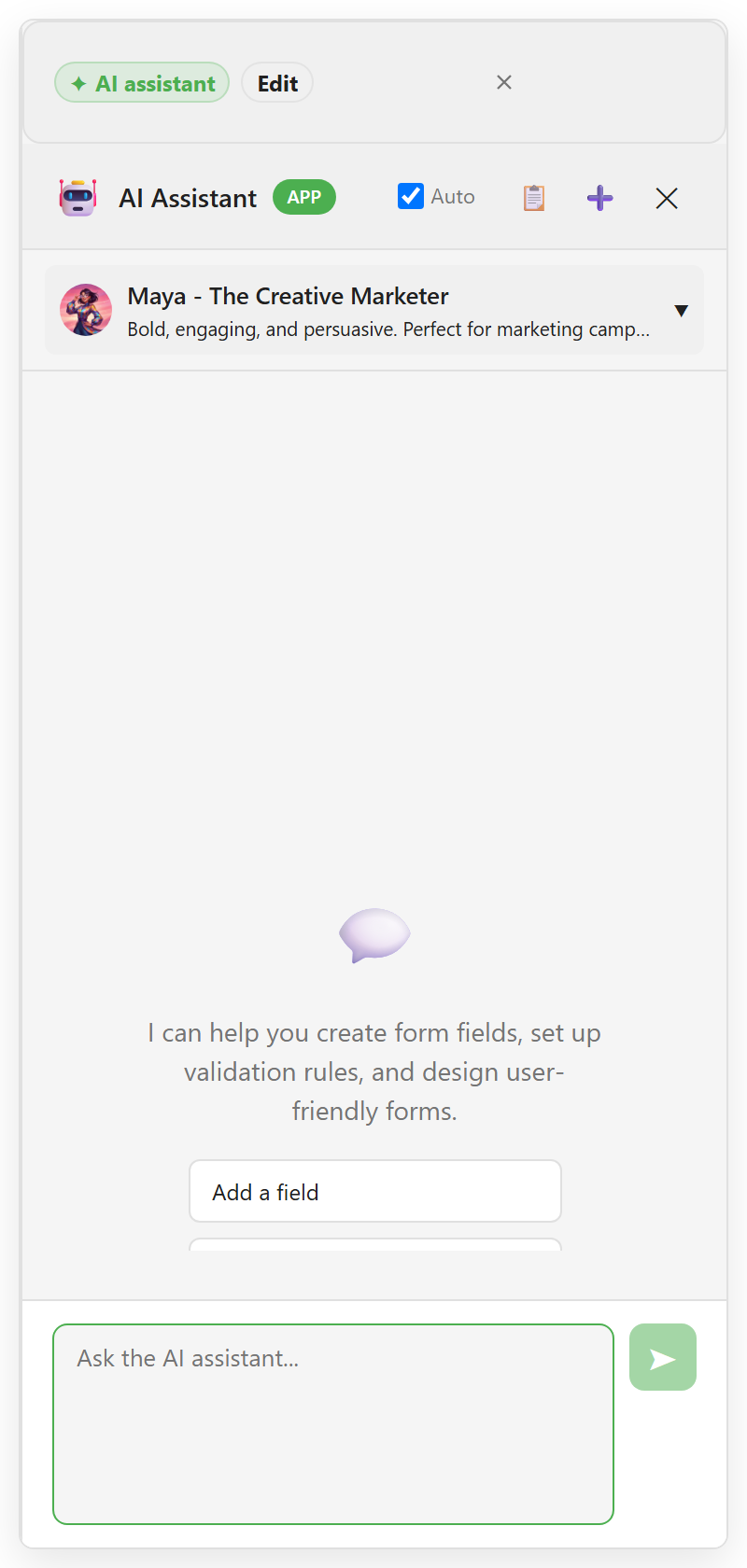
Four quick actions cover the common requests: Add a field, Suggest validation, Improve layout, and Add conditional logic. The message box takes anything else. Because the assistant can see the form, you can describe a change the way you would to a colleague: “the deliverables page is doing too much, split it”, or “make the phone number optional unless the urgency is critical”.
Requests that name a page, a section, or a field work better than general ones. “Add a required dropdown on the Project brief page for which studio runs the project” needs no follow-up; “add a location field” usually does.
The assistant can add, update, remove, and move fields; add, update, and remove sections and pages; set form metadata and settings; and set field validation and conditional rules. It cannot do anything outside that list. Publishing, stored responses, and saved versions are deliberately out of its reach. A persona selector sets its tone, and conversation history lets you pick a session up again later.
Review before anything changes
Section titled “Review before anything changes”Structural changes arrive as a proposal rather than an edit.
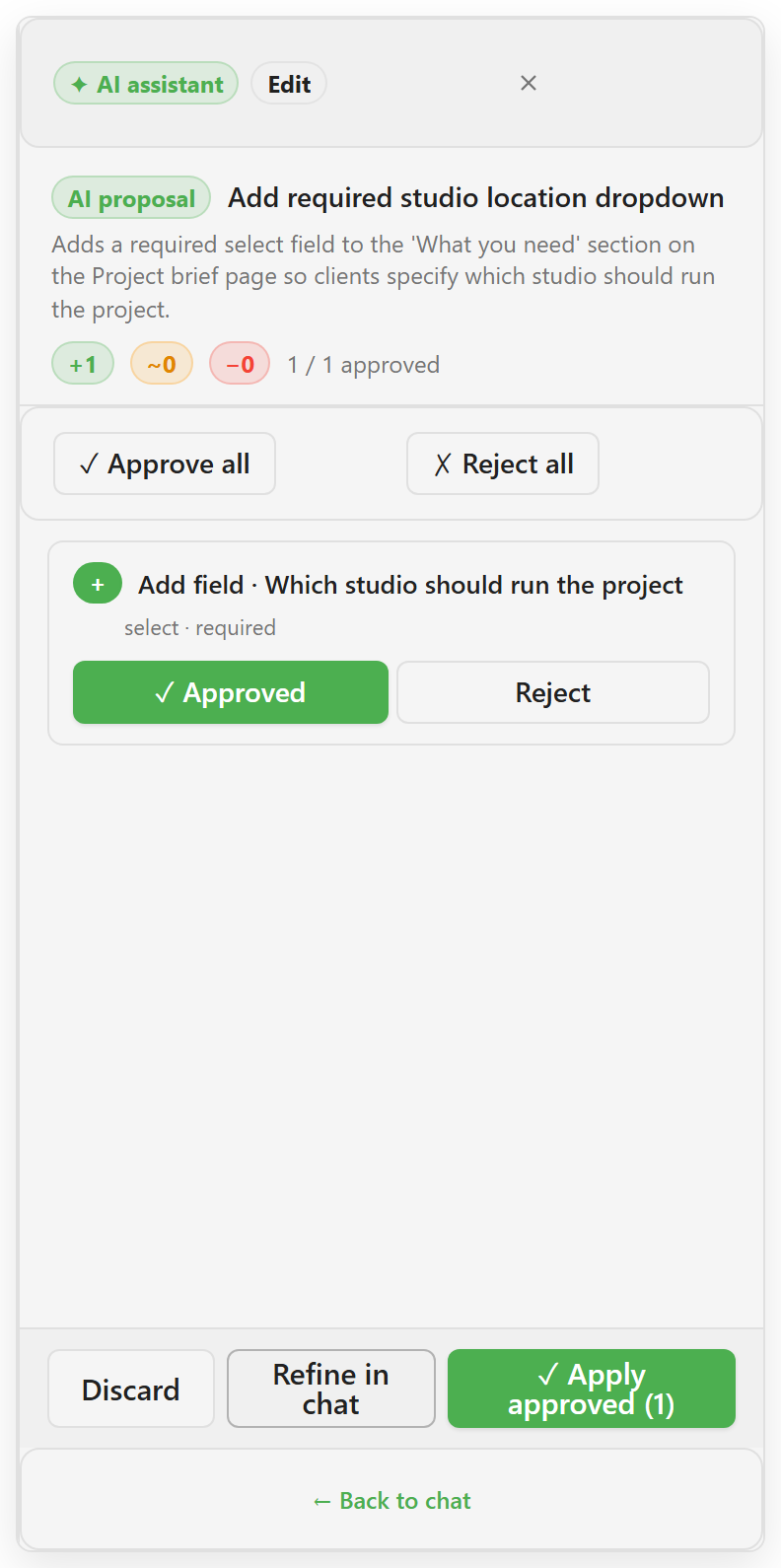
The proposal header summarises the intent and counts the changes: additions, modifications, and removals. Below it, each action is listed on its own with the field type and whether it is required, and each can be Approved or Rejected independently. Approve all and Reject all handle the obvious cases.
From here you can:
- Apply approved to merge only the approved actions into the draft.
- Refine in chat to send the proposal back with a correction instead of accepting a near miss.
- Discard to drop the whole proposal. Nothing reaches the draft.
The Auto switch in the panel header applies suggested actions as they arrive instead of holding them for review. It is convenient while you are exploring a blank form and a poor fit for a form that already has responses. Leave it off once the form is real rather than an experiment.
Translate with AI
Section titled “Translate with AI”The Translations panel can fill a language set with machine translations, either for empty strings only or for every string in the set. Treat the result as a first pass. It gets a language ready for review, but it does not replace a check by someone who speaks the language. See Configure settings and localization for how translation sets work.
What to check before you save
Section titled “What to check before you save”AI is good at structure and quick at repetitive work. It does not know your storage conventions, your regulator, or your team’s history. Before saving an AI-assisted change:
- Field names. These become database columns. Check they match the conventions the rest of the form uses.
- Required state. AI tends to mark more fields required than the form actually needs.
- Validation. Confirm patterns and lengths match reality rather than a plausible guess.
- What it collects. Delete anything you cannot justify keeping. An AI draft of a support form may well ask for a date of birth nobody needs.
- Storage. After structural changes, open Generate Schema and review Unlinked columns. New fields need columns; removed fields leave columns behind.
- The respondent’s view. Open Preview and read the page as someone filling it in.
Then Save. The change becomes a version like any other, so version history can undo it.
Related
Section titled “Related”- Manage forms and pages for the blank-form and schema-import paths.
- Build fields and validation for what to check in a generated draft.