
Hand off a creative asset
This workflow moves a finished creative asset into its operational home. The matching draft is Docs 07 - Creative Asset Handoff (workflow 589) in service 20.
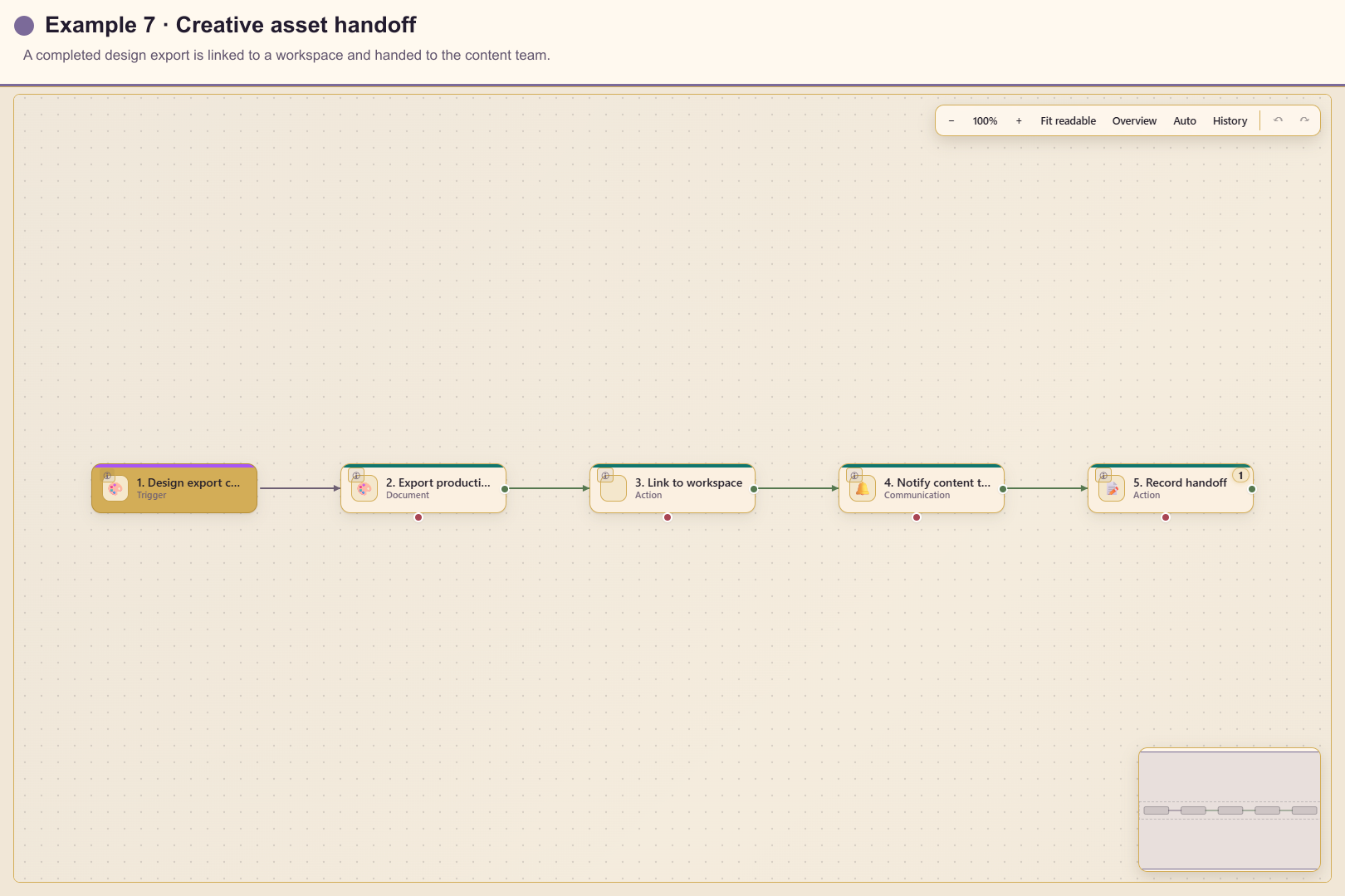
Outcome
Section titled “Outcome”When the required Design lifecycle moment occurs, Automation exports the design, links the resulting asset into a Workspace, notifies the content team, and records the design ID.
Before you start
Section titled “Before you start”- Enable Design Studio and Workspace for service 20.
- Choose the design or decide that every qualifying design is in scope.
- Choose the destination Workspace and version policy.
- Agree on format, resolution, naming, and content-team ownership.
Build the workflow from start to finish
Section titled “Build the workflow from start to finish”Create a blank workflow in service 20. Configure and save each card before adding the next so the expression builder can offer the upstream design and asset outputs.
1. Add and configure the trigger
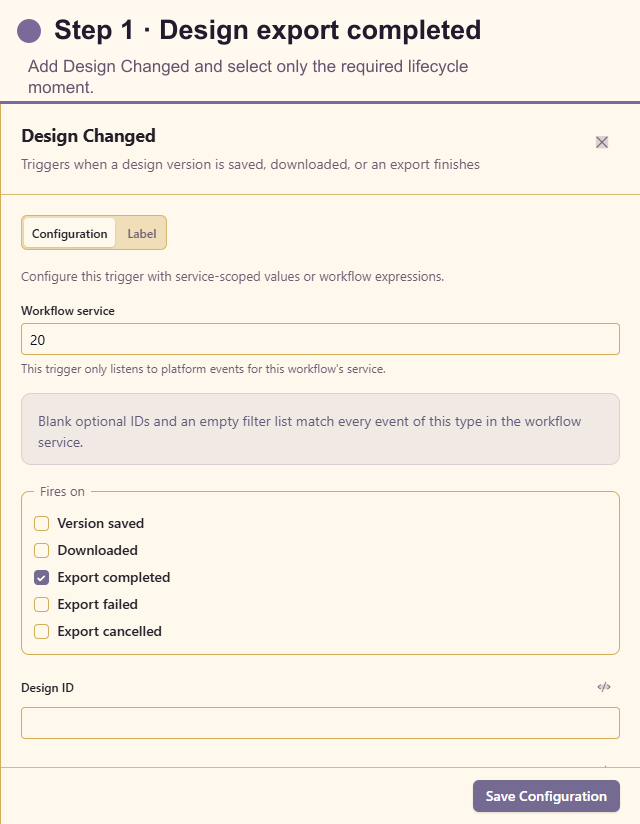
Section titled “1. Add and configure the trigger”Open Triggers and add Design Changed. Select only the export-completed lifecycle moment and optionally restrict the Design ID. A narrow event prevents draft edits from creating premature handoffs.
2. Add Export Design
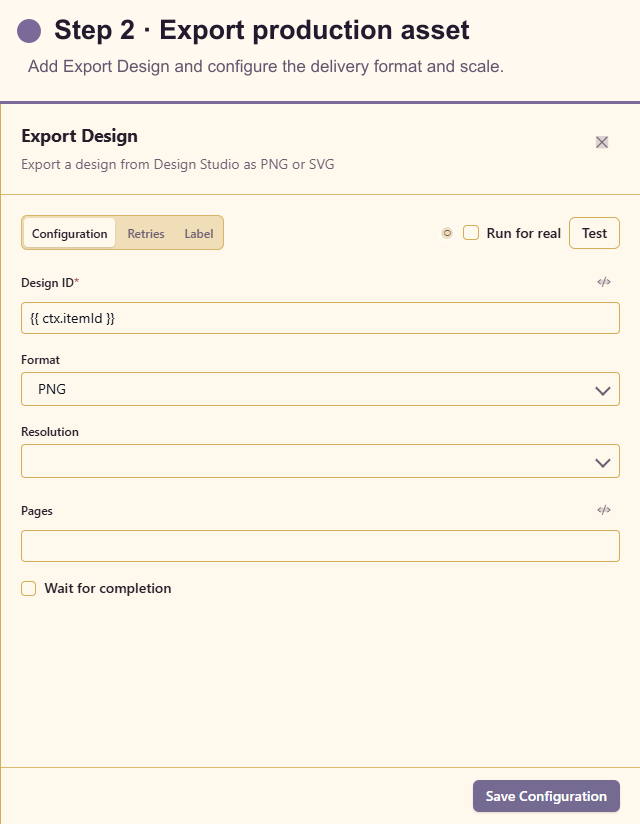
Section titled “2. Add Export Design”Open Actions and add Export Design. Insert the trigger design ID, choose PNG or SVG, set the required scale and pages, and wait for completion because the next card needs the resulting Asset ID.
3. Add Link Asset to Workspace
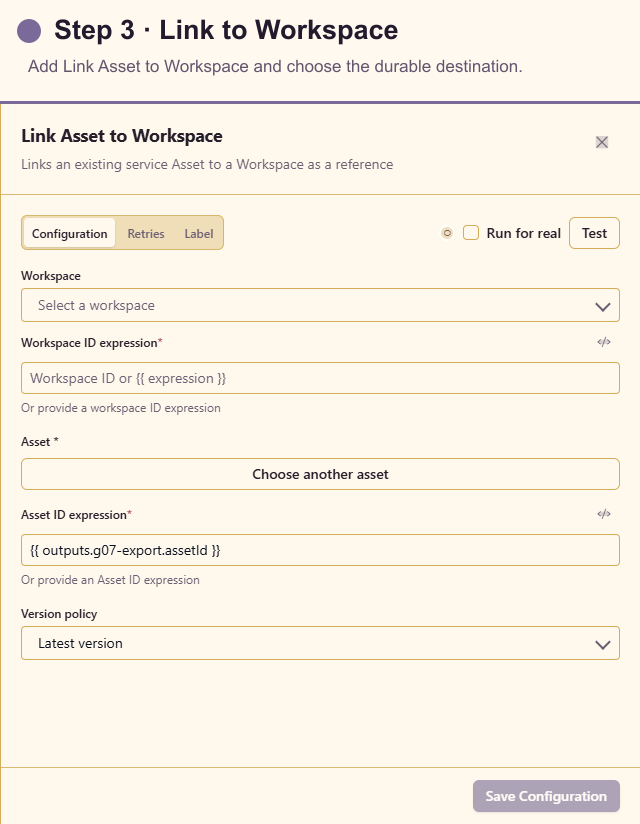
Section titled “3. Add Link Asset to Workspace”Add Link Asset to Workspace after the export. Select the destination Workspace, insert the exported Asset ID, and choose the latest or a pinned version. Pin the version when downstream approval depends on an immutable file.
4. Add Send Notification
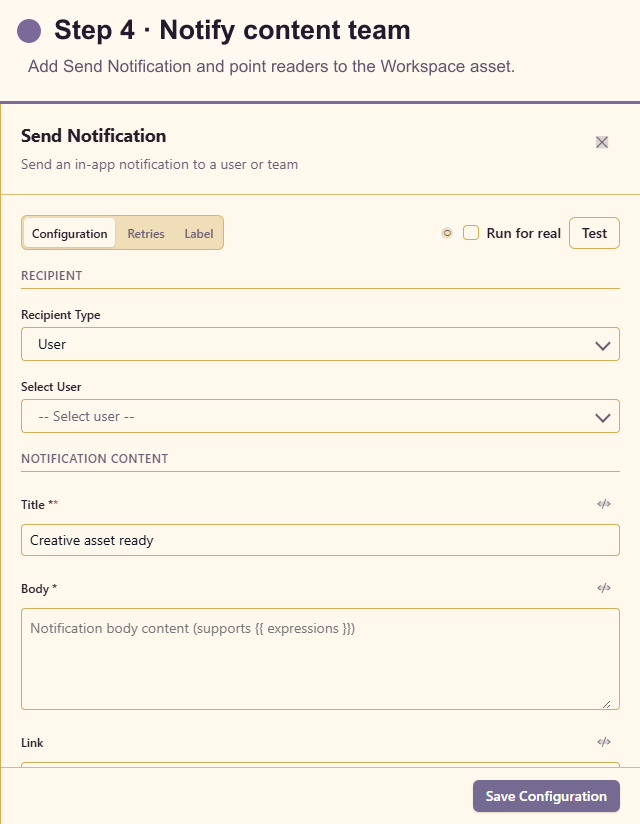
Section titled “4. Add Send Notification”Add Send Notification after the link. Choose the content owners, explain that the production asset is ready, and link to its Workspace location rather than a temporary export URL.
5. Add Workflow Log
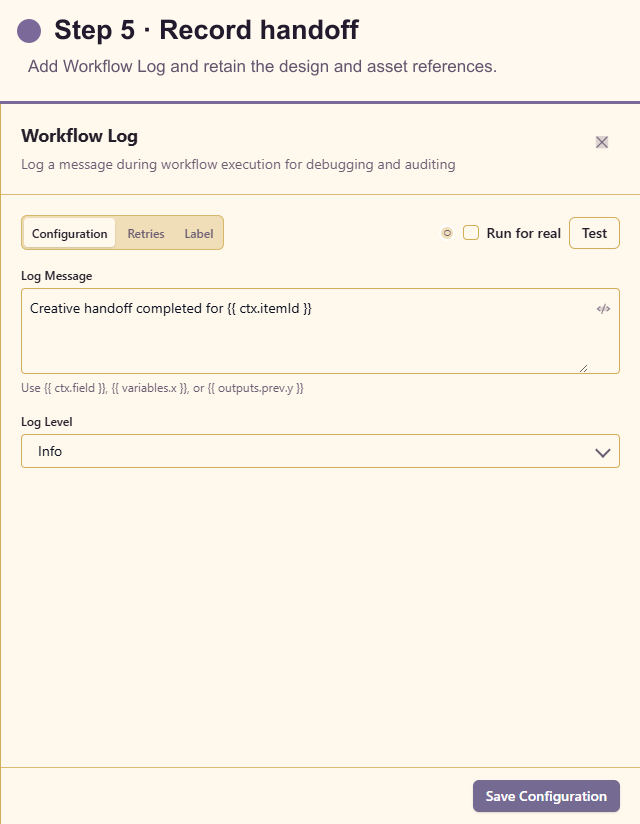
Section titled “5. Add Workflow Log”Add Workflow Log last. Record the design ID, asset ID, Workspace ID, and version reference without copying the asset or its customer content into the log.
Connect the five cards on the success path, save the final card, and resolve any missing Design or Workspace selections shown in Problems before testing.
Test the workflow
Section titled “Test the workflow”Use a non-customer design and test export settings. Confirm the output has the expected dimensions or vector structure. Link it to a test Workspace and verify permissions from a content-team account before sending the notification.
Trigger a non-export design change and confirm it does not start the workflow.
Production checklist
Section titled “Production checklist”- Trigger listens only to the intended lifecycle moment.
- Export format and resolution match the receiving channel.
- Workspace access includes intended readers and excludes unintended users.
- Version policy matches review and rollback needs.
- Repeated export events do not create confusing duplicate links.
- Notification points to the Workspace asset, not a temporary URL.