
Export a GIF or sprite sheet
There are two animated export paths. GIF is for previews and marketing placeholders, and sprite sheets are for engines and runtimes. Sheet layout is covered in Export an engine-ready sprite sheet, and the reasoning behind each option is in Export formats & engine handoff.
Save first
Section titled “Save first”Press Ctrl+S so the export reflects your latest work.
Path A — GIF (preview and marketing)
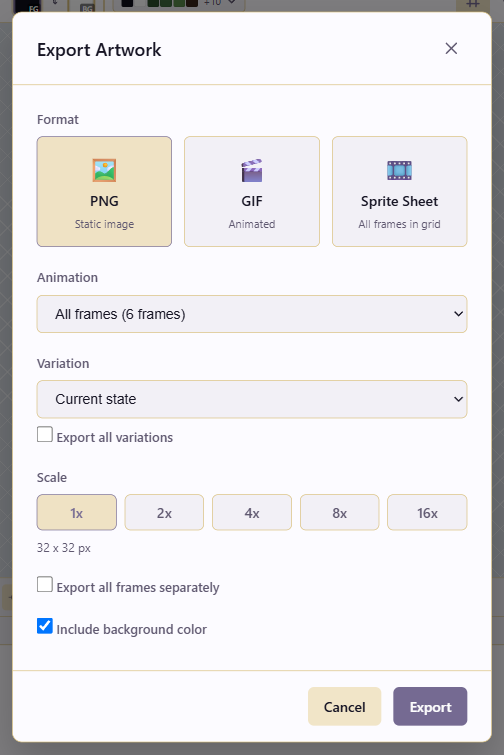
Section titled “Path A — GIF (preview and marketing)”Under Format, choose GIF. Pick the Animation range: All frames for everything, or a specific Animation Tag like walk.
GIF uses a frame delay to set how long each frame shows. Match the per-frame durations you set in the timeline, or override for a consistent cadence. For scale, 1× or 2× is plenty, because GIF file size grows sharply at higher scales due to format overhead.
Export it. Use the result for Slack previews, README art, and placeholder marketing. Do not use it as a game asset: GIF’s 256-color limit and binary (on/off) transparency degrade pixel art, banding gradients and fringing edges. If the destination is a game engine, take path B.
Path B — Sprite sheet (engine-ready)
Section titled “Path B — Sprite sheet (engine-ready)”Under Format, choose Sprite Sheet. Pick the animation range (All frames or a tag) and set the column count to control the grid layout. Choose a scale, using 1× for source and 2× for delivery, then pick a variation or Export all variations for a sheet per skin. Leave Include background color off for transparent sprites.
For the column-count reasoning, multi-direction rows, and the importer contract, see Export an engine-ready sprite sheet. Layout planning is covered there; this guide covers the export mechanics.
Document exports
Section titled “Document exports”Whatever you export, document the layout in the Publish Version comment afterward (walk_gif_preview, walk_sheet_6col_1row). That records the contract with the asset, where whoever imports it can find it.