
Create a dashboard
Creating a dashboard takes one dialog and about twenty seconds. Two of the four things you enter are permanent, and that is what the rest of this guide is about.
Open the dialog
Section titled “Open the dialog”Open Dashboards under Data in the service and choose + Create Dashboard.
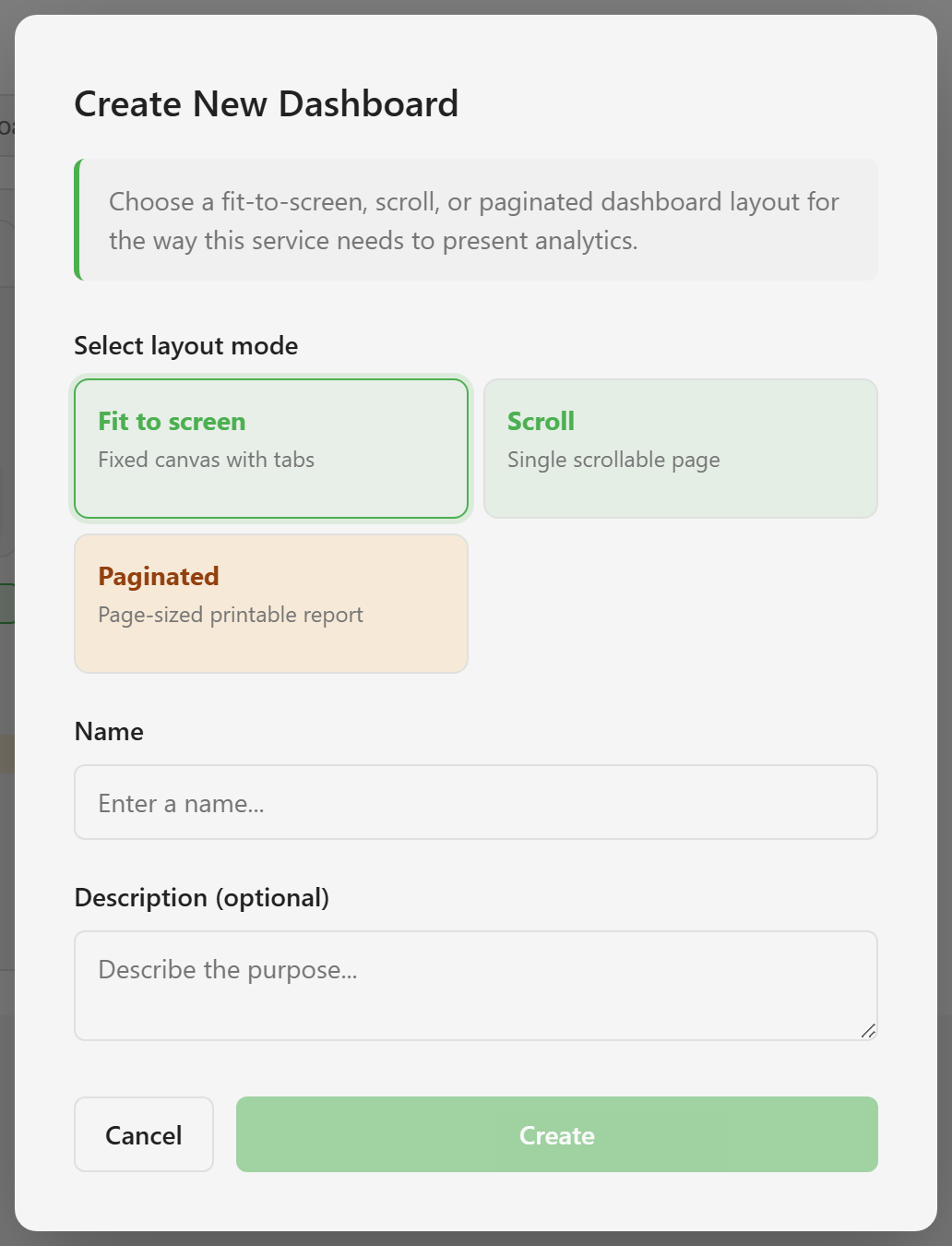
Pick a layout mode
Section titled “Pick a layout mode”There are three cards, and one is already selected:
Fit to screen — a fixed canvas with tabs. Nothing scrolls.
Scroll — a single page that grows downward. No tabs.
Paginated — a page-sized canvas that behaves like paper, and the only mode that offers the report-structure widgets.
This cannot be changed later. The designer shows the mode as a read-only badge and offers no way to switch. If you get it wrong, you have to rebuild on a new dashboard. Layout modes explains what each mode is for and why it cannot be changed.
When in doubt, pick Scroll. It is the least restrictive, and a scroll dashboard that grows too long is easier to live with than a fit dashboard whose content does not fit on one screen.
Name it
Section titled “Name it”The name is also permanent. There is no rename anywhere in the module — not in the designer, not on the card in the list, not in the settings. The only way to change a dashboard’s name is to build a new dashboard.
So spend a moment on it. Name it for what it shows rather than who asked for it or when it was built: “Food sales overview” rather than “Ops dashboard v2”.
Add a description
Section titled “Add a description”The description is optional and editable. It is the one field on this dialog you can come back and change.
Create
Section titled “Create”Choose Create. The designer opens on an empty canvas with the widget library on the left and the toolbar across the top.
The dashboard is saved as soon as you do this. It appears in the list marked Draft until you publish it, and readers cannot open it until then.
What the list shows afterwards
Section titled “What the list shows afterwards”Each dashboard gets a card showing a preview thumbnail, the name, a Draft or published state, its layout mode, the date, and a view count. The card’s buttons are Open, Schedule, and Delete.
Above the cards, a dropdown filters by layout mode and a search box filters by name. Both become useful once a service has more than a few dashboards.
Add and bind widgets fills the empty canvas. If the Data panel has nothing in it yet, connect a data source first.