
Collaborate and configure access
Comments keep a form’s review attached to the form itself rather than scattered across chat threads and meeting notes. Internal access decides who can open that form once it is published. The two are easy to confuse because they sit next to each other in the toolbar, but access is set independently of publishing: choosing an audience never releases anything on its own.
Review comments
Section titled “Review comments”Open Comments in the builder. The panel is scoped to the current form and shows the resource being discussed.
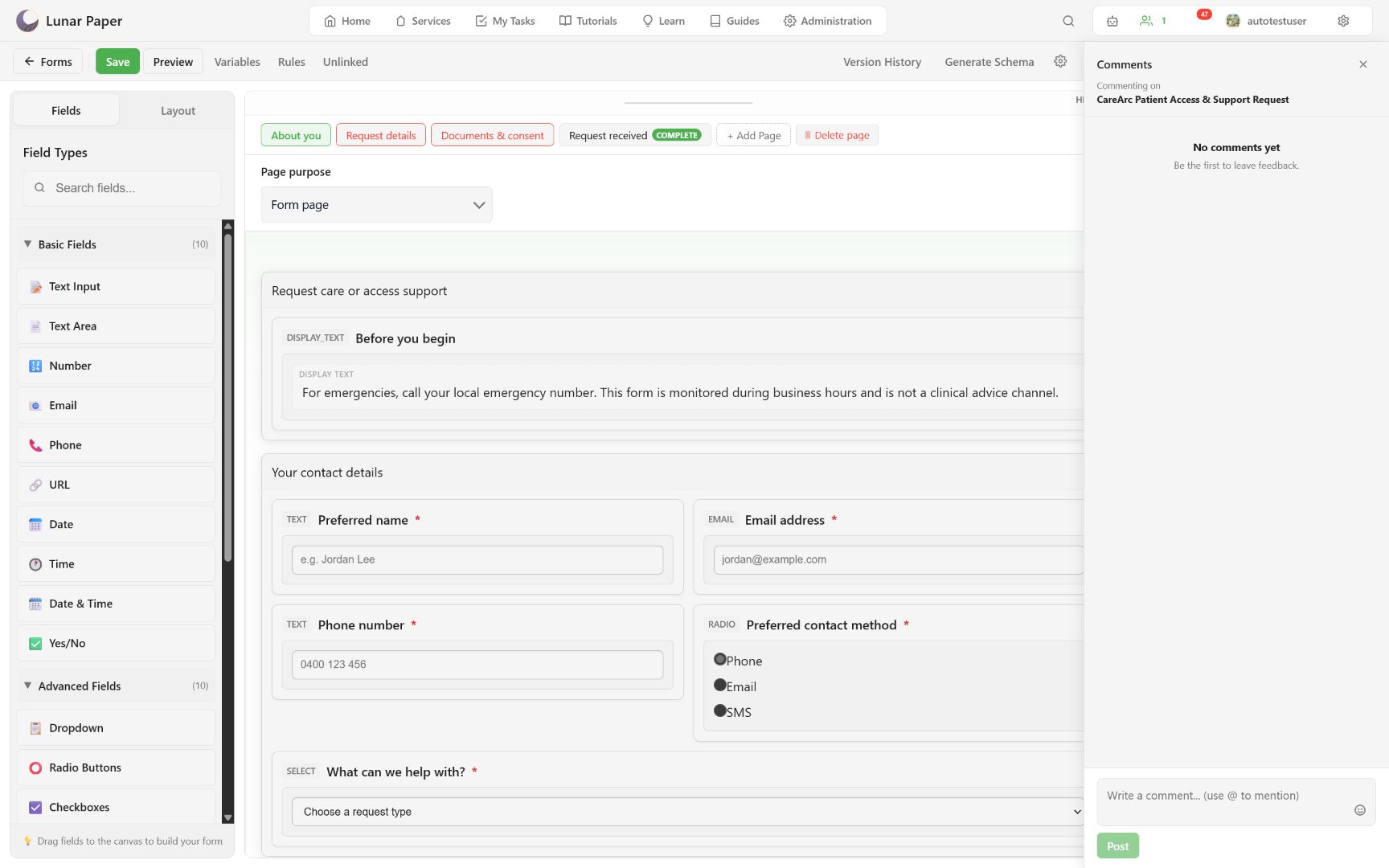
Write a comment, use @ to mention a collaborator, and select Post. Reply in the existing thread when the discussion belongs to the same decision. Keep comments focused on review context; put permanent respondent guidance in the form itself.
After resolving feedback, save a version checkpoint so the review decision and resulting schema are easy to relate.
Configure internal access
Section titled “Configure internal access”Choose Internal access. This controls the authenticated Internal Publisher copy; anonymous visitors use an external publisher.
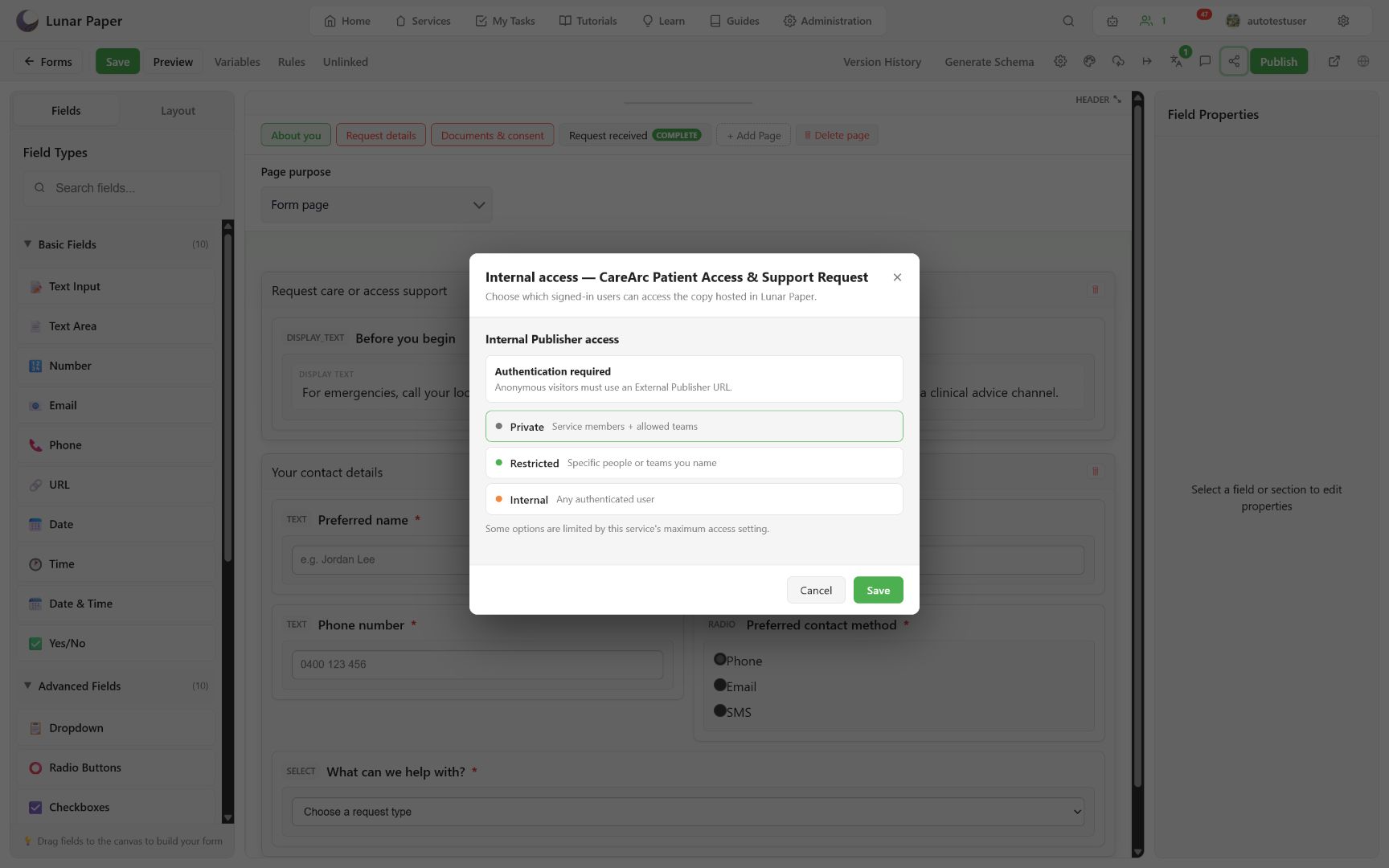
The available choices are bounded by the service’s maximum access setting:
- Private covers service members and allowed teams.
- Restricted covers named people or teams.
- Internal covers any authenticated user, when the service permits it.
Choose the smallest audience that still supports the workflow. Save the access rule, then test with an account that is inside the audience and, where practical, one outside it.
Coordinate access and publishing
Section titled “Coordinate access and publishing”Internal access does not publish a draft. Configure the audience, then release a version through Publish. Conversely, publishing does not make an Internal copy anonymous.
For anonymous delivery, select an approved External Form Publisher in publishing settings. Network placement determines whether that publisher is reachable on a LAN or the Internet.
Safe review checklist
Section titled “Safe review checklist”Before publishing:
- remove private discussion from respondent-facing copy;
- confirm uploads request only necessary information;
- verify the internal audience;
- verify the external publisher and network placement, if used;
- preview validation and completion text;
- add a release note that identifies the reviewed change.
With the audience settled, Publish, submit, and recover releases the version. Publishing, access, and security covers how these guards are enforced on the server.