
Animation timeline
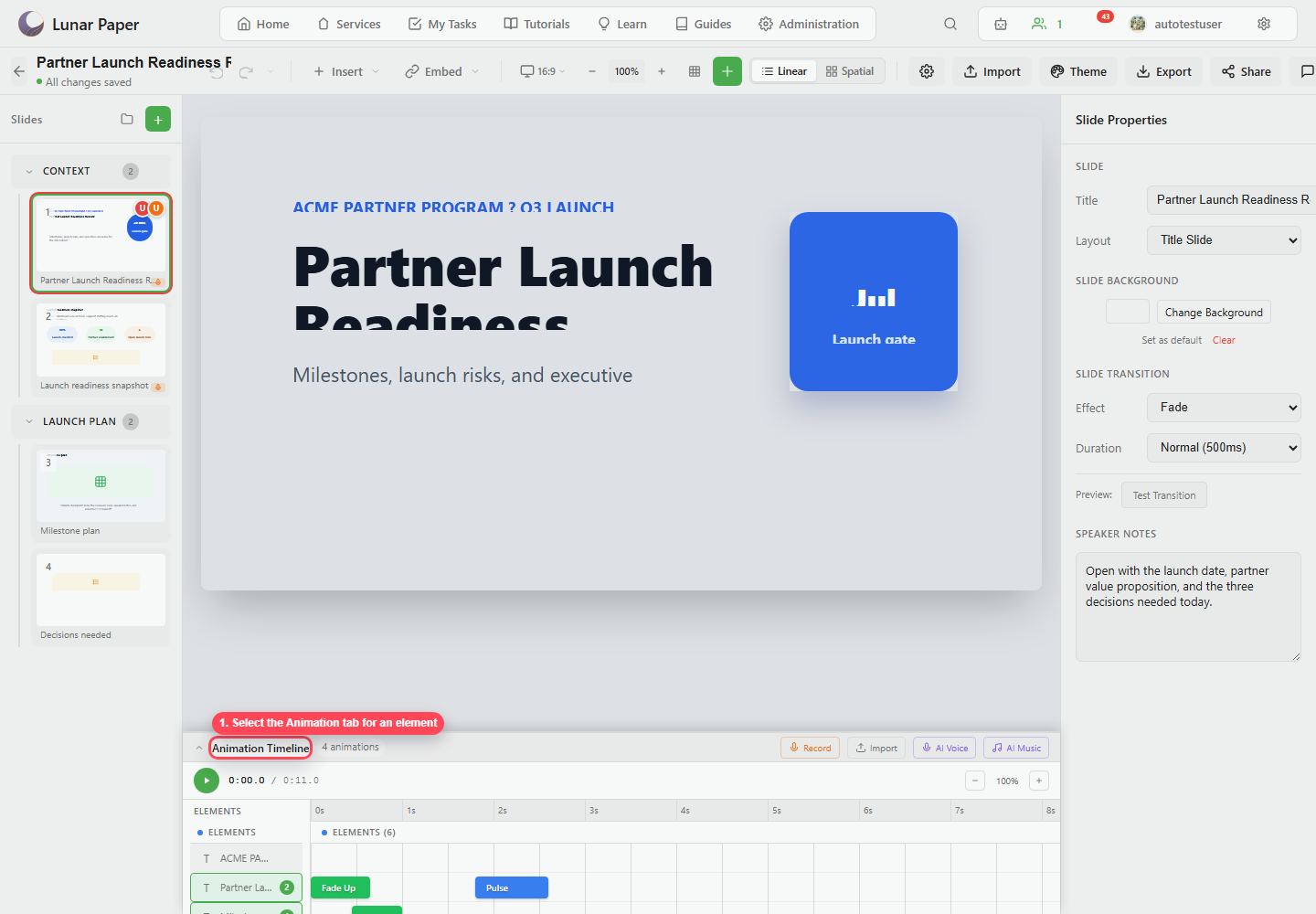
The animation timeline controls when elements, narration, and music play during a slide. It appears as a collapsible panel at the bottom of the editor.

Animation categories
Section titled “Animation categories”Slideshow supports three animation categories:
| Category | Use it for | Examples |
|---|---|---|
| Entrance | Bring content onto the slide. | Fade In, Fade Up, Fade Left, Fade Right, Zoom In, Bounce In, Fly In, Wipe, Split, Appear. |
| Emphasis | Draw attention to content already on the slide. | Pulse, Shake, Spin, Grow, Flash, Wobble, Rubber Band, Heartbeat. |
| Exit | Remove content or end a staged sequence. | Fade Out, Fade Out Down, Fade Out Up, Zoom Out, Slide Out Left, Slide Out Right, Shrink, Disappear. |
Timing
Section titled “Timing”Each animation has a duration, delay, easing, and trigger. Use the properties panel when you need exact values, or drag and resize the bars on the timeline when you would rather time it by eye.
Triggers
Section titled “Triggers”Trigger behavior determines when an animation starts in presenter playback:
| Trigger | Behavior |
|---|---|
| On Click | Waits for a presenter click or advance action. |
| With Previous | Plays with the preceding animation. |
| After Previous | Starts after the preceding animation finishes. |
Audio lanes
Section titled “Audio lanes”Narration and background music appear under the element animations. Use those lanes to line up the spoken explanation, the audio cues, and the reveals on the slide.
Presets
Section titled “Presets”Animation presets group choices by tone: subtle, moderate, dramatic, elegant, and playful. Use a preset when every slide should move in the same way.