
Control what the AI does
The workspace AI writes content and edits it. How much it does without asking is a setting, and it is worth setting before it has written twenty things.
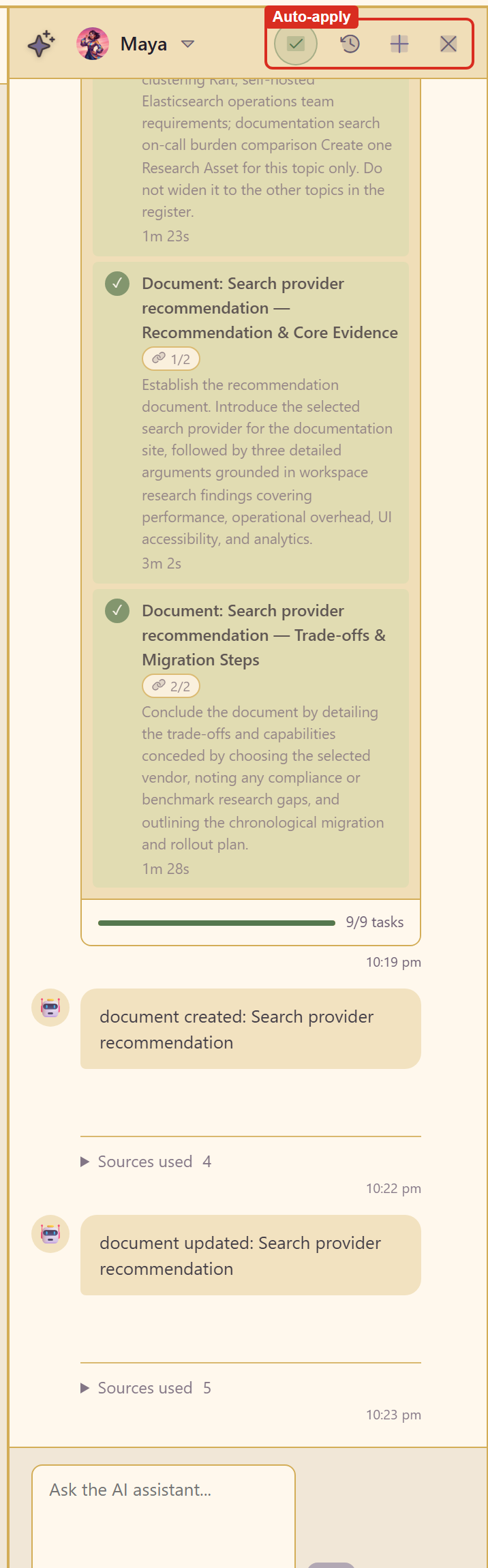
Auto-apply, and what it actually applies
Section titled “Auto-apply, and what it actually applies”The panel states the rule plainly: auto-apply is on. New content is created for you, and edits to existing content stay staged until you approve them.
Read that as two different behaviours.
Creating is automatic. Ask for a document and you get a document. Nothing to approve, because nothing existed to lose.
Editing is staged. When the AI wants to change something that already exists, the change waits for you, with Approve and Dismiss on the step. The panel is explicit about the timing too: a proposed change becomes approvable after the full run finishes, not mid-plan.
The split matches the risk. Creation is additive and reversible; editing overwrites work somebody may have done by hand.
Reviewing everything instead
Section titled “Reviewing everything instead”Apply AI suggestions automatically in the panel header is the toggle. Switch it off and every suggestion — including new content — waits for review.
Switch it off when the workspace holds content other people rely on, or when you are working in an area the AI does not know well. Leave it on for exploratory work, where reviewing every creation is friction for no benefit.
Standing instructions beat repeated corrections
Section titled “Standing instructions beat repeated corrections”Workspace AI instructions apply to every chat here. They are set when the workspace is created and take up to 12,000 characters.
Put your standards there rather than repeating them. Three kinds earn their place:
Evidence quality — prefer primary sources and vendor documentation over blog posts.
Comparable units — always state pricing in USD per month at our current page count. This one turns “pricing varies” into a number you can put in a table.
Honesty about gaps — flag any claim you cannot source. You can see this working in the finished document, which carries a warning callout wherever a claim had no source behind it.
Instructions shape every future run. A correction in chat shapes one reply.
Stopping a plan
Section titled “Stopping a plan”A plan runs as a sequence of steps with visible progress, and it keeps running if you navigate away.
Stop this run halts it, but the panel is explicit about the limit: it takes effect after the current AI request, because provider requests cannot be paused safely mid-flight. Expect the running step to finish.
Stop early. The best moment is as soon as you see the registered topics are not the ones that matter, because re-asking is cheapest then.
Starting over without losing the record
Section titled “Starting over without losing the record”New Conversation starts a fresh thread; Conversation History gets you back to earlier ones.
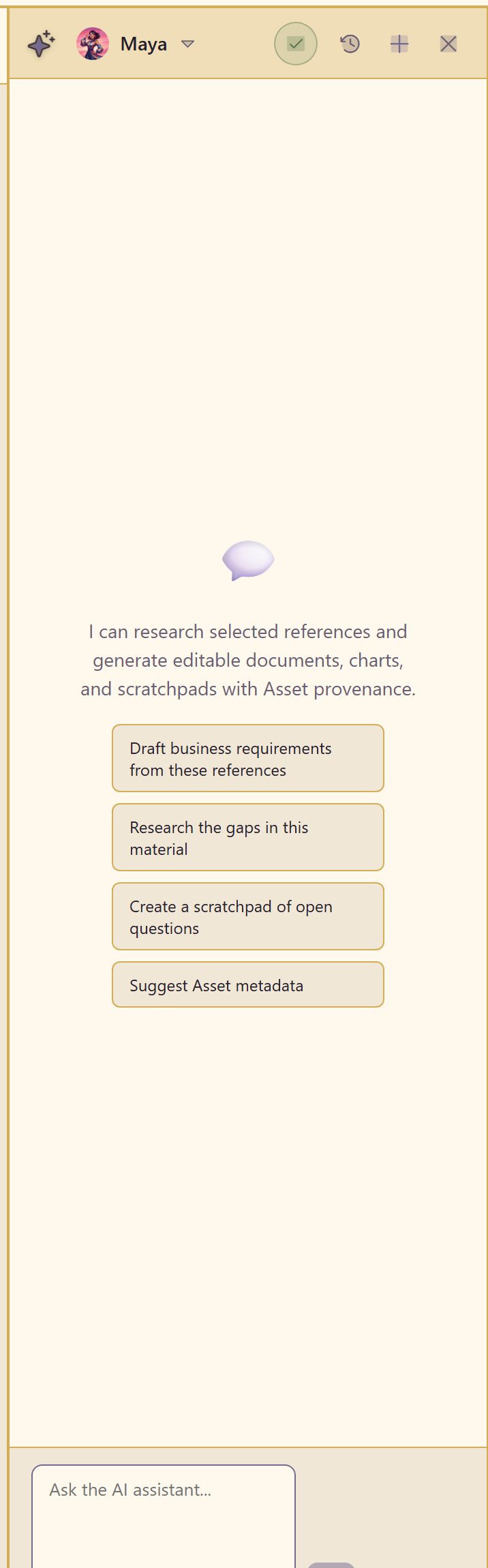
A new conversation is the right move when the thread has drifted, or when the context meter under the composer is filling up. Nothing is lost — the content and research the old conversation produced stay in their rails.
It avoids duplicate work
Section titled “It avoids duplicate work”Asked to create a scratchpad of open questions when one already existed, the AI said so and linked to the existing item instead of making a second one.
That is usually what you want, and it means “create X” sometimes produces a link instead of a new item. If you do want a second one, say so.
The transcript is not private
Section titled “The transcript is not private”The create dialog says it plainly: recorded transcripts are visible to Workspace members.
Treat the chat as a team document. Keeping the reasoning with the decision is the intent, but it does mean the chat is no place for anything you would not write in a shared file.
What it cannot do for you
Section titled “What it cannot do for you”It selects relevant sources automatically, which is convenient and means you cannot assume it read everything you added.
It reports gaps but cannot fill them.
And it has no idea whether the decision is a good one. It can gather evidence for a question; whether the question is the right question is still yours.
Related
Section titled “Related”What the AI is for explains why it decomposes, cites, and stages rather than simply answering. AI panel reference documents every control.