
Animations reference
Animations can be edited from the element properties panel or the timeline.
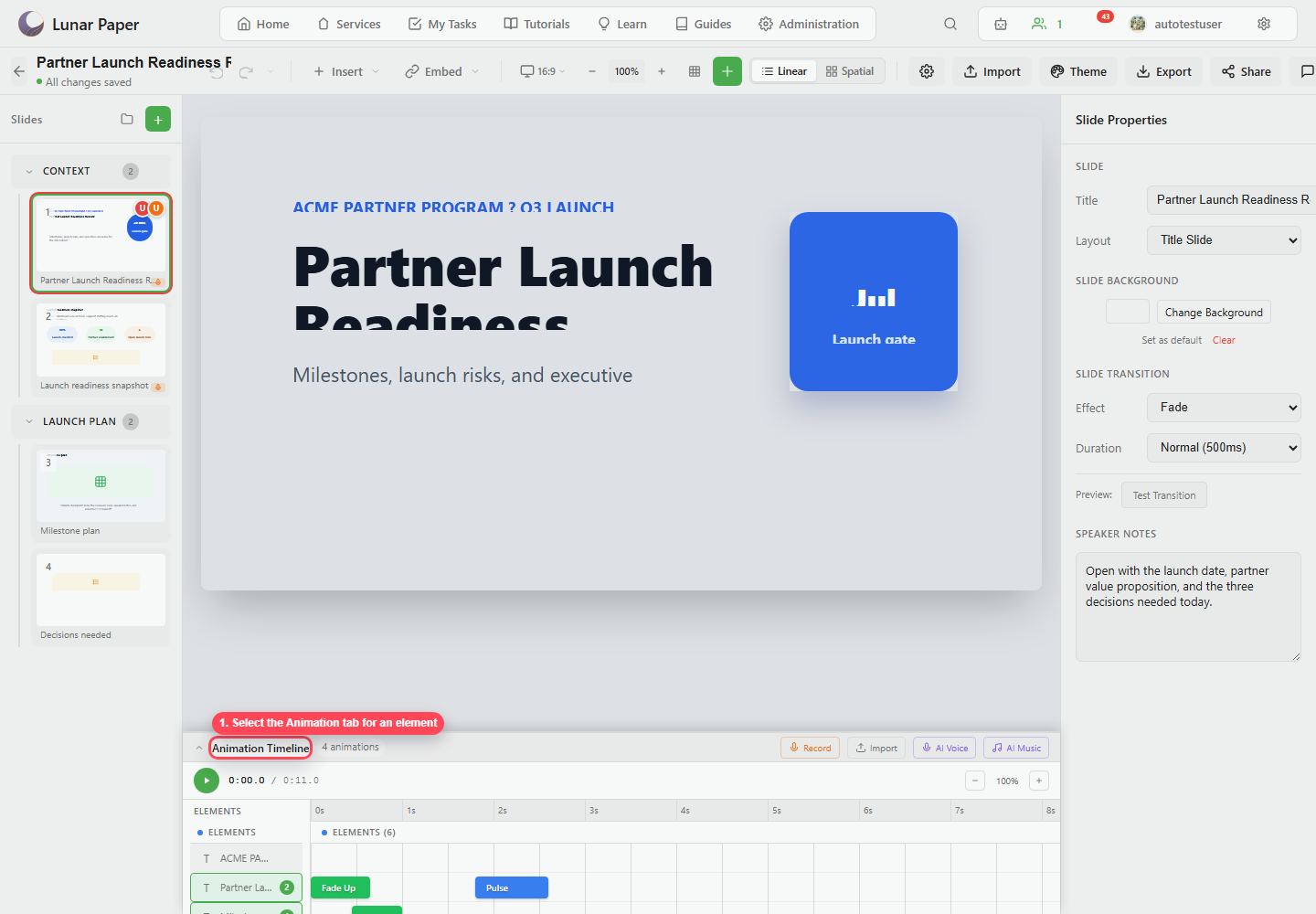
Animation types
Section titled “Animation types”| Category | Types |
|---|---|
| Entrance | Fade In, Fade Down, Fade Up, Fade Left, Fade Right, Zoom In, Zoom Rotate, Bounce In, Fly In, Wipe, Split, Appear. |
| Emphasis | Pulse, Shake, Spin, Grow, Flash, Wobble, Rubber Band, Heartbeat. |
| Exit | Fade Out, Fade Out Down, Fade Out Up, Zoom Out, Slide Out Left, Slide Out Right, Shrink, Disappear. |
Timing fields
Section titled “Timing fields”| Field | Meaning |
|---|---|
| Duration | How long the animation runs. |
| Delay | How long the animation waits before starting. |
| Easing | How the motion accelerates or decelerates. |
| Trigger | Whether the animation plays on click, with the previous animation, or after the previous animation. |
Easing choices
Section titled “Easing choices”Slideshow includes Linear, Ease, Ease In, Ease Out, Ease In-Out, Bounce, and Elastic easing.
Presets
Section titled “Presets”Use subtle, moderate, dramatic, elegant, or playful presets for consistent animation tone.
Timeline controls
Section titled “Timeline controls”
| Control | Purpose |
|---|---|
| Play / stop | Preview the current slide’s timed sequence. |
| Zoom | Increase or decrease timeline scale. |
| Drag element to timeline | Add an animation at a chosen time. |
| Drag bar | Change delay. |
| Resize bar | Change duration. |
| Select bar | Edit timing and animation properties. |
| Remove | Delete an animation from the timeline. |