
Build fields and validation
A field carries two things at once. The label is the question a person reads; the field name is a database column that will outlive the wording. Validation sits between them, deciding what counts as an acceptable answer and, more usefully, telling someone how to fix an unacceptable one.
Browse and add fields
Section titled “Browse and add fields”The Fields tab groups inputs into Basic Fields, Advanced Fields, and Display Items. Search filters the palette by label. Add a field to the appropriate section, then select it on the canvas.
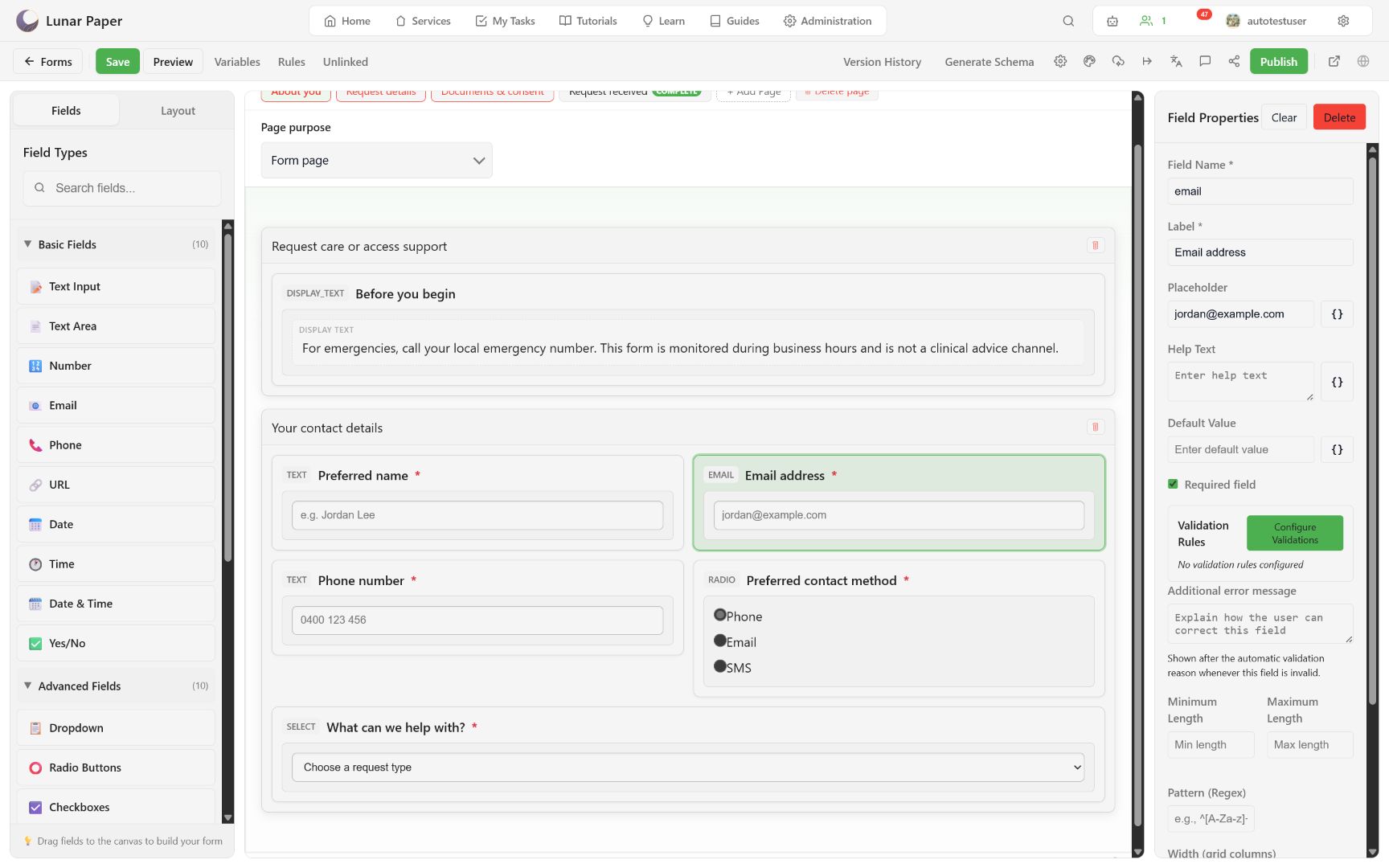
Use display items for instructions and context only. They are not response fields and do not create submission columns.
Edit the data contract
Section titled “Edit the data contract”The properties panel separates respondent text from storage identity:
- Label is visible to the respondent and accessibility tools.
- Field Name determines the storage column identity.
- Placeholder gives an example but must not replace a label.
- Help Text explains the expected answer.
- Default Value pre-populates a response where appropriate.
- Width places the field on the 12-column form grid.
Avoid renaming a field after responses exist unless the storage change is deliberate. Review schema generation and unlinked columns after structural edits.
Configure validation
Section titled “Configure validation”Select Configure Validations to add or apply supported rules. Email, phone, and URL presets provide a consistent starting point.
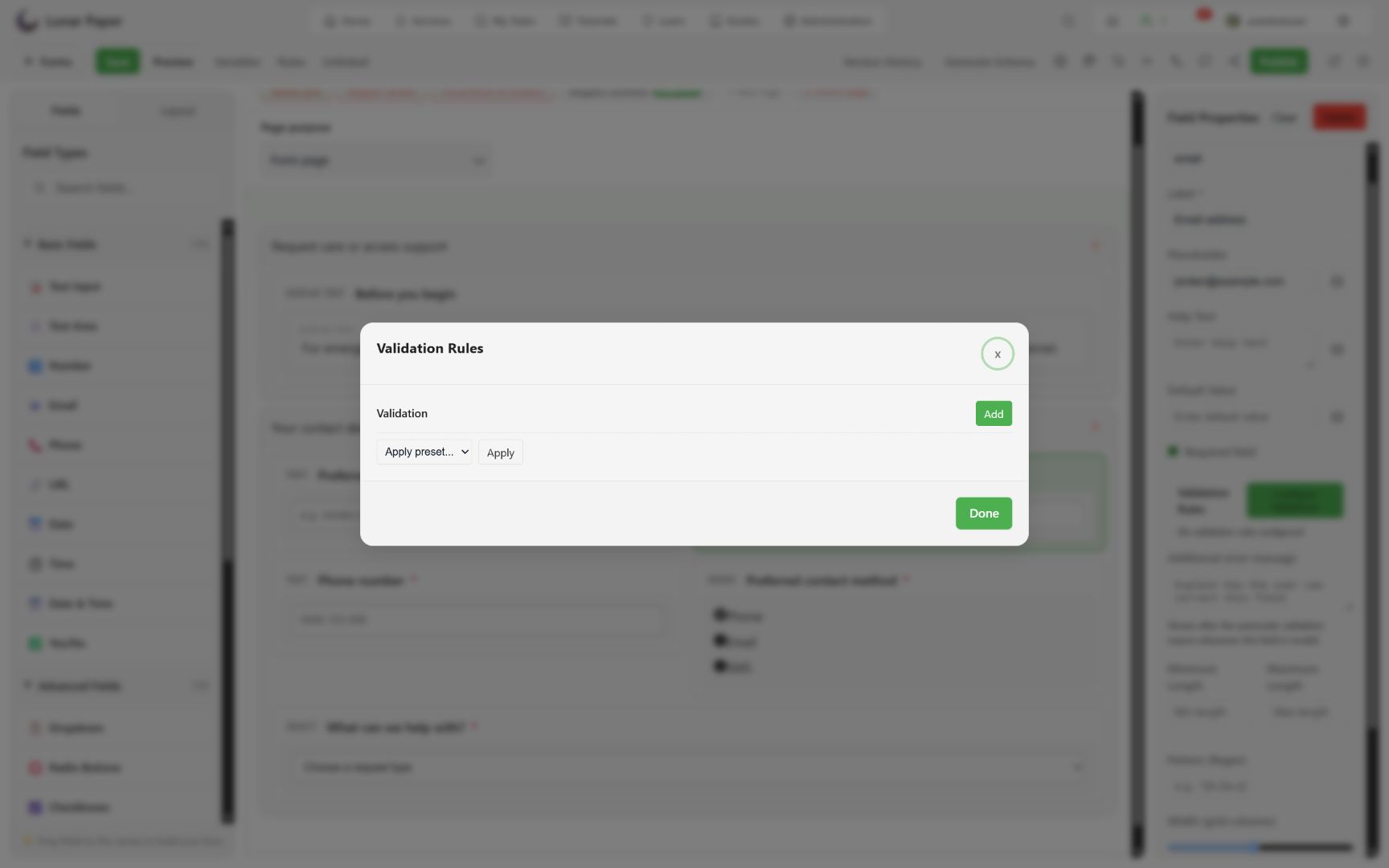
Field properties also support:
- required state;
- minimum and maximum length;
- a regular-expression pattern;
- an additional corrective message;
- conditional required, enabled, visible, or value rules.
Use the loosest rule that still protects the workflow. A validation message should say how to fix the answer, not just that it is wrong.
Test recovery
Section titled “Test recovery”In Preview, leave required fields blank and select Next. The page step shows an error count and each affected field shows a local message.
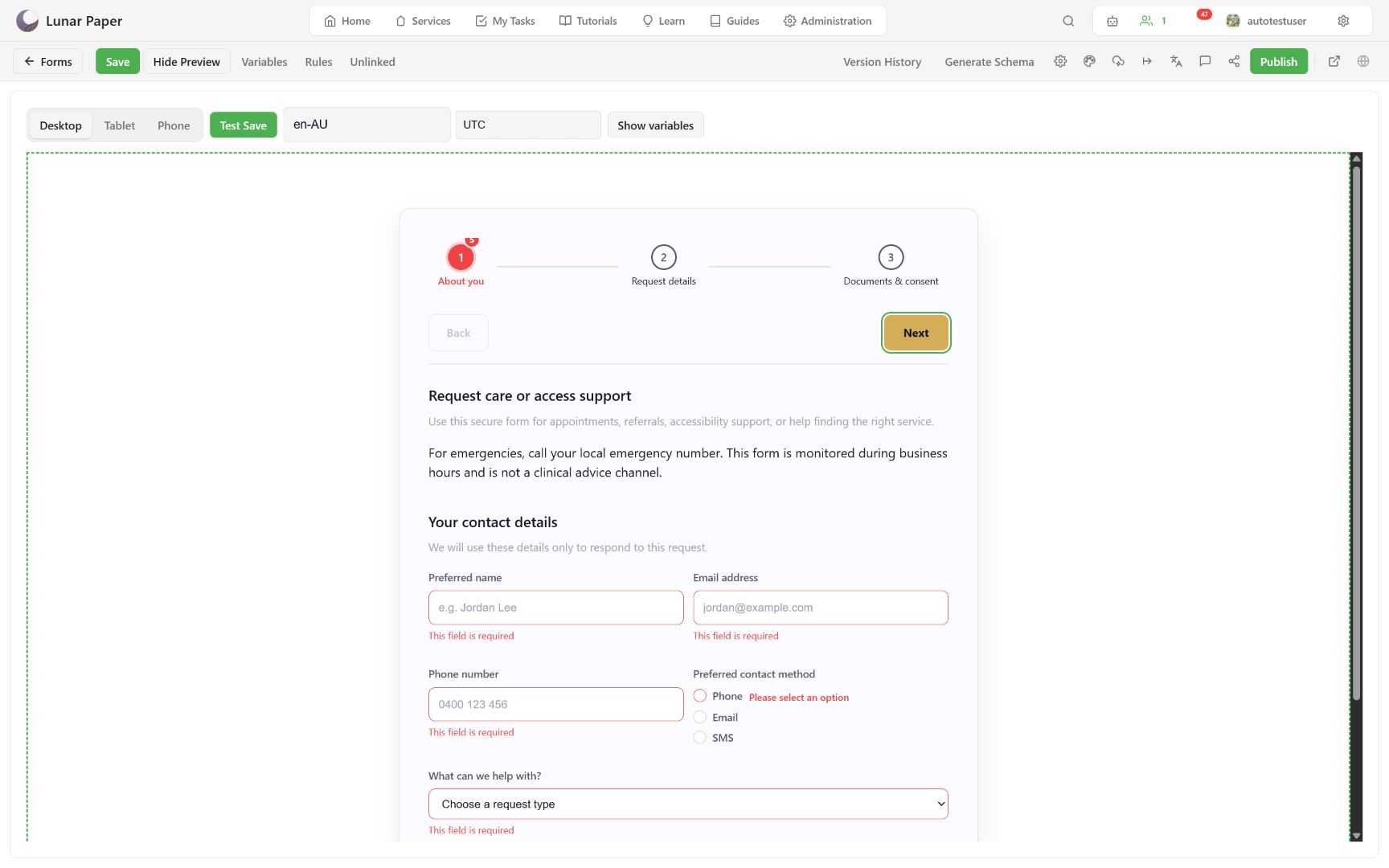
Correct answers one at a time and confirm that:
- the local message clears;
- the field retains the corrected value;
- page navigation succeeds only when blocking errors are resolved;
- optional fields remain optional;
- a cancelled file selection or cleared signature does not create a stored value.
Clear or delete a field
Section titled “Clear or delete a field”Clear resets the selected field’s editable configuration; Delete removes the field from the draft. Save a version checkpoint first when the field has business meaning or historical data.
After deletion, use Generate Schema and Unlinked to see the effect on storage. Deleting a field does not delete the column holding past answers. Manage versions, schema, and storage covers what to do with the columns that remain.
Every field type and property is catalogued in the field type reference. To make a field appear only in certain circumstances, see Use variables and rules.