
Build an arrangement with sections
Each section marks a musical part such as an Intro, Verse, Chorus, or Bridge, and takes up a region on the timeline. Together they set the shape of the arrangement.
Add a section
Section titled “Add a section”Double-click an empty area of the timeline where you see the prompt Double-click to add a section. A new section appears at that bar.
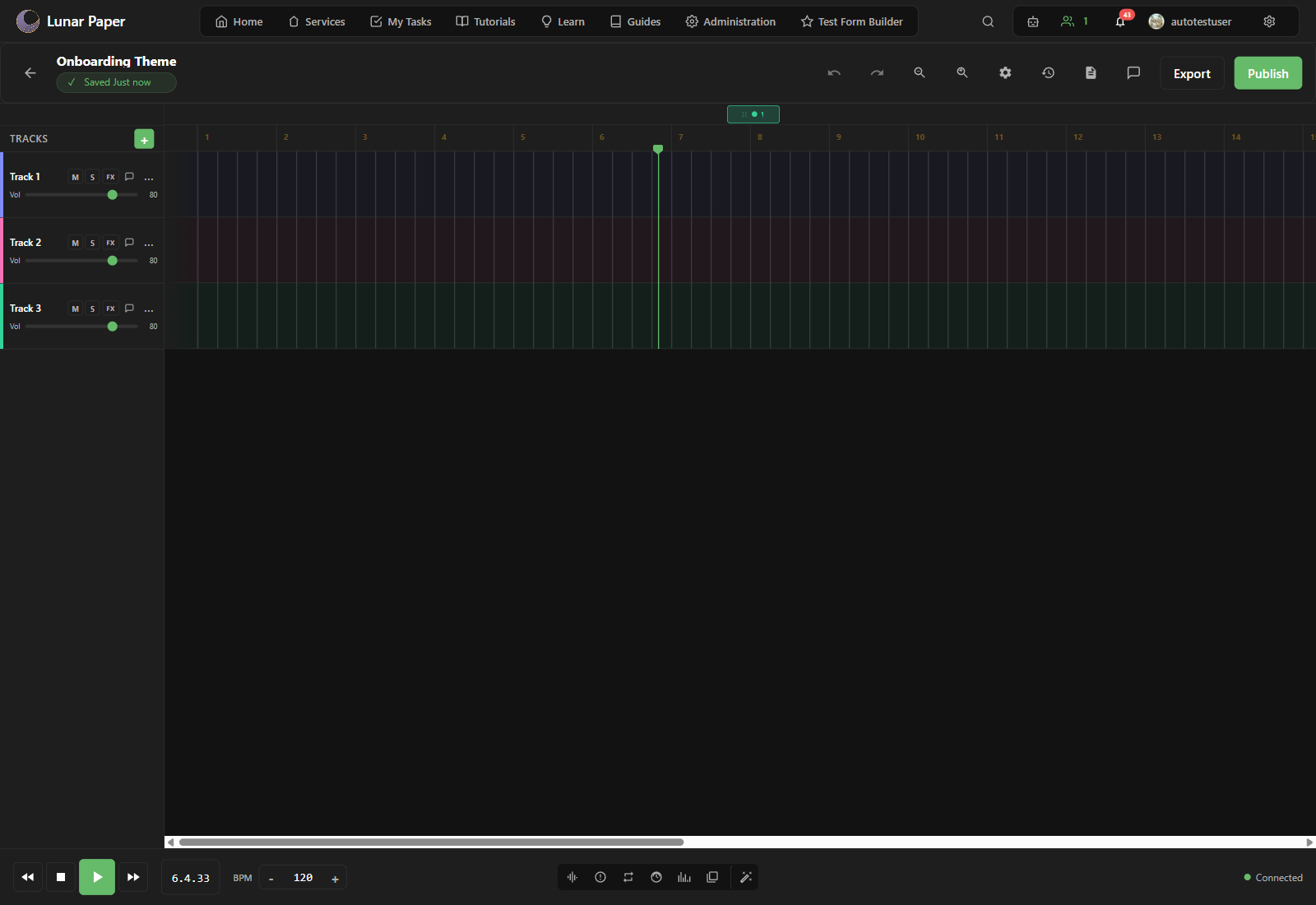
Click the section label and type a meaningful name. Use names such as Intro, Verse, Chorus, or Outro so the arrangement reads clearly in the timeline and in exports.
Move a section
Section titled “Move a section”Hover over the section until the drag handle appears. Click and drag the section left or right to reposition it. Sections snap to the bar grid.
Resize a section
Section titled “Resize a section”Drag the right edge of a section to make it longer or shorter. The ruler above the timeline shows bar numbers so you can line sections up with exact lengths.
Delete a section
Section titled “Delete a section”Click the section to select it, then click the delete icon on the section. Confirm the deletion if a dialog appears.
Build a common song structure
Section titled “Build a common song structure”A typical arrangement might look like this on the timeline:
Introat bars 1–4Verseat bars 5–12Chorusat bars 13–20Verseat bars 21–28Chorusat bars 29–36Outroat bars 37–40
Use the zoom controls in the top toolbar to zoom out and see the whole structure, or zoom in to edit one section precisely.
Filling the sections
Section titled “Filling the sections”- Fill the sections with sound by following Work with tracks.
- Balance those tracks against each other in Use the Mixer.
- Turn the finished arrangement into a file with Export audio.