
Import and export presentations
Import brings outside material into Slideshow. Export turns a Slideshow deck into a format someone else can open.
1. Import source content
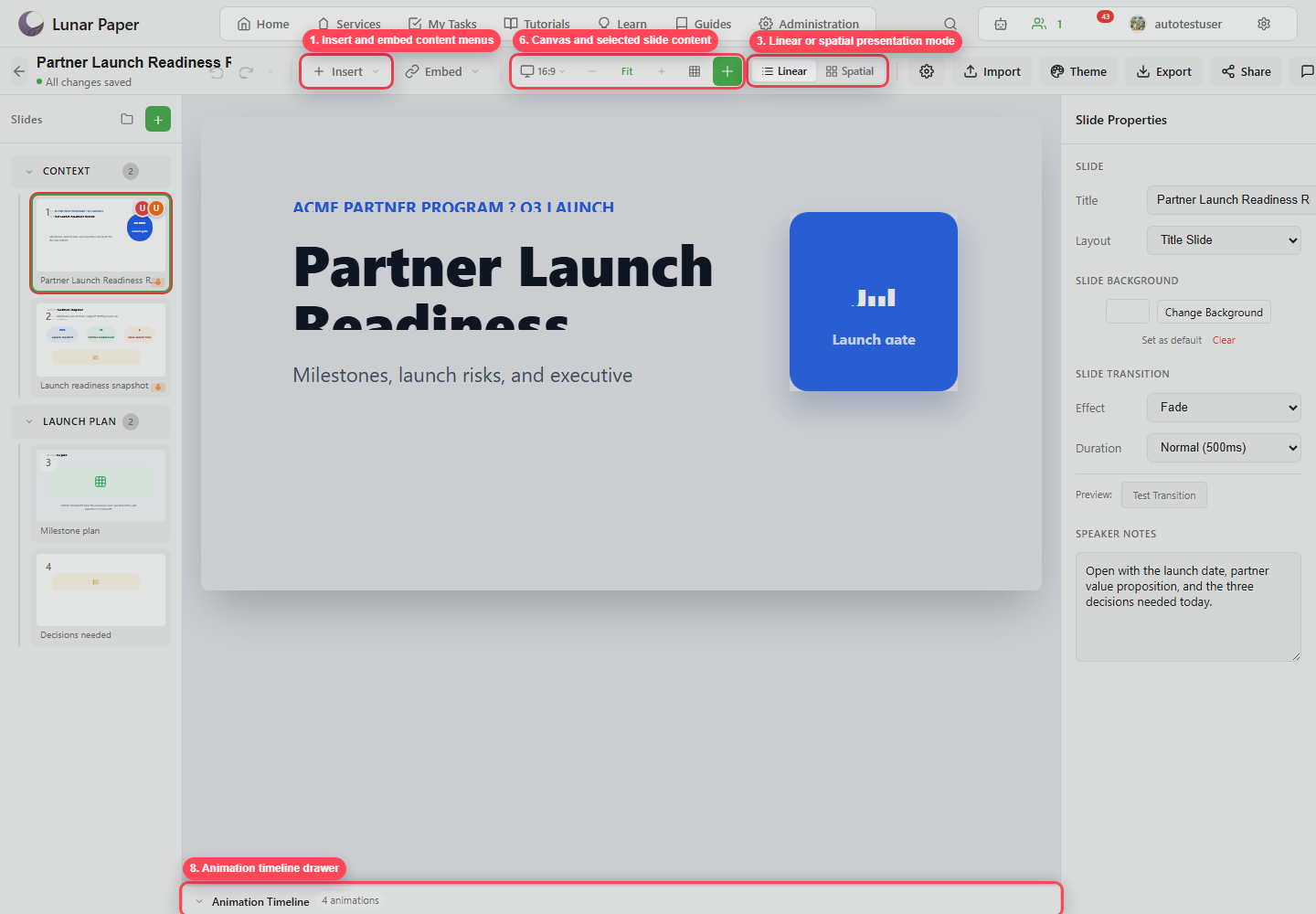
Section titled “1. Import source content”Use Import in the toolbar to bring presentation material into the deck. Check the imported slides before you share them, because formatting can differ from one tool to another.
2. Review imported slides
Section titled “2. Review imported slides”Check the slide titles, layout, fonts, images, tables, charts, animations, and notes. Where a slide has to look exactly right, rebuild it with native Slideshow elements.
3. Open Export
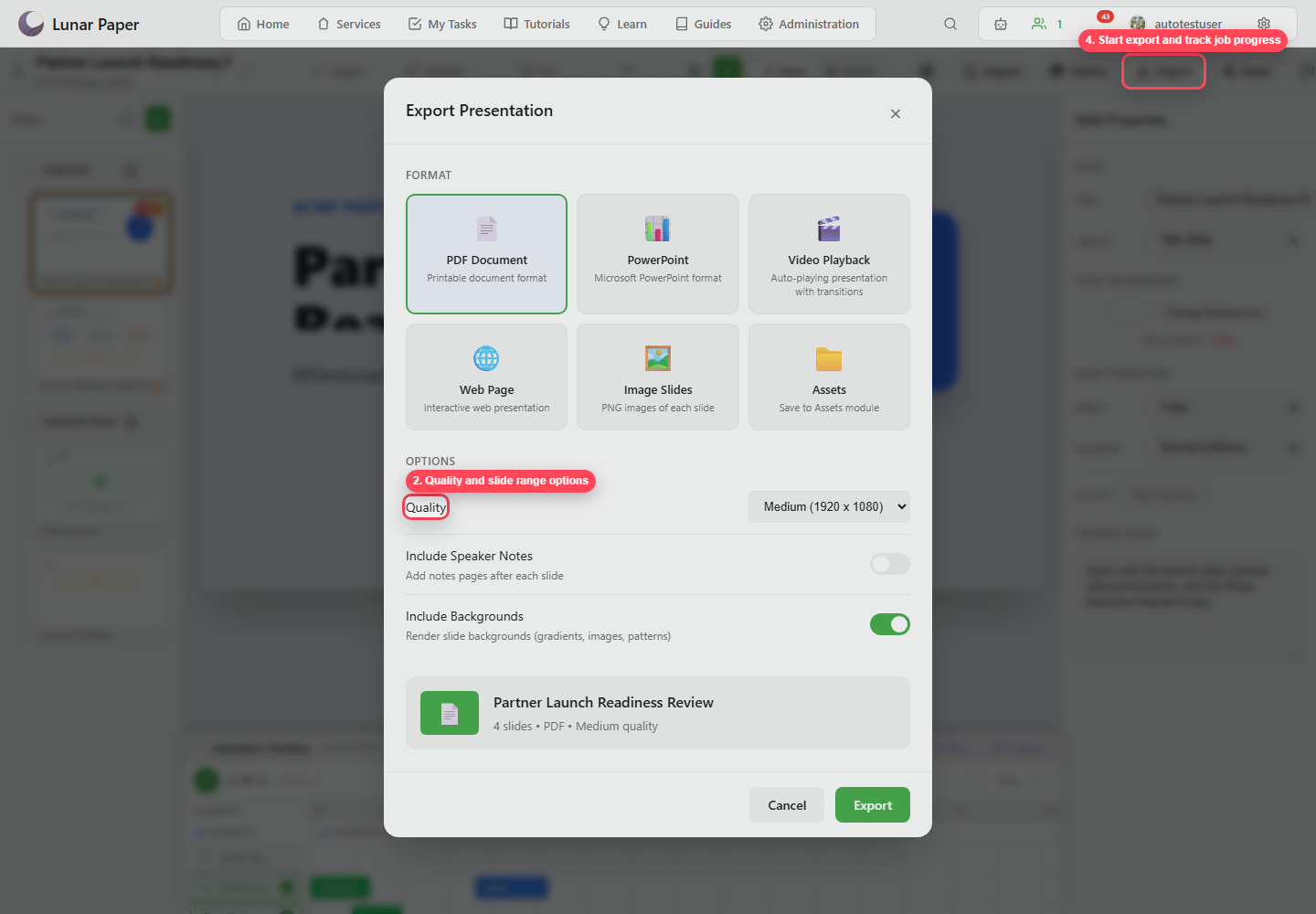
Section titled “3. Open Export”Click Export in the toolbar.
4. Choose a format
Section titled “4. Choose a format”| Format | Use it when |
|---|---|
| PDF Document | You need a printable or fixed review file. |
| PowerPoint | The deck must continue in Microsoft PowerPoint. |
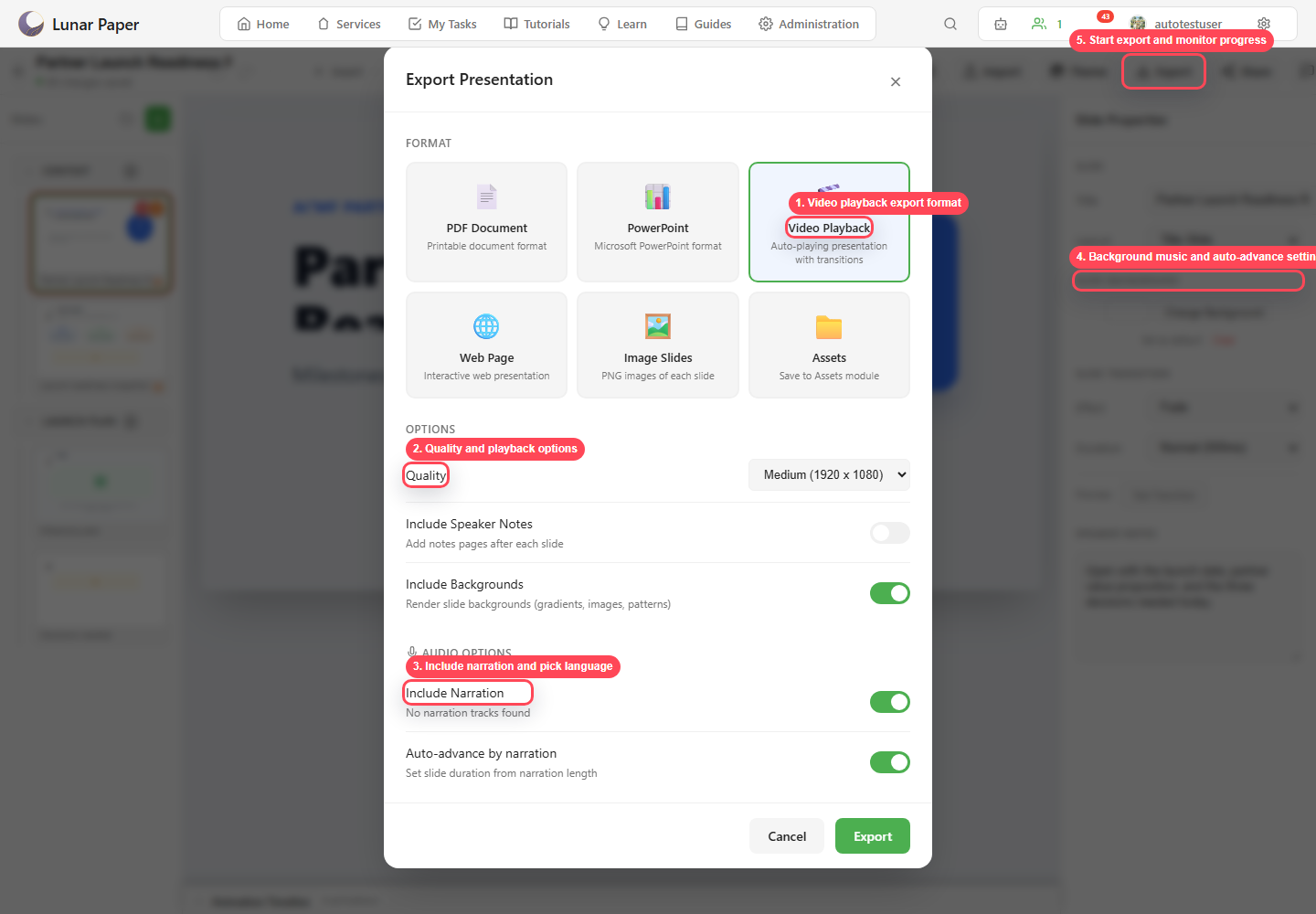
| Video Playback | Animation, narration, and timing should be preserved as a playback file. |
| Web Page | You need an interactive web presentation. |
| Image Slides | You need PNG slide images. |
| Assets | You want to save output to the Assets module. |
5. Set quality and options
Section titled “5. Set quality and options”Choose the output quality, then decide whether to include speaker notes and backgrounds.
6. Include audio for video or web output
Section titled “6. Include audio for video or web output”For a video or web export, include the narration, choose its language, add background music, and turn on auto-advance by narration when each slide should stay up for as long as its audio runs.
7. Start export
Section titled “7. Start export”Click Export and wait for the job to finish. Large decks, video playback, and embedded content can all take longer.
8. Verify the output
Section titled “8. Verify the output”Open the exported file or page yourself and check each of these:
- Slide count.
- Backgrounds and images.
- Embedded content.
- Animation timing.
- Narration and music.
- Speaker notes if included.
If any of those are wrong, change the settings and run the export again. The import and export reference lists every format and option.