Animate slide content
Use animation when a slide should reveal its content in stages. Give every effect a job: show the context first, then the evidence, then the decision or action.
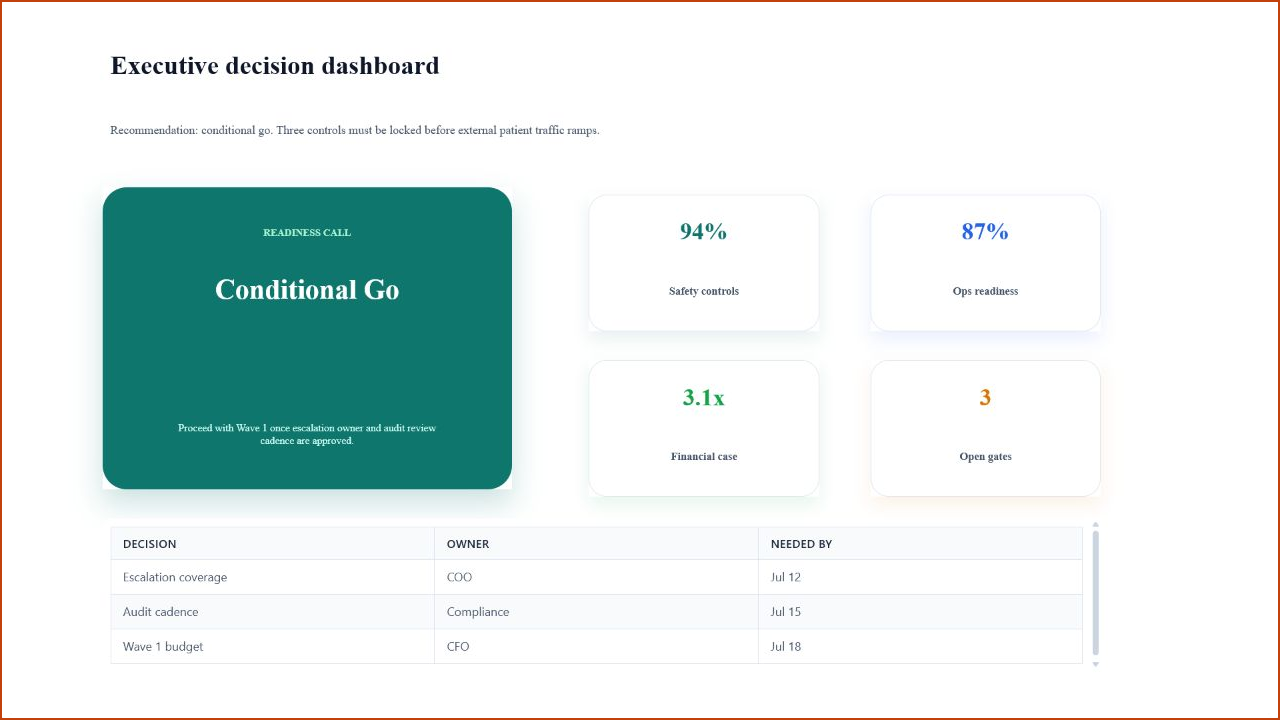
In the worked deck, animation controls the order the audience sees things in. It does not change the decision underneath. The title slide sets up the rollout, the dashboard shows the gates, and later slides reveal controls and owners one at a time.
1. Select the slide and element
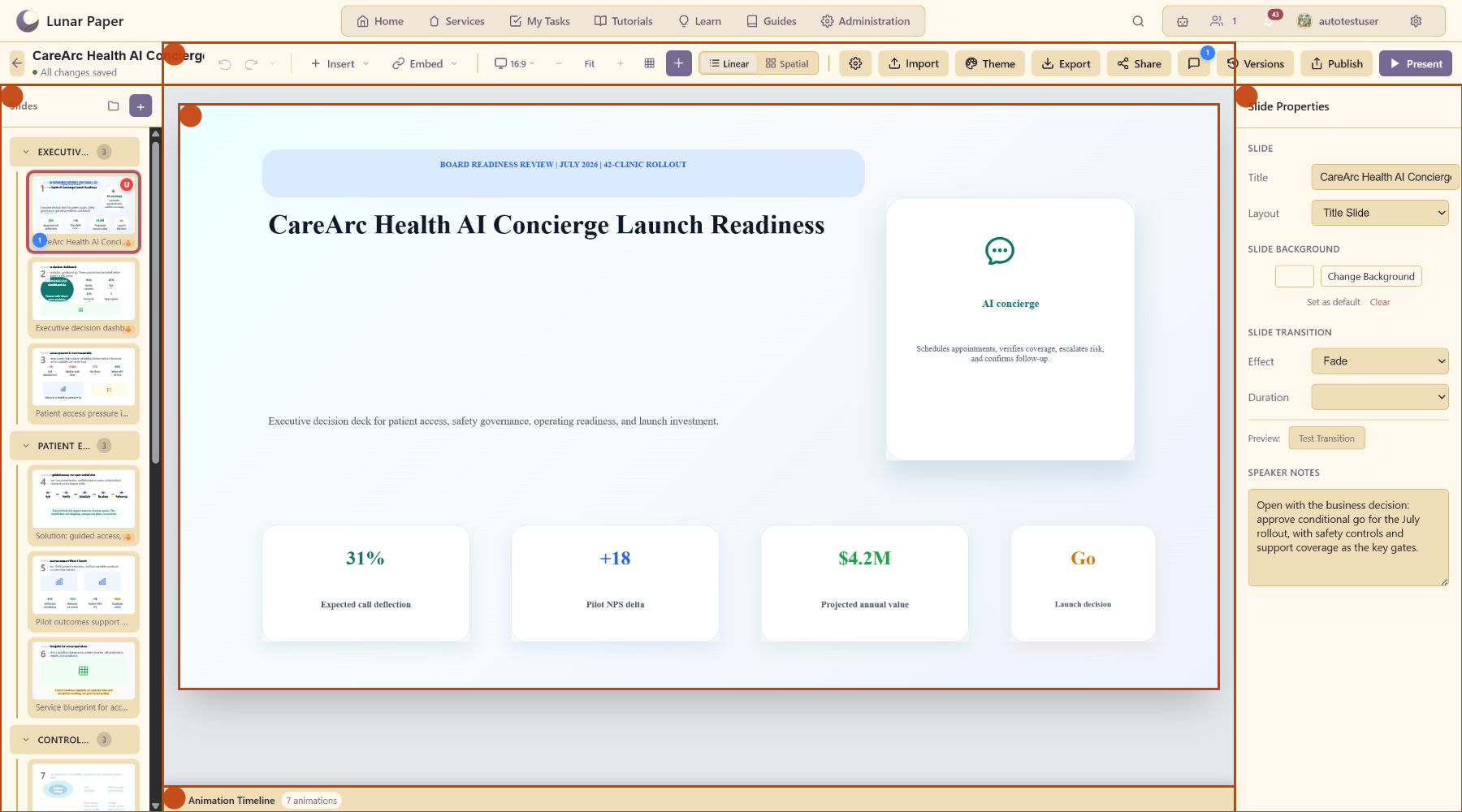
Section titled “1. Select the slide and element”Open the deck in linear mode. Select the slide, then click the element you want to animate. The right properties panel changes from slide properties to element properties.
2. Open the Animation tab
Section titled “2. Open the Animation tab”In the properties panel, open Animation. Choose an entrance, emphasis, or exit effect for the selected element.
3. Choose a category
Section titled “3. Choose a category”Pick the category that matches what you want the effect to do:
- Entrance introduces content.
- Emphasis draws attention to content already visible.
- Exit clears or de-emphasizes content.
4. Set timing
Section titled “4. Set timing”Set duration and delay in milliseconds. Use short durations for dense business slides and longer durations for visual storytelling.
5. Set easing
Section titled “5. Set easing”Choose easing to control how the motion speeds up and slows down. Ease Out works well for most entrances. Save bounce and elastic effects for informal decks.
6. Set trigger behavior
Section titled “6. Set trigger behavior”Use On Click when the presenter should control the reveal. Use With Previous for grouped motion. Use After Previous for automatic staged sequences.
7. Open the timeline
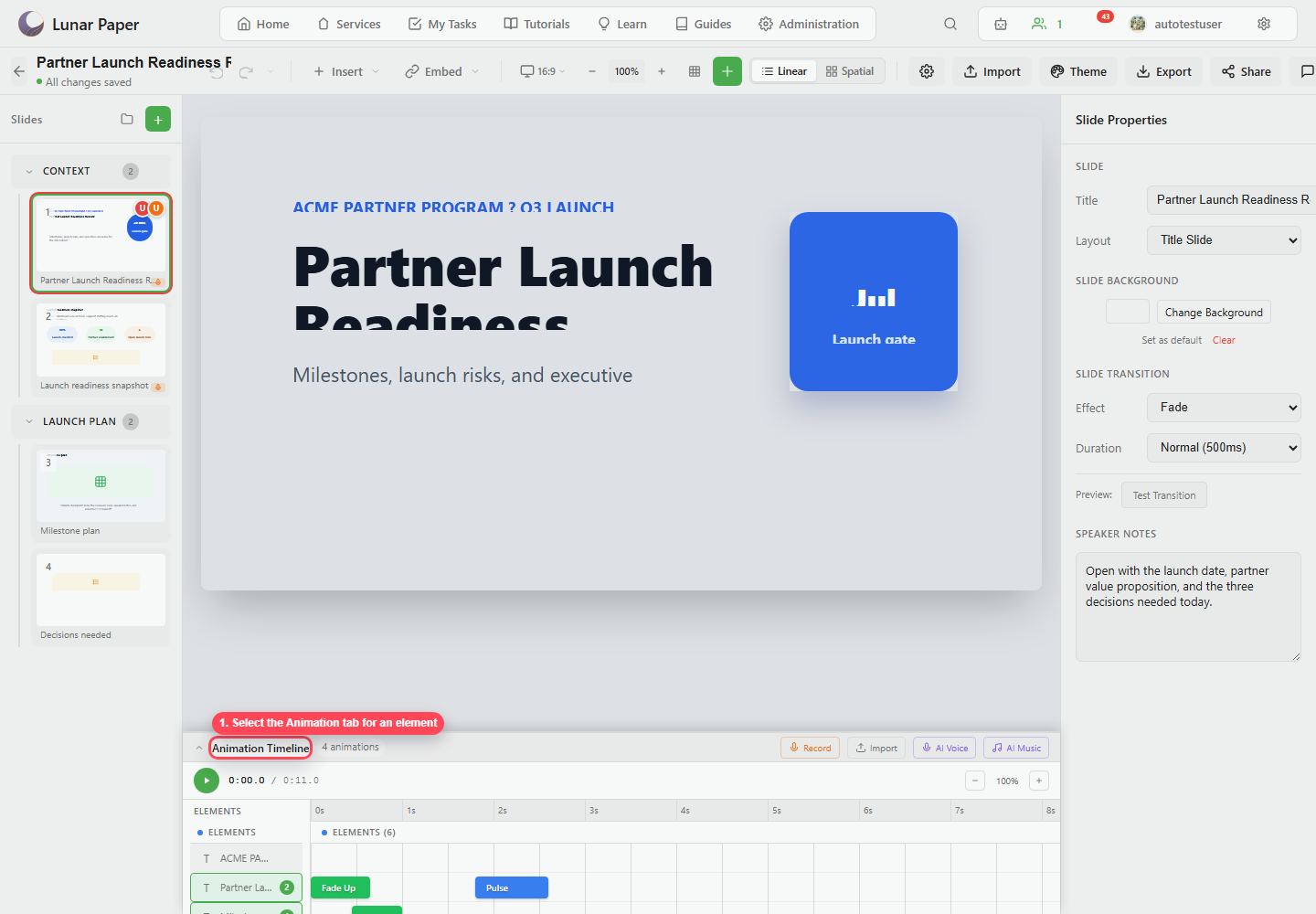
Section titled “7. Open the timeline”Expand Animation Timeline at the bottom of the editor. The timeline shows animated elements as rows and animation bars as timed blocks.

8. Drag and resize bars
Section titled “8. Drag and resize bars”Drag an animation bar left or right to change its delay. Drag its edge to change the duration. Use the time ruler to line each reveal up with the narration or the point you are making.
9. Preview playback
Section titled “9. Preview playback”Click timeline playback to preview the sequence. Watch for:
- Text that appears too late for the presenter.
- Emphasis effects that distract from the message.
- Exit animations that hide content before the audience has read it.
10. Check presenter playback
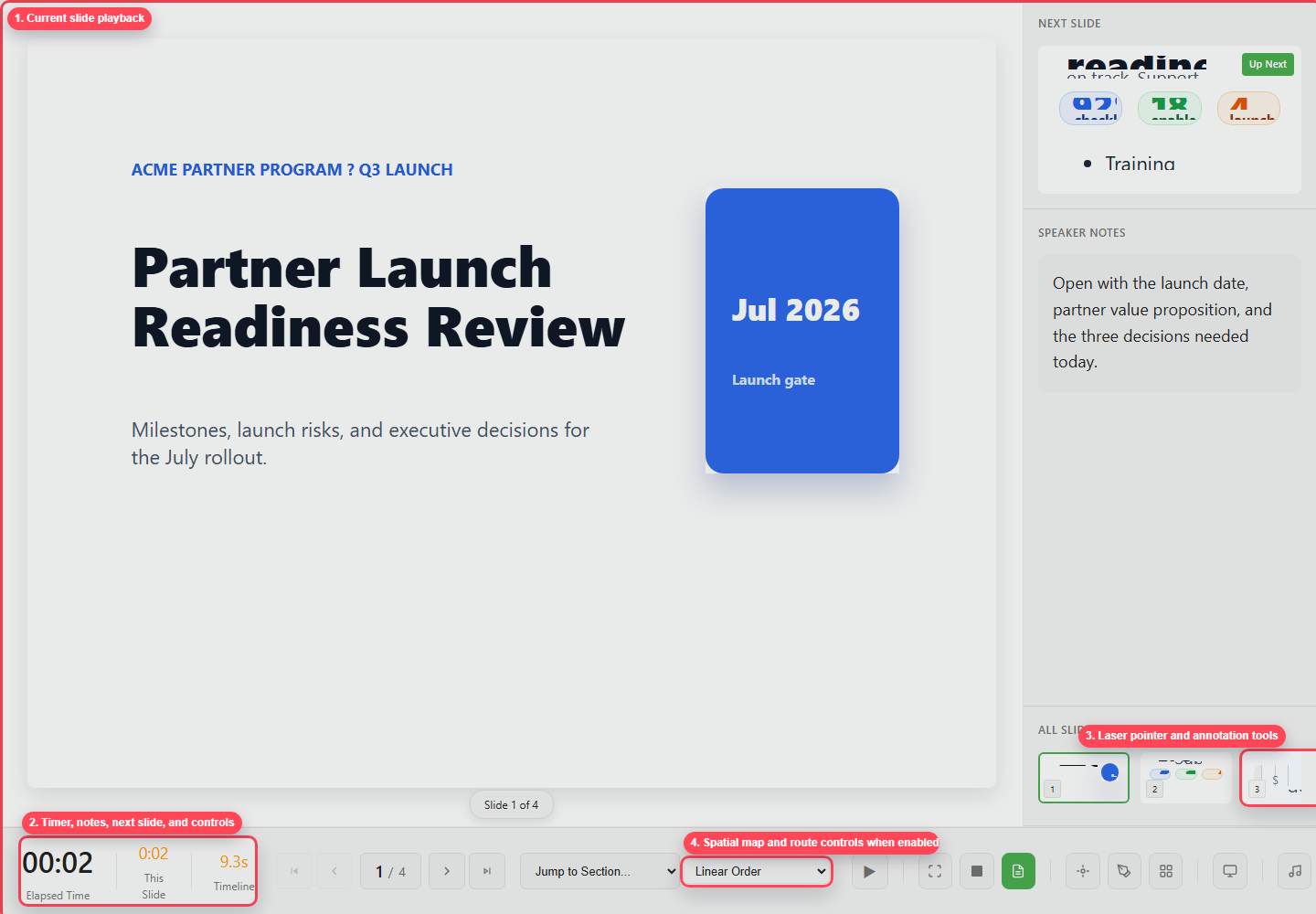
Section titled “10. Check presenter playback”Click Present and verify click-triggered animations behave as expected.
11. Export with animation when needed
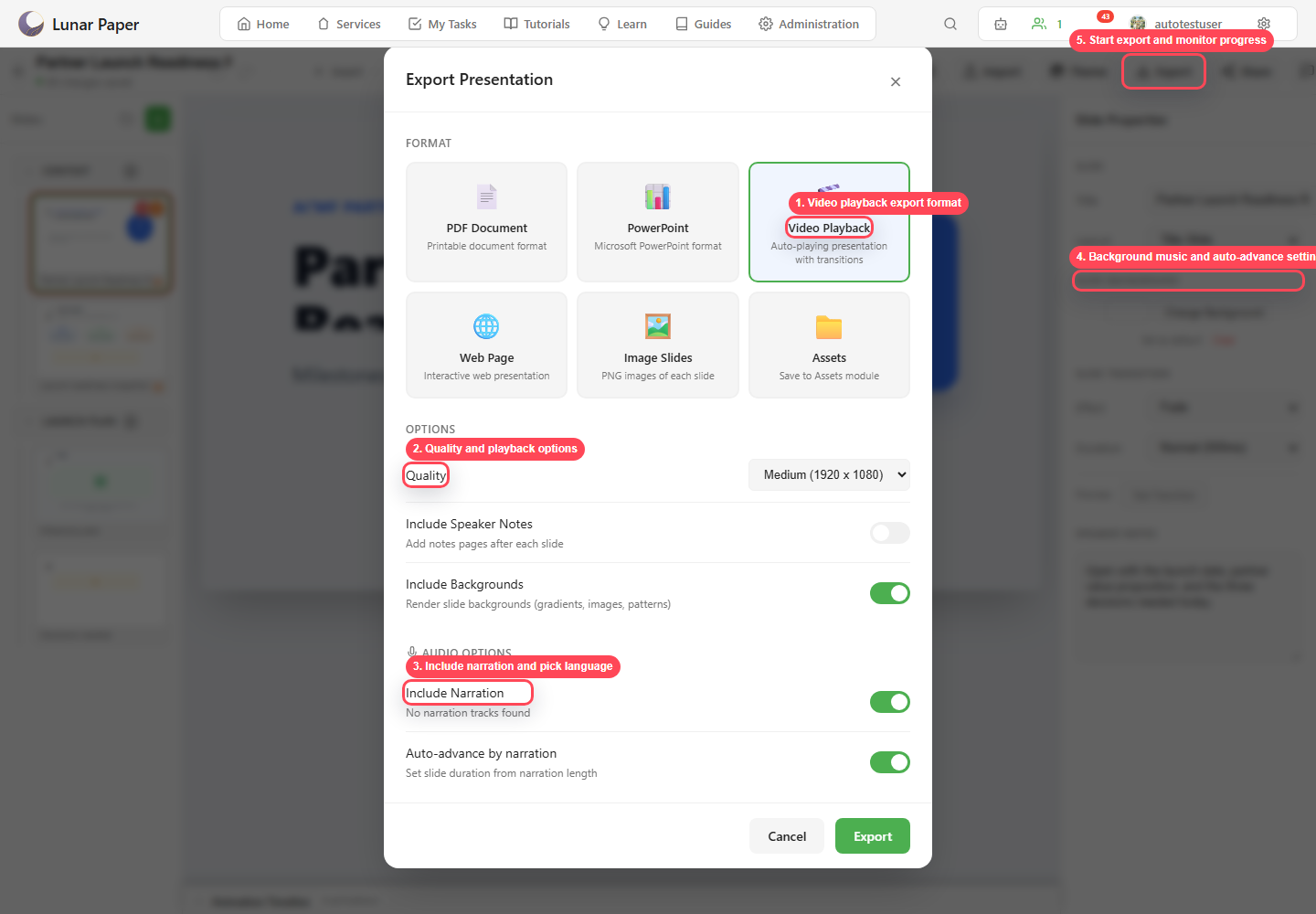
Section titled “11. Export with animation when needed”Use Video Playback or Web Page export when the animation timing has to be part of the exported file. Use PDF when the reader does not need the animation. The import and export guide covers the rest of the export settings.