
Task Management
Task Management gives administrators a view of workflow tasks from My Tasks across all users and services. Use it to find outstanding work, change ownership, cancel a task and its workflow run, or remove finished tasks from ordinary lists while keeping them recoverable.
Service Task Boards continue to manage project tasks, columns and milestones. This administrative screen manages workflow tasks, including approvals and requests for information.
Open Task Management
Section titled “Open Task Management”Sign in with an admin or system admin role. Open Administration, then choose Task Management under Platform in the left navigation. The application route is /administration/task-management on your Lunar Paper installation.
Administrative access lets you manage tasks. Completing an approval or submitting a task’s form still depends on its current assignment; use My Tasks for that work.
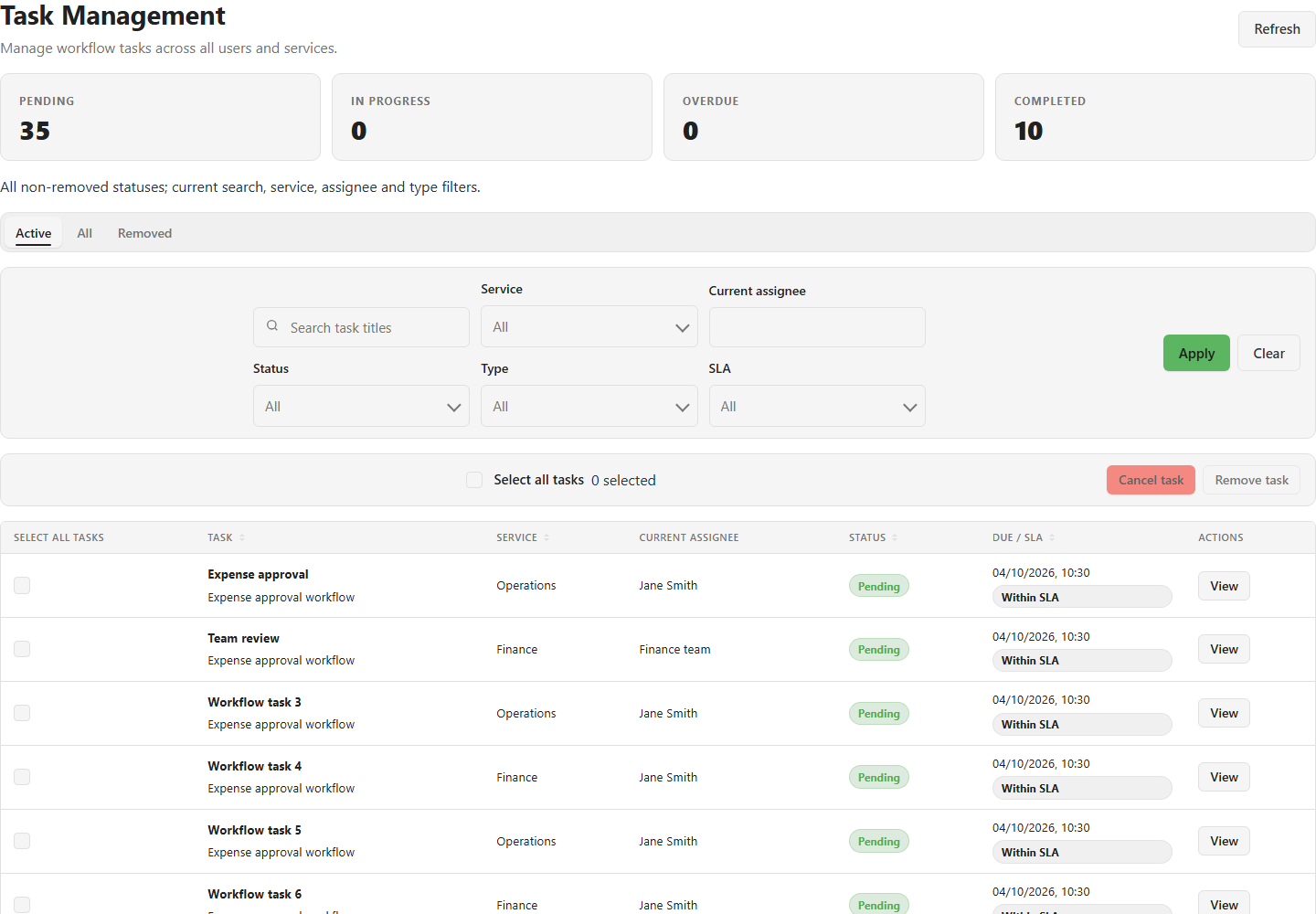
Find a task
Section titled “Find a task”The screen opens on Active, with the newest tasks first and 25 rows per page.
| View | Tasks shown |
|---|---|
| Active | Pending and In progress tasks that have not been removed. |
| All | Every status, including Completed and Cancelled, excluding removed tasks. |
| Removed | Recoverably removed tasks. |
Search by task title. You can also filter by Service, Current assignee (a person or team), Status, Type, and SLA. SLA means service-level agreement; its filter uses Within SLA, SLA warning and SLA breached states.
Choose Apply to commit the filters or Clear to reset them. Use a sortable column heading to change the order, and Previous or Next to move between pages. Filtering and sorting cover the full result set, rather than only the rows on the current page.
The Pending, In progress, Overdue and Completed cards respect the applied search, service, current-assignee and type filters. They span all non-removed statuses, regardless of the selected view, status or SLA filter. An overdue task can also be counted as Pending or In progress.
Inspect details and history
Section titled “Inspect details and history”Choose View on a row. A centered details dialog opens over the table.
Overview shows the task’s status, service, workflow, current and original assignments, task type, references and dates. Choose Inspect workflow run to open its associated run.
History shows recorded task changes, who made them, their reasons, assignment changes and notification outcomes. Use the history pagination controls to read earlier entries. Refresh reloads the details and notification states.
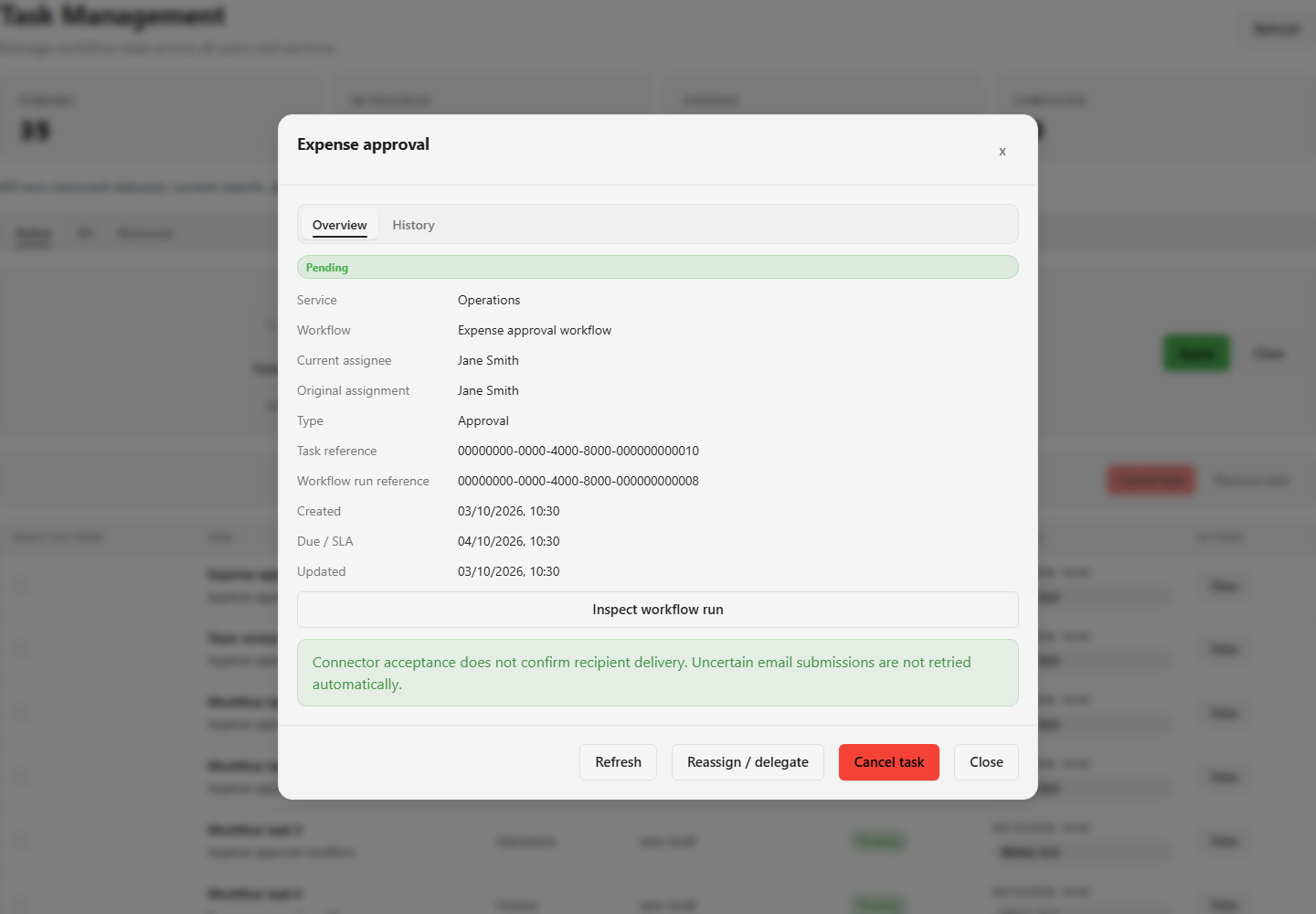
Management actions replace the details dialog with an action dialog. Only one dialog opens at a time. Dismissing an action returns you to details; a successful action refreshes the details, table and counts. Closing details returns keyboard focus to the row’s View button, or Refresh if the row is no longer visible. Your table filters, sorting, page and scroll position are preserved.
Reassign or delegate work
Section titled “Reassign or delegate work”- Open a Pending or In progress task and choose Reassign / delegate.
- Choose Reassign to replace current ownership with one eligible person or team, or Delegate to add one eligible person while retaining the current user assignees.
- Search for and select the eligible recipient. A team-owned task supports Reassign; Delegate is disabled with an explanation.
- Enter a required Reason and choose Reassign or Delegate to save.
The original assignment, submitted data, workflow configuration and SLA deadline remain intact. Eligible previous and new assignees receive in-app notifications, and the change appears in History.
Current ownership determines who can act. A former assignee cannot complete or change a reassigned task merely because they appear in its original assignment or history.
Cancel a task and its workflow run
Section titled “Cancel a task and its workflow run”- Open a Pending or In progress task and choose Cancel task.
- Enter the required Reason.
- Choose Cancel task and workflow run to confirm, or Keep task to return to details without cancelling.
The task and its waiting workflow run are cancelled together. Downstream actions do not continue. The task leaves Active; you can find it in All with the Cancelled status.
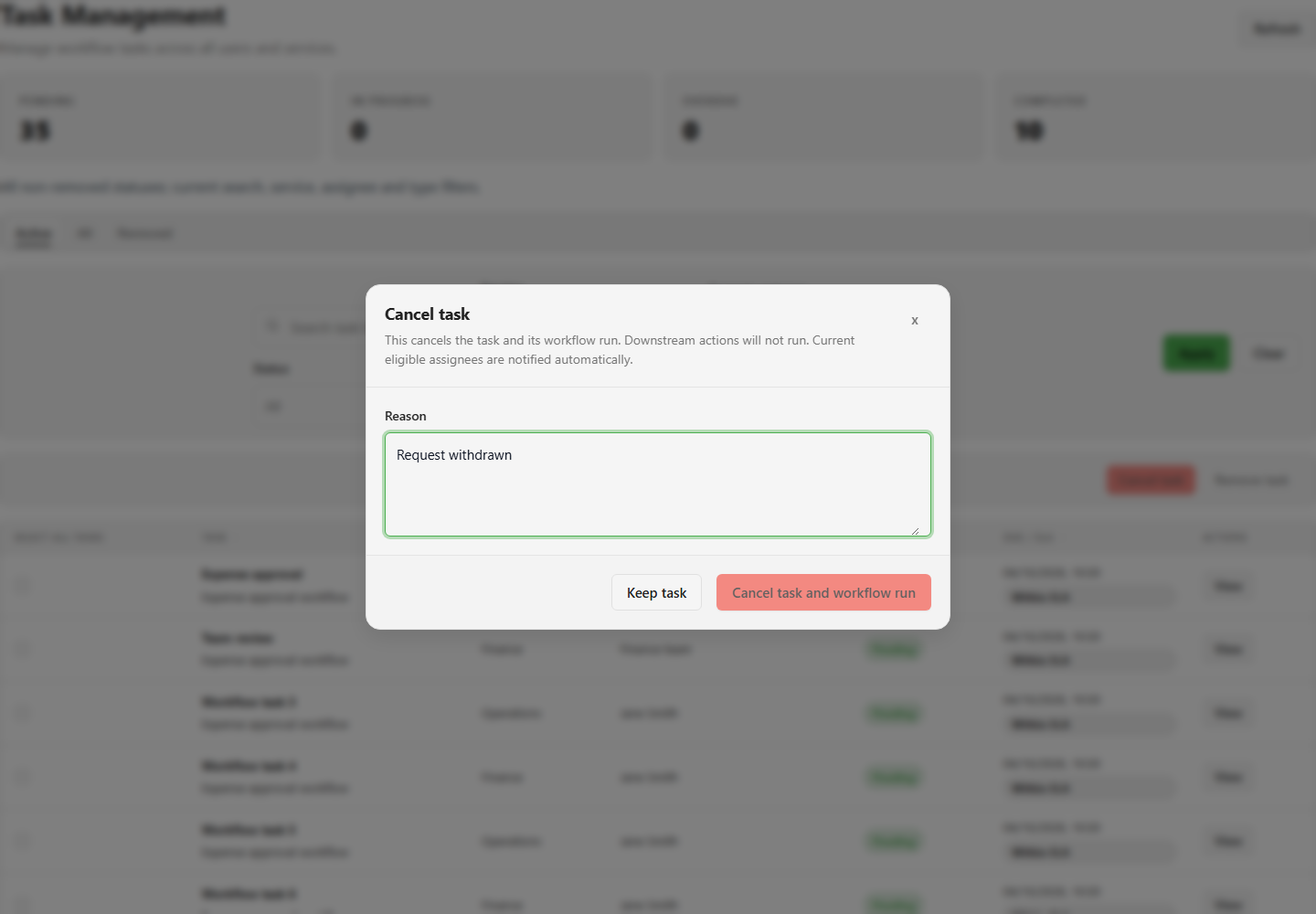
Lunar Paper automatically schedules email and in-app notifications for the task’s current eligible assignees. Cancellation email uses the platform’s default outbound email connector, and includes the reason.
Cancellation remains effective if an address or connector is missing, the notification queue is unavailable, or email submission fails. Check History for the notification outcome separately from the task’s status.
Email outcomes
Section titled “Email outcomes”| Email state | Meaning |
|---|---|
| Queued | The notification is waiting to be processed. |
| Accepted | The connector accepted the submission. This does not confirm recipient delivery. |
| Failed | Submission failed or was rejected. The task remains cancelled. |
| Skipped | No submission was made, for example because an address or default connector is missing, or the recipient is no longer eligible. |
| Uncertain | The system cannot confirm the submission result. It does not retry automatically, to avoid a duplicate email. |
In-app notifications have their own outcome. A saved in-app notification does not establish that its email was delivered. Choose Refresh in details to check updated outcomes.
Remove and restore finished tasks
Section titled “Remove and restore finished tasks”Remove task is available for Completed or Cancelled tasks. If work is still active, cancellation is a separate action with its own workflow and notification effects.
- Find the finished task in All and open View.
- Choose Remove task, enter a required Reason, then confirm Remove task. Choose Keep task to dismiss the confirmation.
- The task moves to Removed. Its record, history, workflow references and notification outcomes are retained.
To restore it, choose Removed, open View on the task, and choose Restore task. It returns to ordinary lists with its existing Completed or Cancelled status. Restoration does not reopen the task or restart its workflow. Removal and restoration send no cancellation email.
Manage several tasks
Section titled “Manage several tasks”Select row checkboxes or Select all tasks for the current page. Cancel task is available when every selected task is Pending or In progress; Remove task is available when every selected task is Completed or Cancelled.
The action dialog requires a reason and confirmation, just like an individual action. The result reports successful and failed tasks separately. Successful changes remain saved, and failed tasks stay selected so you can inspect them before trying again.
Selection clears when you change the page, view, filters or sorting. Work through additional pages in separate batches. Bulk requests are limited to 100 tasks; the screen selects from the current 25-row page. Reassignment, delegation and restoration are individual actions.
Troubleshooting
Section titled “Troubleshooting”Task Management is missing
Section titled “Task Management is missing”Check that you are signed in with an admin or system admin role and are looking under Platform in the Administration navigation. Regular members use My Tasks for their assigned work.
A task is missing from Active or All
Section titled “A task is missing from Active or All”Check the selected view and filters. Completed and Cancelled tasks appear in All; recoverably removed tasks appear in Removed. Choose Clear to reset filters, then Refresh to reload the list.
An assignment recipient is unavailable
Section titled “An assignment recipient is unavailable”The picker offers eligible people and teams for that task. Check the person’s active account, licence and service access. For a team-owned task, use Reassign to change ownership.
A task changed before the action was saved
Section titled “A task changed before the action was saved”Another person may have changed the task after you opened it. Refresh its details, review the current status and assignment, then decide whether the action is still appropriate. A bulk request can succeed for some tasks while others need this review.
A cancellation email is missing
Section titled “A cancellation email is missing”Open the cancelled task in All and check History. Confirm that a default outbound email connector is configured and that the assignee has an email address. Queued work needs the notification workers to process it; an Uncertain submission needs investigation before any manual resend. Email failure does not undo cancellation.
For personal task completion, see My Tasks. For workflow design and run inspection, see Automation. Configure the notification transport with Outbound email connectors.