
Design Studio
Design Studio makes the visual work a service needs: posters, social posts, proposals, brand guides, banners. It is a full canvas editor rather than a template filler, and it has three ways in — start blank, start from a template, or describe what you want and let the AI plan it.
Where it lives
Section titled “Where it lives”Open a service and choose Design Studio under Creative Modules.
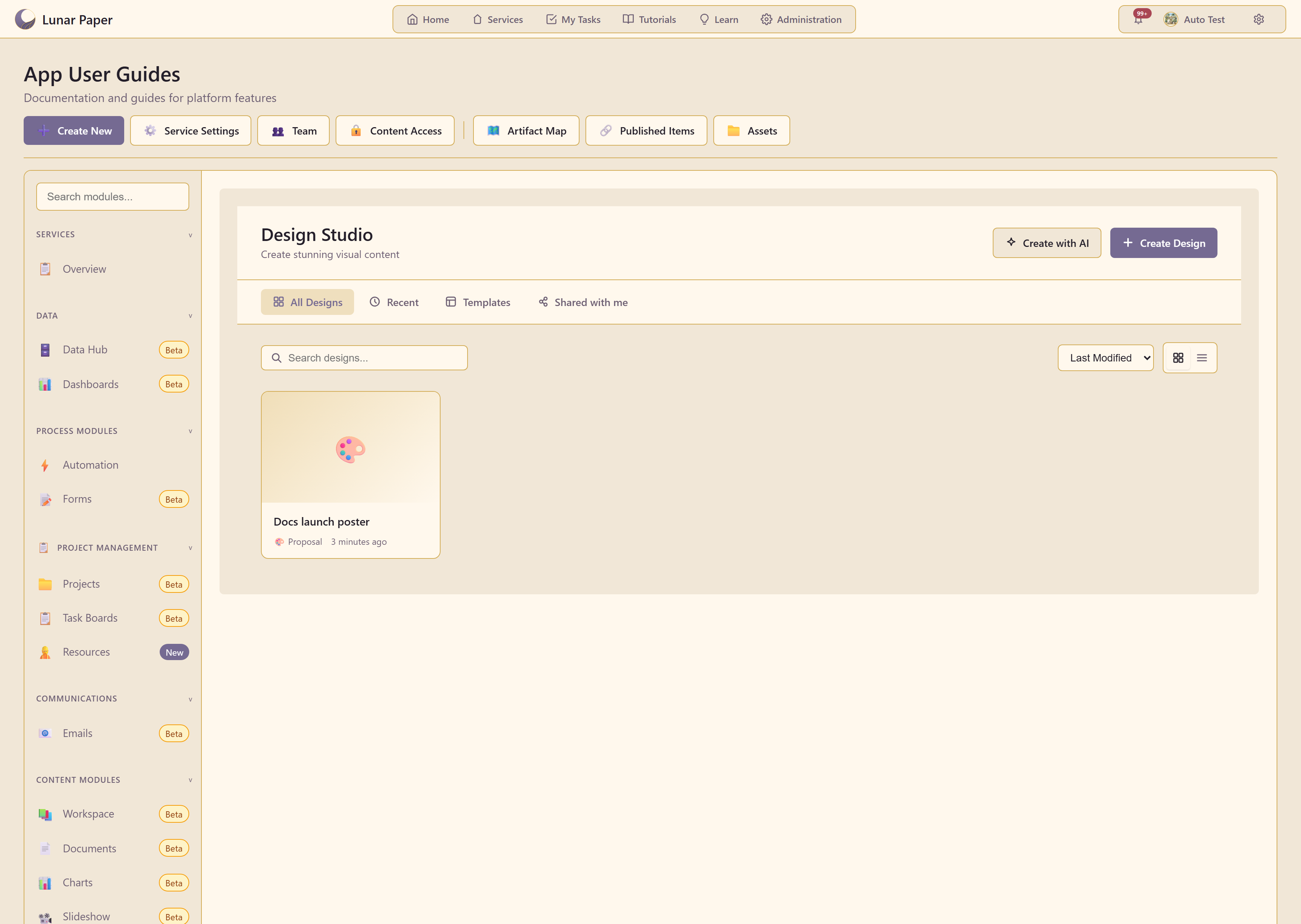
Designs are listed under All Designs, Recent, Templates, and Shared with me, searchable and sortable by last modified, date created, or name, in grid or list view.
Three ways to start
Section titled “Three ways to start”Create Design picks a size. Eleven categories — social media, marketing, presentation, print, brand identity, editorial documents, packaging, signage, infographic, web banners, custom — each with real presets carrying pixel dimensions.
Create with AI runs a seven-step brief and produces an editable design, not a flat image.
Templates offers 21 multi-page templates, each with a page count and a description of what its pages cover.
The editor
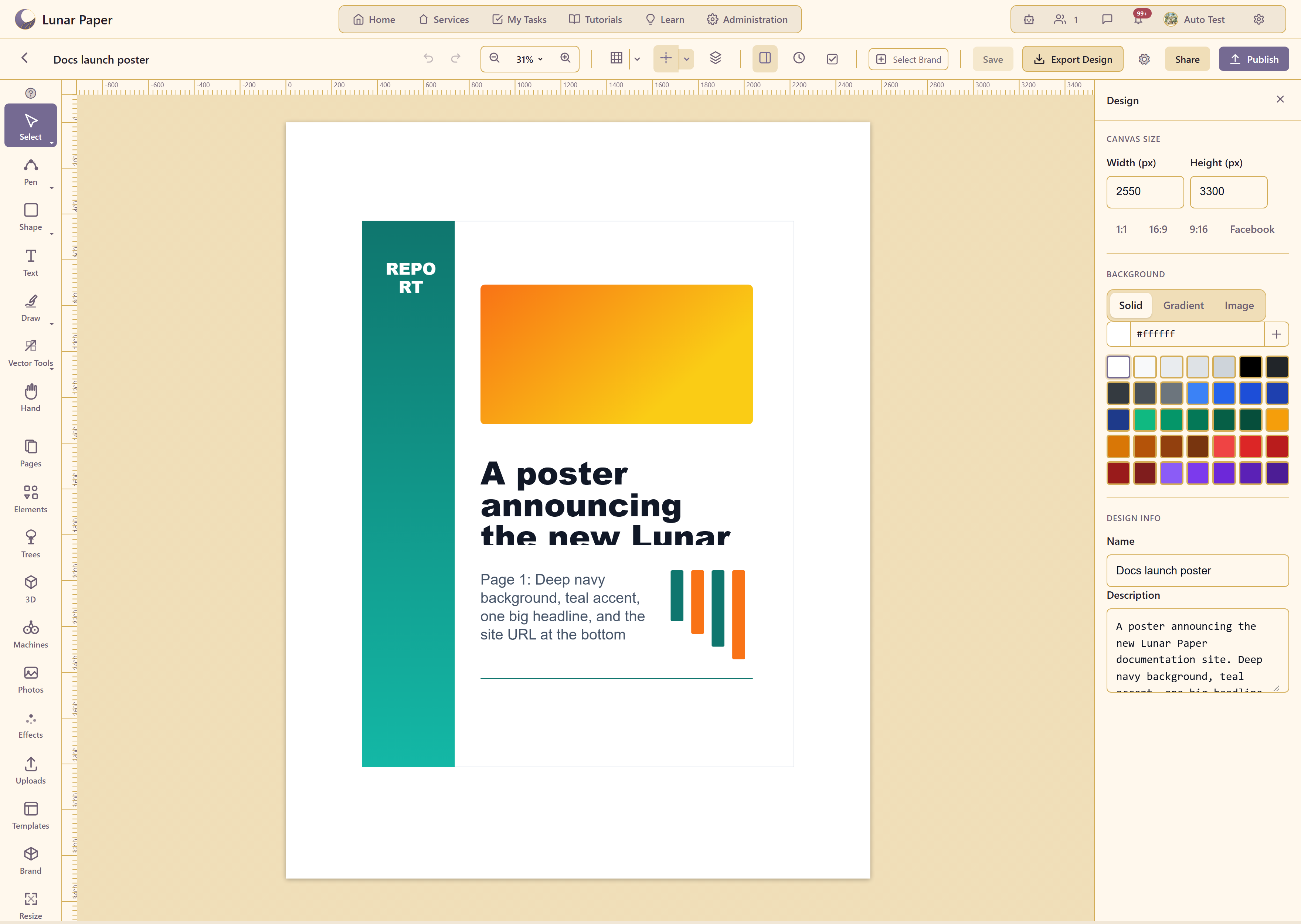
Section titled “The editor”
Seven tools sit at the top of the left rail — select, pen, shape, text, draw, vector tools, and hand — each with a keyboard shortcut. Below them are the panels that supply content: pages, elements, trees, 3D, machines, photos, effects, uploads, templates, brand, and resize.
The right panel holds canvas size, background, and the properties of whatever is selected.
What makes it unusual
Section titled “What makes it unusual”The element library is deep and odd in a useful way. Alongside shapes and document elements sit generative systems, twenty professional graphics, a tree generator, 3D primitives, and simulated drawing machines that trace spirograph curves you can then edit.
Designs stay editable. The AI produces a real document with real elements, not a rendered picture.
Preflight is built in. Check design inspects the design before it goes out.
Where to go
Section titled “Where to go”| If you want to | Go to |
|---|---|
| Make something end to end | Quickstart |
| See everything the module can do | Feature list |
| Follow a task | Guides |
| Have the AI plan it | Generate with AI |
| Understand the canvas | Work on the canvas |
| Get it out | Export and publish |
| Fix something | Troubleshooting |
The example in these screenshots
Section titled “The example in these screenshots”Captures use Docs launch poster, a print poster in service 20 generated from an AI brief.