
Add an event
The event form is short, and most of it is optional. Four fields decide where an event lands: title, type, whether it is all day, and its start and end. Everything below them is context, such as who is coming, where it is, and when to be reminded.
Create the event
Section titled “Create the event”Choose New event in the header, or click a day in the Month view. In the Week view, clicking a slot starts an event at that time, snapped to the nearest half hour.
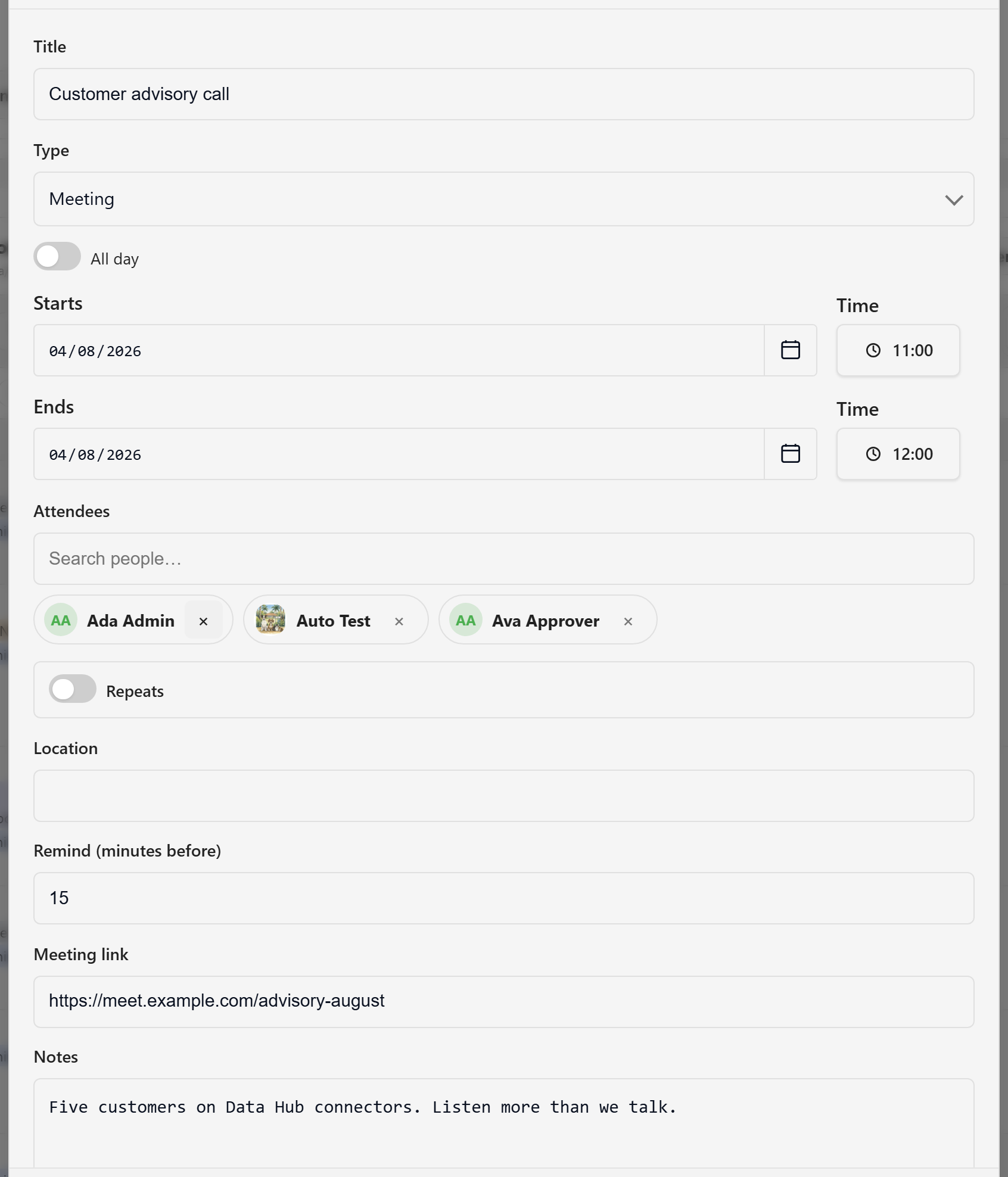
Title and Type are required. Type sets the colour and icon the event carries everywhere, and the list comes from the calendar’s own types. To change them, see Customise types and display.
Choose the temporal shape
Section titled “Choose the temporal shape”All day is the choice that shapes the rest of the form. Leave it off and the event takes a start and end time, and appears against the hour grid in Week view. Turn it on and the event takes dates only, and sits in the all-day band above the grid.
Choose all-day for something that is true of a whole day, such as a release, a deadline, or a holiday. Choose a time for anything people have to attend.
An end must be on or after the start. A multi-day event is legitimate: set the end date further out and it renders as a span across every day it covers.
Add attendees
Section titled “Add attendees”Attendees searches the user directory. Depending on the calendar’s settings it takes one person or several, and may offer platform groups as well as individuals.
Attendees are notified when the event is created or changed. Adding somebody also makes the event appear under Only mine for them. An event can carry up to 200 people and 50 groups.
Add a reminder
Section titled “Add a reminder”Remind (minutes before) takes a whole number of minutes, up to 20,160, which is fourteen days. At that point the attendees and the subject get an in-app notification and an email with the event attached as an .ics file.
Reminders do not fire for repeating events. If a weekly meeting needs a reminder, it has to come from somewhere else.
Fill in the rest
Section titled “Fill in the rest”Location is free text. Meeting link must start with http:// or https://. Notes carries anything that will not fit in a title, such as an agenda, a pre-read, or the purpose of the meeting.
Save the event. It appears in every view immediately, and in the Month grid as a chip carrying its type icon and title.
Edit an event
Section titled “Edit an event”Click any event to reopen it. You can edit an event you created; editors can edit anyone’s.
Two things protect a shared calendar from surprises. If somebody else has the event open, a marker appears on the chip and a banner tells you who. You can still save, and your version is checked against theirs. If they saved first, your save is refused with “Somebody else changed this event. Reopen it to see their version.” rather than quietly overwriting their work.
Deleting asks you to confirm first, and the confirmation states the consequence: the event disappears from everyone’s calendar and cannot be undone.
Every field, with its limits, is listed in the event fields reference. To make an event repeat rather than entering it again, see Repeat an event.