
Pages and resizing
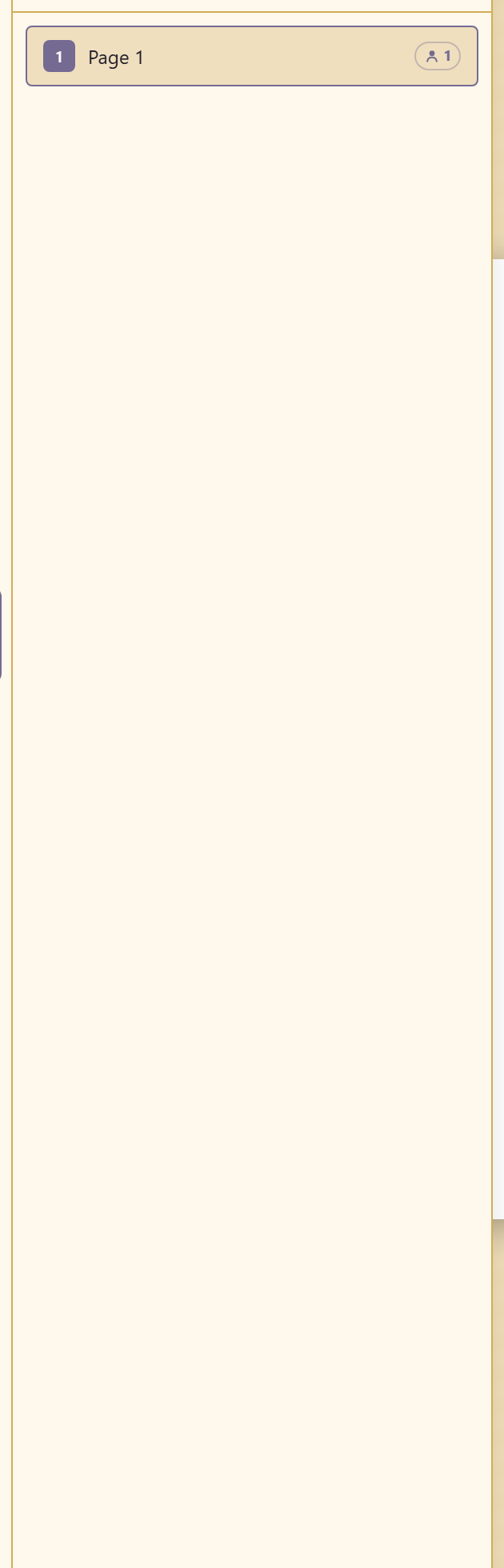
The Pages panel lists the artboards in the design with a count. A poster has one; a template-based proposal has six.
Resizing
Section titled “Resizing”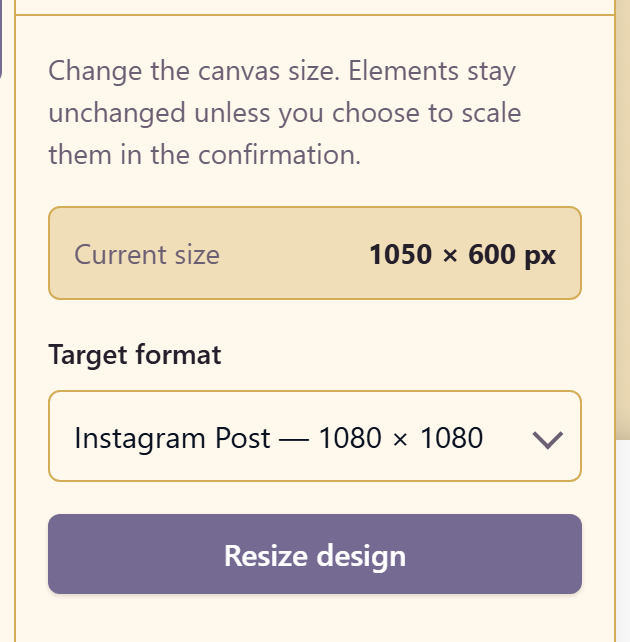
Resize changes the canvas size, and the panel states the important part plainly: elements stay unchanged unless you choose to scale them in the confirmation.
It shows the current size — the example poster is 2550 × 3300 px — and takes a target format.
Scale or do not scale
Section titled “Scale or do not scale”That choice is the whole decision.
Do not scale when the new size is close to the old one, or when the design is mostly type. Type scaled by an arbitrary factor lands on sizes nobody chose, and the result reads as slightly wrong everywhere.
Scale when the change is large and proportional — the same square design at a bigger square size.
Neither option helps when the aspect ratio changes substantially. A portrait poster taken to a landscape banner needs recomposing, and resize will only tell you that faster.
The practical route to several sizes
Section titled “The practical route to several sizes”Design the most constrained size first, then resize into the others and fix each by hand.
The alternative — designing at a comfortable size and resizing outward — produces layouts that fall apart at exactly the size that mattered.
Related
Section titled “Related”Create a design covers picking the right size at the start. Use a template covers multi-page documents.