
Spatial presentations
Spatial mode lets you plan a deck as a map instead of a single ordered list. Use it when the presenter may need different routes through the same set of slides, or when you want to see how the sections relate to each other.
Spatial canvas
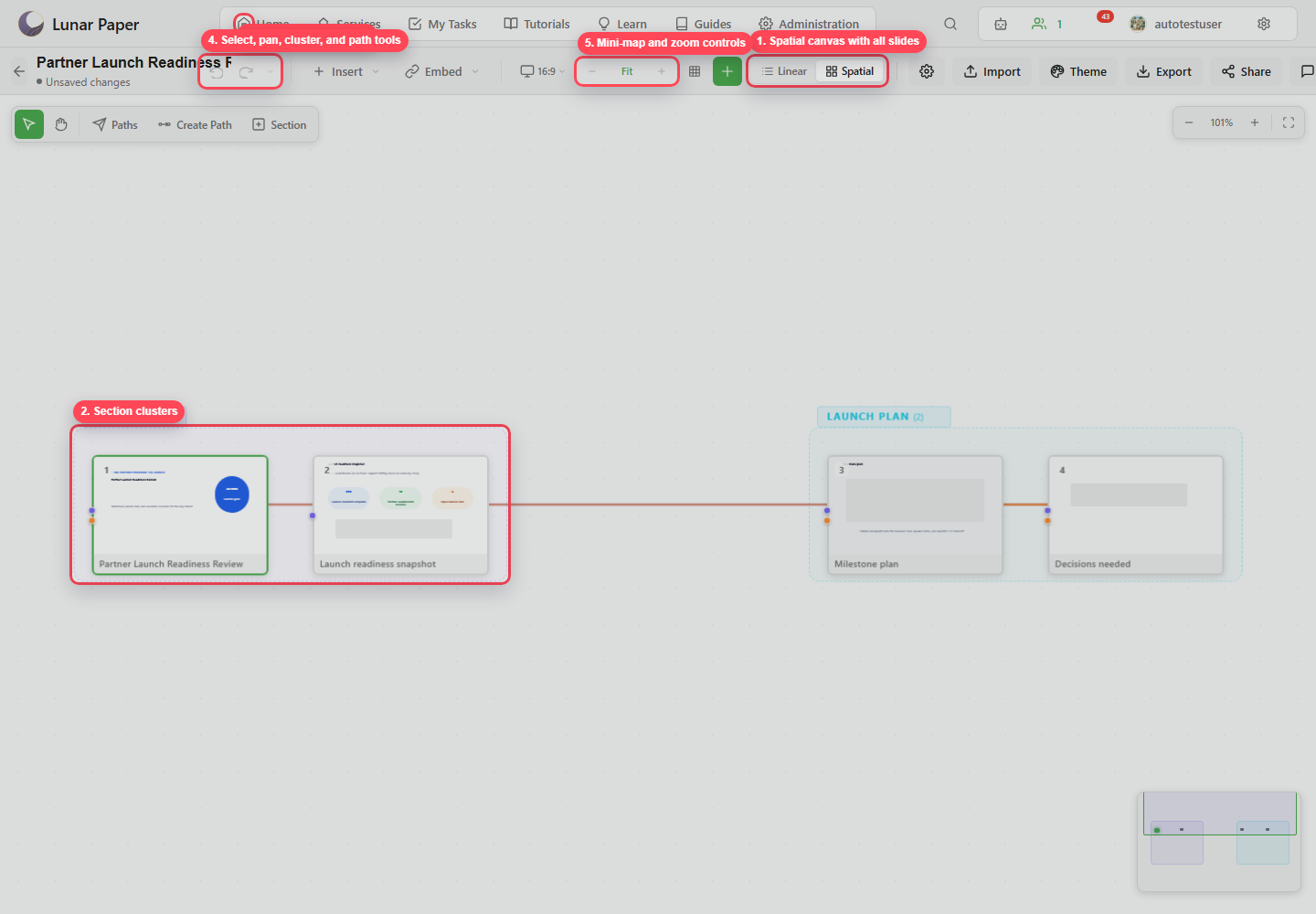
Section titled “Spatial canvas”The spatial canvas is an infinite 2D workspace. Pan, zoom, drag slides, marquee-select slides, and use the mini-map to understand the full deck layout.
Section clusters
Section titled “Section clusters”Clusters group slides visually. They usually match deck sections such as Context, Launch Plan, or Appendix, and they let a reviewer see how the deck is organized before opening presenter mode.
Flight paths
Section titled “Flight paths”A flight path is an ordered route through selected slides. A deck can have multiple paths, and one can be marked as the default.
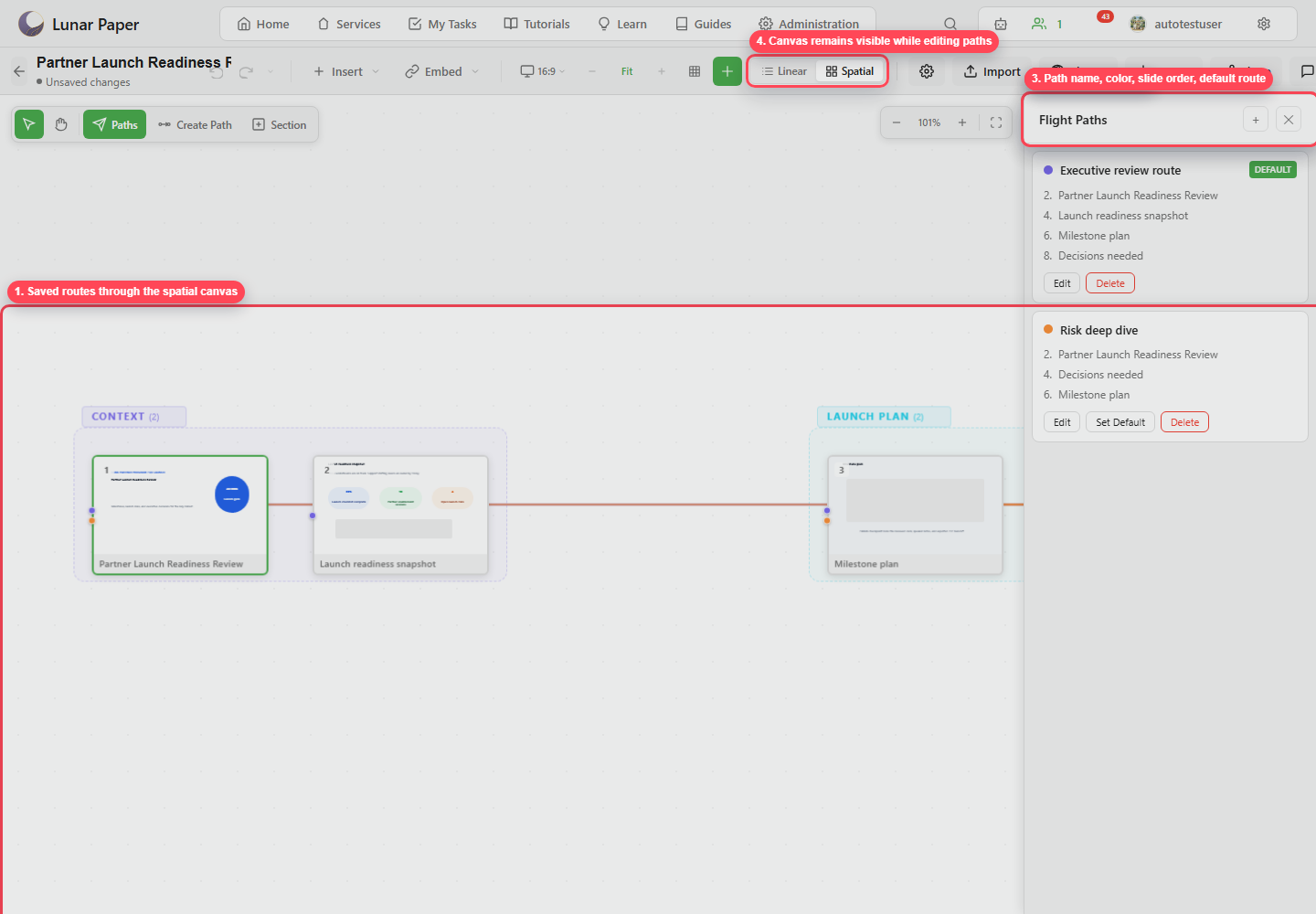
Use flight paths for:
- Executive overview versus detailed review.
- Main story versus contingency route.
- Training path versus sales path.
- Live Q&A navigation.
Spatial keyboard notes
Section titled “Spatial keyboard notes”In spatial mode, hold Space for pan override, press Escape to cancel drawing or clear transient selection, and use Ctrl+G or Cmd+G to create a cluster from selected slides.