
Tracks and sections
An Audio Studio project has two structural layers: tracks and sections.
Tracks
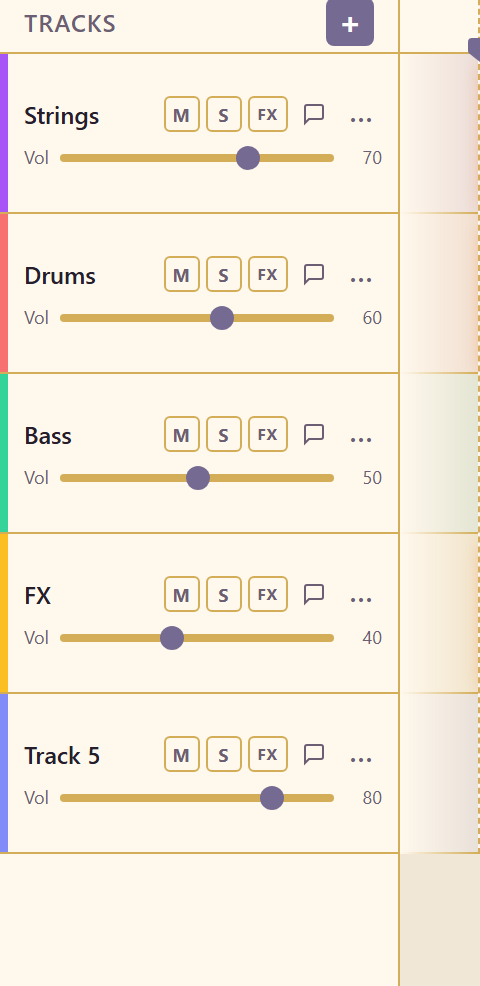
Section titled “Tracks”Tracks are horizontal lanes that hold sound sources. Each track is usually one instrument or sound family: drums, bass, synth, vocals, effects. Tracks have their own mute, solo, effects, volume, and pan controls.
The track list lives in the left panel. Add a track with the + button. Delete a track from its more menu. Rename a track by double-clicking its name so the Mixer and timeline stay readable.
Sections
Section titled “Sections”Sections are regions on the timeline that mark the form of the piece. A section has a label and a length in bars. Common labels are Intro, Verse, Chorus, Bridge, and Outro.
Double-click an empty part of the timeline to add a section. Drag a section to move it. Drag its right edge to resize it. Delete a section if the arrangement changes.
Relationship between tracks and sections
Section titled “Relationship between tracks and sections”Tracks run the full length of the project. Sections sit above the tracks and divide the timeline into musical parts. Tracks cover what makes the sound, and sections cover when each part of the piece happens.
Arrangement workflow
Section titled “Arrangement workflow”Most people build a project in this order:
- Add sections to map out the song or scene structure.
- Add tracks for each sound source.
- Place clips or generated audio inside sections.
- Balance levels and panning in the Mixer.
Tracks and sections in practice
Section titled “Tracks and sections in practice”- Work with tracks shows how to add, name, and control a single track.
- Build an arrangement with sections does the same for sections on the timeline.
- Editor reference names every control in the editor.