
Select
Select is the default tool and the one you come back to. It does not create anything; it picks up what is already there.
Activating it
Section titled “Activating it”Press V.
The rail highlights the active tool, and only one is active at a time.
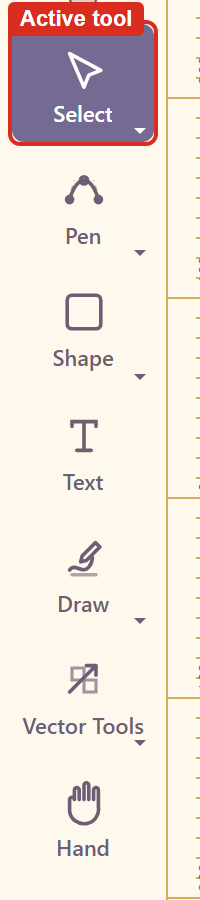
Note that clicking the tool button in the rail does not switch tools on the version tested — the highlight stays where it was. The keyboard shortcut is the reliable route. Troubleshooting has the detail.
What it does
Section titled “What it does”Click an element to select it. The selection shows handles for resizing, and the element can be dragged to move it.
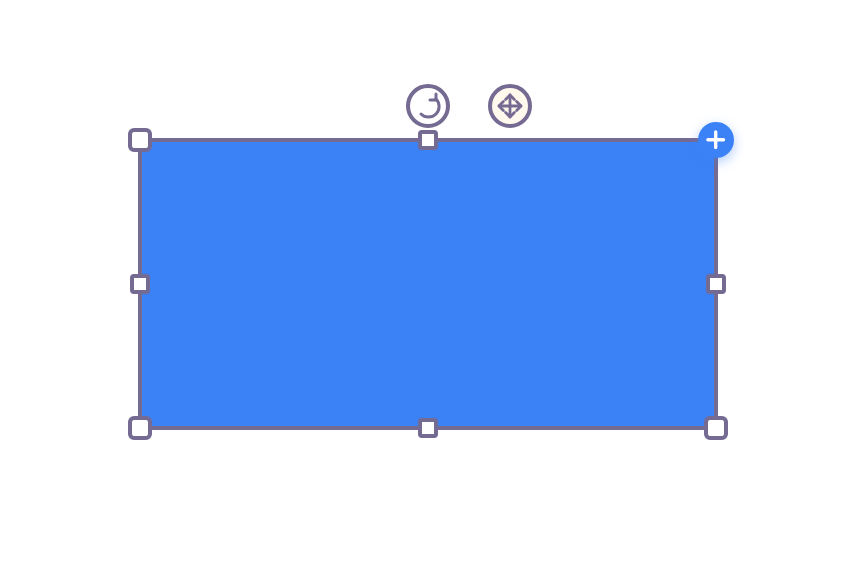
Selecting is also what fills the properties panel. With nothing selected the panel shows the document; with something selected it shows that element’s controls, which is where nearly all editing happens.
Precise positioning
Section titled “Precise positioning”Every element carries position as X and Y and size as W and H in its properties, so anything that has to be exact can be typed rather than dragged.
That is the reliable way to line two elements up. Dragging gets close; typing the same X into both makes them actually aligned.
Related
Section titled “Related”Properties reference lists what appears for each kind of selection. Shape and Text create the things Select picks up.