
Emails quickstart
This builds a real newsletter from an empty canvas, checks it for accessibility and spam problems, and lands a test copy in your inbox. It takes about twenty minutes.
You need a service you can open and an email address to send the test to.
1. Create the email
Section titled “1. Create the email”Open Emails under Communications and choose + Create Email.
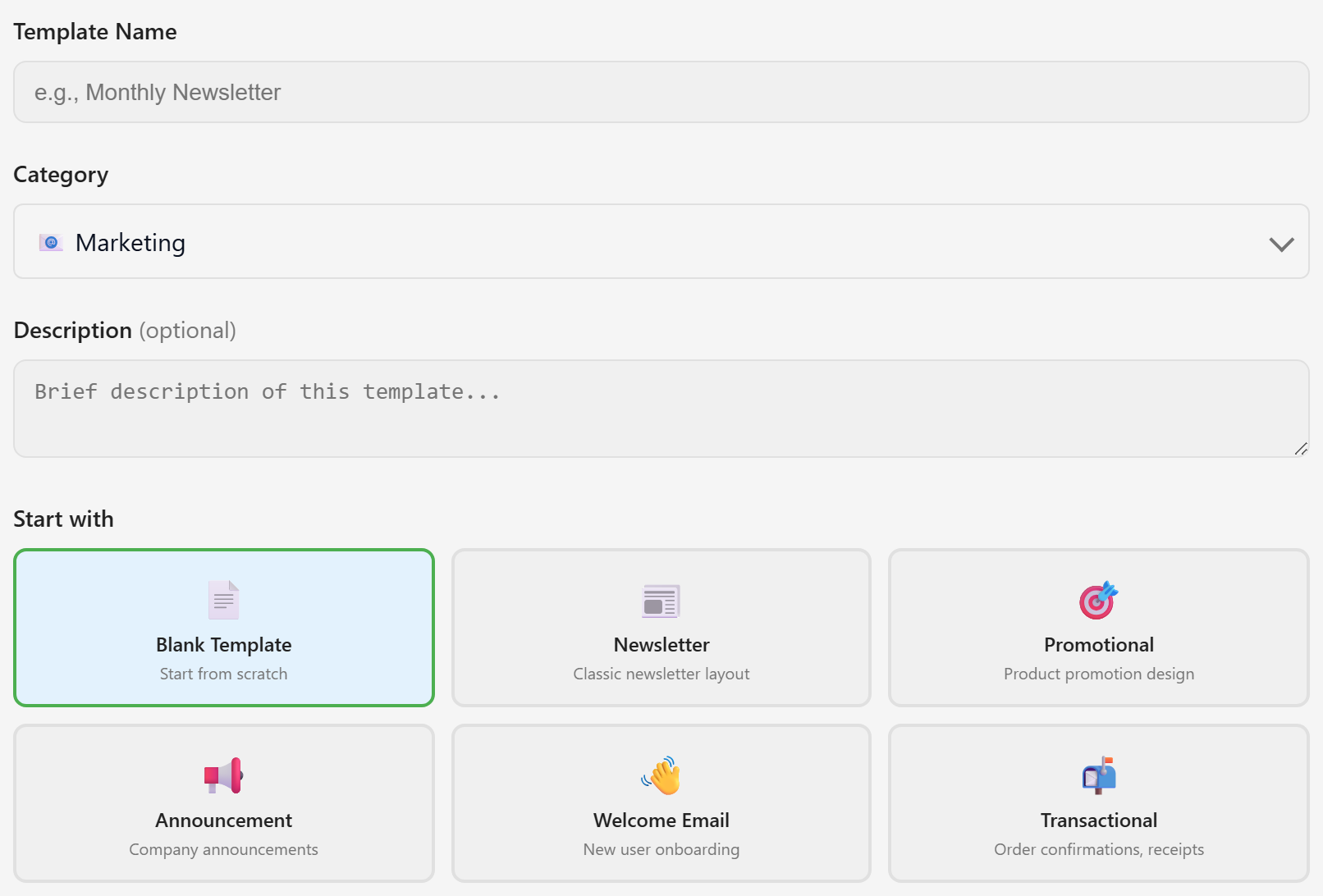
Name it Lunar Paper Monthly. Set the category to Newsletter — the category is what the filter row on the module page searches, so picking the right one now saves hunting later.
Pick a starting layout. Blank Template gives you an empty canvas, which is what this guide assumes. The other five drop in a rough structure you then edit.
Choose Create Email. The editor opens.
2. Add a heading and some text
Section titled “2. Add a heading and some text”The block library is on the left, split into Content, Layout, Marketing, and Advanced tabs.
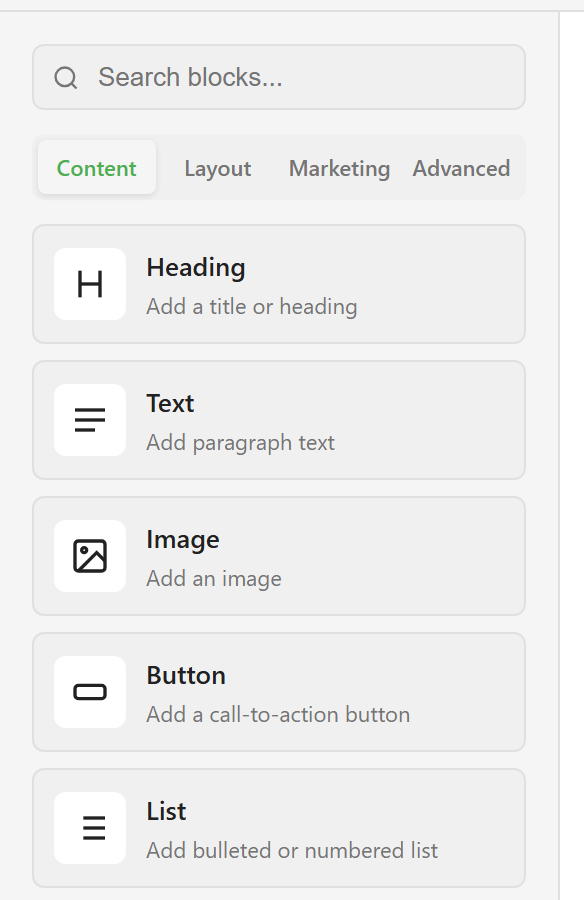
Drag Heading onto the canvas, then Text underneath it.
Click the heading to select it. The properties panel on the right fills with that block’s settings. Type your title into Content, pick a Level of h1, and set the Alignment.
Do the same for the text block. Write a sentence saying what the email is and who it is for — most readers decide whether to carry on within about that much text.
3. Add a button
Section titled “3. Add a button”Drag Button from the Content tab.
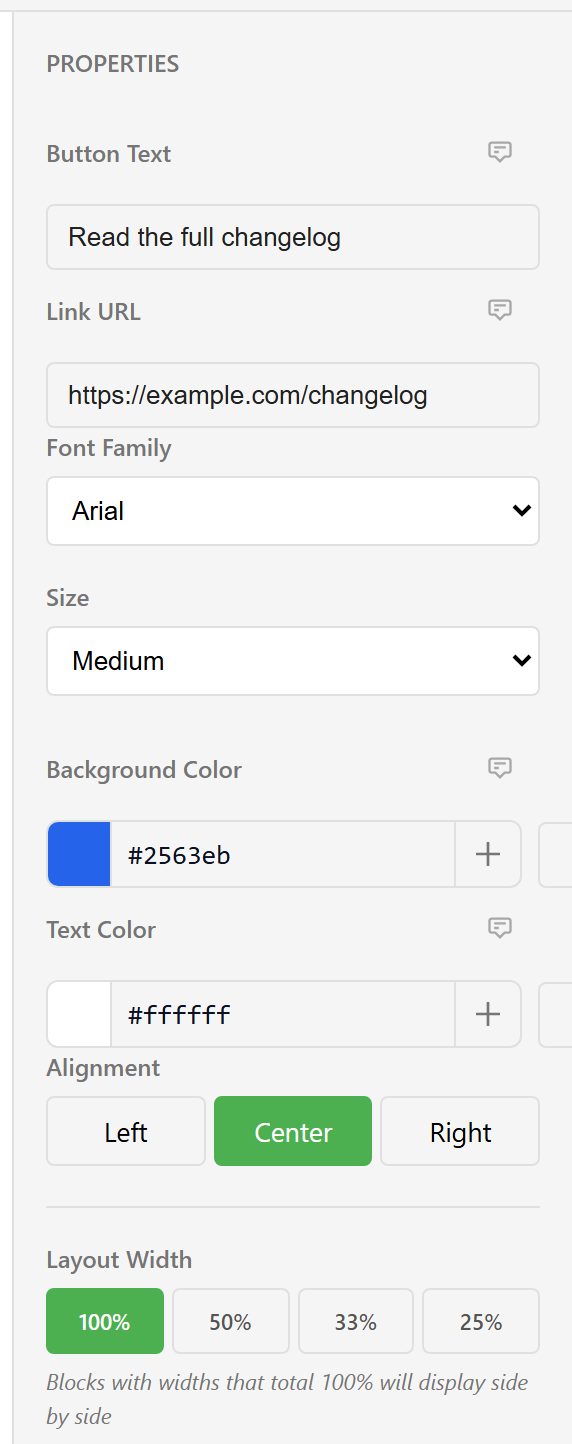
Set Button Text and Link URL. The link has to be a full address starting with https:// — a bare path will not work once the email leaves the platform.
Note Layout Width at the bottom. Leave it at 100% for now; step 5 explains what the other values do.
4. Add a footer
Section titled “4. Add a footer”Switch to the Advanced tab and drag Footer to the bottom.
The footer block holds your company name, address, an unsubscribe link, and social icons. Fill in the real values. An email that goes to a mailing list needs a working unsubscribe link, and this block is where it comes from.
5. Put two blocks side by side
Section titled “5. Put two blocks side by side”Add two more Text blocks. Select the first and set its Layout Width to 50%, then do the same to the second.
They now sit side by side. That is the whole layout system: blocks stack down the page, and consecutive blocks whose widths add up to 100% share a row. There is no dragging one block next to another.
6. Check it
Section titled “6. Check it”Choose the Accessibility Check button in the toolbar.
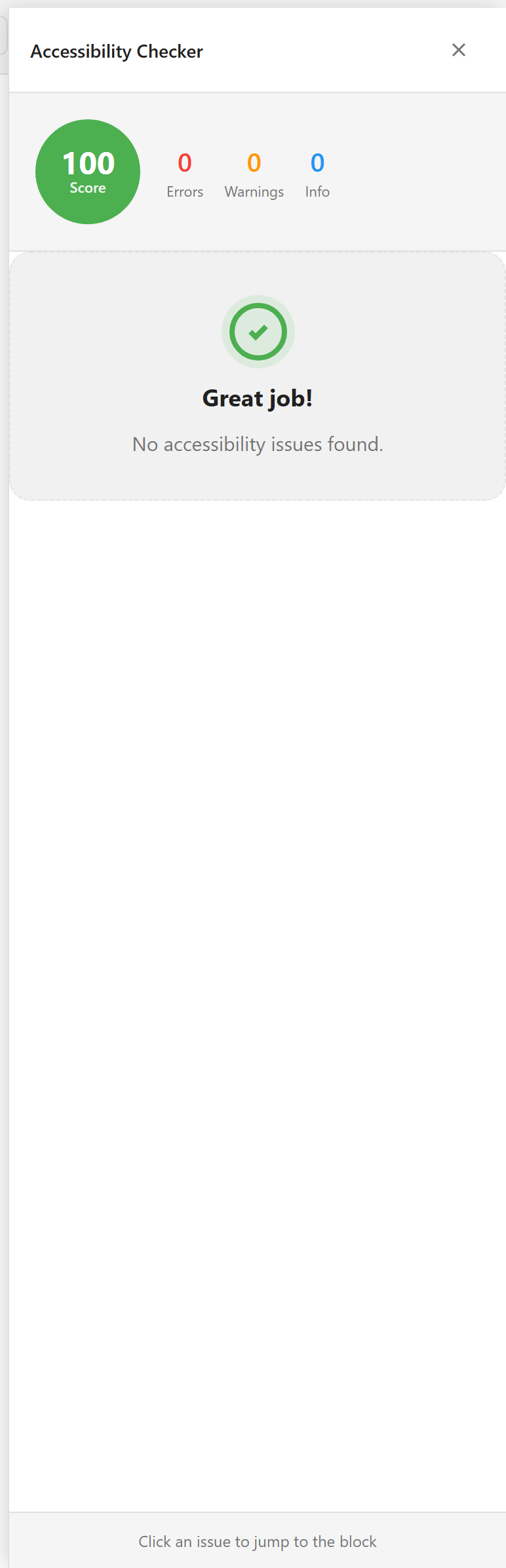
It scores the email out of 100 and lists what it found. Click an issue to jump to the block causing it. Missing image alt text and poor colour contrast are the two it catches most often.
Now choose Spam Check.
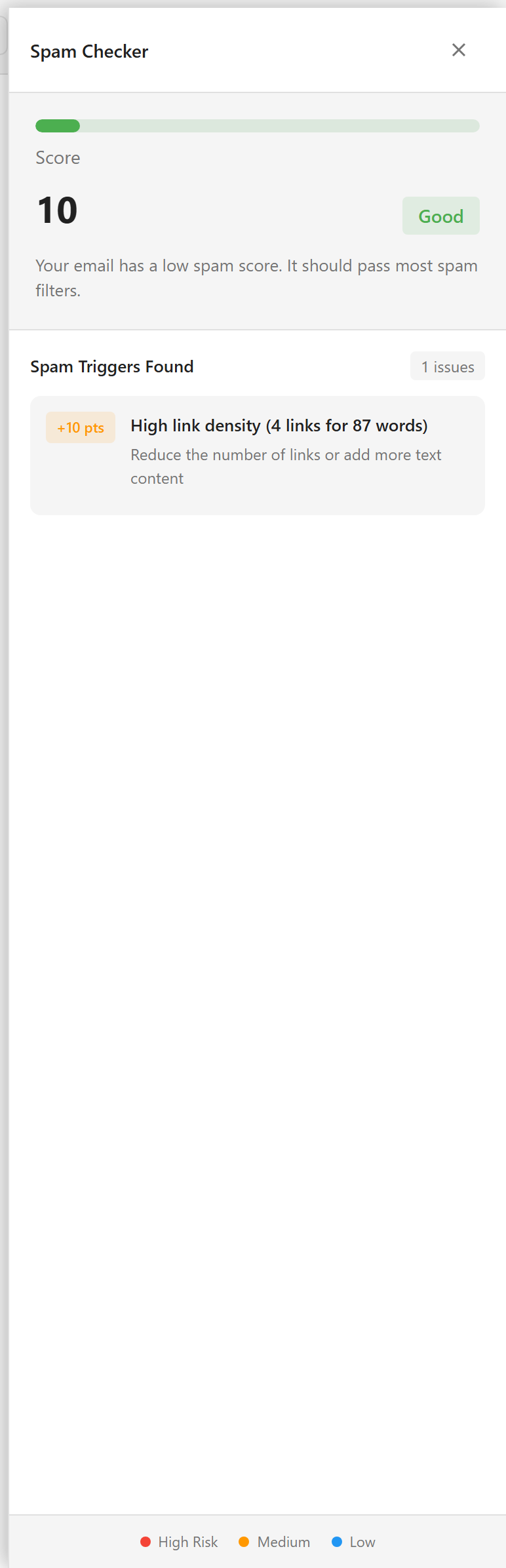
This scores separately, and lower is better. Each trigger it finds carries a point cost and a line telling you what to change. The example above is flagged for having four links in 87 words, which reads as link-heavy to a filter.
Neither checker blocks you. They are advice, and you decide what to act on.
7. Look at it on a phone
Section titled “7. Look at it on a phone”Use the Desktop, Tablet, and Mobile buttons in the toolbar to resize the canvas.
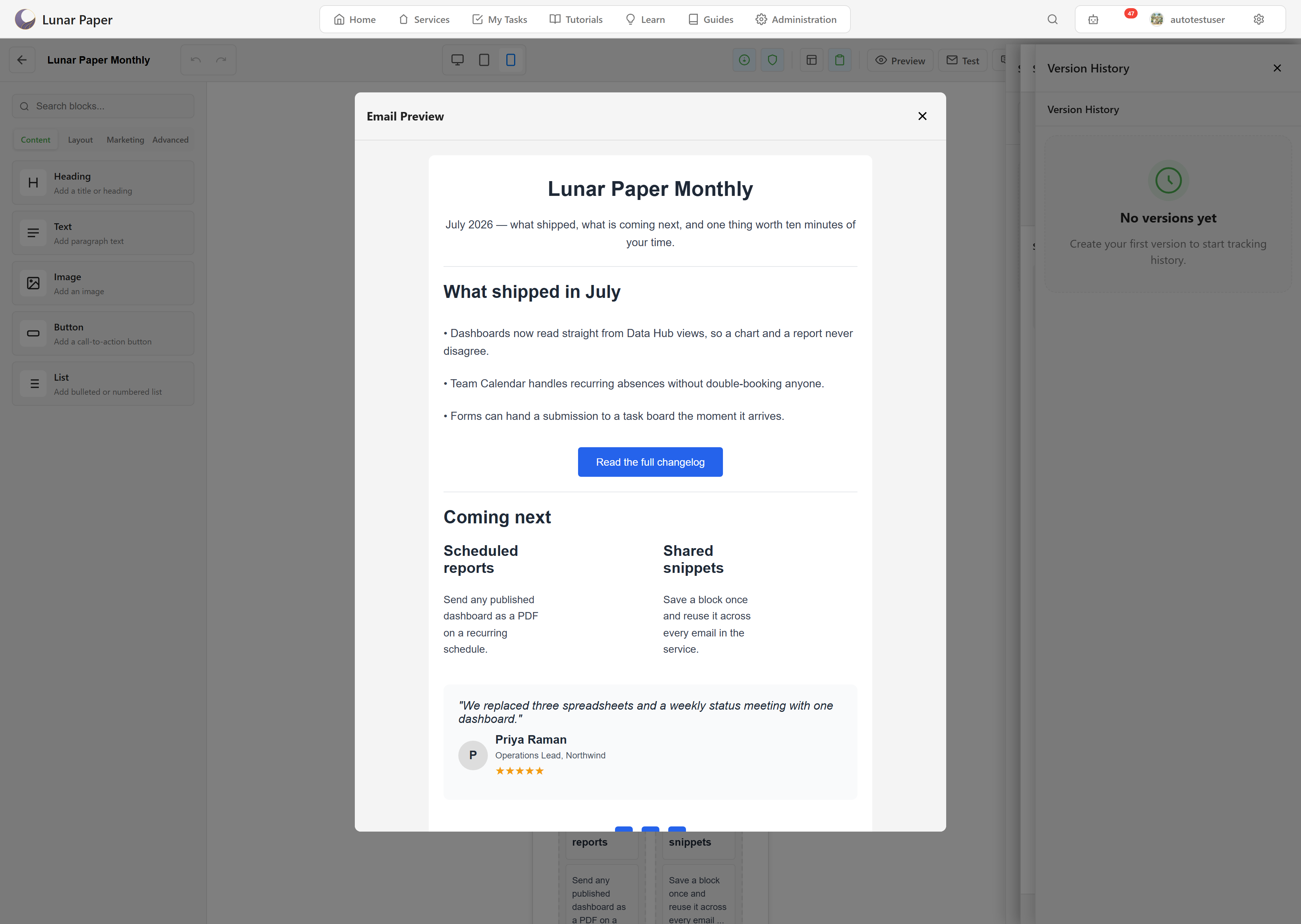
Check the mobile view before you send anything. Side-by-side blocks stack, long headings wrap, and a button that looked fine at full width can end up cramped.
Preview opens the finished email without the editing panels, which is the closest thing to what a recipient sees.
8. Send yourself a test
Section titled “8. Send yourself a test”Choose Test in the toolbar.
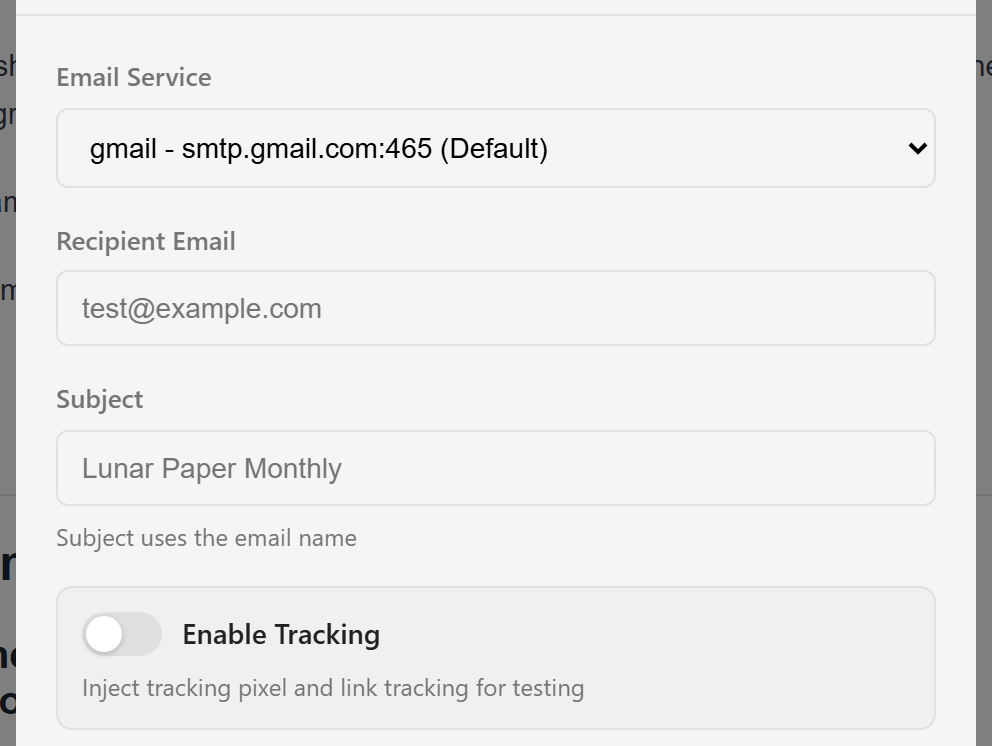
Pick the email service, put your own address in Recipient Email, and send. The subject comes from the email’s name unless you override it.
Open it on a real phone. Every check up to this point is a simulation; this is the actual thing.
9. Save and version it
Section titled “9. Save and version it”Save stores your work. Create Version takes a restorable snapshot on top of that.
Cut a version whenever you reach a state worth returning to — before a big rework, and after you send. Version History covers restoring one.
What you have
Section titled “What you have”You now have a newsletter built from blocks, checked for accessibility and spam problems, confirmed on a phone, and saved as a restorable version.
Build with blocks covers the block toolbar and the layout rules this page used without explaining. If your email needs to say “Hi Alex” rather than “Hi there”, Personalise with variables sets that up.