
Use comments and activity
Put a discussion in a task comment when it is about that one piece of work. The task then carries the conversation with it, and a teammate can read it without searching a separate chat.
1. Open the task details
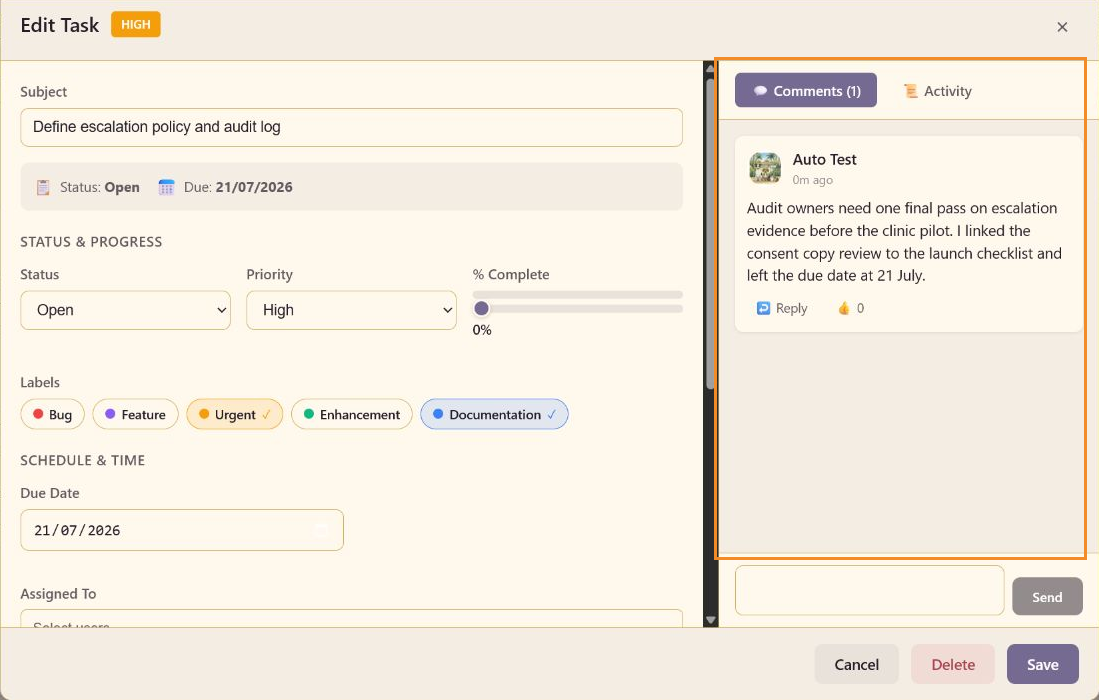
Section titled “1. Open the task details”Open Define escalation policy and audit log. Scroll the task detail panel until the right-hand Comments panel is visible. The panel has Comments and Activity tabs.
2. Write a useful comment
Section titled “2. Write a useful comment”Use the composer at the bottom of the Comments panel. A good update names the evidence, the check that is still outstanding, and the date or decision it affects. For the CareArc board, the saved comment is:
Audit owners need one final pass on escalation evidence before the clinic pilot. I linked the consent copy review to the launch checklist and left the due date at 21 July.
Select Send. The Comments count should increase and the posted comment should appear in the thread.
3. Use Activity for field history
Section titled “3. Use Activity for field history”Open Activity when you need to inspect changes to the task rather than read the discussion. Use Comments for decisions and Activity for the record of edits.
4. Save the task
Section titled “4. Save the task”Select Save to close the task editor after the comment is posted. Reopen the card to confirm that the comment count remains visible.
The record the task keeps
Section titled “The record the task keeps”The task carries its own record of how the decision was reached. A reviewer can see the request, its evidence, and the latest conversation next to the status and date it affects.