
Use a template
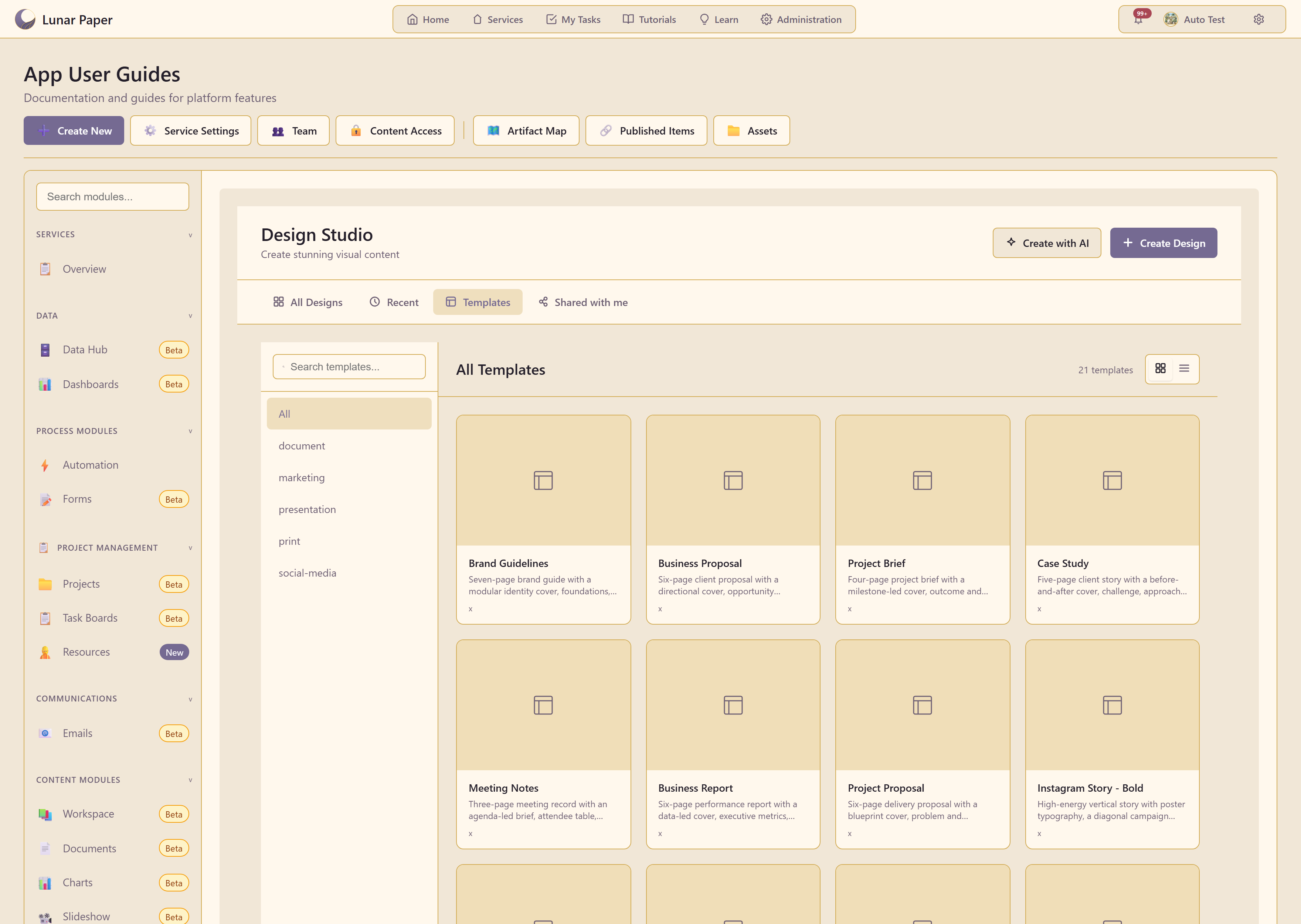
Templates holds 21 finished multi-page documents. Each shows a page count and a description of what its pages actually cover.
What is there
Section titled “What is there”| Template | Pages | Covers |
|---|---|---|
| Brand Guidelines | 7 | Identity cover, foundations, logo rules, colour, typography, voice |
| Business Proposal | 6 | Cover, opportunity framing, value case, roadmap, investment, close |
| Project Brief | 4 | Milestone cover, outcome and scope, delivery plan, risks, success evidence |
| Case Study | 5 | Before-and-after cover, challenge, approach, results, customer perspective |
| Meeting Notes | 3 | Agenda brief, attendee table, decisions, action register |
| Business Report | 6 | Data-led cover, executive metrics, detail |
The rest cover marketing, presentation, print, and social-media work, filterable by those tags.
Read the description, not the name
Section titled “Read the description, not the name”The descriptions say what each page does, which is the useful part. Two templates called proposal and brief differ mainly in whether they argue a case or record a plan, and the page list tells you which you are getting.
Templates are a starting point, not a constraint
Section titled “Templates are a starting point, not a constraint”A template opens as an ordinary design. Pages can be removed, reordered, and rewritten, and every element is editable.
The usual mistake is keeping pages you have nothing to put on. A six-page proposal with two thin pages reads worse than a four-page one.
Inside the editor too
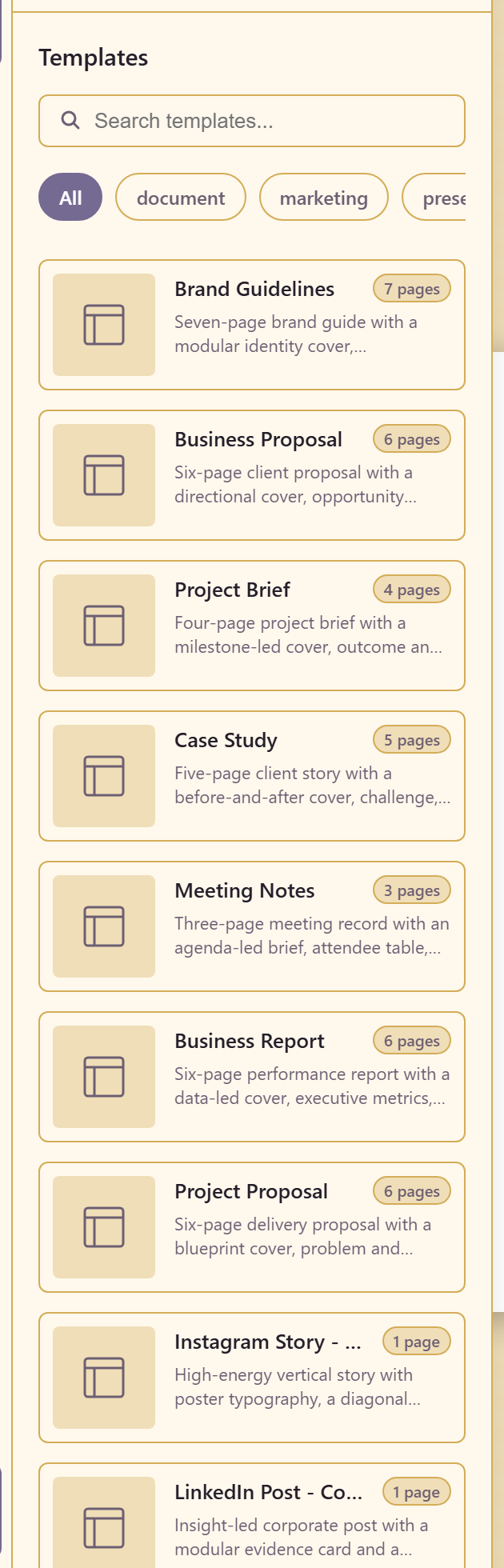
Section titled “Inside the editor too”The Templates panel in the left rail offers the same set while you are working, so a template can be pulled into an existing design.
Related
Section titled “Related”Create a design starts blank. Pages and resizing covers managing the pages a template gives you.