
Data Hub
Data Hub is where a service gets its data. You connect a database, a file, or an API, choose which tables the service is allowed to see, and optionally shape them into views. Everything downstream — Dashboards, reports, exports — reads what Data Hub exposes.
It does not store your data. It connects to where the data already lives and reads it on demand.
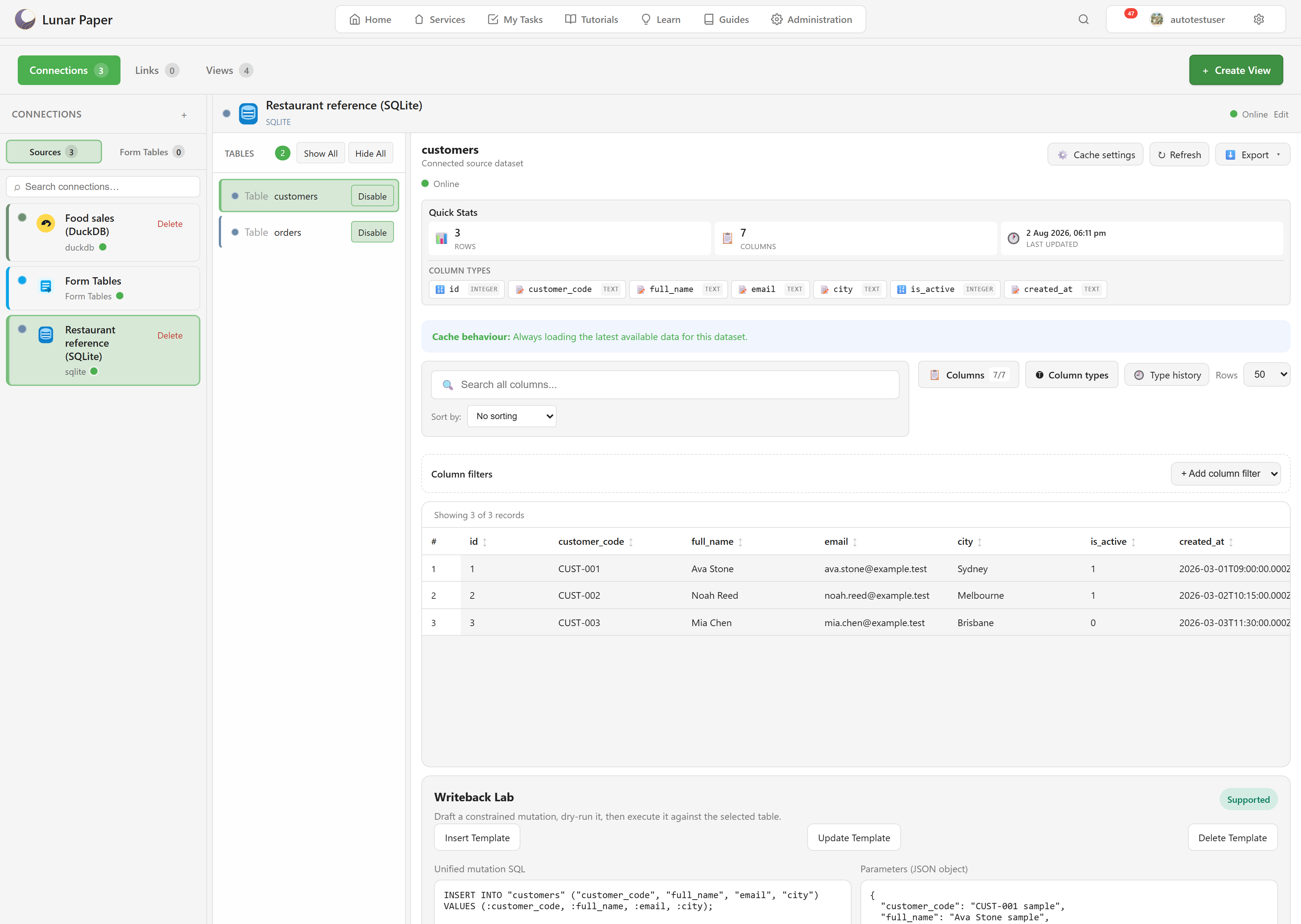
Where Data Hub lives
Section titled “Where Data Hub lives”Open a service and choose Data Hub under Data. It carries a Beta badge.
The module page in the service is a summary — how many connections and views exist. Open Data Hub takes you to the workspace, which is where the real work happens.
The workspace has three tabs
Section titled “The workspace has three tabs”Connections lists the sources linked to this service and lets you browse their tables, preview rows, and export.
Links is a canvas showing your tables and the relationships between them, which it can detect for you.
Views holds saved queries — a filtered, joined, or summarised shape built on top of the raw tables.
What you can connect
Section titled “What you can connect”Twenty-two connectors, in four groups: nine self-hosted databases, eight cloud databases and SaaS sources, two generic API connectors, and three custom connectors. You can also upload a CSV or Excel file directly.
Connector catalogue lists every one with the fields it needs. For the seven cloud providers with fiddly credentials, Connecting to cloud data walks through getting them.
Two things that catch people out
Section titled “Two things that catch people out”Tables start hidden. Connecting a database does not expose it. Every table arrives hidden and you enable the ones the service should see. This is deliberate — a connection to a production database should not hand every table to everyone — but it does mean a fresh connection looks empty until you enable something.
Creating a connection is a platform-admin action. Ordinary service members can browse and query what is already linked, but adding a new source needs the platform admin role. Permissions has the detail.
Where to go
Section titled “Where to go”| If you want to | Go to |
|---|---|
| Get data into a service and usable | Quickstart |
| Follow a specific workflow | Guides — six task walkthroughs |
| Find which page covers a capability | Data Hub capabilities |
| See every connector and its fields | Connector catalogue |
| Get credentials for a cloud provider | Connecting to cloud data |
| Understand how data becomes usable | How data becomes available |
| Understand sources versus service links | Connections and services |
| Look up a control in the workspace | Workspace reference |
| Check who is allowed to do what | Permissions reference |
| Fix something that is not behaving | Troubleshooting |
The examples in these screenshots
Section titled “The examples in these screenshots”Captures use two connections in one service. Food sales (DuckDB) is a DuckDB file of restaurant data with four views built on it, which the Dashboards documentation also uses. Restaurant reference (SQLite) is a small SQLite file with a customers table and an orders table joined by a foreign key, which makes it useful for showing relationships on the Links canvas. A third entry, Form Tables, is generated by the platform from the service’s forms rather than connected by hand.