
Shape
Shape is the workhorse. Most layouts are built from rectangles doing the jobs of panels, bars, and backgrounds.
Activating it
Section titled “Activating it”Press R.
The rail highlights the active tool, and only one is active at a time.
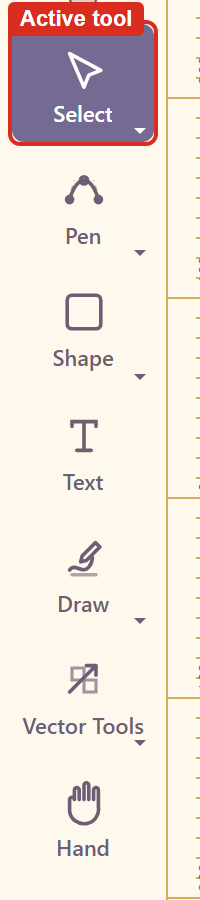
Note that clicking the tool button in the rail does not switch tools on the version tested — the highlight stays where it was. The keyboard shortcut is the reliable route. Troubleshooting has the detail.
Drawing one
Section titled “Drawing one”Drag on the canvas. The shape appears where you dragged and is created on release.
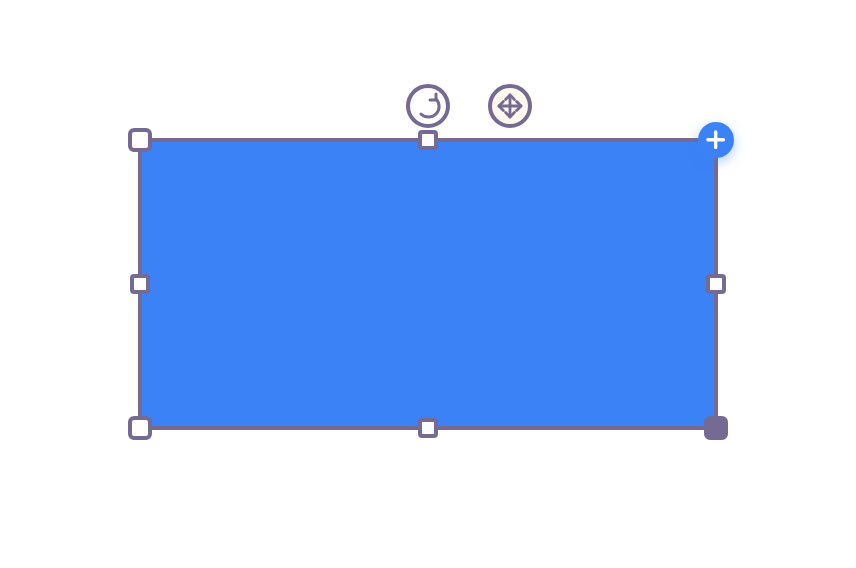
New shapes arrive with a default fill, so the first thing to do is usually to set the real one.
What you can change
Section titled “What you can change”Switch to Select and click the shape to fill the properties panel.
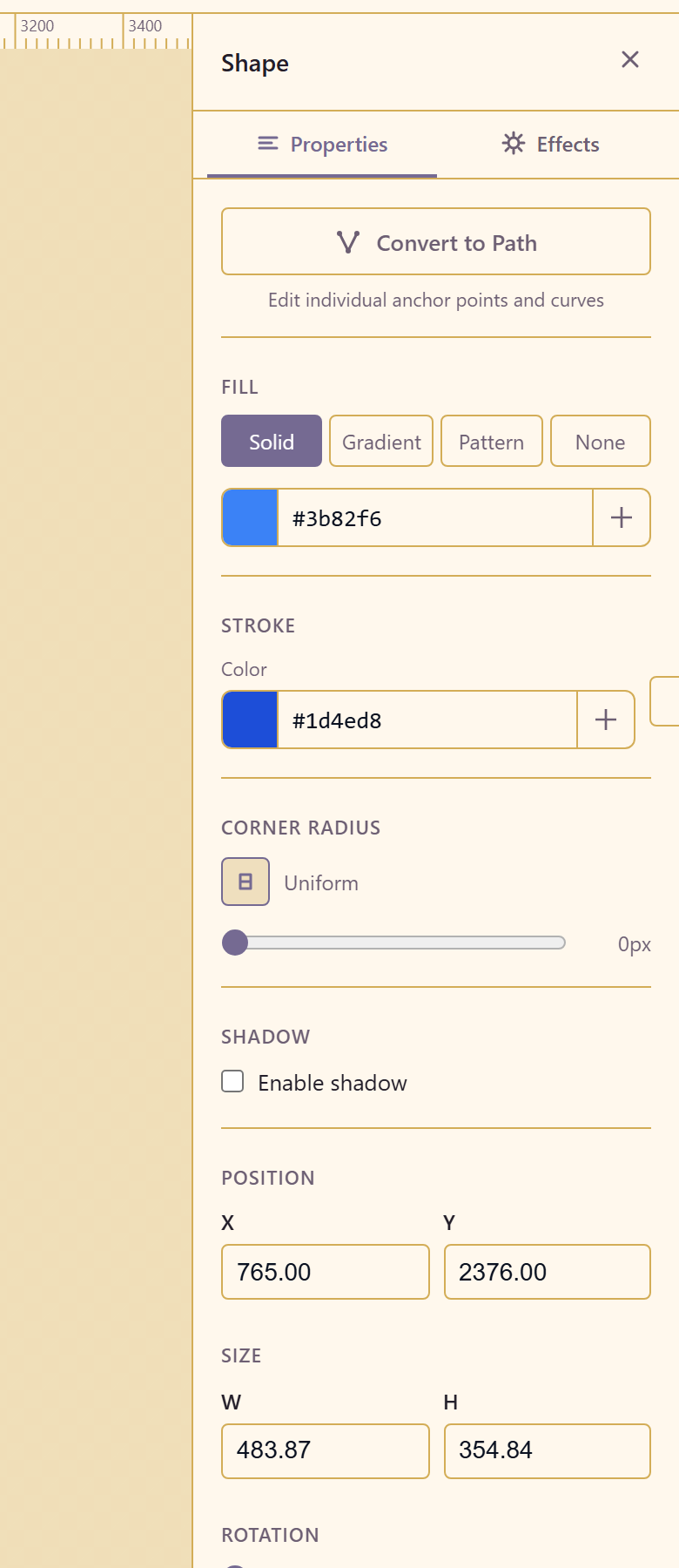
| Group | Controls |
|---|---|
| Convert to Path | Turns the shape into an editable path — “edit individual anchor points and curves” |
| Fill | Solid, Gradient, Pattern, or None |
| Stroke | Colour, width in px, and a style |
| Corner radius | Uniform, with Unlink corners for individual corners |
| Shadow | Enable shadow |
| Position | X, Y |
| Size | W, H |
| Rotation | In degrees |
| Opacity | A percentage |
Two things worth knowing
Section titled “Two things worth knowing”Unlink corners is what turns a rounded rectangle into a tab, a speech bubble, or a card with one square edge. It stays hidden behind the uniform setting until you go looking.
Convert to Path is effectively one-way. A converted rectangle gains anchor editing and loses corner radius, because a path has no corners to round. Convert when you need an outline the rectangle cannot describe, not before.
Related
Section titled “Related”Vector Tools edits a shape once it is a path. Properties reference lists every control.