
Add elements
The left rail supplies content, and it holds more than it first appears.
Elements
Section titled “Elements”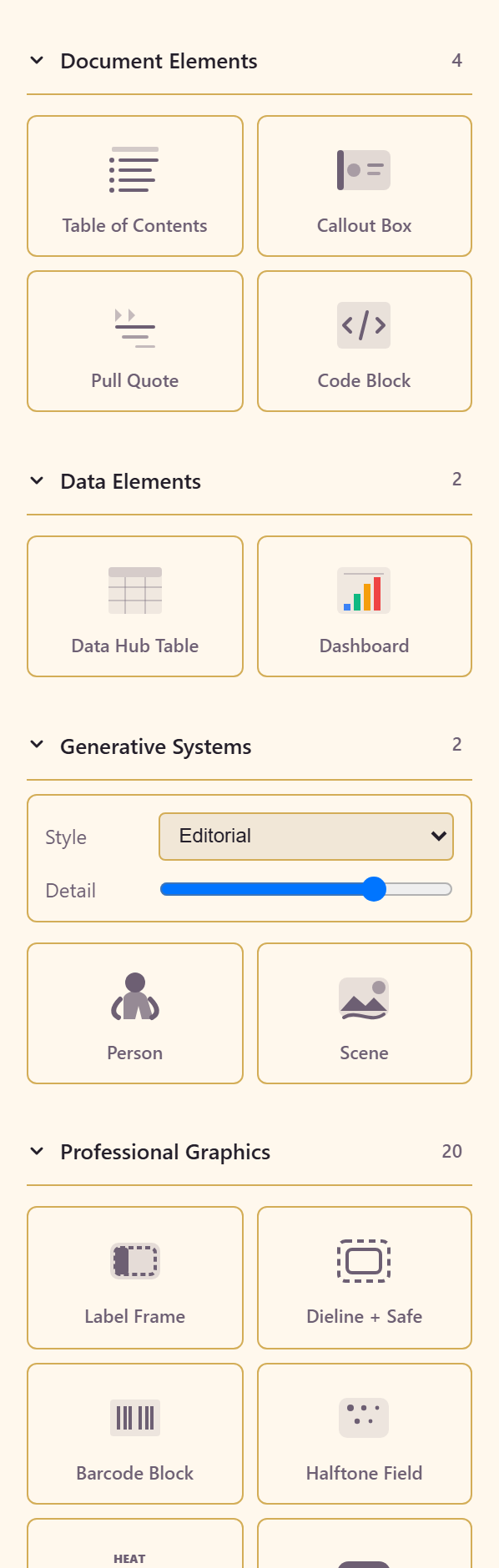
Grouped by kind.
| Group | Contains |
|---|---|
| Document Elements | Table of Contents, Callout Box, Pull Quote, Code Block |
| Data Elements | Data Hub Table, Dashboard |
| Generative Systems | Style — cartoon, editorial, semi-real, lifelike — with detail, person, and scene controls |
| Professional Graphics | Twenty, including Label Frame, Dieline + Safe, Barcode Block, Halftone Field, Heat Scale, Seal Stamp, Woodcut Badge, Interactive Map |
| Shapes | Shapes, stars and badges, polygons and arrows, graphics, flowchart, lines |
Dieline + Safe is worth knowing about if you print anything. It marks the cut line and the safe area, which is the difference between a design that survives trimming and one that loses its edges.
Photos
Section titled “Photos”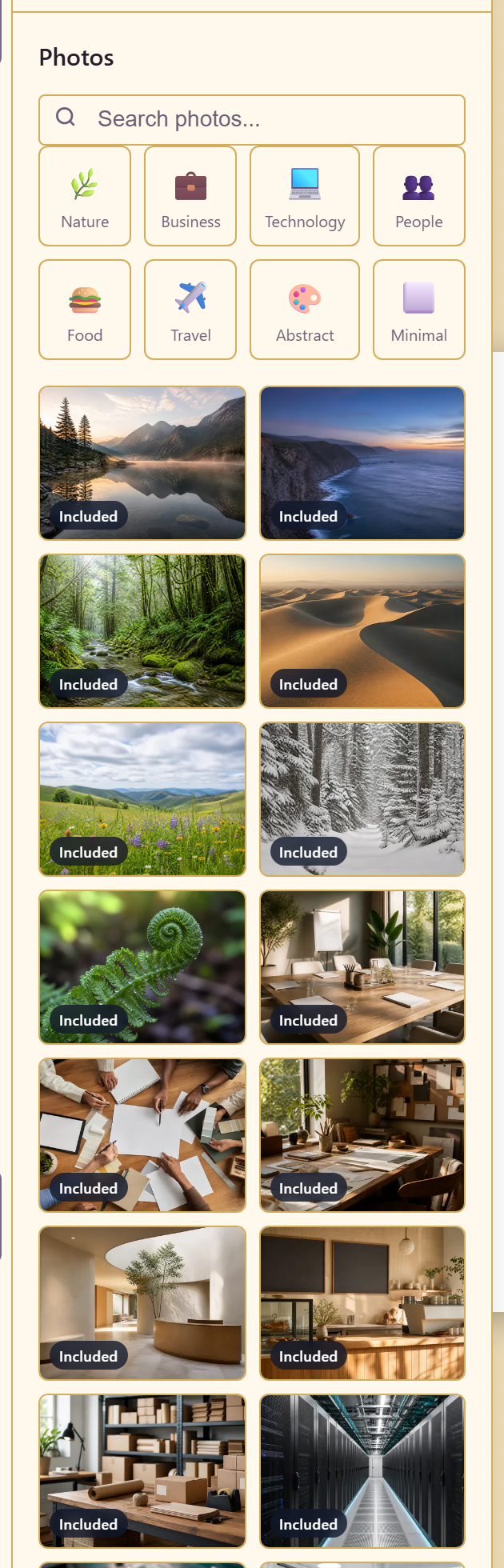
Eight categories — nature, business, technology, people, food, travel, abstract, minimal — all marked Included, so nothing here needs a separate licence.
Effects
Section titled “Effects”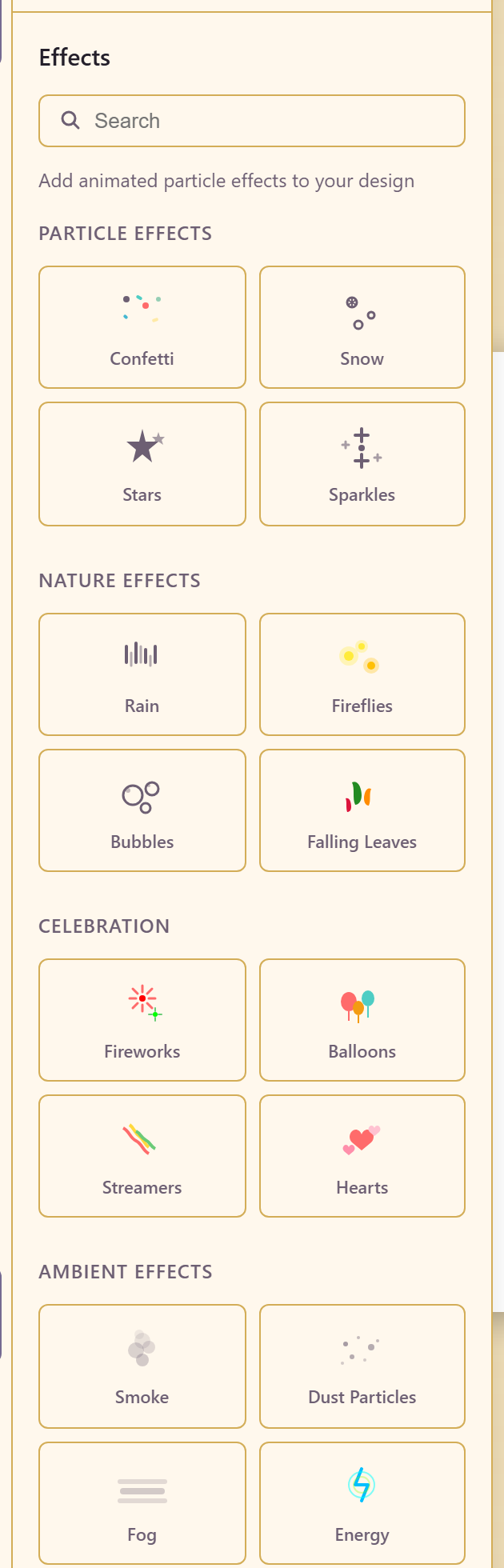
Sixteen animated particle effects in four groups.
| Group | Effects |
|---|---|
| Particle | Confetti, Snow, Stars, Sparkles |
| Nature | Rain, Fireflies, Bubbles, Falling Leaves |
| Celebration | Fireworks, Balloons, Streamers, Hearts |
| Ambient | Smoke, Dust Particles, Fog, Energy |
These are animated, so they suit a screen design and do nothing for print.
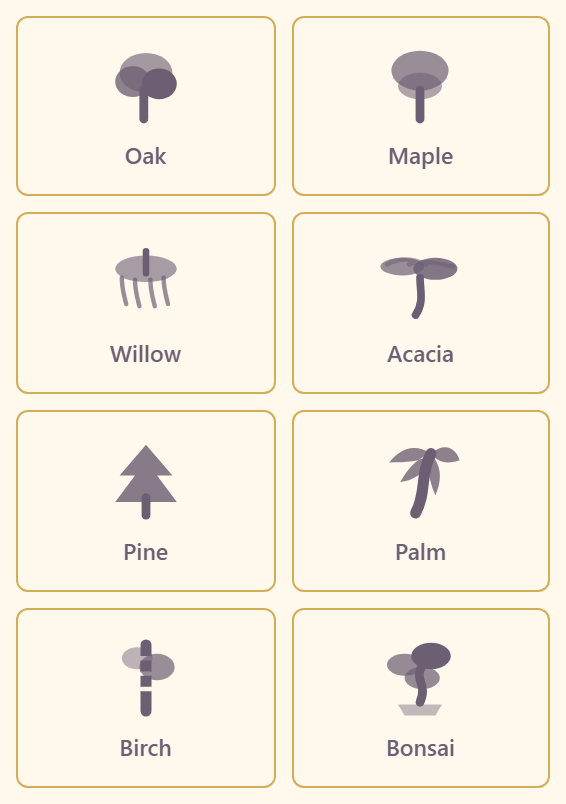
A tree generator, in vector or photoreal. Click to add or drag onto the canvas, then adjust settings on the right after placing.
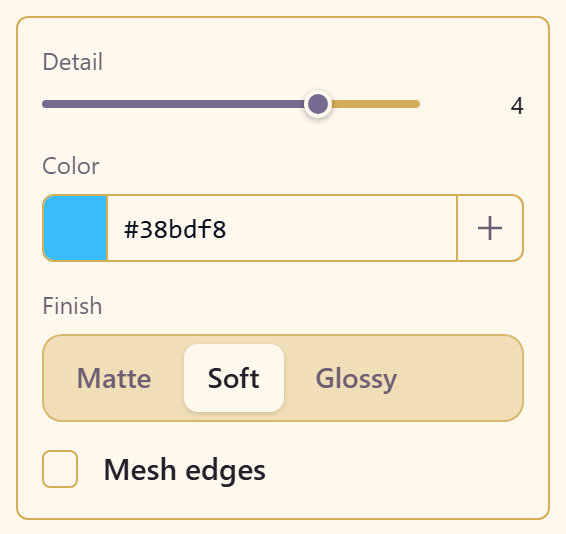
Editable 3D primitives. Drag or click to place one, then the properties panel takes over.
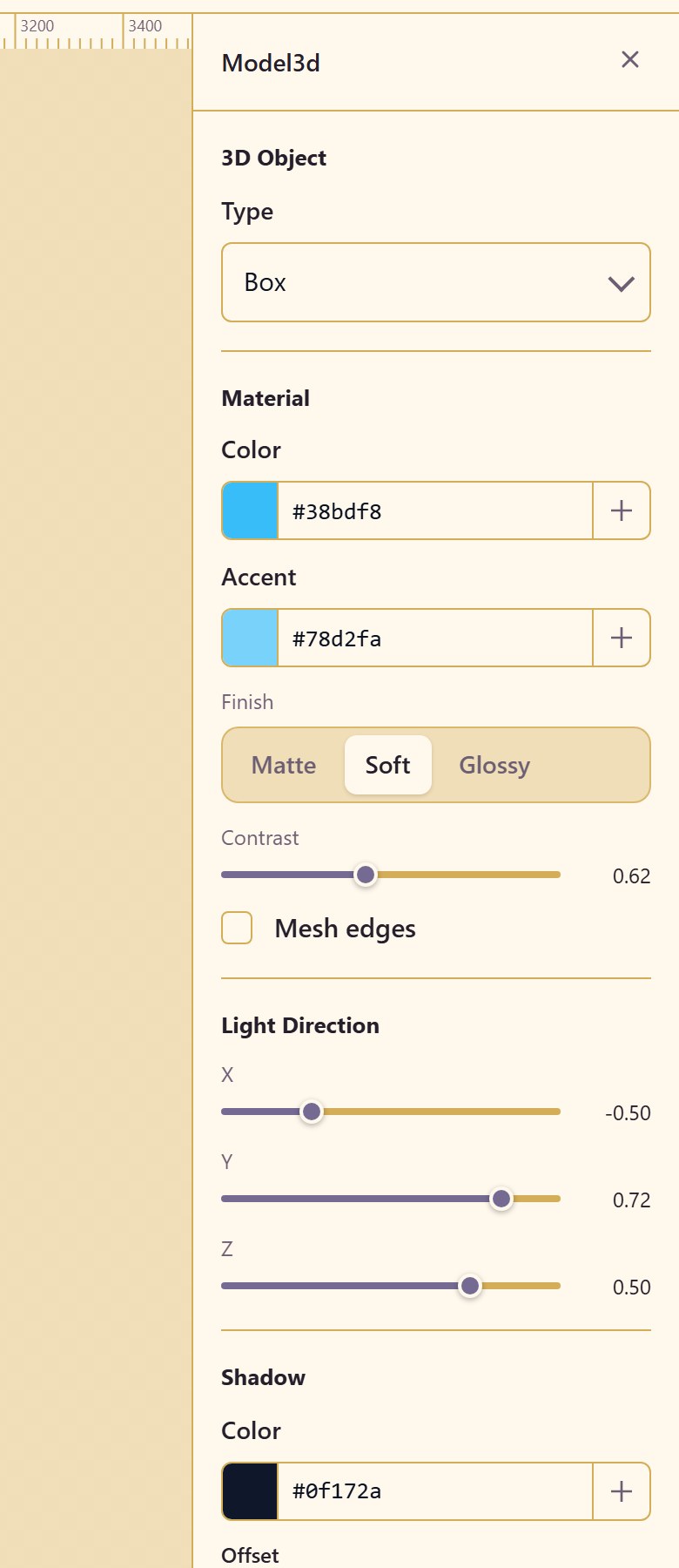
It offers material colour and accent, a finish of matte, soft, or glossy, contrast, mesh edges, a light direction in X, Y and Z, a shadow with colour, offset, opacity and scale, rotation and scale on all three axes, and render size and camera distance. Dragging the view orbits the object; holding Shift spins it.
Light direction changes the result more than colour does. The default lights from above and slightly to the side; moving it low makes the same object dramatic rather than neutral.
Machines
Section titled “Machines”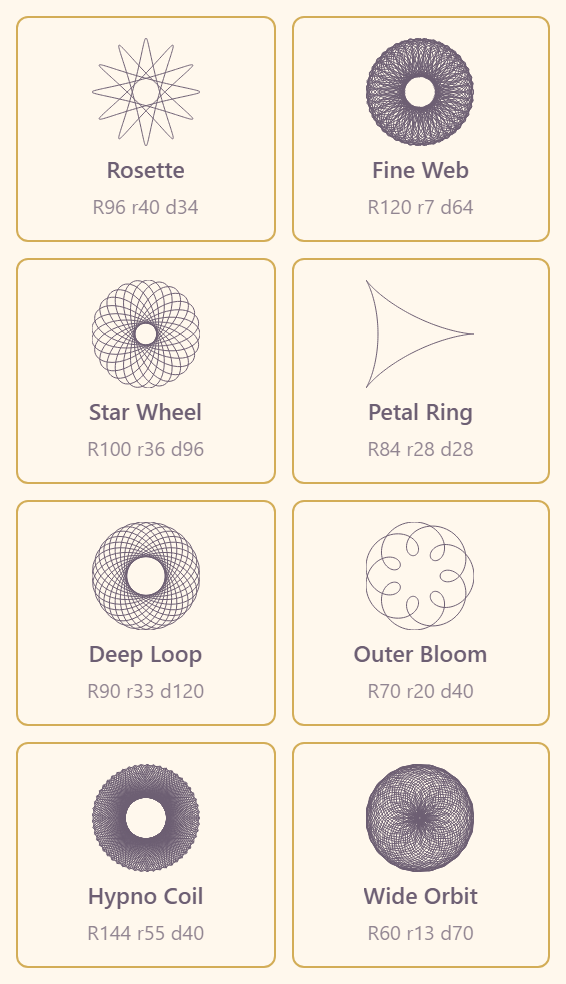
The most unusual panel: drawing machines, which trace curves the way a spirograph does, and stay editable after you place them.
Three machine types — spirograph, pintograph, and rosette — with named presets that show their parameters: Fine Web at R96 r40 d34, Star Wheel at R120 r7 d64, Petal Ring, Deep Loop, Outer Bloom, Hypno Coil, Wide Orbit.
Placement defaults set passes and stroke colour, and the panel is explicit that you tune the machine itself in the properties panel after placing — which is where the real controls are.
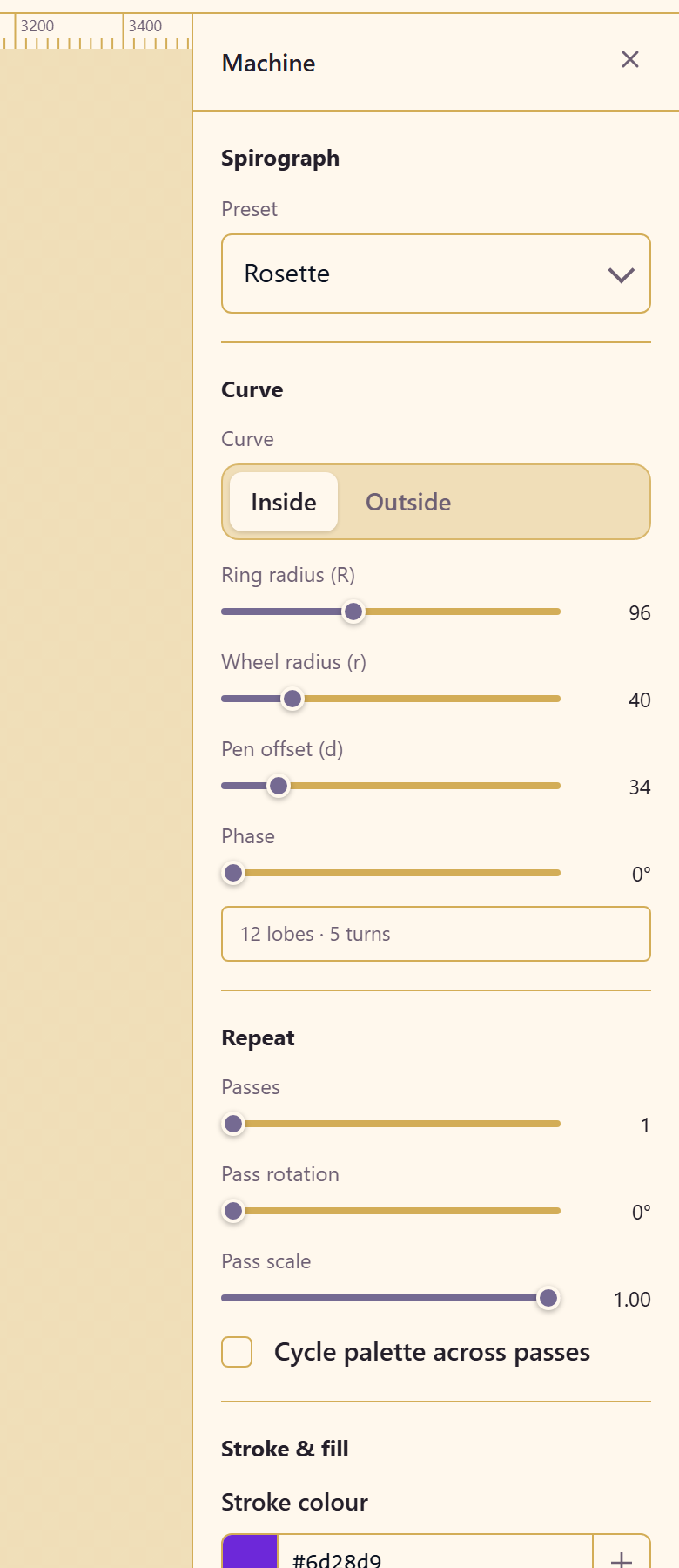
The geometry is three numbers: ring radius (R), wheel radius (r), and pen offset (d), plus a phase and a choice of tracing inside or outside the ring. A live readout describes what they produce — 12 lobes · 5 turns — so you can see the effect of a change without counting.
Repeat draws the curve several times: passes, with a pass rotation and pass scale between them, and an option to cycle the palette across passes.
Quality exposes samples per turn with a live points count and a worst step in pixels. If a curve looks faceted, raise the samples until the worst step comes down.
Randomise and Reset to preset explore and undo. Convert to editable path states its cost first — around 1,200 anchors from 1,201 points — and once converted the parametric controls are gone, so convert only when you need to move individual anchors.
Use them for backgrounds and borders rather than focal points. A rosette behind a headline reads as texture; a rosette next to a headline competes with it.
Uploads
Section titled “Uploads”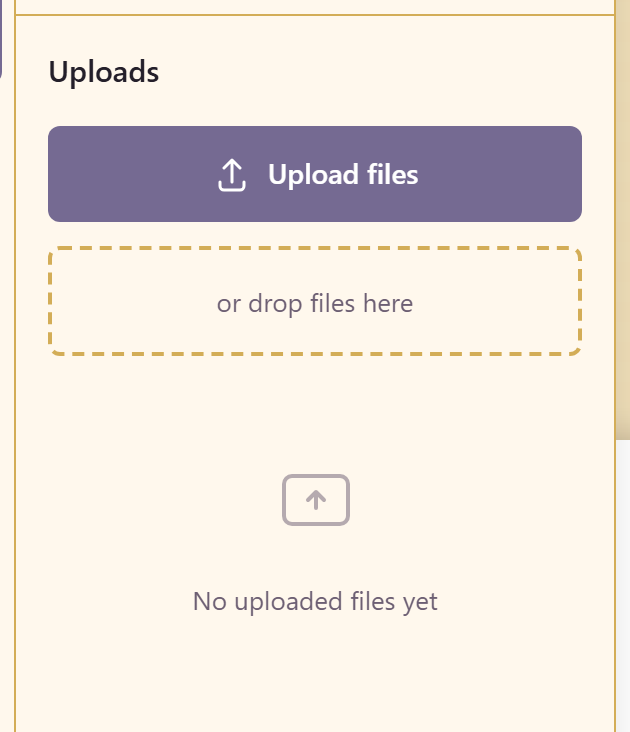
Your own files, by picker or by dropping them in.
Related
Section titled “Related”Properties reference lists every control each element type offers. Work on the canvas covers the tools.