
Brand controls
Guidelines ask. Controls enforce.
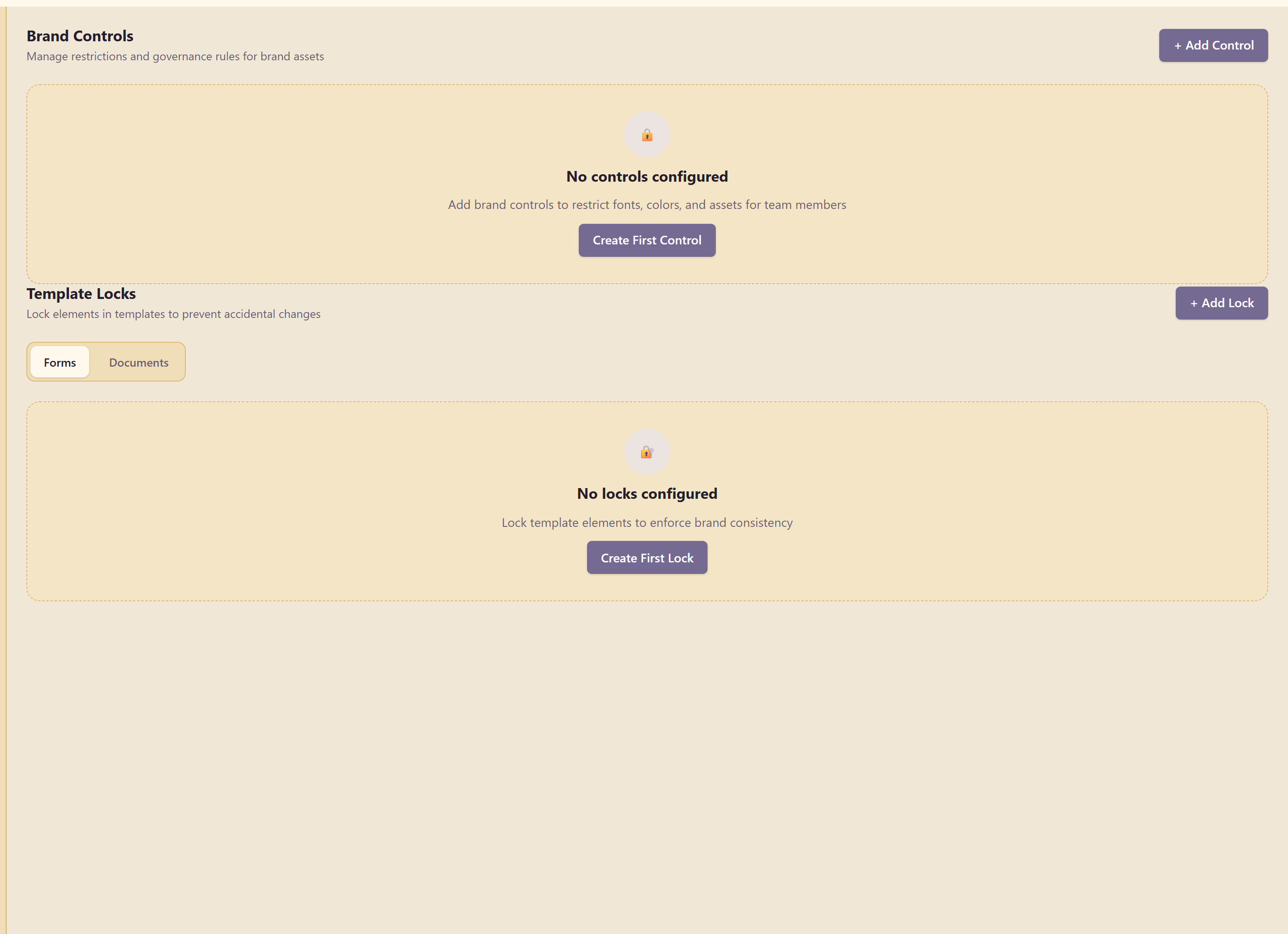
The section holds two separate mechanisms: brand controls, which restrict what may be used, and template locks, which freeze parts of a specific template.
Brand controls
Section titled “Brand controls”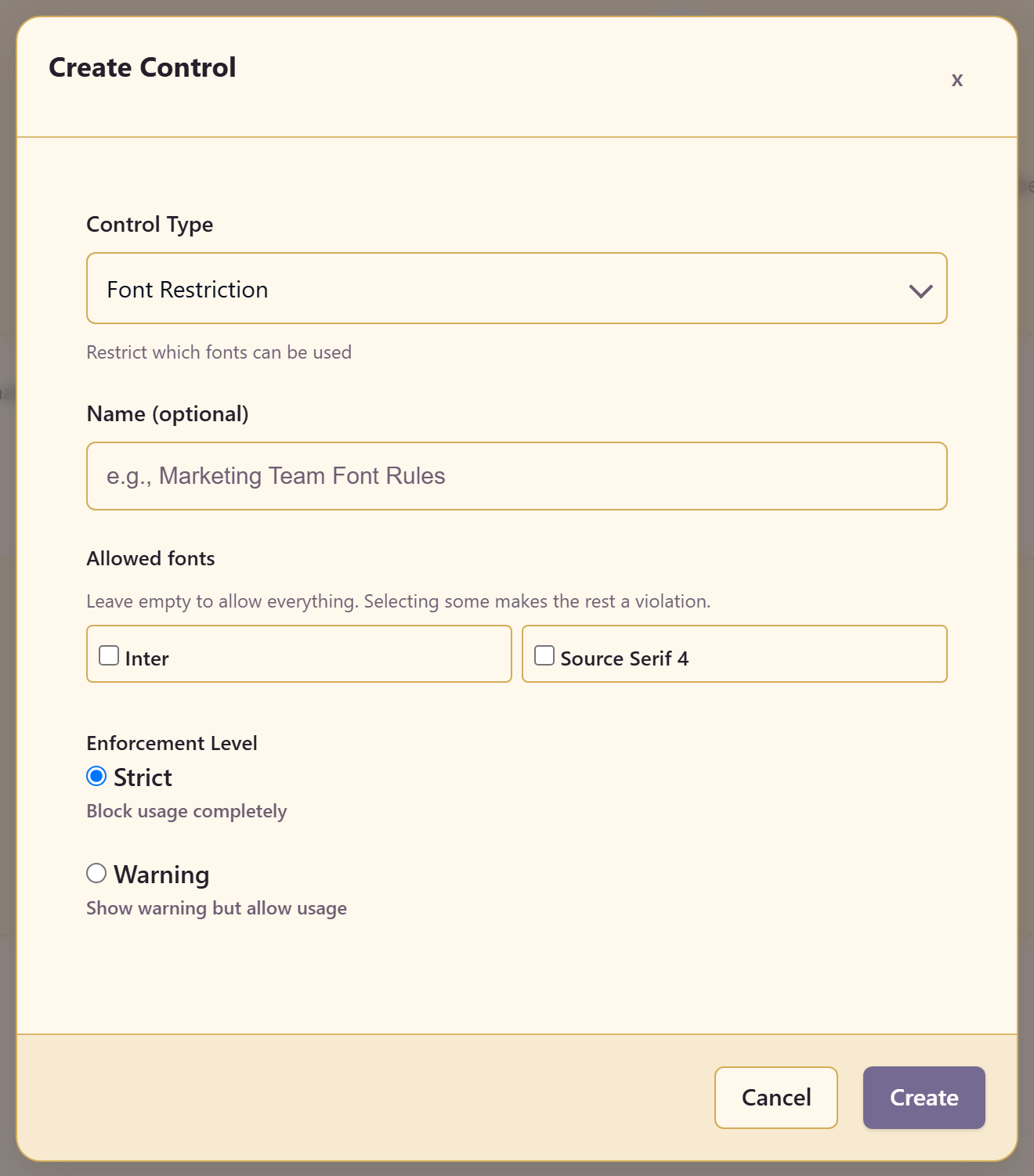
A control has a type — font restriction is the one shipped first, described as restricting which fonts can be used — an optional name, a list of allowed items, and an enforcement level.
The allowed-items rule is stated plainly in the dialog: leave it empty to allow everything, and selecting some makes the rest a violation. So a control does nothing until you name what is permitted.
Strict or warning
Section titled “Strict or warning”| Level | Behaviour |
|---|---|
| Strict | Blocks usage completely |
| Warning | Shows a warning but allows usage |
Start with Warning. A strict control on a brand that is still settling produces support requests rather than compliance, and the warnings tell you where the rule is actually biting before you make it absolute.
Move to Strict for the handful of rules that genuinely cannot bend — usually the logo and the primary typeface.
Template locks
Section titled “Template locks”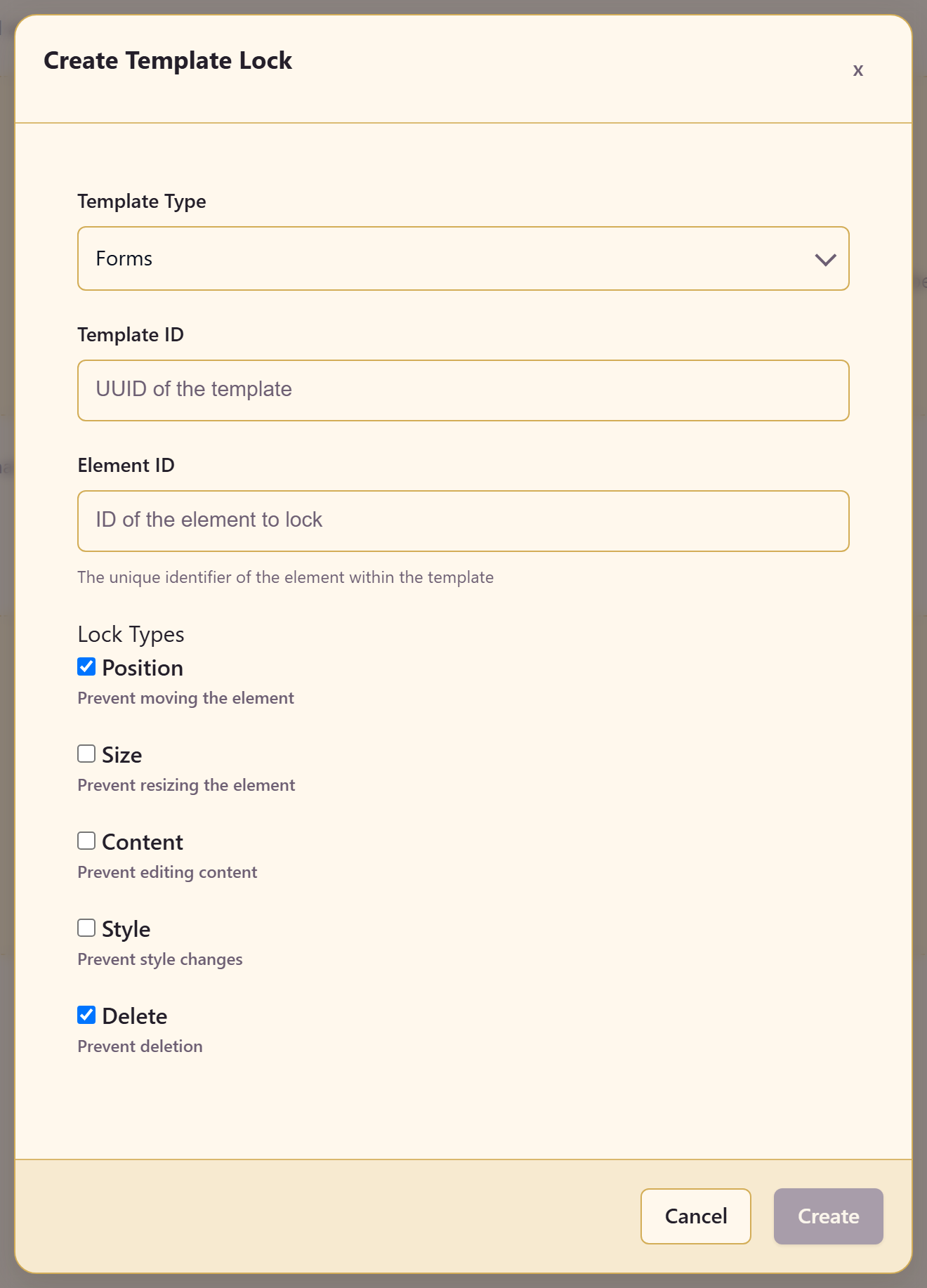
A template lock freezes part of a specific template so it cannot be changed by accident. Locks apply to Forms and Documents templates.
A lock names a Template ID — the UUID of the template — and an Element ID, the identifier of the element within it, then picks which kinds of change to prevent.
| Lock type | Prevents |
|---|---|
| Position | Moving the element |
| Size | Resizing it |
| Content | Editing its content |
| Style | Changing its styling |
| Delete | Deleting it |
The five are independent. A letterhead logo usually wants position, size, and delete locked while content stays editable; a legal footer wants content and delete locked and nothing else.
Note that locks are set by typed identifier rather than by picking a template from a list, so you need the IDs to hand before you start.
Related
Section titled “Related”Brand guidelines is where the reasoning behind a control belongs. Versions and history records who changed what.