
Custom and AI-assisted labels
Custom labels add categories that belong to one board, alongside the built-in labels.
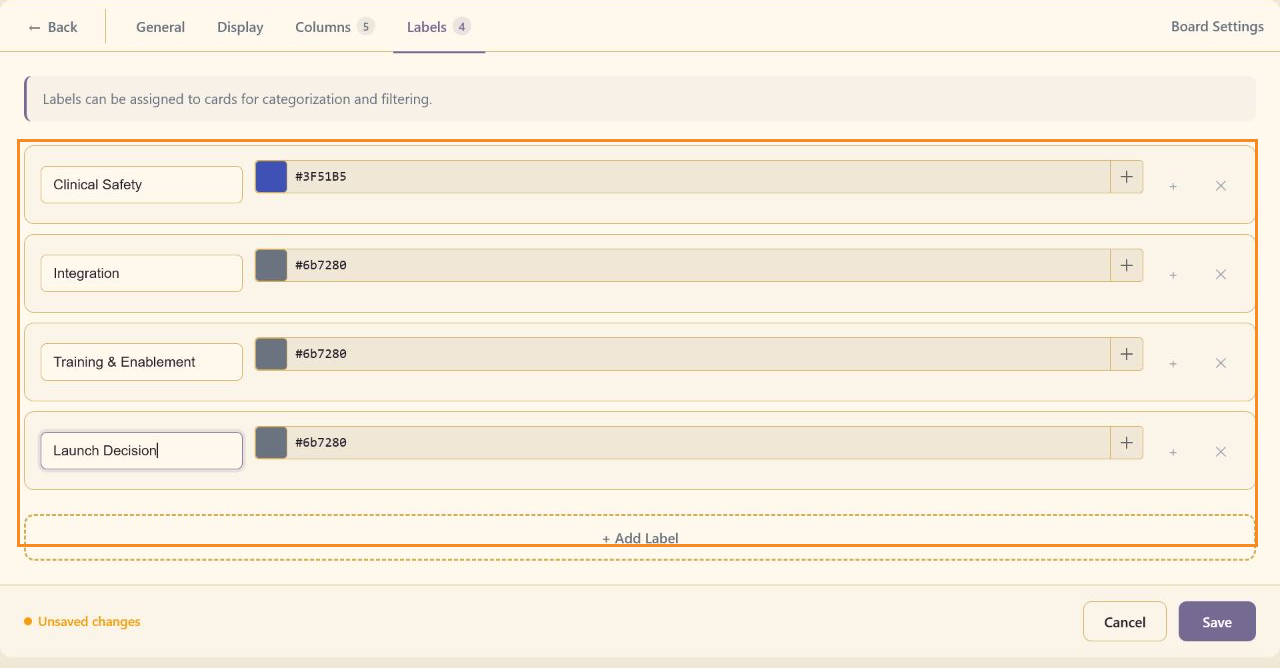
Label fields
Section titled “Label fields”Each label has a name and color value. The color preview shows the current swatch. Use Add Label to create a row and the remove action to delete a label.
CareArc uses Clinical Safety, Integration, Training & Enablement, and Launch Decision to match its workstreams.
Task and filter use
Section titled “Task and filter use”Assign labels in the task editor. Label bars appear on task cards, and All Labels filters the board and advanced views. Keep label names stable so saved filters and operating-review language stay meaningful.
Priority communicates urgency; labels communicate category. Do not use a label as a second priority system.
AI-assisted labels
Section titled “AI-assisted labels”AI-assisted labels assess task subjects and descriptions, detect categories shared across the board, and apply useful labels without removing labels that are already assigned.
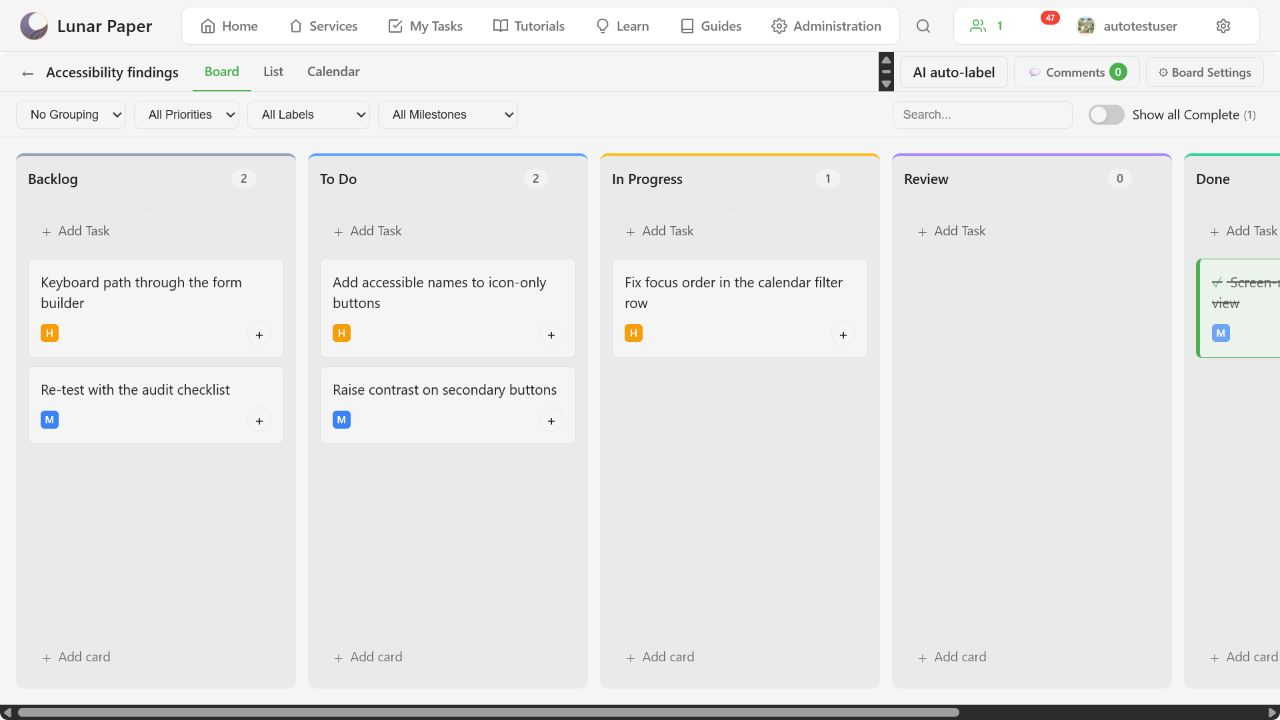
Label the active board
Section titled “Label the active board”Select AI auto-label in the board toolbar. The confirmation explains that Lunar Paper will detect common labels and add them to matching tasks. Existing labels remain in place.
By default, the run includes active work and excludes tasks in the completed Done history. Select Auto-label tasks to begin.
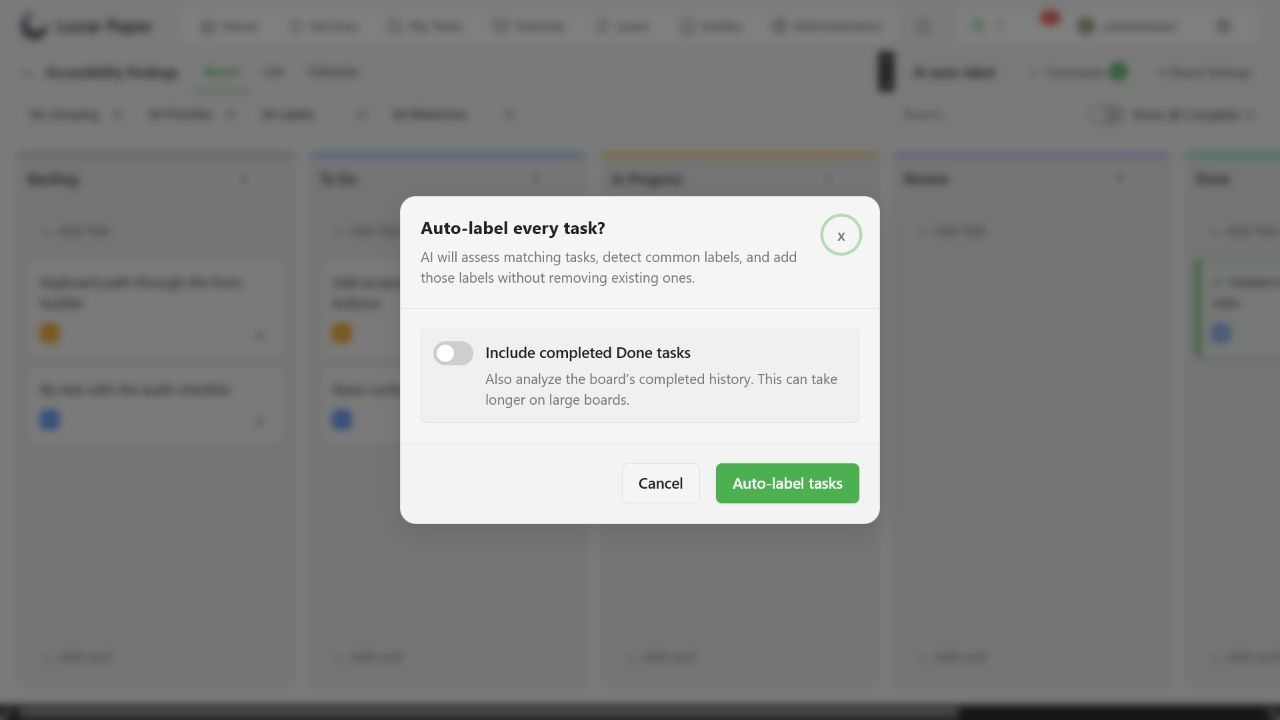
Include completed history when needed
Section titled “Include completed history when needed”Turn on Include completed Done tasks when historical work should help establish the board’s label taxonomy or needs labels of its own. Leave it off for a faster active-board review.
Large histories are processed in bounded groups instead of one oversized request. The run can therefore take longer when completed work is included, but it does not need to assess the entire history at once.
Label one task
Section titled “Label one task”Open an existing task or start creating a new one, then select Auto-label task beside the Labels field. Lunar Paper assesses the subject and description and applies matching board labels while preserving any labels you selected manually.
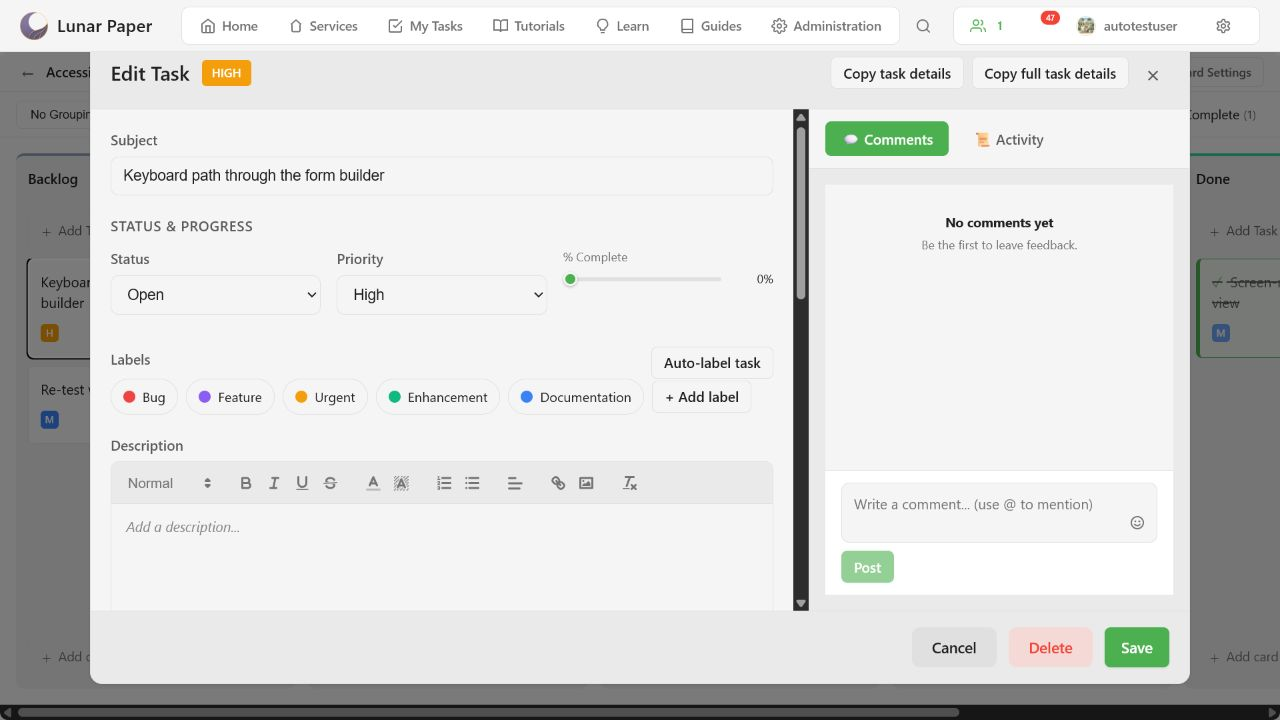
Review the result before saving when you want direct control over every suggestion.
Label new tasks on first save
Section titled “Label new tasks on first save”Open Board Settings, stay on General, and turn on Auto-label new tasks on first save. This setting is off by default, so boards do not silently send every new task through AI.
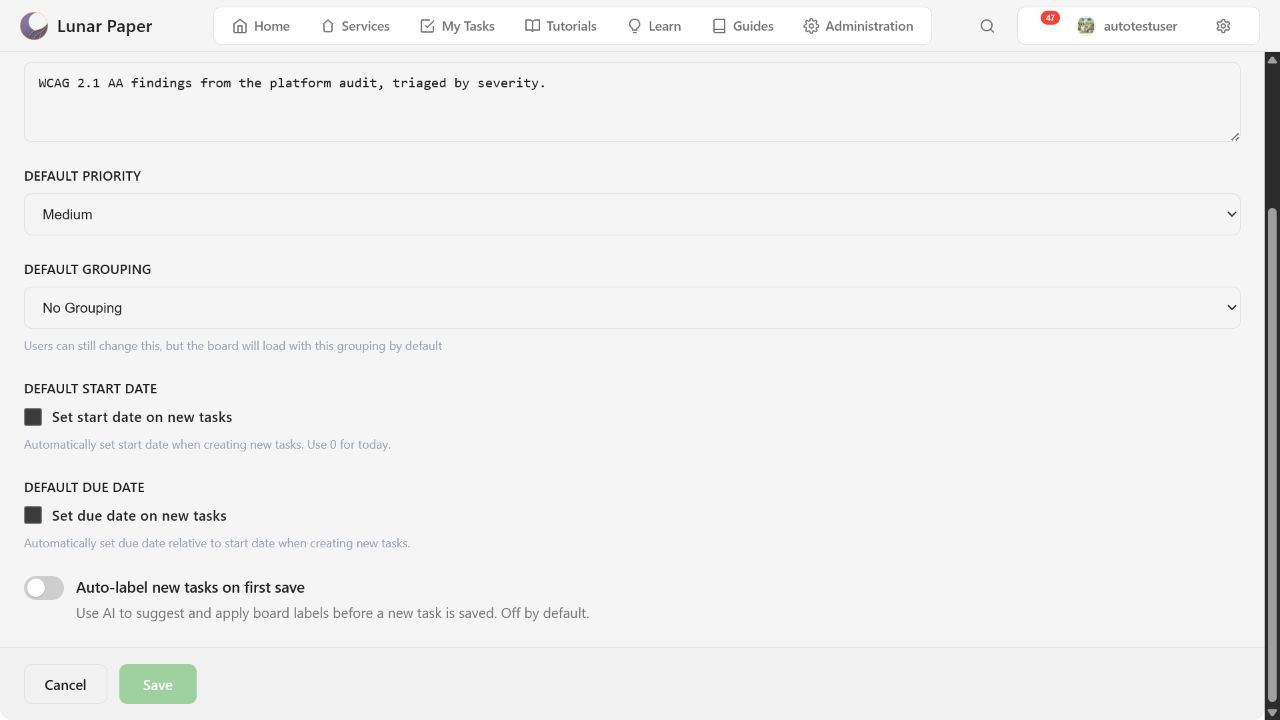
When enabled, Lunar Paper suggests and applies labels during the first save of a new task. If the AI request fails, the task still saves and you can run Auto-label task later.
What the run changes
Section titled “What the run changes”- Detects a reusable set of common labels for the board.
- Creates missing board labels when needed.
- Applies up to three matching labels to each assessed task.
- Preserves labels that were already assigned.
See Board defaults for the other values applied to new tasks.