
Manage forms and pages
A form starts in the service catalogue, but most of the work happens in the page strip: adding a page, naming it so a respondent understands it, and removing one without stranding the answers people have already given. Both ends are covered below, from finding your way back into a form to reshaping its pages once you are there.
Find or reopen a form
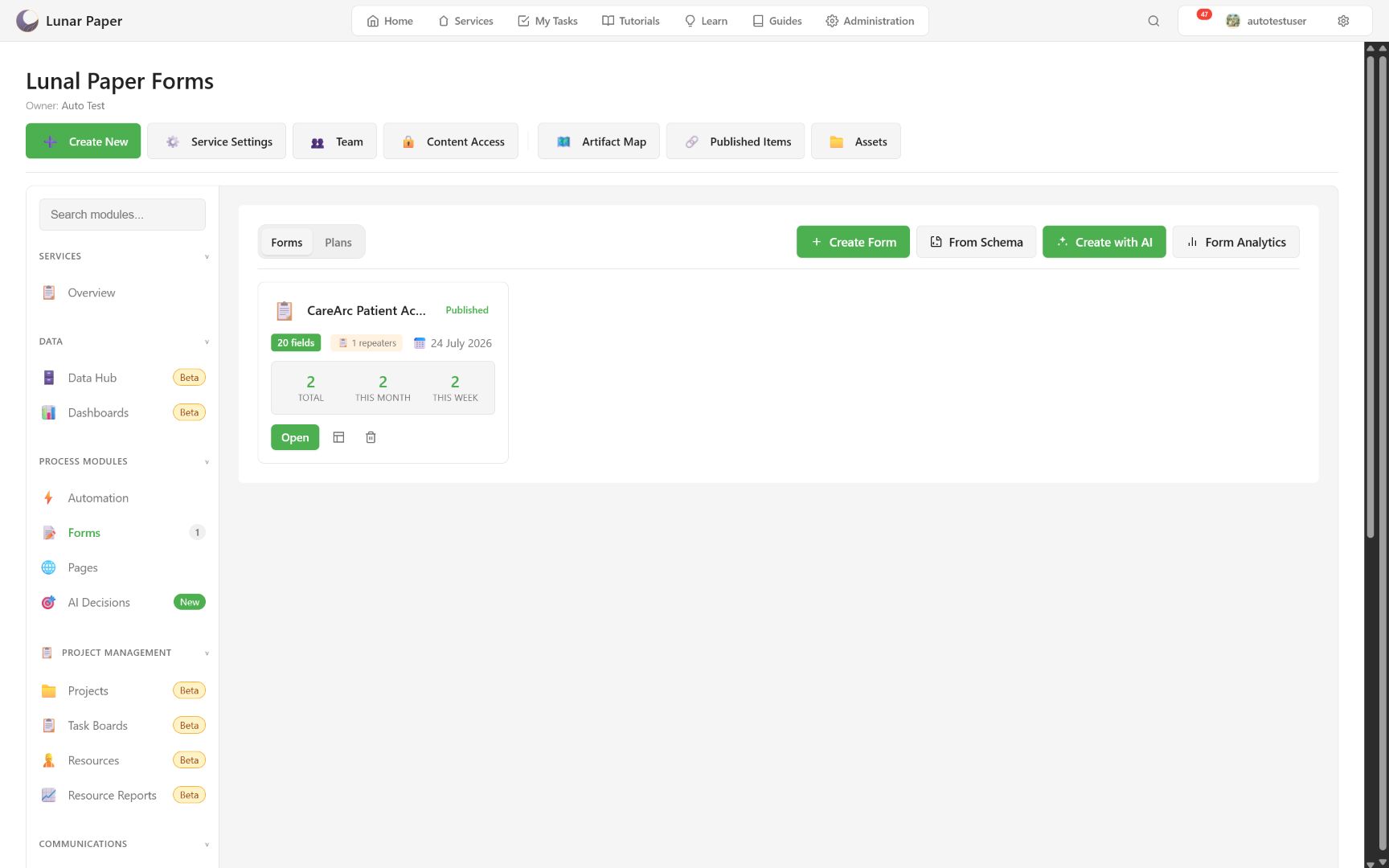
Section titled “Find or reopen a form”Open the owning service and select Forms. Select Open on a card to resume editing, or View Data to inspect stored responses.
A card carries enough to identify a form without opening it: name, published state, stored field count, repeater count, modification date, total responses, responses this month, and responses this week.
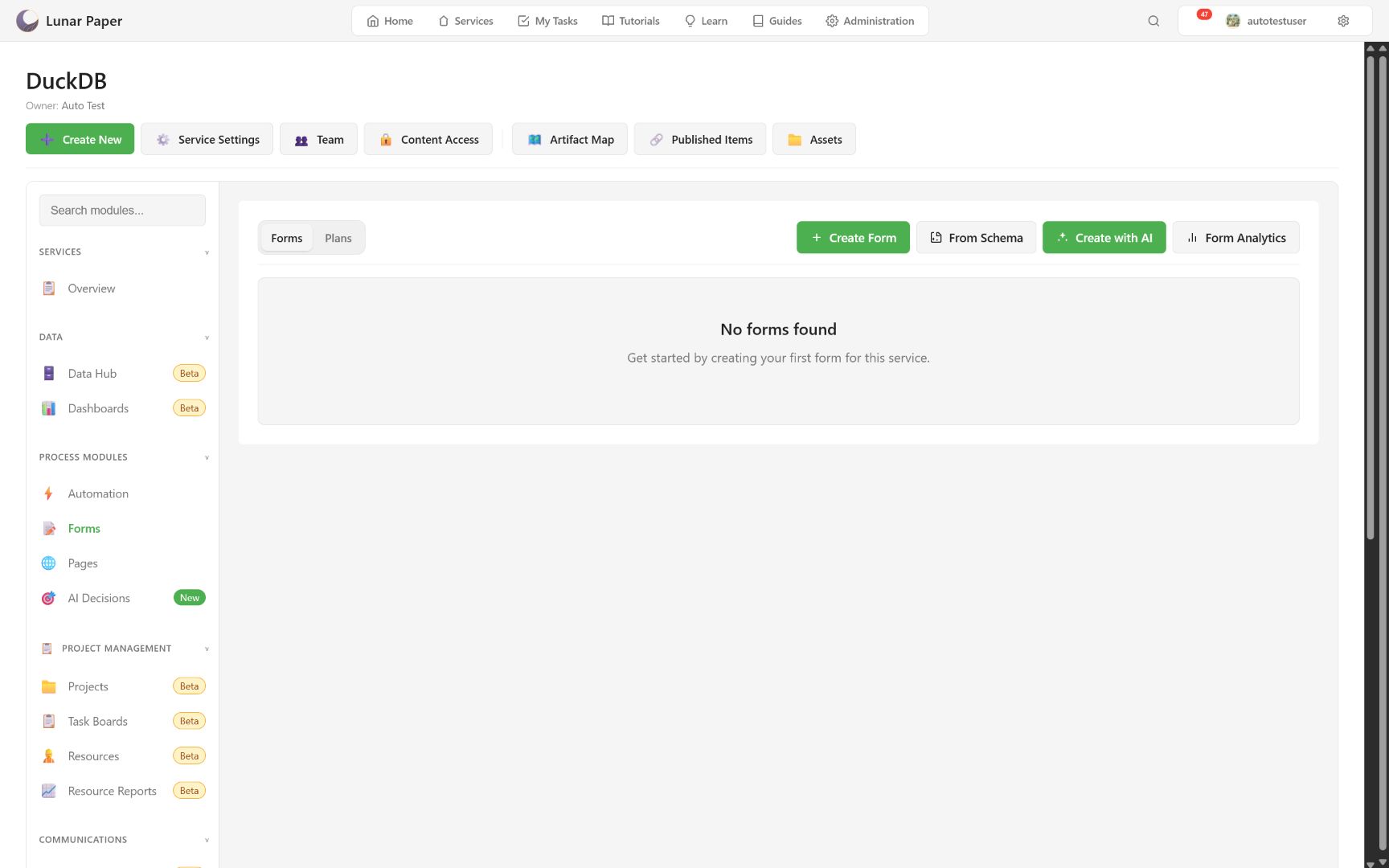
When a service has no forms, the catalogue shows the creation actions instead of an empty table.
Choose a creation path
Section titled “Choose a creation path”- Create Form starts a blank form with metadata you control.
- From Schema accepts a raw Forms schema, copied form record, or canonical API response. Review the imported name, description, and table prefix before continuing.
- Create with AI proposes a form from a description, existing PDF, Word file, image, or preset. Review and approve the proposal before saving.
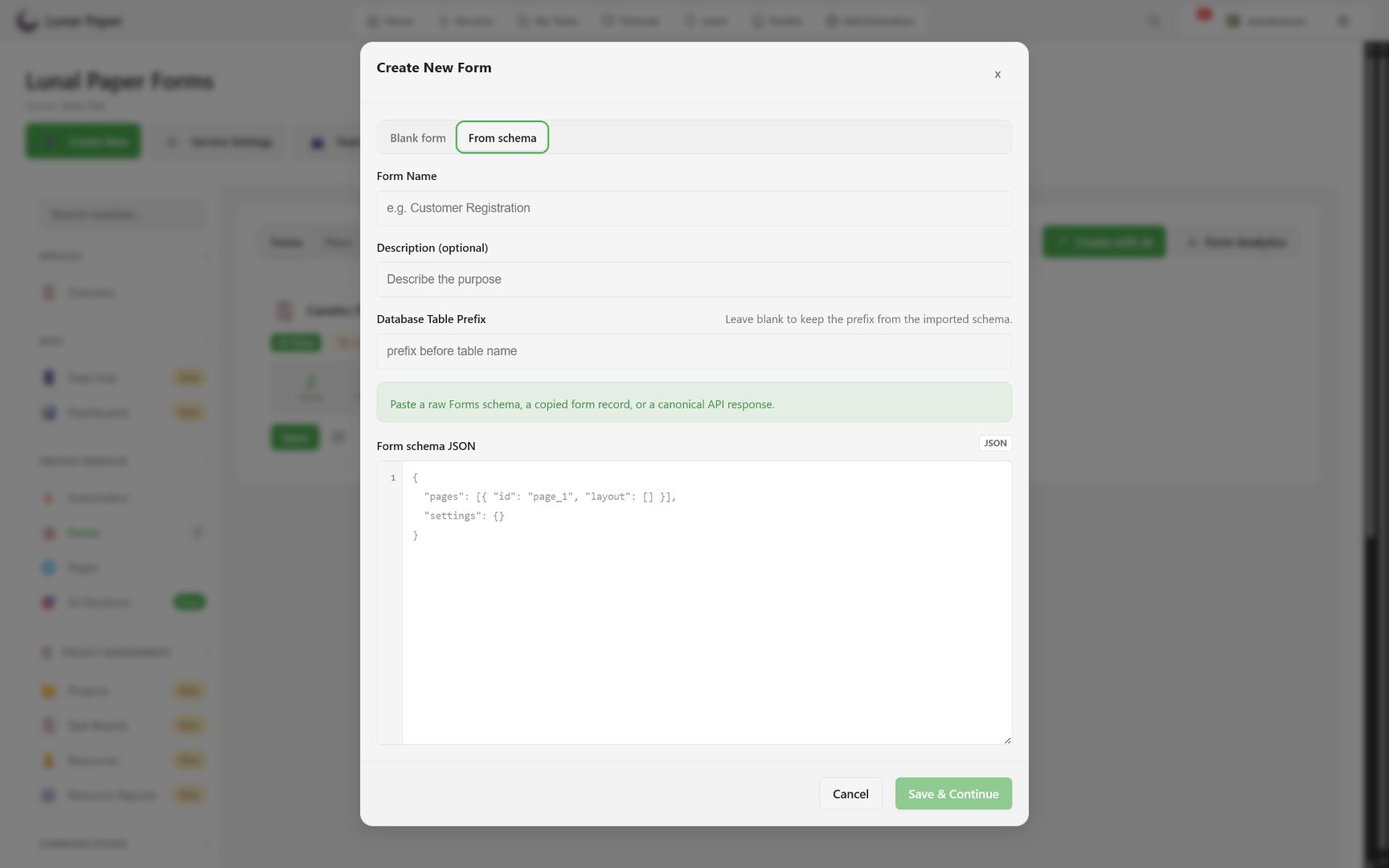
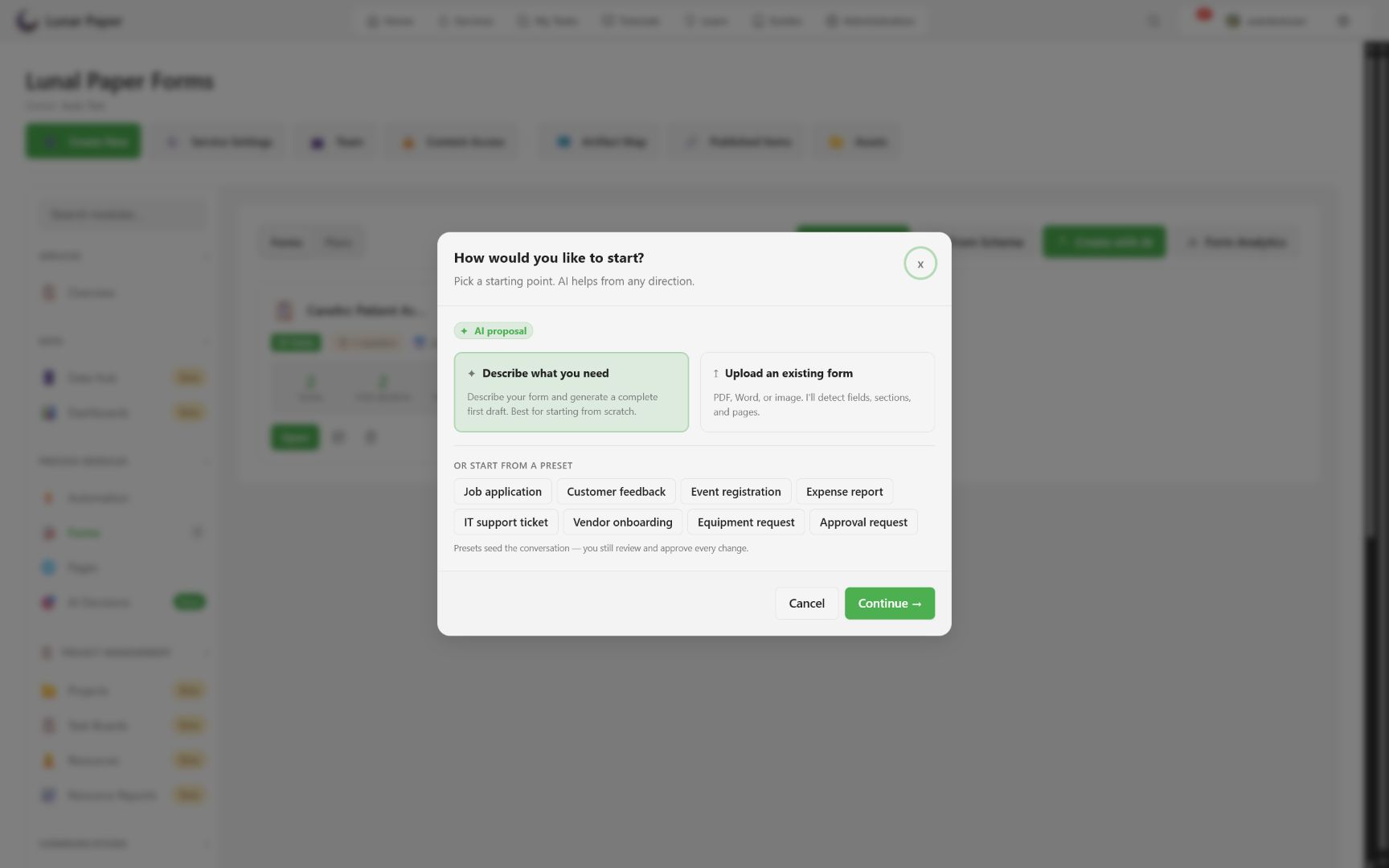
Schema import is best for repeatable templates and environment handoff. AI creation is best for a first draft when the process is known in plain language but has not yet been modeled.
Add and name pages
Section titled “Add and name pages”In the builder, select + Add Page. Rename the new page by double-clicking its page tab or pressing F2 while the tab has focus.
- Enter or blur saves a trimmed name.
- Escape cancels the rename.
- A page name should describe the respondent’s decision, such as “Request details,” not its implementation.
The page strip also identifies the submission-complete page with a Complete badge. That page is excluded from respondent steps and stored answers.
Save and remove pages
Section titled “Save and remove pages”Select Save or press Ctrl+Enter after a meaningful checkpoint. Save before deleting a page if you may need to recover it from version history.
Select the page, then choose Delete page. Deleting a page removes its sections and fields from the current draft. If the form has stored submissions, review Unlinked after the change because historical columns may remain in storage.
Verify persistence
Section titled “Verify persistence”After saving:
- Return to Forms.
- Reopen the same form.
- Confirm the page names, order, page purpose, and selected engine.
- Open Version History and confirm the checkpoint exists.
If a dialog is exploratory, use Cancel, Close, or Escape and verify that the draft does not show unsaved changes.
With the pages in place, Build fields and validation fills them. The catalogue’s Form Analytics action is covered in Review submissions and analytics, and every builder control is listed in the builder and settings reference.