
Editor reference
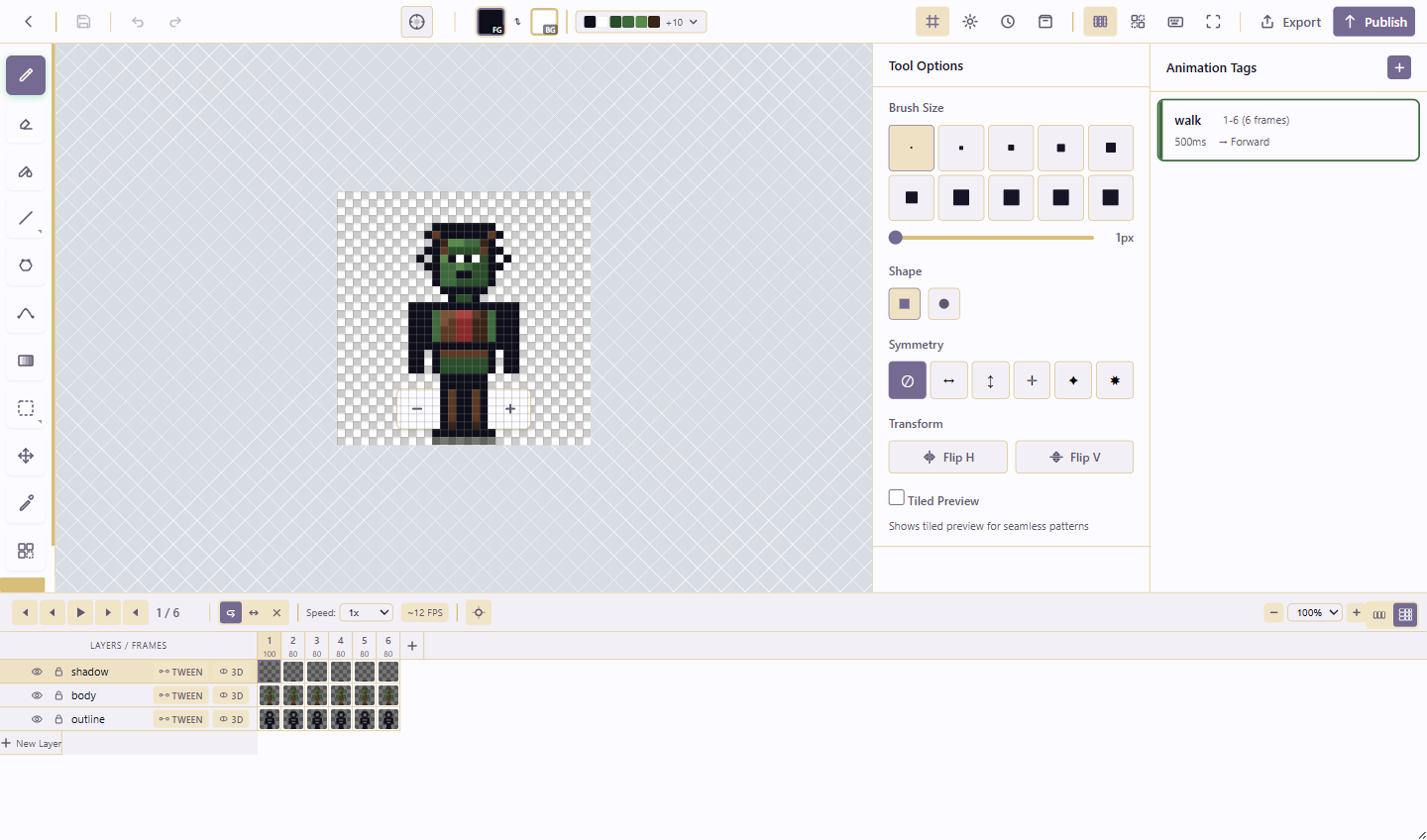
Below is every region of the editor and the controls it holds. For per-tool detail, see the Tools reference.
The five regions
Section titled “The five regions”The editor is laid out in five regions.
- Top toolbar holds project-level actions: save, history, color, panels, export, and publish.
- Tool rail (left) switches the active drawing or selection tool, and opens the Tile Atlas.
- Canvas (centre) shows the current frame at the current zoom.
- Tool Options (right) holds controls for the active tool, such as brush size, shape, and symmetry.
- Timeline (bottom) holds frames, layers, playback, and per-layer actions.
Top toolbar — file and history (left group)
Section titled “Top toolbar — file and history (left group)”| Button | Shortcut | What it does |
|---|---|---|
| Back to projects | — | Leaves the editor, returns to the project library. |
| Save | Ctrl+S |
Writes the current project state. Greyed out when there’s nothing unsaved. |
| Undo | Ctrl+Z |
Reverses the last change. |
| Redo | Ctrl+Y |
Re-applies the last undone change. Ctrl+Shift+Z also works. |
Top toolbar — color (centre group)
Section titled “Top toolbar — color (centre group)”| Button | Shortcut | What it does |
|---|---|---|
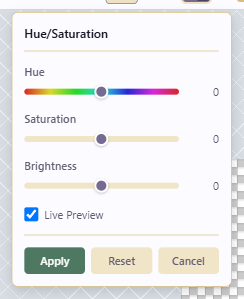
| Hue/Saturation | — | Opens the Hue/Saturation adjustment dialog. |
| FG | — | The foreground color swatch. Drives all drawing tools. Click to edit. |
| Swap Colors | X |
Swaps foreground and background colors. |
| BG | — | The background color swatch. Used for gradients and secondary operations. |
Top toolbar — panels and output (right group)
Section titled “Top toolbar — panels and output (right group)”| Button | Shortcut | What it does |
|---|---|---|
| Toggle Grid | G |
Shows or hides the pixel grid overlay. |
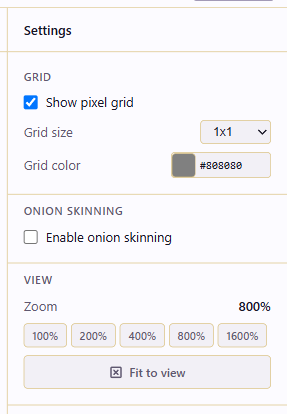
| Settings | — | Opens Settings: grid (show, size, color), onion skinning, view zoom. |
| Version History | — | Opens History with Auto-saves and Published versions; restore or rollback. |
| Asset Store | — | Opens the reusable static and animated asset library. |
| Animation Tags | — | Opens the Animation Tags panel for named frame ranges. |
| Variations | — | Opens the Variations panel for palette and visibility alternates. |
| Keyboard Shortcuts | — | Opens the editable shortcuts panel. |
| Toggle Fullscreen | F11 |
Enters or exits fullscreen. |
| Export | — | Opens the Export dialog. |
| Publish | — | Opens Publish Version to record a milestone with a comment. |
Tool rail (left)
Section titled “Tool rail (left)”The tool rail switches the active tool. Shape Tools and Selection Tools are dropdown groups that expand into subtools. Each tool’s full options are in the Tools reference.
| Tool | Shortcut | Group |
|---|---|---|
| Pencil | B |
— |
| Eraser | E |
— |
| Fill | Shift+G |
— |
| Shape Tools | — | Line L, Rectangle U, Ellipse O, Polygon P |
| Contour | C |
— |
| Spline/Curve | S |
— |
| Gradient | D |
— |
| Selection Tools | — | Rectangle Selection M, Magic Wand W, Lasso Q, Ellipse Selection J |
| Move | V |
— |
| Eyedropper | I |
— |
| Tile Stamp | T |
— |
| Tile Atlas | — | Opens the Tile Atlas panel. |
Tool Options panel (right)
Section titled “Tool Options panel (right)”Tool Options changes with the active tool. Common controls:
- Brush Size: 1, 2, 3, 4, 5, 6, 8, 10, 12, 16 px, plus a slider.
- Shape: Square or Circle (Pencil, Eraser).
- Symmetry: None
⊘, Horizontal↔, Vertical↕, Both✛, Radial 4✦, Radial 8✸. - Transform: Flip H, Flip V.
- Tiled Preview repeats the canvas so you can check seams while drawing tiles.
Tool-specific controls (Fill Mode, Tolerance, Stroke/Filled, Auto-close, Gradient type and Dither) appear only when their tool is active; see the Tools reference.
Canvas and zoom
Section titled “Canvas and zoom”The canvas sits in the centre. Above it is a small zoom bar with Zoom Out (-), the current zoom percentage (for example 800%), and Zoom In (+). Keyboard shortcuts for the same actions: Ctrl+- to zoom out, Ctrl+= to zoom in, and Ctrl+0 to fit the canvas to the view. The grid toggle (G) and fullscreen (F11) live in the top toolbar.
Timeline (bottom)
Section titled “Timeline (bottom)”The timeline holds frames, layer rows, playback, and per-layer actions. The full mechanics are in Layers, frames & the timeline.

- Simple Timeline / Grid Timeline switches between a single row of frames and layer rows against frame columns.
- Playback bar: First/Prev/Play/Next/Last, loop modes, speed (0.25x to 4x), and the current frame indicator.
- Frame strip: numbered frame thumbnails, each with its own duration in milliseconds, plus Add Frame.
- Layer rows: Hide, Lock, name, Tween, and pseudo-3D buttons per layer, with New Layer at the end.
Panels opened from the toolbar
Section titled “Panels opened from the toolbar”Asset Store
Section titled “Asset Store”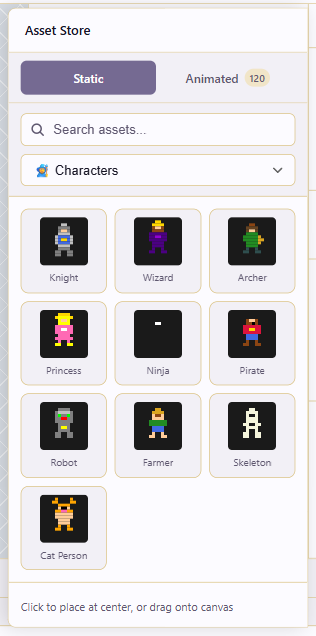
The Static and Animated tabs are filtered by category (Characters, Enemies, Items, Weapons, Nature, Buildings, UI, Food, Vehicles, Effects). Click a static asset to place it at the canvas centre, or drag it onto the canvas. Animated assets insert as a frame sequence.
Animation Tags
Section titled “Animation Tags”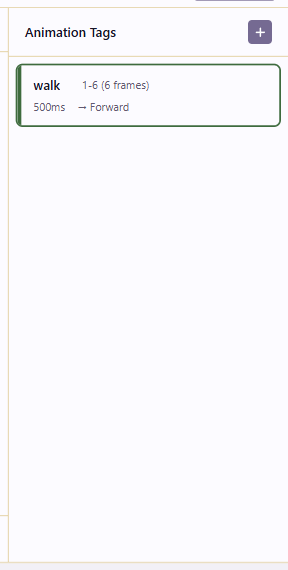
Each tag has a name, frame range, total duration, and playback direction (Forward, Reverse, Ping-Pong). Tags drive tag-targeted export. See Slice animations with tags.
Variations
Section titled “Variations”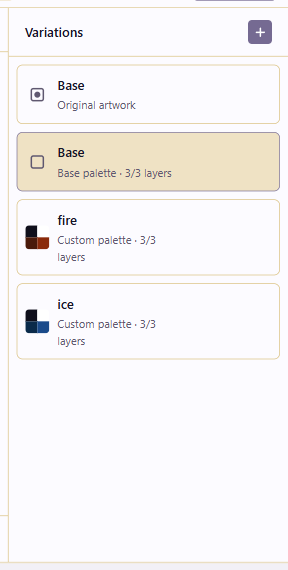
A project holds a Base plus any number of variations. Each variation carries a custom palette, a layer-visibility preset, or both. You can create, duplicate, edit, select, or delete variations.
Export
Section titled “Export”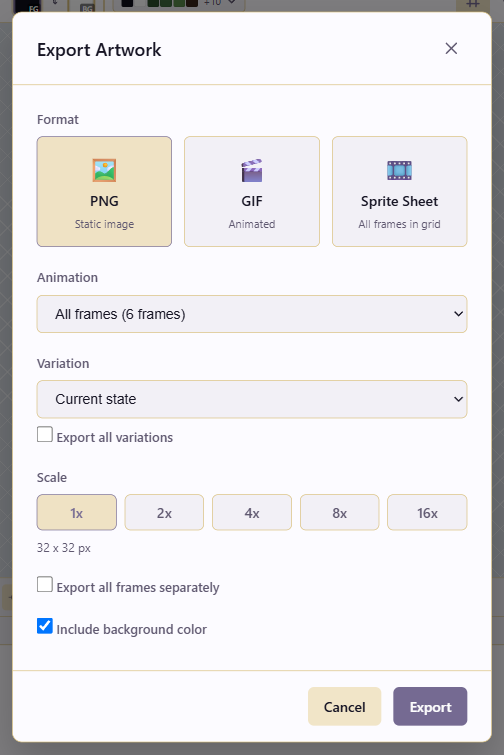
The dialog covers format (PNG / GIF / Sprite Sheet), animation range (all frames or a tag), variation (current / base / named / all), scale (1x to 16x), and format-specific options. The full reasoning behind each option is on the Export formats & engine handoff concept page.
Publish Version
Section titled “Publish Version”Publish Version prompts for a Version comment, then records a published milestone under Version History.
Presence and collaboration
Section titled “Presence and collaboration”A number badge next to the toolbar shows other users currently viewing the project. The AI Assistant button at the top-right of the app chrome opens the assistant for structured edits; see the AI actions reference.