
Automation
Automation connects work that would otherwise be repeated by hand. A workflow starts when one trigger fires, passes customer or service data through connected actions, and records what happened in run history.
Use Automation for work such as routing a form submission, synchronising a DataHub record, waiting for an approval, calling an API, generating a document, or notifying a service team.
Start here
Section titled “Start here”Open a service and select Automation. Choose Create Workflow for a new draft or Open on an existing workflow.
Every workflow has:
- one trigger, which defines when the workflow starts and the initial
ctxdata; - one or more actions, which perform work and expose outputs;
- connections, which control the next step, branch, success path, or error path;
- test data, variables, and earlier outputs that can be inserted with the expression picker;
- a draft definition that is saved automatically while you work;
- a published definition used by live triggers.
Read Designer and testing before building your first workflow. It explains autosave, the 100% opening view, connections, expressions, test profiles, retries, run history, versions, and publishing.
Find the right trigger
Section titled “Find the right trigger”A trigger represents a customer or platform moment: a submitted form, a schedule, a signed webhook, a changed DataHub row, a new booking, a task event, or a content lifecycle event.
Trigger reference covers every trigger currently offered by the designer, every configuration field, the data to expect, and when to narrow its scope.
Find the right action
Section titled “Find the right action”The designer groups actions by purpose: Flow Control, Layout, Data, Transform, Platform, AI, Web & APIs, Communication, Human Tasks, and Developer Tools. Availability follows the modules enabled for the service.
Action reference covers all 59 runtime actions and the designer-only layout tools. The specialist references add deeper configuration examples for:
Learn with ten complete examples
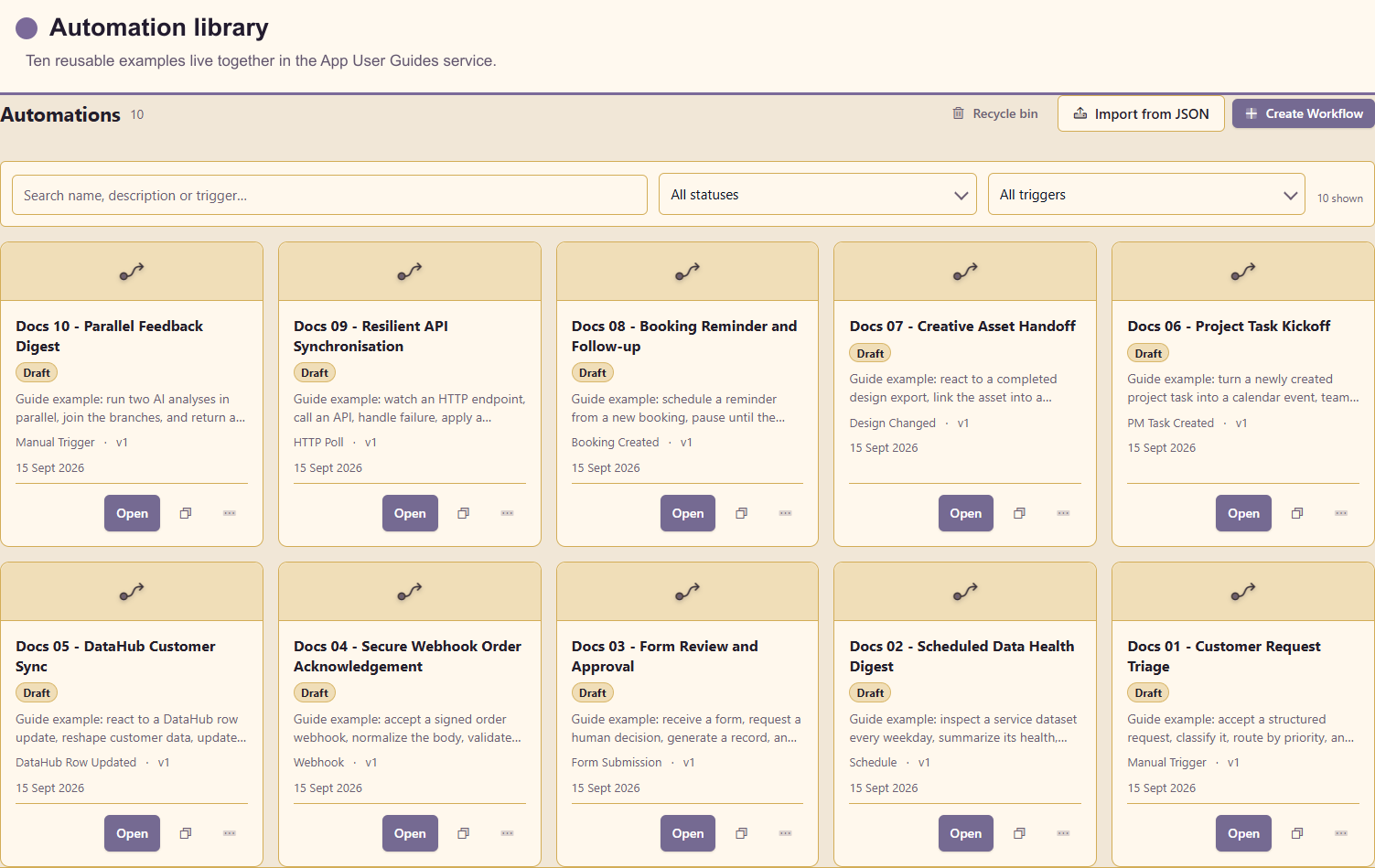
Section titled “Learn with ten complete examples”The workflow guide collection walks through ten customer journeys from trigger configuration to testing and release:
- customer request triage;
- scheduled DataHub health digest;
- form review and approval;
- signed webhook acknowledgement;
- DataHub customer synchronisation;
- project task kickoff;
- creative asset handoff;
- booking reminder and follow-up;
- resilient API synchronisation;
- parallel feedback analysis.
The matching drafts are stored in the App User Guides service (service 20). They are deliberately unpublished so you can inspect, duplicate, and complete environment-specific choices without causing customer notifications or external writes.
A safe production path
Section titled “A safe production path”- Define the trigger contract and representative test data.
- Add and connect a small number of actions.
- Use the expression picker instead of retyping references.
- Test actions in dry-run mode; use Run for real only when a side effect is intended.
- Resolve every item in Problems.
- Choose Save & Run and inspect each step in Run history.
- Test ordinary, missing, empty, duplicate, and boundary-case data.
- Publish only after recipients, credentials, resources, and error paths have been reviewed.
Drafts, autosave, and publishing
Section titled “Drafts, autosave, and publishing”The designer autosaves draft changes; a separate Save button is not required. The status indicator reports when a change is saving, saved, or needs a retry. Save & Run flushes the current draft and starts a test run.
Publishing activates the saved workflow for its live trigger. Editing a draft does not silently replace run evidence: use Versions and Run history to understand what changed and what executed. Keep incomplete examples unpublished, especially when an action can send a message, write data, create an item, or call an external system.
Manage waiting human tasks
Section titled “Manage waiting human tasks”Administrators use Task Management to find workflow tasks across users and services, change their current assignment, cancel a task and its workflow run, or recoverably remove finished tasks. Assignees complete their approvals and information requests through My Tasks.