
Export a PNG
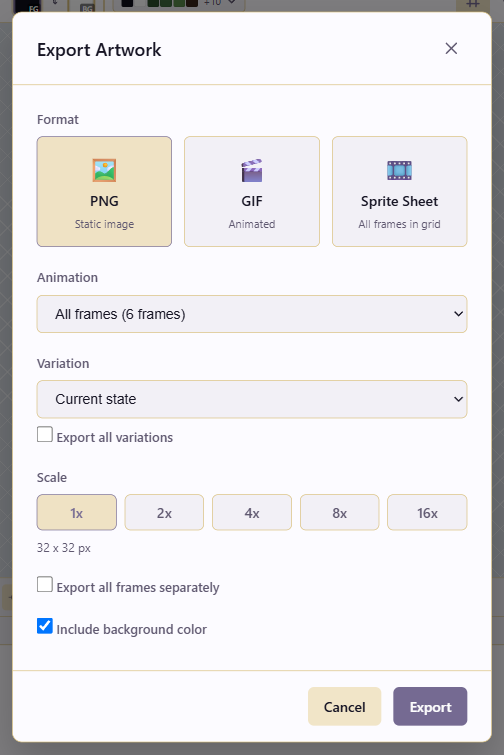
PNG is the format for static pixel art: sprites, icons, tiles, and any single image. It has three export modes, producing a single image of the current frame, every frame as separate files, or one image per variation. For animated formats, see Export a GIF or sprite sheet; for the reasoning behind every option, see Export formats & engine handoff.
Save first
Section titled “Save first”Press Ctrl+S. Export uses the saved state, so saving first makes sure the export reflects your latest work.
Open Export and pick PNG
Section titled “Open Export and pick PNG”Click Export in the top toolbar. Under Format, choose PNG.
A single static image of the current frame
Section titled “A single static image of the current frame”For one PNG of the frame currently shown on the canvas, leave Animation on All frames and make sure Export all frames separately is unticked. The result is one PNG of the current frame, which is whichever frame is selected in the timeline when you open Export.
Every frame as separate files
Section titled “Every frame as separate files”To get one PNG per frame (useful for engines that import frame sequences), tick Export all frames separately. You can scope this to a single Animation Tag by picking that tag under Animation, so you get exactly the frames of, say, the walk tag as walk_1.png through walk_6.png.
Variation
Section titled “Variation”Under Variation, Current state exports what’s on screen; Base exports the original artwork; a named variation exports that look; Export all variations produces one PNG per variation. The last is the fastest way to export a skin family.
1× gives raw pixels. 2× and 4× are common delivery sizes for modern displays, upscaled nearest-neighbour so edges stay hard. 8× and 16× suit large showcase or print uses.
Background
Section titled “Background”Leave Include background color unticked for transparency, typical for game sprites and icons. Tick it only when the destination requires an opaque image.
Two concrete examples
Section titled “Two concrete examples”A 32×32 app icon at 4× for an app store: Animation All frames, Export all frames separately unticked, Variation Current state, Scale 4×, Include background color ticked (app stores usually want opaque), export.
Every frame of a walk cycle as separate files: Animation set to the walk tag, Export all frames separately ticked, Scale 1×, Include background color unticked, export. You get one PNG per frame.
Open the exported PNG afterward and zoom to 100% to confirm the pixels are crisp. If it looks blurry in the destination app, that app is resampling it, so export at the exact size it consumes rather than scaling it there.