
Workspace AI setup and panel reference
The AI panel runs down the right side of a workspace. This page names every part of it.
Choose the Workspace model
Section titled “Choose the Workspace model”Workspace needs more from a model than ordinary chat. One request can involve source selection, a multi-step plan, research synthesis, and structured actions that create or edit content.
Use a current mid-tier to frontier instruction or reasoning model with reliable structured output and a large context window. Good starting points include:
- GPT-5.6 Luna with max reasoning
- Gemini 3.7 Flash
- DeepSeek V4 Flash
- Kimi K2.6
- A newer model with equivalent or better capabilities
These are examples, not a compatibility allow-list. Model availability and identifiers depend on the provider you register, and they change over time. Small or basic chat models may answer simple questions, but they are more likely to return incomplete plans, malformed structured actions, or shallow synthesis on a long run.
As a practical baseline, prefer 128K context or more and a provider output limit of at least 16,384 tokens. Confirm the model’s published limits in Administration → AI → AI Providers; Lunar Paper does not guess unconfirmed limits.
To configure it:
- Open Administration → AI → AI Providers and register the provider and exact model identifier.
- Test the connection, enter the current pricing, and confirm the context and maximum-output limits.
- Open Administration → AI → Module Assignments, choose Workspace, enable it, and select the provider.
- Keep the token safeguards under Advanced limits as a starting point, then test a representative request that researches several topics and creates a document.
The Workspace assignment owns planning, source selection, Research, Scratchpads, and metadata suggestions. Document and Chart task steps deliberately use the providers assigned to their owning Documents and Charts AI modules, so configure those assignments too when your Workspace workflows create those content types.
If plans or actions end partway through JSON, raise Output tokens per AI step within the provider’s confirmed maximum. If a long run stops before later tasks, raise Maximum tokens per process. If the output is valid but weak or inconsistent, move to a stronger mid-tier or frontier model. Web source discovery additionally requires an OpenRouter provider assignment.
Daily request allowance
Section titled “Daily request allowance”Manage request counts in Administration → AI → Allowances. The AI allowances guide explains the shared daily default, user overrides, module caps, resets, and usage history.
A Workspace request counts once against the person’s overall allowance and any Workspace cap. Its internal retries, continuation, and delegated Document or Chart steps do not consume extra requests. Those steps still use their assigned providers and token safeguards.
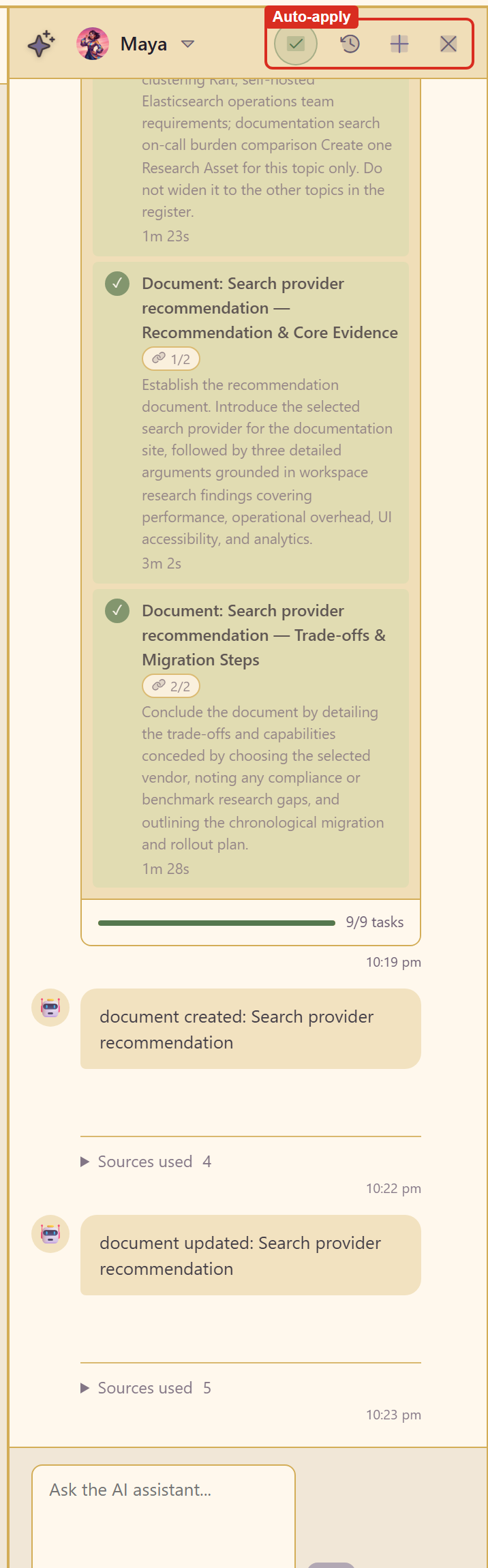
Header
Section titled “Header”
| Control | What it does |
|---|---|
| Persona name | The assistant persona in use. Select AI personality changes it |
| Tick button | Apply AI suggestions automatically — the auto-apply toggle |
| Clock button | Conversation History — earlier conversations in this workspace |
| Plus button | New Conversation — starts a fresh thread |
| Close | Hides the panel |
Under the header is the standing auto-apply notice: new content is created for you, and edits to existing content stay staged until you approve them. It is a button; clicking it switches to reviewing every suggestion.
A new conversation
Section titled “A new conversation”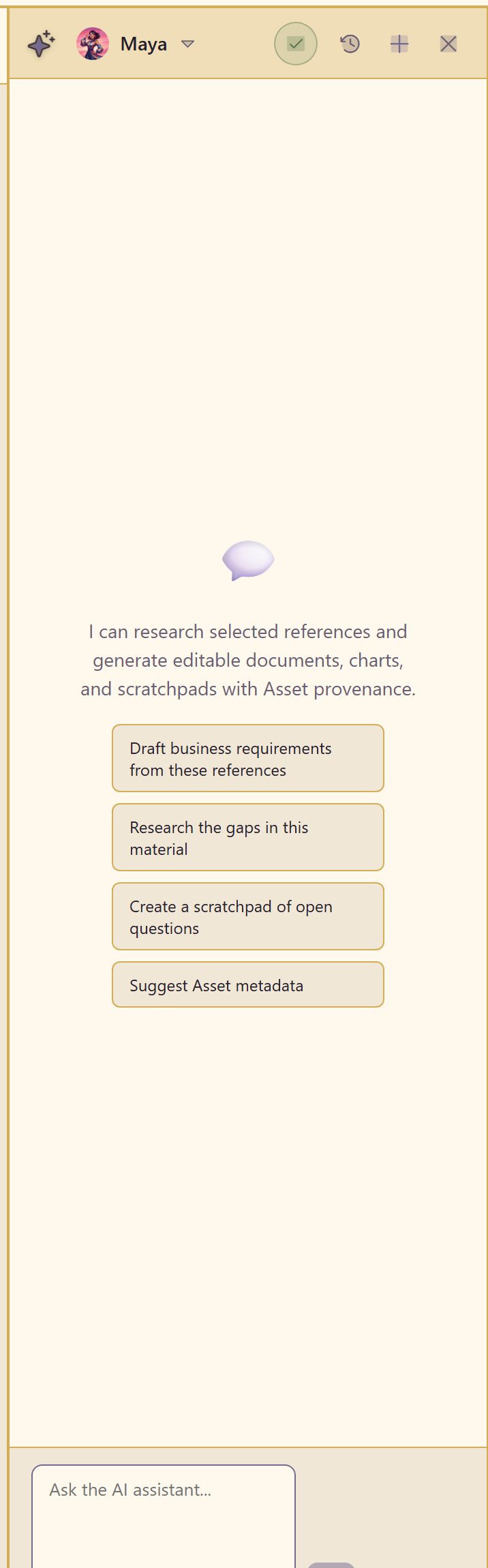
An empty conversation opens with what the assistant can do — research selected references and generate editable documents, charts, and scratchpads with asset provenance — and four starter prompts:
- Draft business requirements from these references
- Research the gaps in this material
- Create a scratchpad of open questions
- Suggest Asset metadata
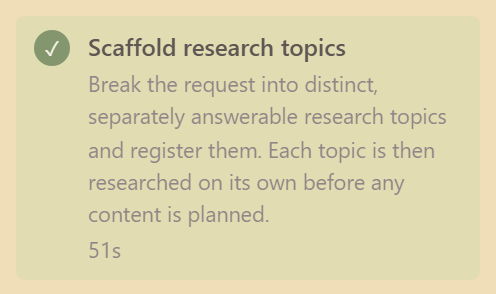
A request that needs work becomes a plan rather than a reply.
| Part | What it means |
|---|---|
| Plan title | The request the plan is working from |
| Step with a tick | Completed. The time on the right is how long that step took |
| Step with a spinner | Running now, with a phase label and a percentage |
| Numbered step | Queued |
| Progress bar | Completed tasks out of total, for example 9/9 tasks |
| Stop | Halts the plan after the current request |
Two notices sit under every running plan: this plan keeps running if you navigate away, and stop takes effect after the current AI request; provider requests cannot be paused safely.
Event messages
Section titled “Event messages”The AI reports what it did as it goes.
| Message | Meaning |
|---|---|
research created: <topic> |
A new research item is in the Research rail |
Research completed with evidence gaps: <topic> |
The topic finished, but not everything could be established |
document created: <name> |
A new content item exists |
document updated: <name> |
Existing content was changed |
Change proposed for <type>: <name> |
A staged edit is waiting for approval |
Suggested actions: ✓ Applied |
A suggestion has been applied |
Sources used
Section titled “Sources used”Every step carries a Sources used count. Open it to see the links behind that step.
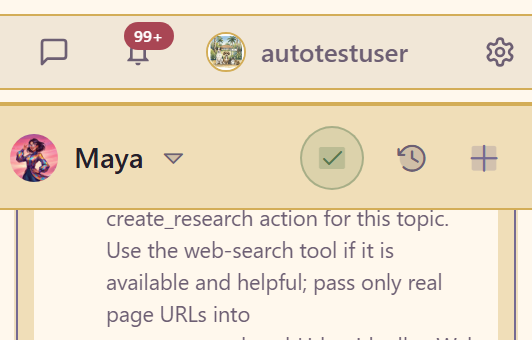
It is the fastest way to tell a well-supported conclusion from a thin one.
Approving a staged change
Section titled “Approving a staged change”When the AI proposes an edit to existing content, the step gains Approve and Dismiss. The panel notes that approval becomes available after the full run completes, so a change proposed early in a long plan waits until the plan finishes.
Composer
Section titled “Composer”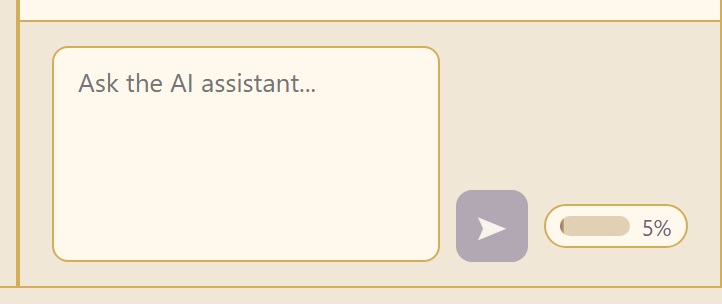
A text box, a send button, and a percentage. The percentage is the context meter: how much of the conversation budget is used before compaction. When it climbs, New Conversation gives you a clean thread without losing anything the old one produced.
Related
Section titled “Related”Control what the AI does covers when to change user-facing settings. Feature list lists the AI capabilities alongside the rest of the module.