
Publish a workspace
Publishing takes the Live content out of a workspace and puts it on a reader-facing page. Two settings gate it, and both live on the content items, not in the publish dialog.
The two things that gate publishing
Section titled “The two things that gate publishing”Content must be Live. Everything starts as Draft, and drafts are never published. Open Configure page on an item and set Page status to Live.
One item must be the landing page. The landing page opens first and is required before you can publish. Turn on Use as landing page on the item readers should see first.
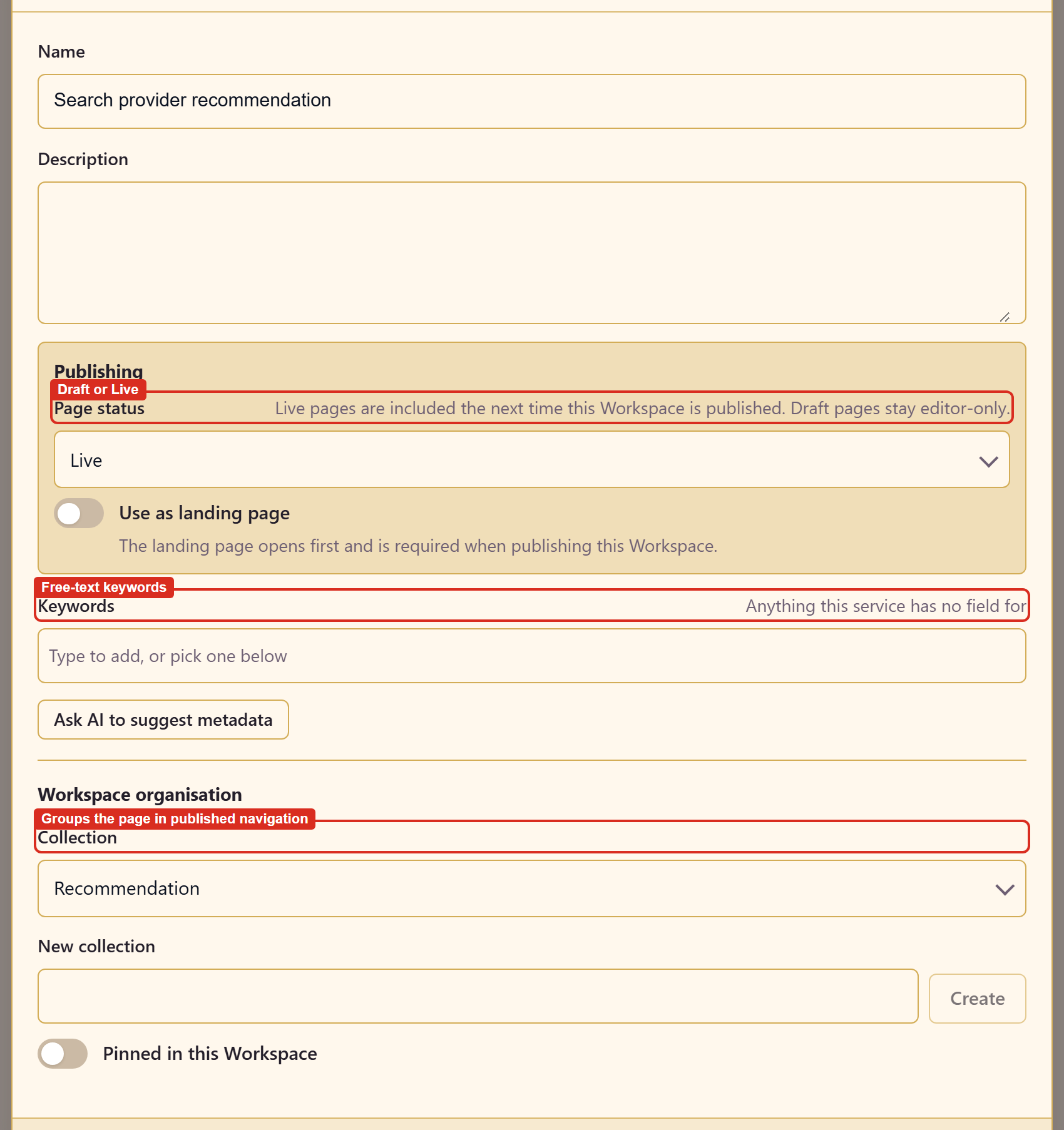
Get either wrong and the publish dialog says so instead of failing quietly. With no Live landing page the message is direct: set the landing item to Live before publishing.
Publishing
Section titled “Publishing”Publish in the workspace header opens a summary of what is about to go out.
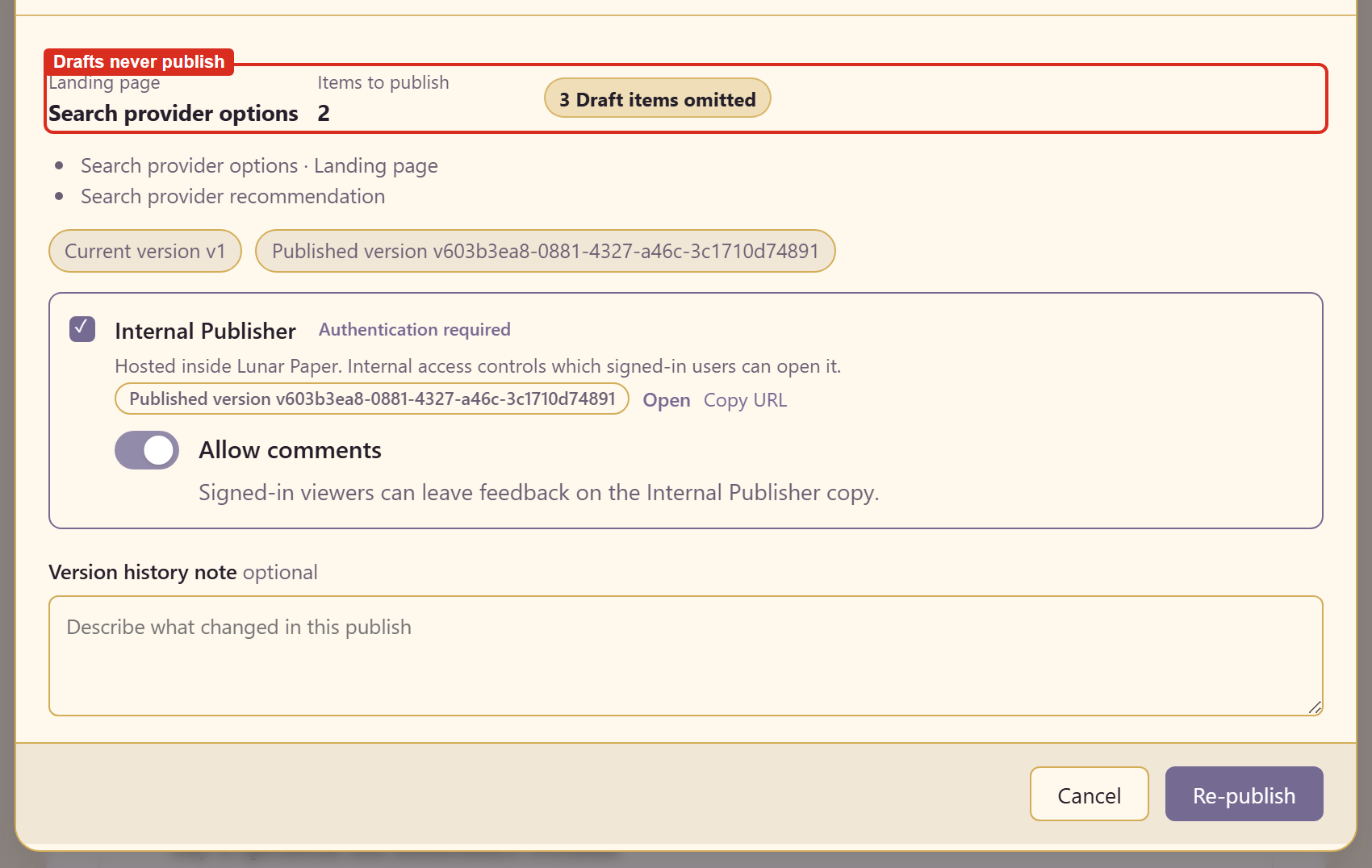
Read the two numbers. Items to publish is what readers will get; the line beneath counts the Draft items omitted. A workspace with four content items and one Live page publishes one page and leaves three behind.
The dialog also carries:
Internal Publisher — the copy is hosted inside Lunar Paper and needs authentication. Who can open it is set by internal access, below.
Allow comments — lets signed-in viewers leave feedback on the published copy.
Version history note — optional, and worth writing. It is the only record of what changed between one publish and the next.
Each item in the list also shows its current version and, once published, its published version, so you can see which pages have moved on since readers last got them.
Once published, the workspace header gains Open published Workspace.
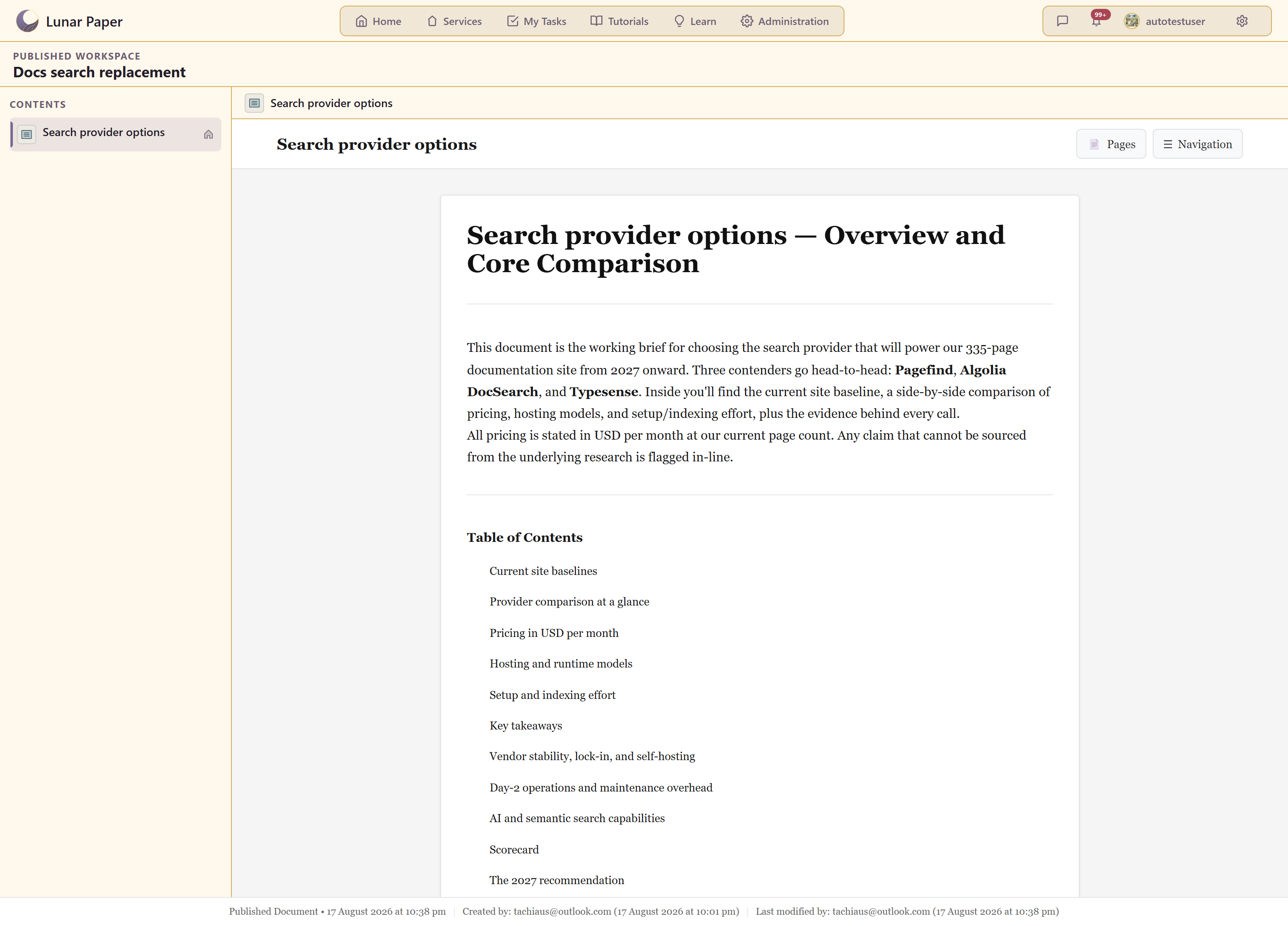
Readers get the landing page and a contents list.
What reaches the navigation
Section titled “What reaches the navigation”Grouping comes from collections. Set one on a content item in Configure page and it appears in Organise navigation as a named group, with everything else under Ungrouped pages. You can also add groups directly in the organiser and drag items between them.
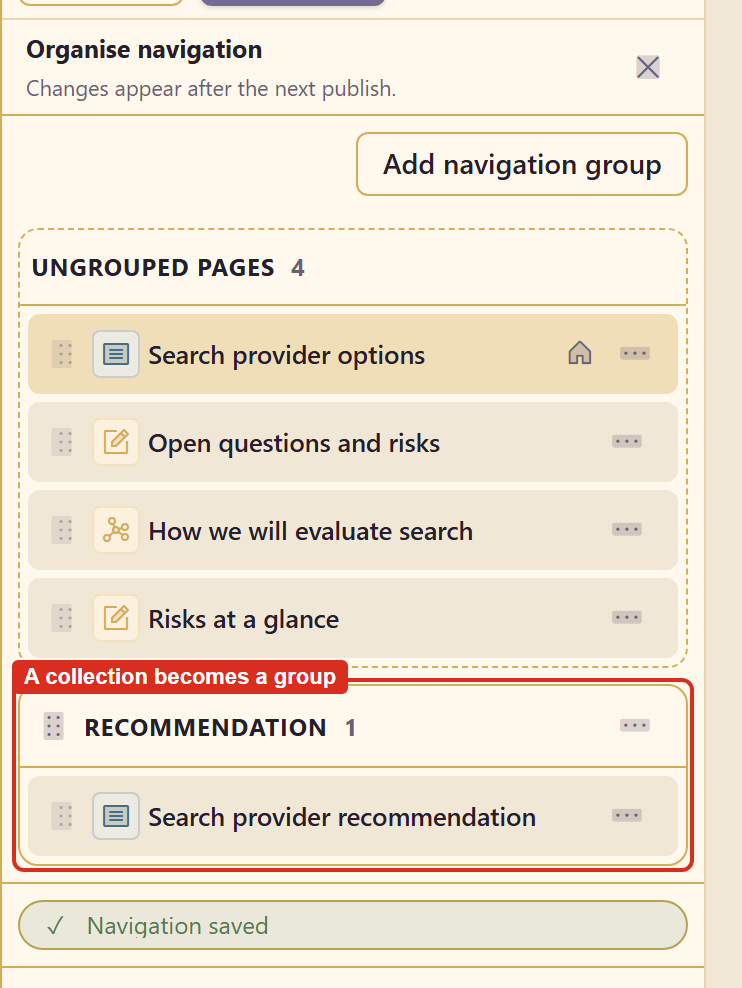
Either way the structure only reaches readers on the next publish, which the organiser states plainly.
The published copy currently shows only the landing page
Section titled “The published copy currently shows only the landing page”On the version tested, a workspace with two Live pages published both — the publish dialog counted them and gave each a published version — but the published contents list linked only the landing page, and the navigation group did not appear. That held across two publishes and fresh loads.
Until it is fixed, treat the landing page as the published output and put anything readers must see inside it. Content and metadata settings has the detail.
Who can open it
Section titled “Who can open it”Share Workspace sets internal access.
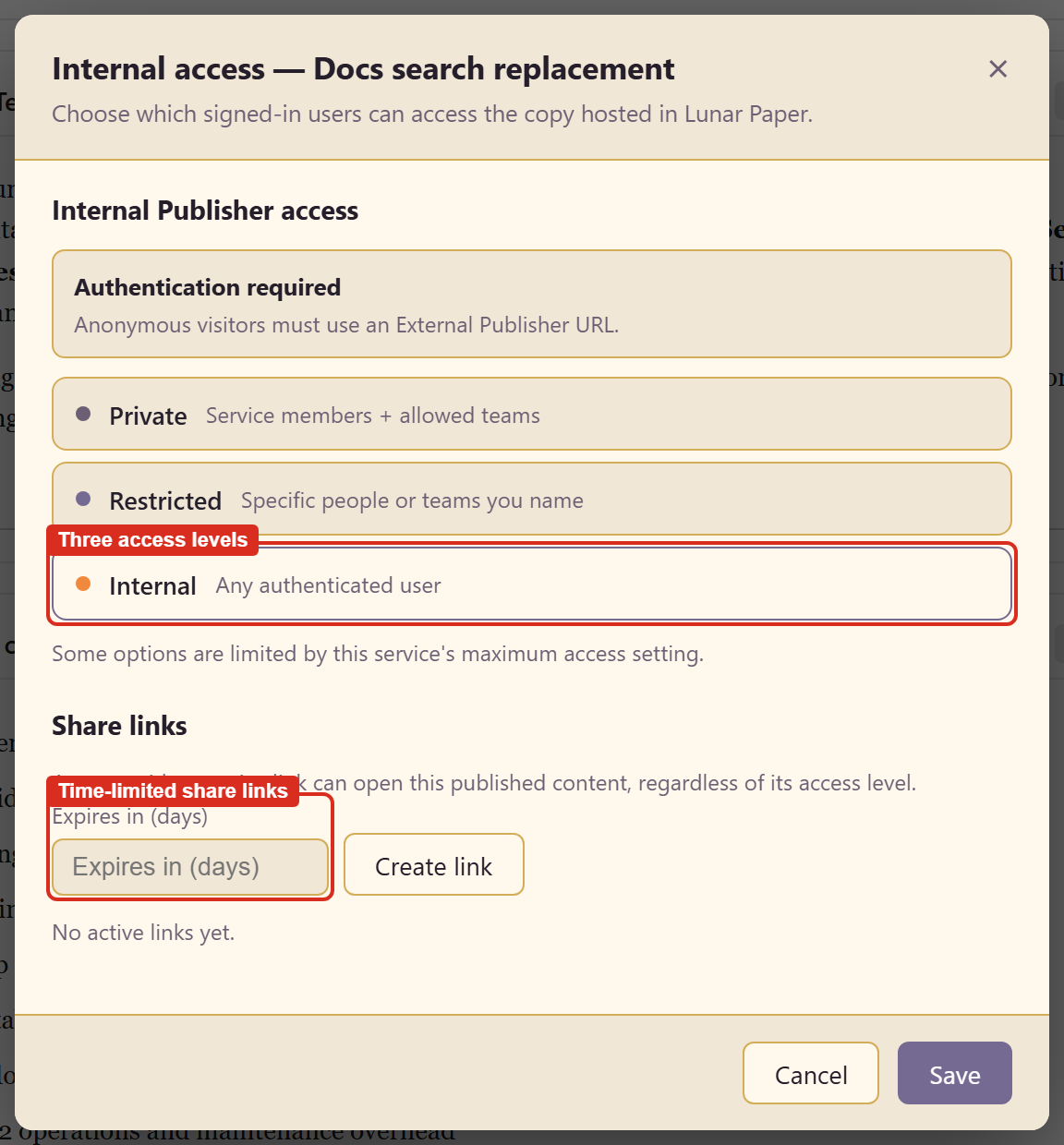
| Level | Who can open it |
|---|---|
| Private | Service members and allowed teams |
| Restricted | Specific people or teams you name |
| Internal | Any authenticated user |
Two limits apply. Some options are capped by the service’s maximum access setting, so a level can be unavailable here because of a service-level decision. And anonymous visitors cannot use any of these; they need an External Publisher URL.
Share links
Section titled “Share links”The same dialog creates links with an expiry in days. Anyone holding an active link can open the published content regardless of its access level, so a share link is a deliberate exception to the access rules, and the expiry is what ends it.
Set an expiry that matches why you created the link. One made for a single review meeting does not need to work next month.
Republishing
Section titled “Republishing”Publishing again replaces the published copy with the current Live content. Items you switched back to Draft drop out; items you switched to Live appear.
Nothing about the workspace itself changes: the research, the references, and the draft content stay where they are.
Related
Section titled “Related”Create content covers page status and navigation in the context of writing. Control what gets published explains how a service decides what can be published and who can reach it.