
Tools reference
Every tool lives on the left tool rail. Press its shortcut at any time to switch. Shape Tools and Selection Tools expand into subtool dropdowns. The full keyboard map is in Keyboard shortcuts.
Drawing tools
Section titled “Drawing tools”Pencil — B
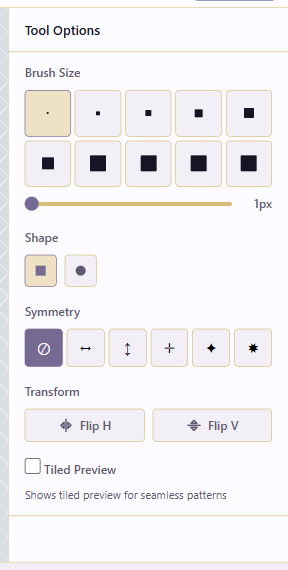
Section titled “Pencil — B”The Pencil is the primary drawing tool. It paints single pixels or multi-pixel brushes in the foreground color on the active layer and frame.
Options: Brush Size (1–16 px, presets plus slider), Shape (Square or Circle), Symmetry, Transform (Flip H / Flip V). Use it for outlines, detail work, hand dithering, and silhouettes.
Eraser — E
Section titled “Eraser — E”The Eraser removes pixels on the active layer. On a transparent layer it clears pixels; on a background layer it reveals the background color. It takes the same brush options as Pencil. Use it for cleanup, carving negative space, and correcting outlines.
Fill — Shift+G
Section titled “Fill — Shift+G”Flood-fills matching pixels.
- Contiguous fills only connected pixels of the same color.
- Global fills every matching pixel on the layer regardless of connection.
- Tolerance sets how close a pixel’s color must be to match.
Use it to block in large areas once a closed outline exists.
Contour — C
Section titled “Contour — C”Draws 4-connected contour paths for clean silhouettes, with no diagonal staircasing unless you draw it deliberately. Optional Auto-close closes the path back to the start. Use it for character outlines or prop silhouettes that need clean edges at 1×.
Spline/Curve — S
Section titled “Spline/Curve — S”Draws curve strokes for arcs, motion lines, capes, tails, and organic silhouettes. Use it whenever a straight Line would look too rigid.
Note:
Shas two jobs in the editor. With a drawing tool active it selects the Spline/Curve tool. During animation playback it solos the selected layer. The active context decides which one fires; the keys page lists both.
Shape tools (dropdown)
Section titled “Shape tools (dropdown)”The Shape Tools dropdown expands into Line, Rectangle, Ellipse, and Polygon.
| Sub-tool | Shortcut | Output |
|---|---|---|
| Line | L |
Straight pixel lines between two points. |
| Rectangle | U |
Outlined or filled rectangle. Hold to constrain to a square. |
| Ellipse | O |
Outlined or filled ellipse. Hold to constrain to a circle. |
| Polygon | P |
Angular polygon. Enter closes, Escape cancels. |
Shape tools share Stroke and Filled modes, plus brush size, symmetry, and transform.
Gradient — D
Section titled “Gradient — D”Transitions between the foreground and background colors.
- Type: Linear or Radial.
- Dither Pattern: None, 2×2 Bayer, 4×4 Bayer, 8×8 Bayer.
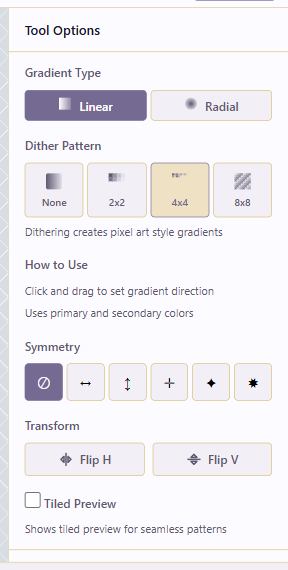
Bayer dithering gives the classic retro gradient look. 2×2 produces a chunky 8-bit look; 4×4 and 8×8 produce smoother gradients on larger canvases.
Selection tools (dropdown)
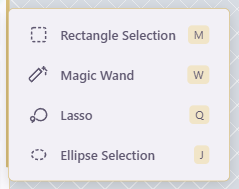
Section titled “Selection tools (dropdown)”The Selection Tools dropdown expands into Rectangle Selection, Magic Wand, Lasso, and Ellipse Selection.
| Sub-tool | Shortcut | Output |
|---|---|---|
| Rectangle Selection | M |
Selects a rectangular region. |
| Magic Wand | W |
Selects similar-colored pixels. |
| Lasso | Q |
Freehand or polygon selection. |
| Ellipse Selection | J |
Selects an elliptical region. |
Magic Wand — W
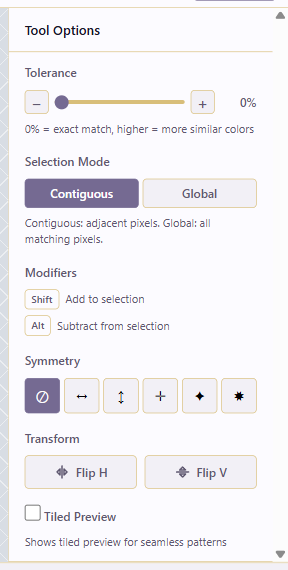
Section titled “Magic Wand — W”Selects pixels similar to the one you click. Tolerance sets how close a color must be to match (0 is exact; higher is broader). Contiguous / Global chooses connected pixels only, or all matches on the layer. Hold Shift to add to the selection and Alt to subtract.
Lasso — Q
Section titled “Lasso — Q”Selects a freehand or polygon region. Click-drag for freehand; click points for polygon and press Enter to close. Shift adds, Alt subtracts.
Move — V
Section titled “Move — V”Moves the current selection if one exists, otherwise all pixels on the active layer. Use it after Rectangle, Ellipse, Lasso, or Magic Wand selection.
Eyedropper — I
Section titled “Eyedropper — I”Samples a color from the canvas and makes it the foreground color.
Reuse tools
Section titled “Reuse tools”Tile Stamp — T
Section titled “Tile Stamp — T”Places reusable tiles stored in the Tile Atlas. Pick a tile from the atlas, then click to stamp. Stamp options include symmetry and flip transforms.
Tile Atlas
Section titled “Tile Atlas”Stores reusable tiles at the service/project level.
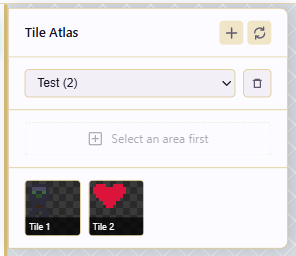
New Atlas creates a named atlas; Refresh reloads the list; Delete Atlas removes one. Add tile pushes the current selection into the active atlas. You can rename or delete individual tiles. The atlas controls are disabled (greyed) when no selection is available to add.
Choosing a tool
Section titled “Choosing a tool”Match the tool to the job. Use the Pencil for freehand pixel work, the Eraser for cleanup, and Fill for closed areas once an outline exists. Use the shape tools for geometric shapes, Contour for clean silhouettes, and Spline for curves. To isolate or move existing pixels, make a selection and then use Move. Use the Eyedropper to sample an existing color, and Tile Stamp or the Asset Store to reuse tiles or prebuilt assets.